8
Content Updates
For customers using a wide area network (Ethernet connection) for content updates, the updates are
delivered to players automatically as long the player is powered and plugged into the network during
scheduled update time periods.
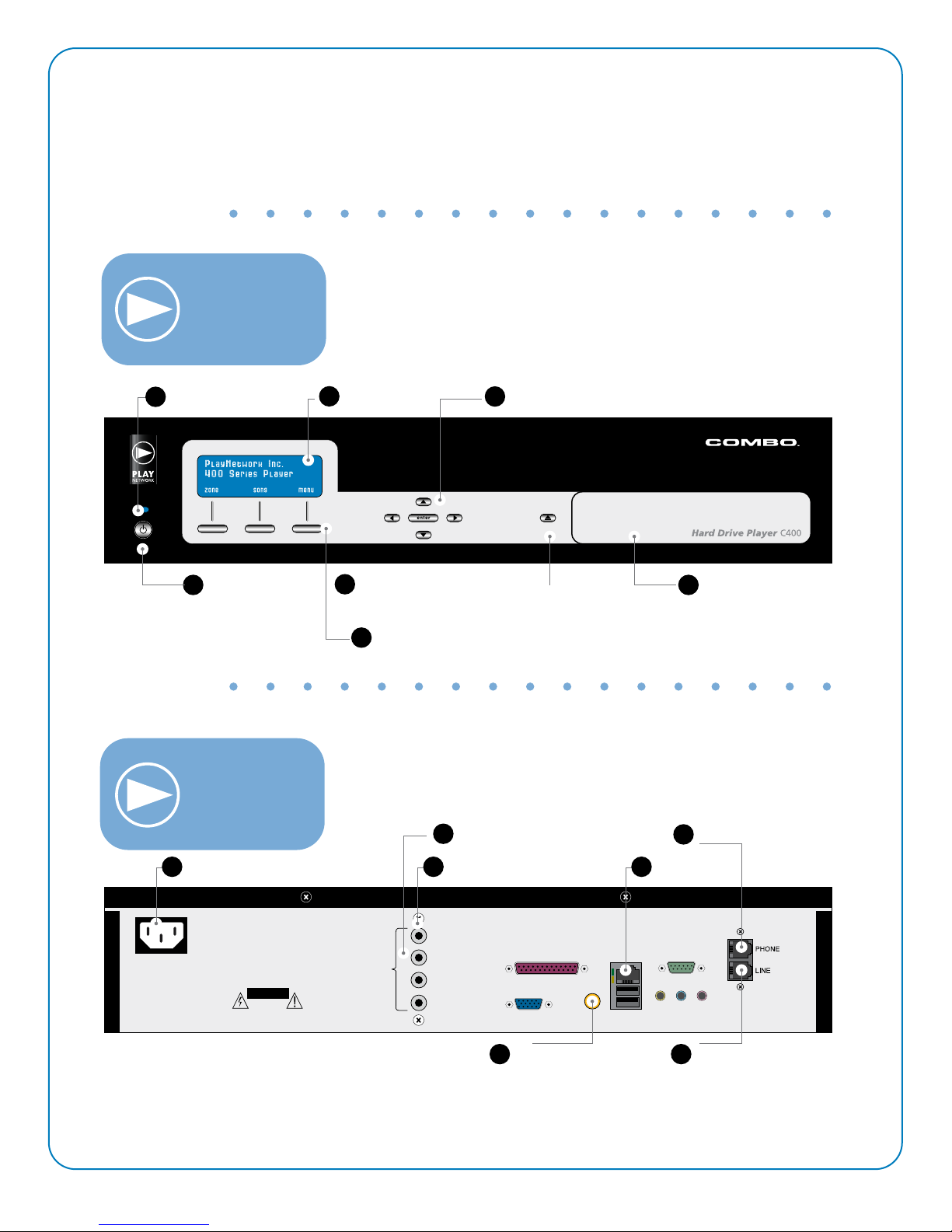
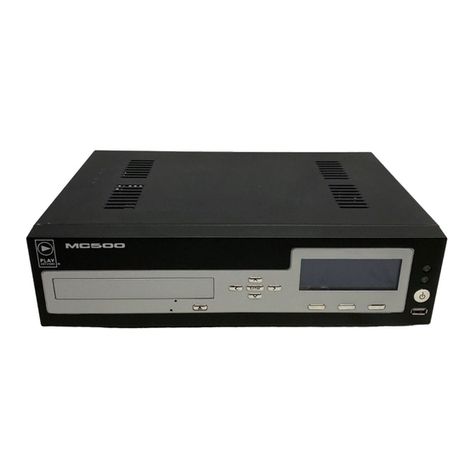
For customers receiving CD-ROM content updates, load a PlayNetwork CD-ROM disc by pressing
the Disk Load/Unload Button and place the disc in the tray (printed side face up), and press the
button again. The player will process the CD-ROM, loading content on to the hard drive and will
eject the CD within 5 to 10 minutes depending on the amount of content found on the disc.
Note: Expired CD-ROMs or non-PlayNetwork discs are automatically ejected.
The Combo player will only work with authorized PlayNetwork CD-ROM load discs. PlayNetwork
CD-ROM discs are intended only for use with PlayNetwork’s players and will not work with
components manufactured by other companies.
Each playlist is programmed to “expire” after a fixed amount of time.
Display
The Combo player comes equipped with a four-line, 20-character LCD display used to show status
and enable control of the playback.
The display has four main modes: Initialization, Now Playing, Menu and Standby.
•Initialization Mode — Upon power up, the player will enter an Initialization mode for 45 to 90
seconds.
•Now Playing Mode — Once the player begins playing content, the display will enter a “Now
Playing” mode showing Program Name, Title and Artist information for the currently playing
song or message on Zone 1, the default zone after power up. This is the default display
mode for the player and with the exception of two situations described below the display
returns to this mode when no user interaction occurs for 60 seconds.
• Menu Mode — The display enters Menu mode in two ways. The Quick Menu, which
contains a list of the most commonly used features, is entered when the “QMenu” shortcut
key on the Now Playing display is pressed. The Main Menu, which contains a complete list
of player menu options, is entered by pressing any of the navigation keys while on the main
display or by selecting the “Main Menu” item on the Quick Menu.
NOTE: If no Title and Artist information is shown on the Now Playing display, the zone’s
playlist is either expired or invalid. If content modification is enabled for your location,
use the View Playlist menu item described below to select a new valid playlist. If no
playlist is available, notify PlayNetwork’s Customer Service department as directed on
the last page of this document.
PLAC400MANUAL
Hard Drive Update
CD Richmix / CD PlayDisc Update
Load a PlayNetwork CD-Rom disc by pressing the Disc Load / Unload Button and place the disc in
the tray (printed side face up), and press the button again. The player will process the CD-Rom and
begin to play music within 30 seconds.
Note: Expired CD-ROMs or non-PlayNetwork discs are automatically ejected.
Each Playlist is programmed to “expire” after a fixed amount of time.