QWERKYWRITER KEYBOARD
7
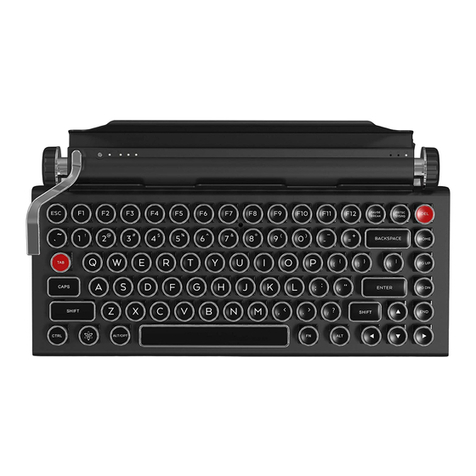
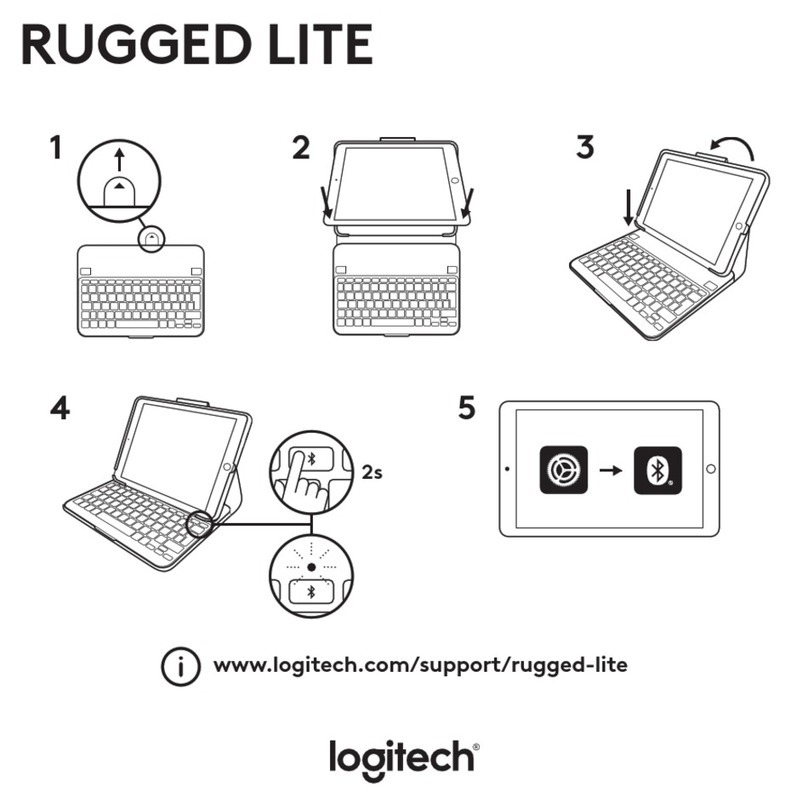
• Turn the Qwerkywriter Power to ON
• Press the Qwerkywriter Connect button
• Follow the directions for either iOS, MacOS, Android, or PC
• The name of the device will appear as either ‘QWERKYWRITER’ or a series of numbers
QWERKYWRITER KEYBOARD
6
QWERKYWRITER KEYBOARD
7
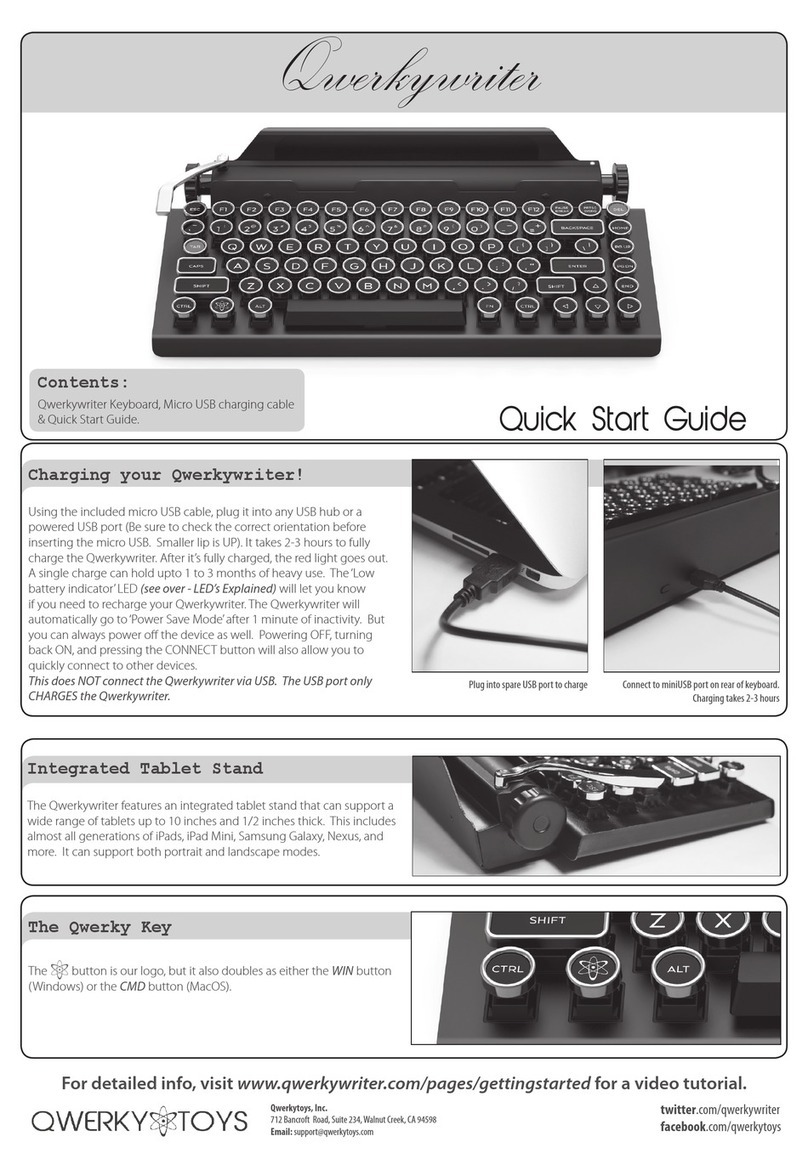
• Your Qwerkywriter is rechargeable, there are no batteries to replace
• To charge plug in the included Micro-USB cable to any USB hub or powered USB port
• Please check the orientation of the Micro-USB before inserting. The smaller lip goes up.
• Plug in for 2-3 hour for a full charge that will last up to 3 months
•
to be charged
• Qwerkywriter only charges, and does not connect, via USB
- Turn the Qwerkywriter Power to ON
- Press the Qwerkywriter Connect button
- Follow the directions for either iOS, MacOS, Android, or PC
- The name of the device will appear as either ‘QWERKYWRITER’ or a series of numbers
Charging
Your
Qwerkywriter
Connecting
Wirelessly
QWERKYWRITER KEYBOARD
6
QWERKYWRITER KEYBOARD
7
• Your Qwerkywriter is rechargeable, there are no batteries to replace
• To charge plug in the included Micro-USB cable to any USB hub or powered USB port
• Please check the orientation of the Micro-USB before inserting. The smaller lip goes up.
• Plug in for 2-3 hour for a full charge that will last up to 3 months
•
to be charged
• Qwerkywriter only charges, and does not connect, via USB
- Turn the Qwerkywriter Power to ON
- Press the Qwerkywriter Connect button
- Follow the directions for either iOS, MacOS, Android, or PC
- The name of the device will appear as either ‘QWERKYWRITER’ or a series of numbers
Charging
Your
Qwerkywriter
Connecting
Wirelessly
Connecting
Wirelessly
POWER BUTTON CONNECT BUTTON