manuals.online logo
Brands
  1. Home
  2. •
  3. Brands
  4. •
  5. Salcom
  6. •
  7. Network Router
  8. •
  9. Salcom 15-15-8000 User manual

Salcom 15-15-8000 User manual

Popular Network Router manuals by other brands

TRENDnet TEW-435BRM - 54MBPS 802.11G Adsl Firewall M Quick installation guide

TRENDnet

TRENDnet TEW-435BRM - 54MBPS 802.11G Adsl Firewall M Quick installation guide

Siemens SIMOTICS CONNECT 400 manual

Siemens

Siemens SIMOTICS CONNECT 400 manual

Alfa Network ADS-R02 Specifications

Alfa Network

Alfa Network ADS-R02 Specifications

Barracuda Networks Link Balancer quick start guide

Barracuda Networks

Barracuda Networks Link Balancer quick start guide

ZyXEL Communications ES-2024PWR Support notes

ZyXEL Communications

ZyXEL Communications ES-2024PWR Support notes

HPE FlexNetwork 5510 HI Series Openflow configuration guide

HPE

HPE FlexNetwork 5510 HI Series Openflow configuration guide

Allied Telesis AT-AR236E quick start guide

Allied Telesis

Allied Telesis AT-AR236E quick start guide

ADTRAN NetVanta 3458-PoE quick start

ADTRAN

ADTRAN NetVanta 3458-PoE quick start

C&H Technologies EM405-8 manual

C&H Technologies

C&H Technologies EM405-8 manual

Huawei WiFi Mesh 3 Product description

Huawei

Huawei WiFi Mesh 3 Product description

Addonics Technologies ISC8P2G-S Quick install guide

Addonics Technologies

Addonics Technologies ISC8P2G-S Quick install guide

Atel W02 Arch+ Faqs

Atel

Atel W02 Arch+ Faqs

Allnet ALL0333AU user guide

Allnet

Allnet ALL0333AU user guide

Sercomm Genesis OC3505D Quick installation guide

Sercomm

Sercomm Genesis OC3505D Quick installation guide

Billion BIPAC 5102 Series user manual

Billion

Billion BIPAC 5102 Series user manual

TP-Link TD-8817 QIG

TP-Link

TP-Link TD-8817 QIG

Motorola MR1900 user guide

Motorola

Motorola MR1900 user guide

Cisco SOHO Series Regulatory compliance and safety information

Cisco

Cisco SOHO Series Regulatory compliance and safety information

manuals.online logo
manuals.online logoBrands
  • About & Mission
  • Contact us
  • Privacy Policy
  • Terms and Conditions

Copyright 2025 Manuals.Online. All Rights Reserved.

SEA AIR & LAND COMMUNICATIONS LIMITED, CHRISTCHURCH, NEW ZEALAND
15-15-8000
1U MiniPC
NZFS Sky TNPP
Flex Decode
NZFS 15-15-8000 VisualPet User’s Manual Iss: VPetNZFS 06/09
Sea Air & Land Communications Ltd. Page 2 of 23
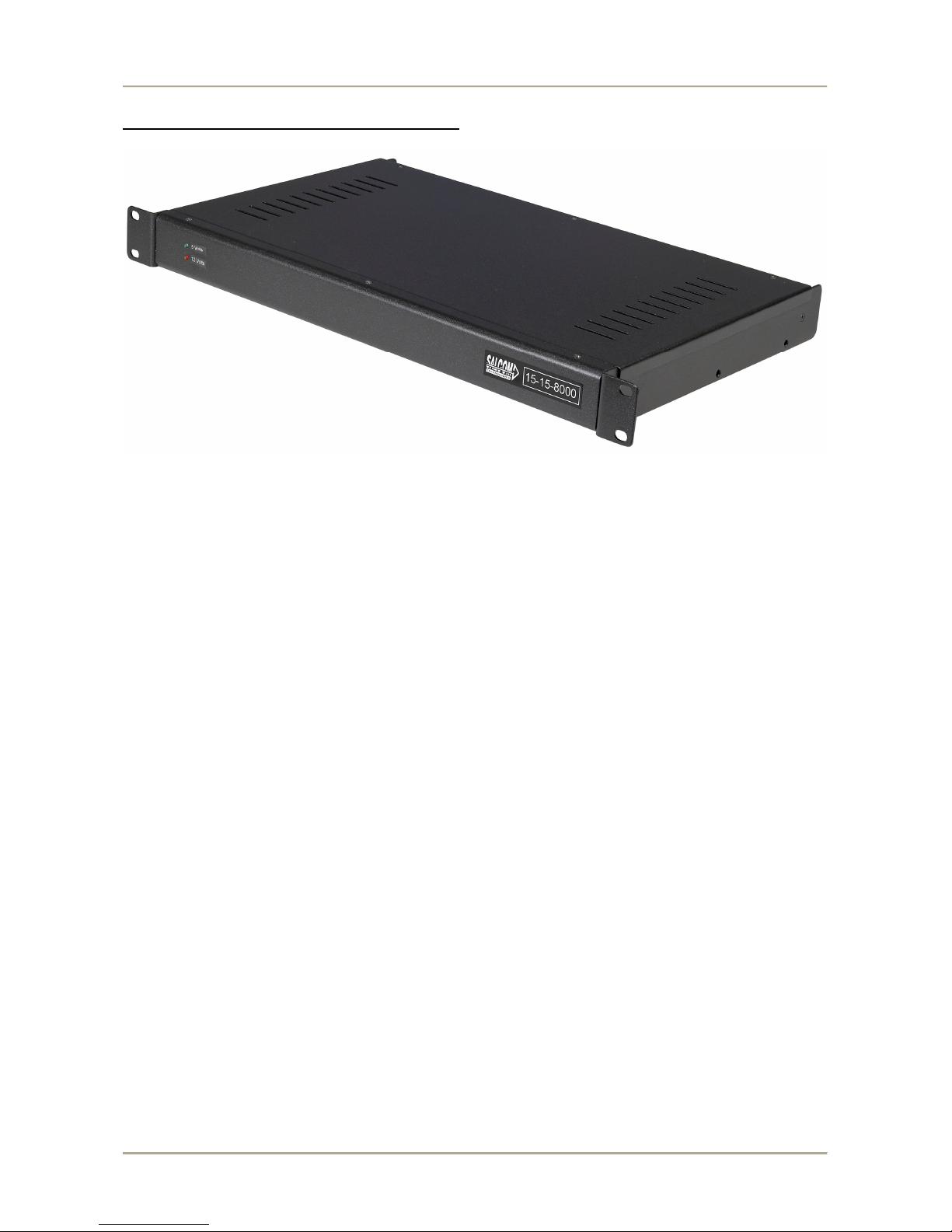
15-15-8000 1U MiniPC Vpet Message Router
The 15-15-8000 is an enhanced message router design using the intelligence of Salcom VisualPet
software.
This combination creates a new direction for message routing, display and logging. VisualPet
allows new technologies to be bought to the remote sites including TCP/IP based protocols like
SMTP (email), HTTP (web browser), TNPP via IP and remote login / management. New message
delivery options like SMS can also be implemented.
The configuration for the NZFS 15-15-8000 uses a Pentium500 miniPC running WindowsXP and
Salcom VisualPet to decode inbound messages from either a Salcom Flex Decoder or the NZFS
Sky Paging Network and pass these messages to a Salcom 15-15 Paging Transmitter.
The 15-15-5000 or 15-15-9000 (15-15-5000 + Intergrated Flex Receiver) Transmitter retains all the
current options required by NZFS – Four programmable inputs, local test page button, PDT selcall
acknowledge and Sky Decoder reset timer.
VisualPet contains a database of valid pagers and will convert the received Sky or Flex Pager RIC’s
into valid codes for transmitting to crews.
NZFS 15-15-8000 VisualPet User’s Manual Iss: VPetNZFS 06/09
Sea Air & Land Communications Ltd. Page 3 of 23
Additional Features
The 15-15-8000 supports the use of a standard LCD display along with connections to four RS232
serial ports, one Ethernet port, two USB, Keyboard and mouse.
The Ethernet port allows remote connection or the use or TCP/IP protocols for message reception or
delivery.
The LCD display can be switched off for power savings without any compromise of 15-15-8000
functionality.
VisualPet can be configured to display and transmit ALL Sky TNPP messages for system tests or
diagnostics.
Log files can be created for each Stations messages sent and saved on a daily basis. These logs can
be retrieved using the remote login feature. Eg:
00:30:01 0999746 (HALC321, FEIL281) 111-VEG SANDON RD HALCOMBE. (XStr TE
RAKEHOU RD/MOUNT STEWART HALCOMBE RD) .TOI TOI ON FIRE THREATENING
SHELTER BELT. #W748388.
00:30:04 0999578 (HALC321, FEIL281) 111-VEG SANDON RD HALCOMBE. (XStr TE
RAKEHOU RD/MOUNT STEWART HALCOMBE RD) .TOI TOI ON FIRE THREATENING
SHELTER BELT. #W748388.
00:32:18 0999102 (MANU301) 111-MIN TAKANINI. (XStrMILL RD/AIRFIELD RD) .CAR
FIRE. #A707046.
Due to the flexibility of the VP Router software, changes to the display content and layout are
easily implemented. The software also allows the addition of new protocols and data types without
hardware changes.
VisualPet – Security
To access any configuration, contacts or router screens within VisualPet a password is required.
This stops unauthorized users from changing contacts or setting within VP Router and possibly
causing the system to stop working correctly.
The default password is: salcom for access to any password configured screens

NZFS 15-15-8000 VisualPet User’s Manual Iss: VPetNZFS 06/09
Sea Air & Land Communications Ltd. Page 4 of 23
VP Router – Configurations
There are two default configurations for the 15-15-8000, TNPP Sky or Flex Decode, which can be
interchanged using a simple tool called Vpet Config (see Vpet Config section below)
Once a configuration has been selected the 15-15-8000 will only need administration of the crew
pager codes (contacts).
The 15-15-8000 does not require any mouse or keyboard to operate.
Connection to the 15-15-8000 for administration is done via a local Keyboard and Mouse or Cat5
Ethernet crossover cable or via connection across the NZFS IP network.
The 15-15-8000 runs VNC as the remote desktop admin tool. The 15-15-8000 is factory configured
with an IP of 192.168.1.150 and once VNC is connected the password of “salcom” will bring up the
15-15-8000 desktop.
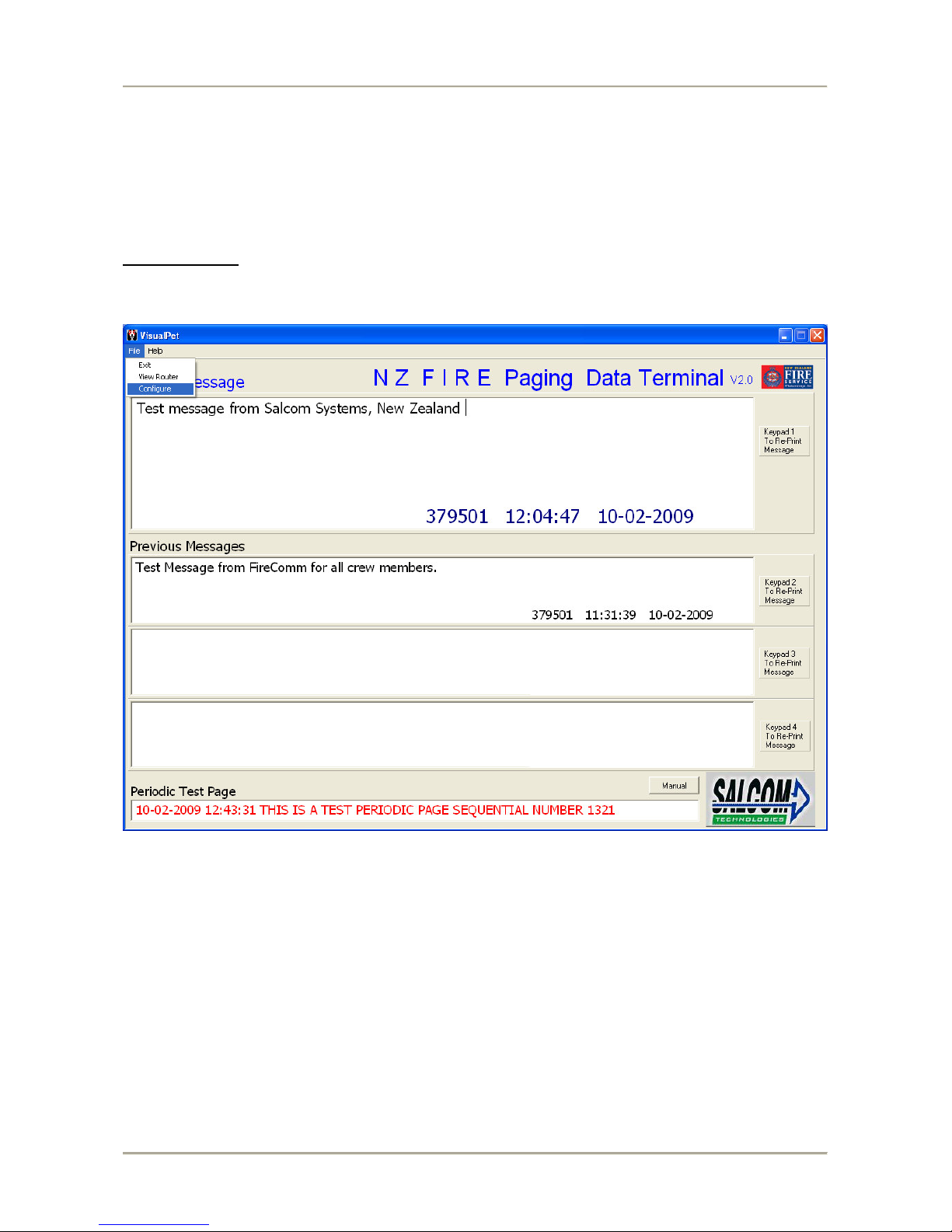
Once a configuration has been installed the main window label will display the configuration and
version number.
Ie:
NZ FIRE SKY PAGING TERMINAL V2.1
NZ FIRE FLEX PAGING DATA TERMINAL V2.1
NZFS 15-15-8000 VisualPet User’s Manual Iss: VPetNZFS 06/09
Sea Air & Land Communications Ltd. Page 5 of 23
Sky TNPP Configuration
The crew pager codes are controlled in VisualPet as “Contacts”. Each contact will be made up of
the receive RIC code sent via TNPP across the Sky network (“Label”) and the destination code for
delivery through the 15-15 Transmitter.
NZFS 15-15-8000 VisualPet User’s Manual Iss: VPetNZFS 06/09
Sea Air & Land Communications Ltd. Page 6 of 23
A Sky decoder will output serial RS232 data to the NZFS VP Router 15-15-8000, this data consists
of NZFS implementation of TNPP data packets.
Sky serial data example:
[01]e004ee777749[02]FA00`01234567THIS IS A TEST PERIODIC PAGE SEQUENTIAL
NUMBER 9651 [03][8b][8e]
NZFS Contacts
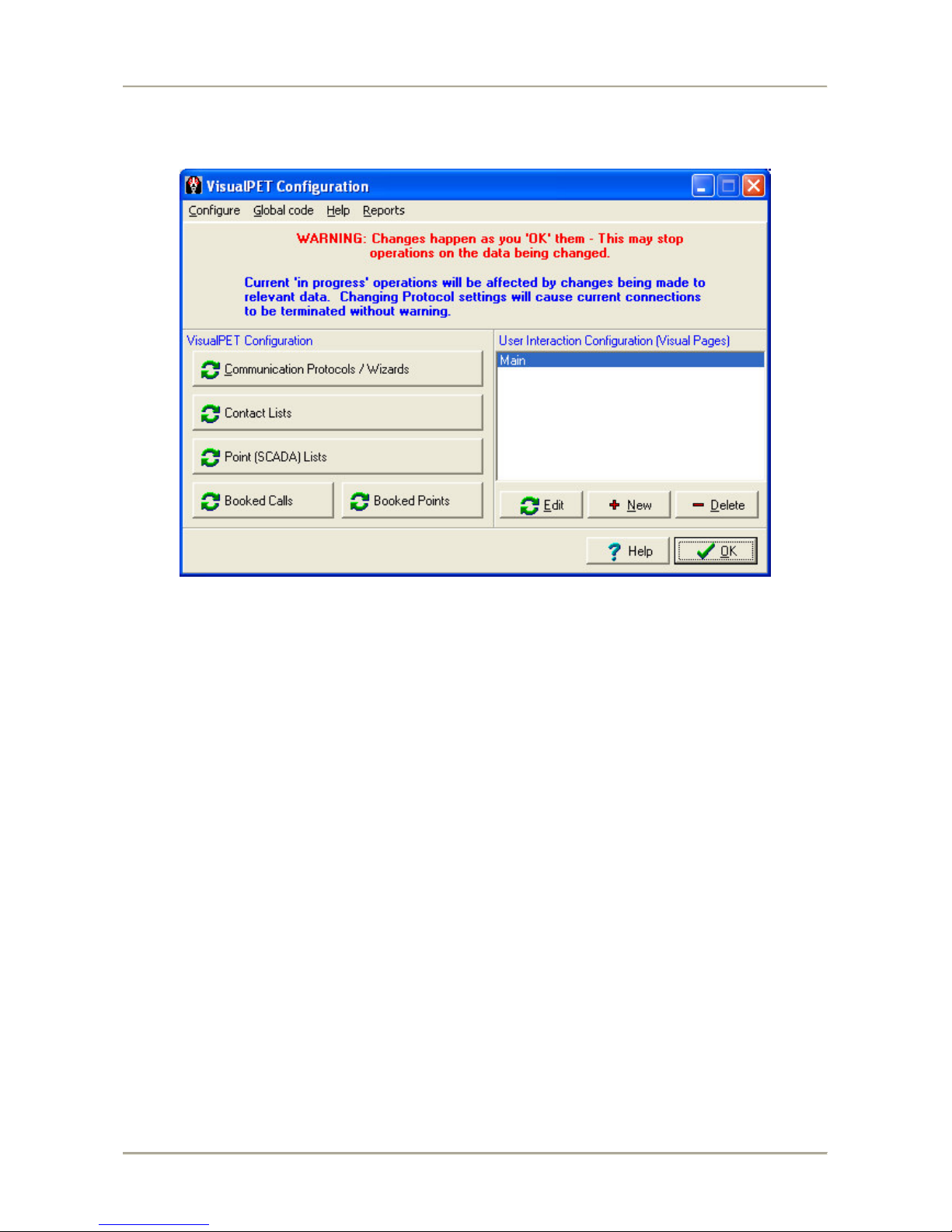
To add a contact File > Configure from the main screen.
NZFS 15-15-8000 VisualPet User’s Manual Iss: VPetNZFS 06/09
Sea Air & Land Communications Ltd. Page 7 of 23
Then from the menu shown click the button labeled Contact Lists.
NZFS 15-15-8000 VisualPet User’s Manual Iss: VPetNZFS 06/09
Sea Air & Land Communications Ltd. Page 8 of 23
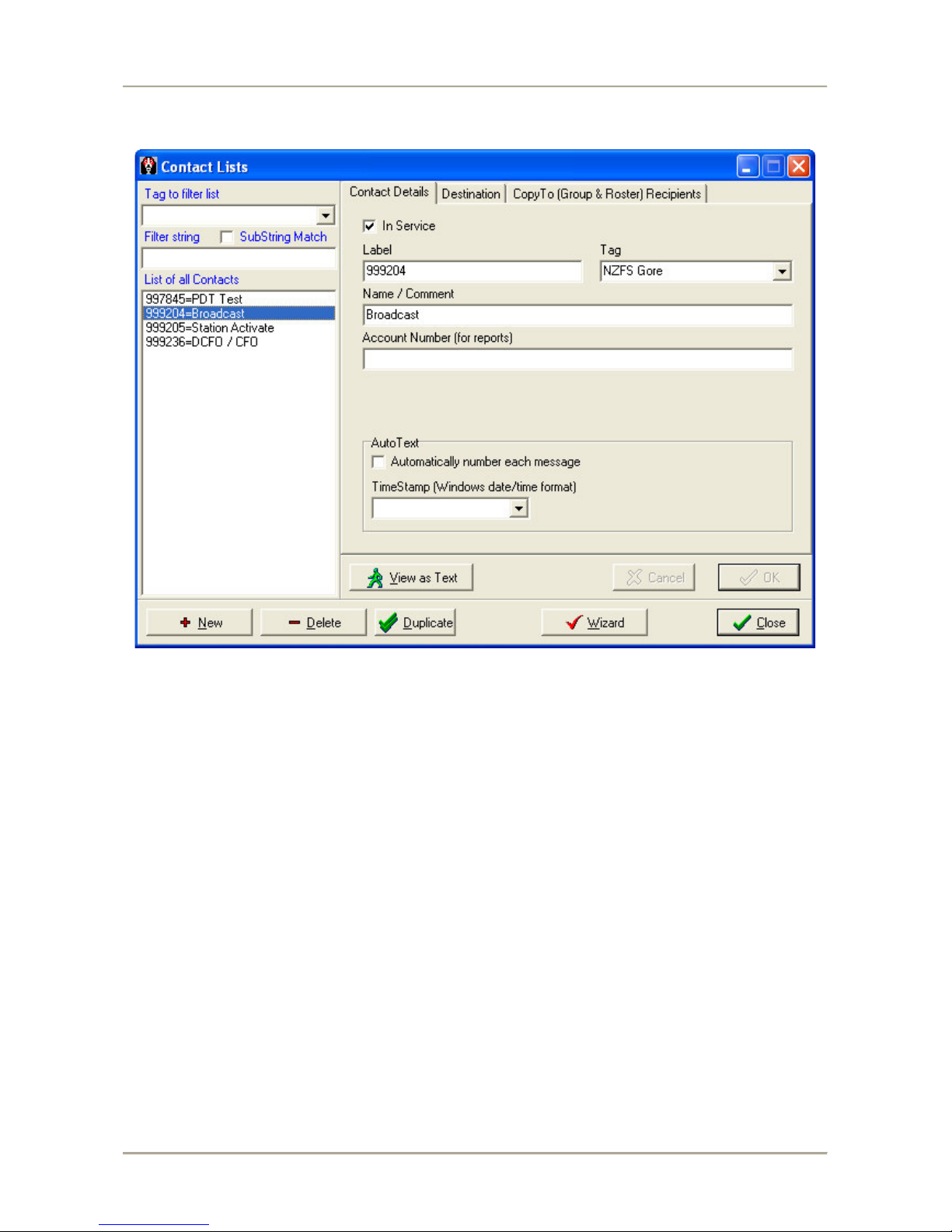
The screen below will appear and from here contacts can be added, modified and deleted:
The opening/default tab is Contact Details
The List of all Contacts shows current contacts within VP Router. The highlighted contact
(999204=Broadcast) is therefore the contact whose details are shown under the Contact Details
tab.
The In Service box allows the option of taking a contact out of service without losing the detail.
The Label is the contacts ID within the router. This is the field where the TNPP RIC that will be
decoded is added. NOTE: Do not include leading zeros ie if code = 0999205 enter 999205
The Name / Comment field is where you can attach a more suitable name or comment about a
contact.
The Tag field can be used for the Station name.
The AutoText and TimeStamp options allow messages to contain incremental numbering plus
current Time and Date stamps
NZFS 15-15-8000 VisualPet User’s Manual Iss: VPetNZFS 06/09
Sea Air & Land Communications Ltd. Page 9 of 23
The Destination tab is used to select where a message to the contact is to be delivered.
The Destinations box will show a list of installed protocols for message delivery.
The above example has two destinations with only the TNPP_Out option having a contact entered.
The TNPP_Out destination requires the seven digit RIC code ( 0384309 ) in the Contact details.
This is the RIC code the message will be sent to by the 15-15 transmitter.
The function (Level) can be changed in the drop down menu from 1 to 4
Once all contact details are entered a click on the OK will save the settings.
NZFS 15-15-8000 VisualPet User’s Manual Iss: VPetNZFS 06/09
Sea Air & Land Communications Ltd. Page 10 of 23
PDT Ack, Printer Output and Display Message
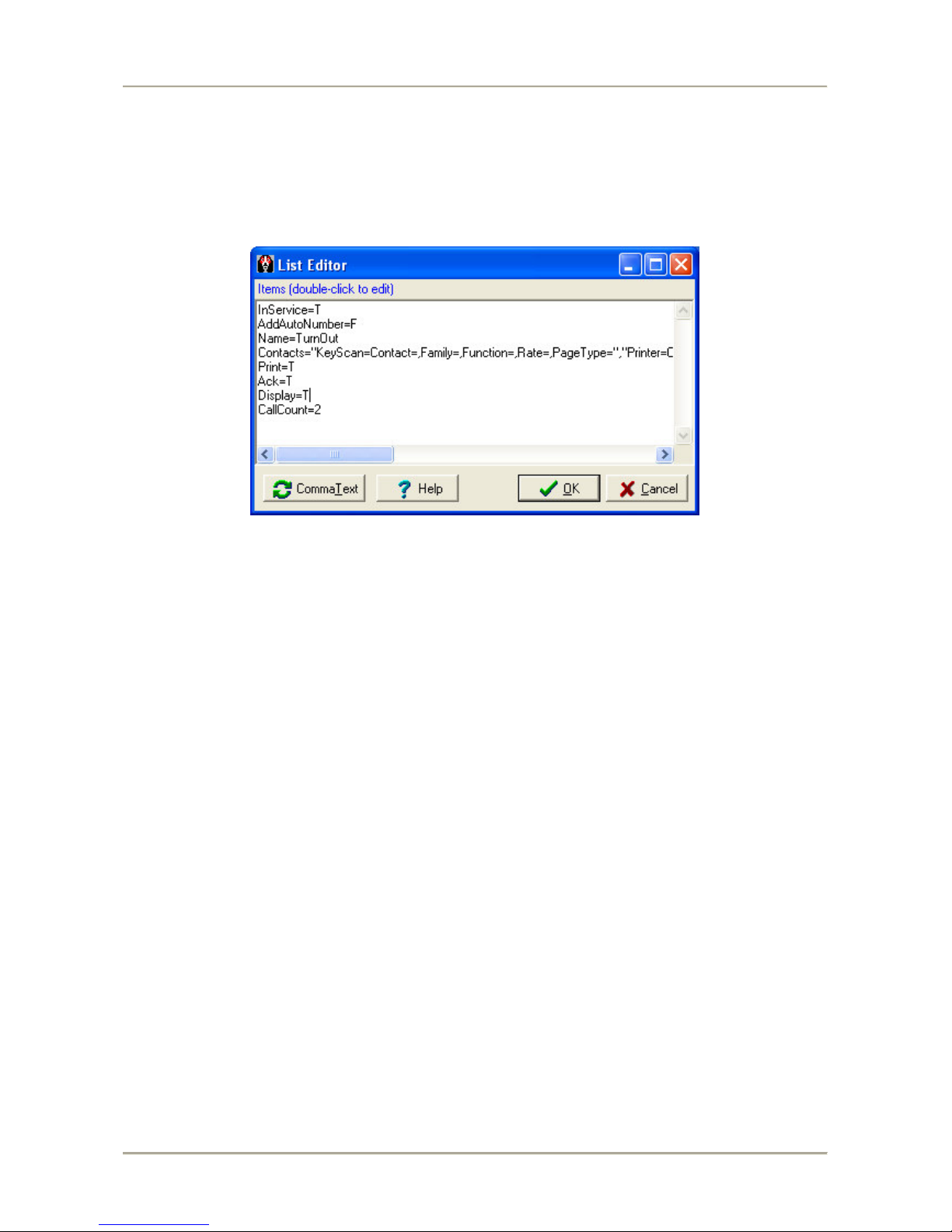
Control of the PDT Ack relay, content to the Printer or Displaying the message for the current
Contact is achieved by using the View as Text button. By pressing the button a dialog window will
open as below:
Printer Output is controlled from the line states:
Print=F
This means for the contact selected there will not be any output sent to printer. By changing the
string to:
Print=T
The printer output will be enabled.
Note that if there no “Print=T” or “Print=F” then the default is print output enabled
PDT Ack is controlled from the line states:
Ack=F
This means for the contact selected there will not be any acknowledge output on the relay. By
changing the string to:
Ack=T
The PDT Ack relay output will be enabled.
Note that if there no “Ack=T” or “Ack=F” then the default is PDT Ack output disabled
Display Message is controlled from the line states:
Display=F
This means for the contact selected the message received will NOT be shown on the main display.
Display=T
Any received message will be displayed.
Note that if there is no “Display=T” or “Display=F” then all messages will be displayed
Once the Printer, Display and PDT Ack setting are completed click OK to save and exit.
The Close button bottom right of the Contacts window will return user to the Main screen.