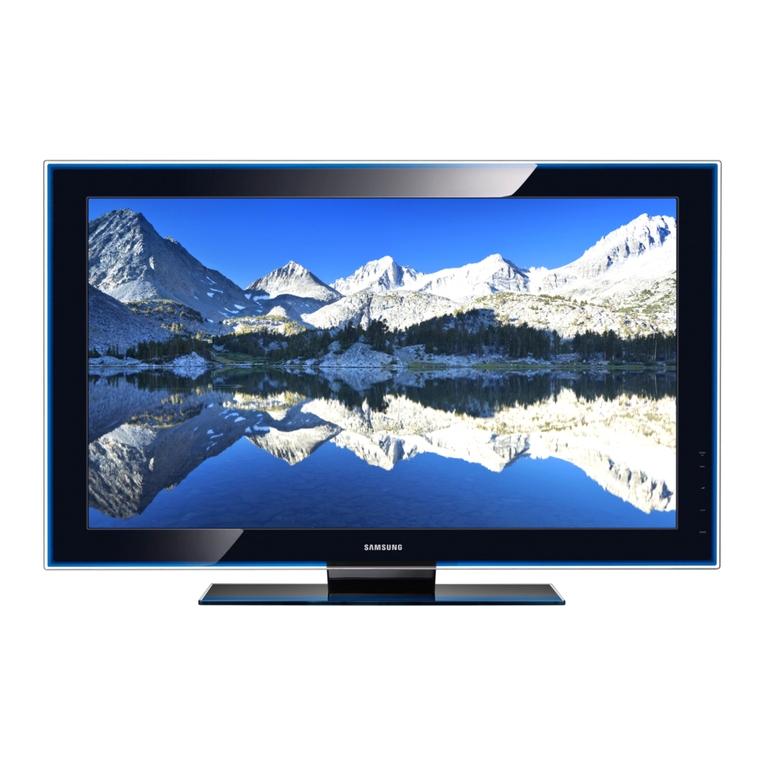
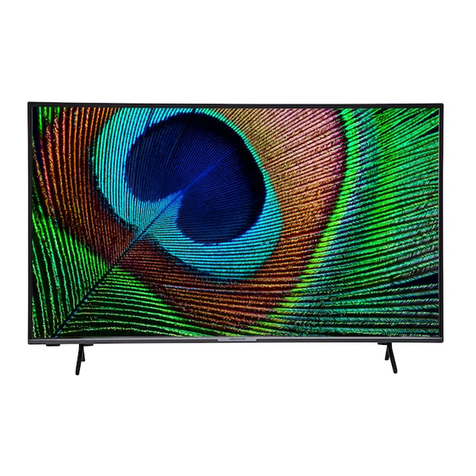
Samsung LA32C450E1M User manual
Other Samsung LCD TV manuals
Samsung
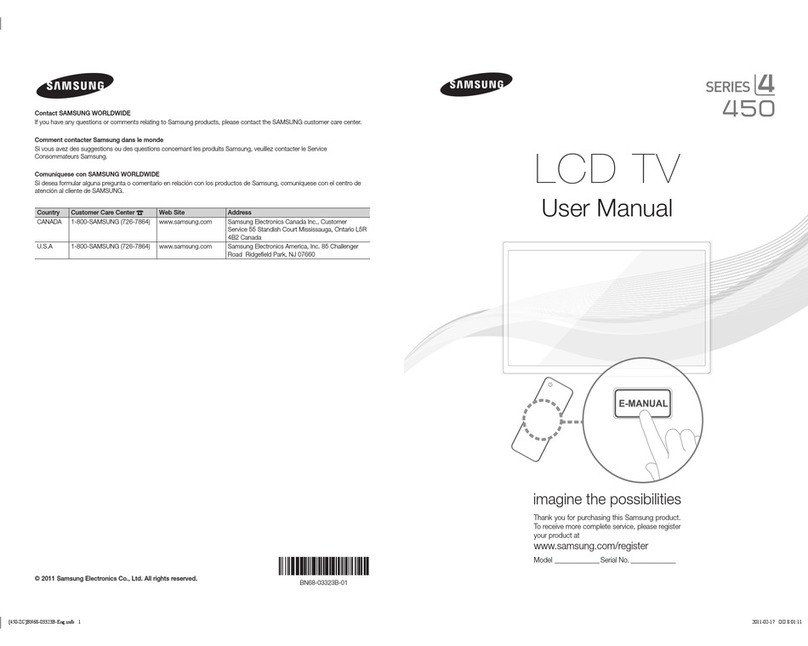
Samsung LN26D450G1D User manual
Samsung
Samsung LE40A856S1M User manual
Samsung
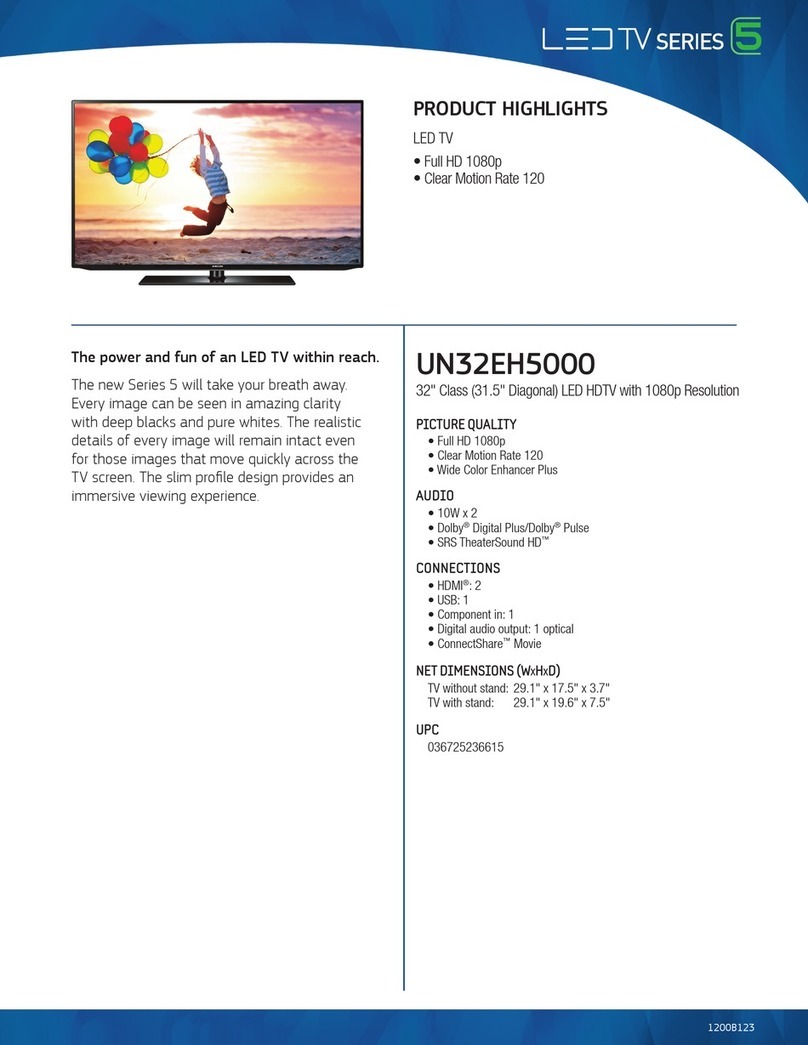
Samsung UN32EH5000 User manual
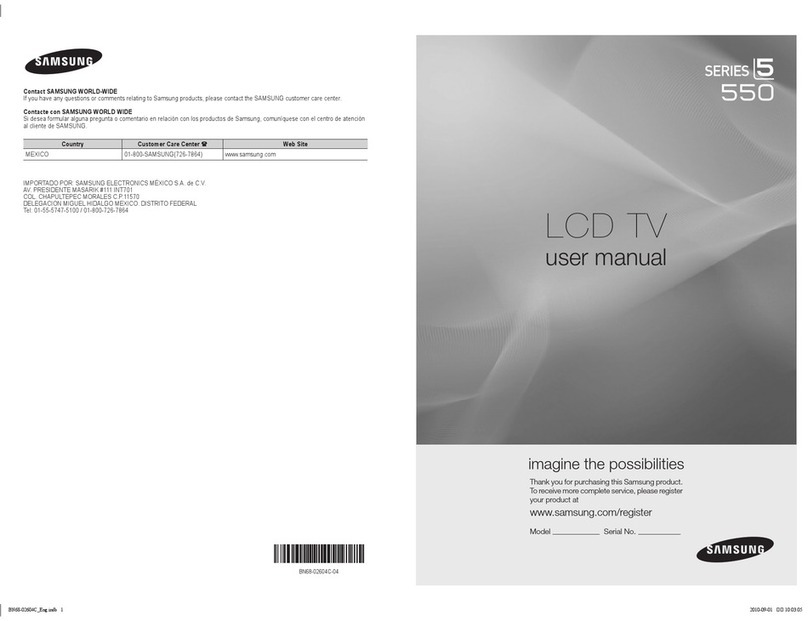
Samsung
Samsung 5 Series User manual

Samsung
Samsung KU7350K Guide
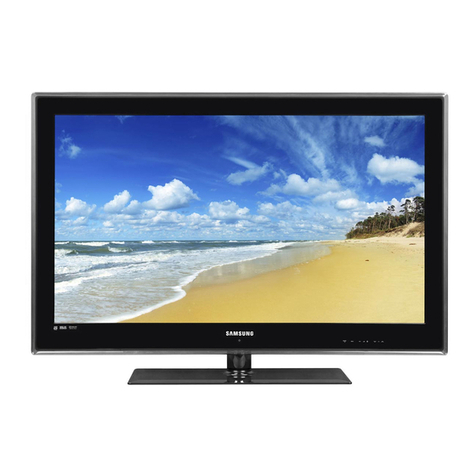
Samsung
Samsung BN68-02163A-00 User manual
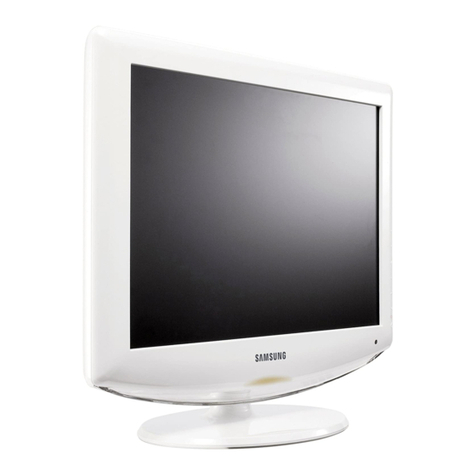
Samsung
Samsung LN-T1953H Use and care manual
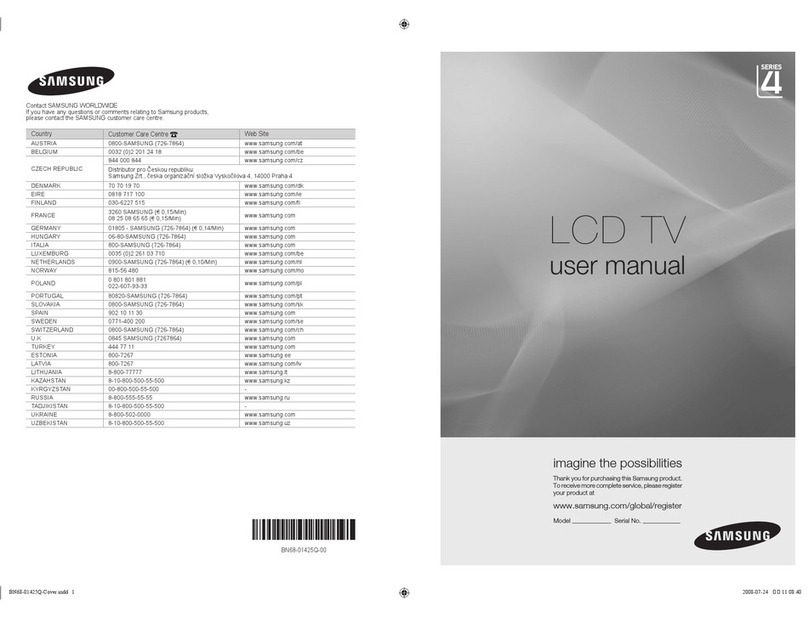
Samsung
Samsung LE22A451C1 User manual
Samsung
Samsung LNS3292D User manual
Samsung
Samsung LN55C750 User manual
Samsung
Samsung LN32A620AF User manual
Samsung
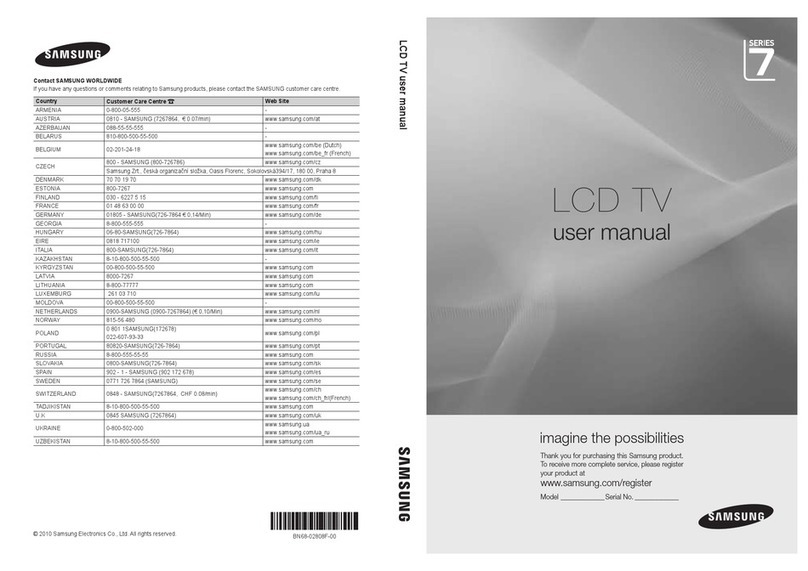
Samsung LE32A41B User manual
Samsung
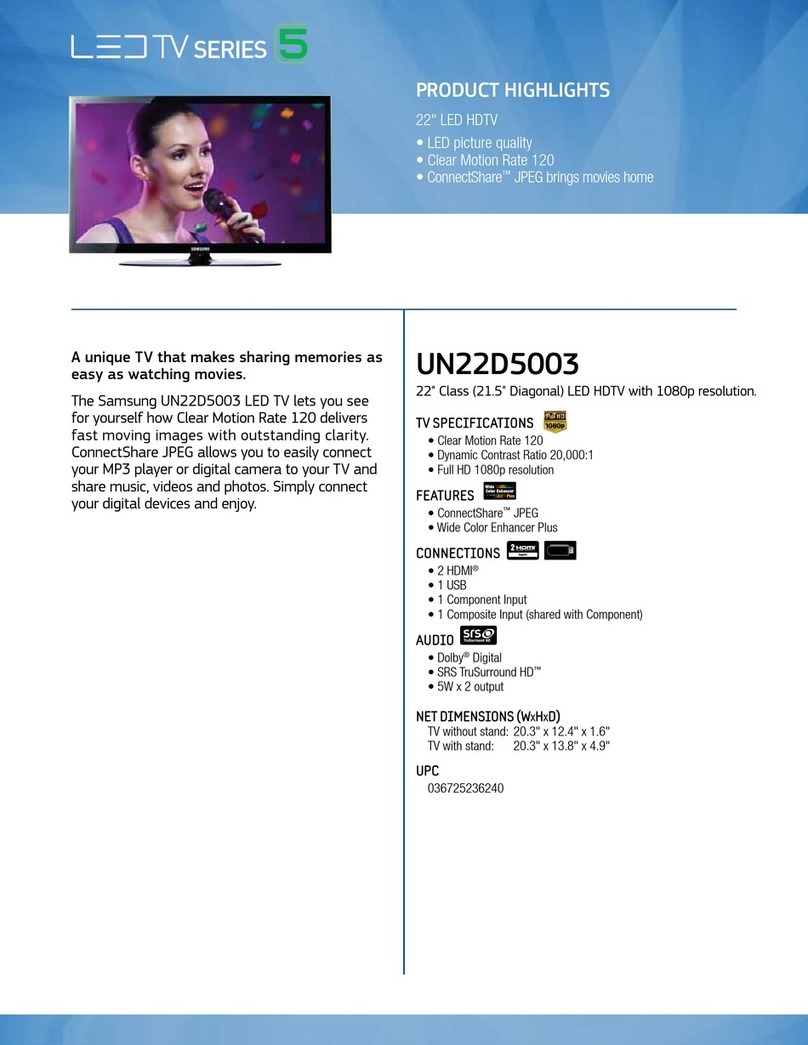
Samsung 7 Series User manual
Samsung
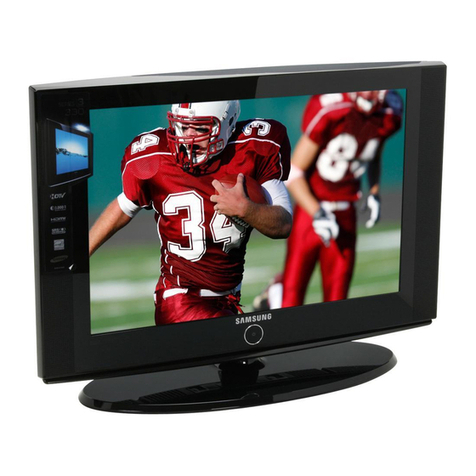
Samsung UN22D5003 User manual
Samsung
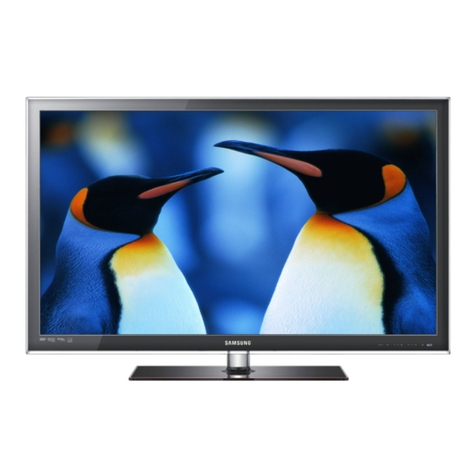
Samsung LN22A0J1D User manual
Samsung
Samsung BN68-02956B-02 User manual
Samsung
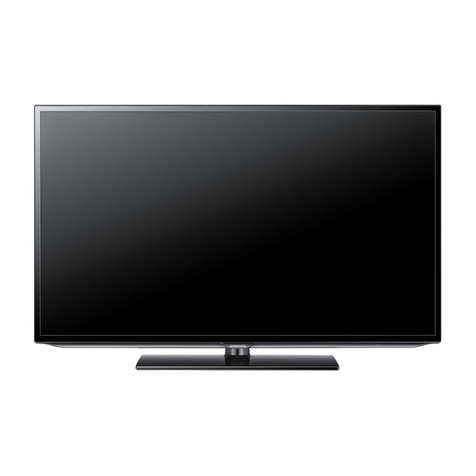
Samsung LN40D550K Guide
Samsung
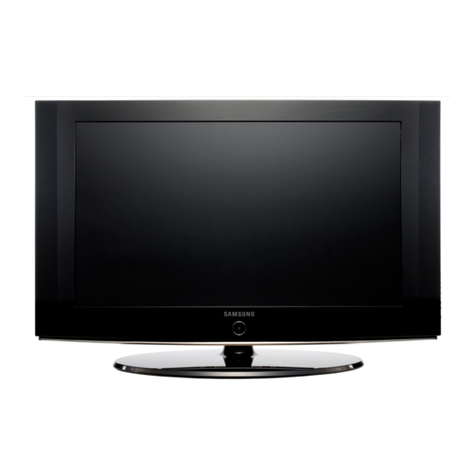
Samsung LN32B460 User manual
Samsung
Samsung LE26S81BX User manual

Samsung
Samsung LA26R51B User manual