manuals.online logo
Brands
  1. Home
  2. •
  3. Brands
  4. •
  5. Shiro
  6. •
  7. Cordless Telephone
  8. •
  9. Shiro SD2206 User manual

Shiro SD2206 User manual

Other Shiro Cordless Telephone manuals

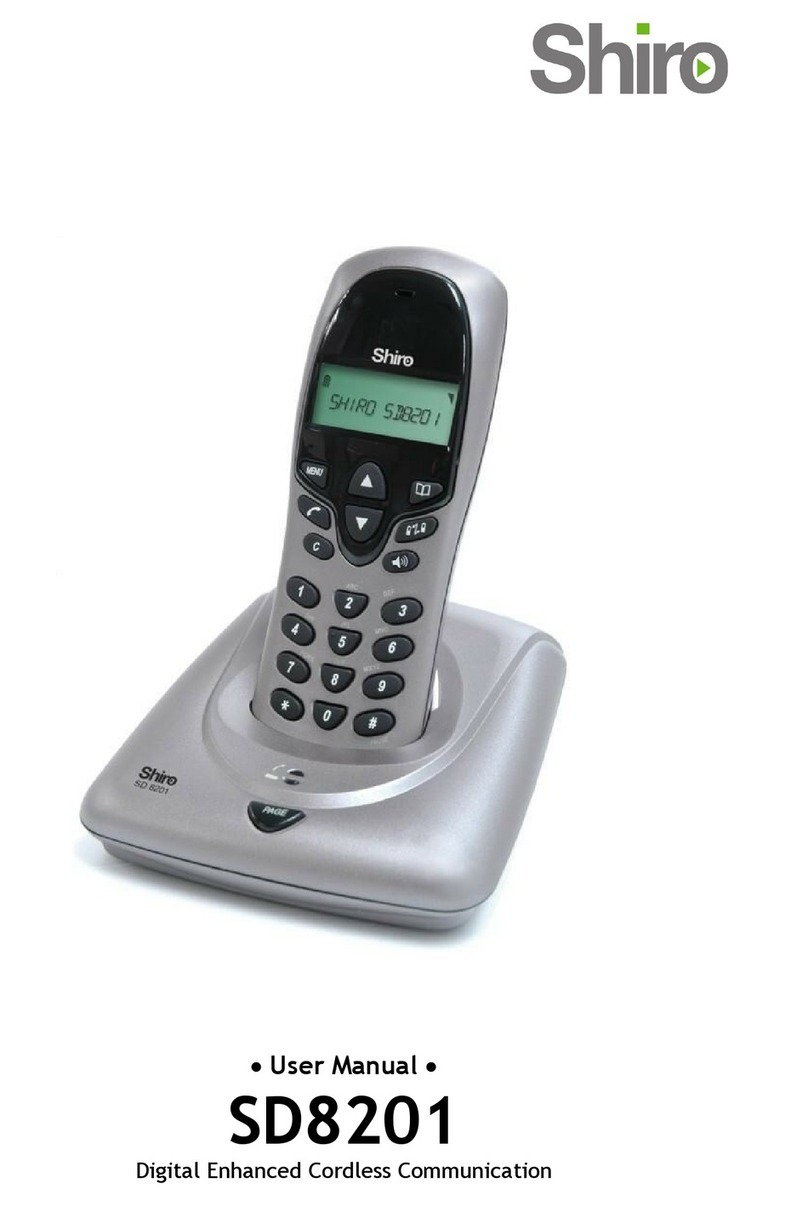
Shiro SD8201 User manual

Shiro

Shiro SD8201 User manual

Shiro SD8101 User manual

Shiro

Shiro SD8101 User manual

Shiro SD8141 User manual

Shiro

Shiro SD8141 User manual

Shiro SC3112 User manual

Shiro

Shiro SC3112 User manual

Shiro SD2100 User manual

Shiro

Shiro SD2100 User manual

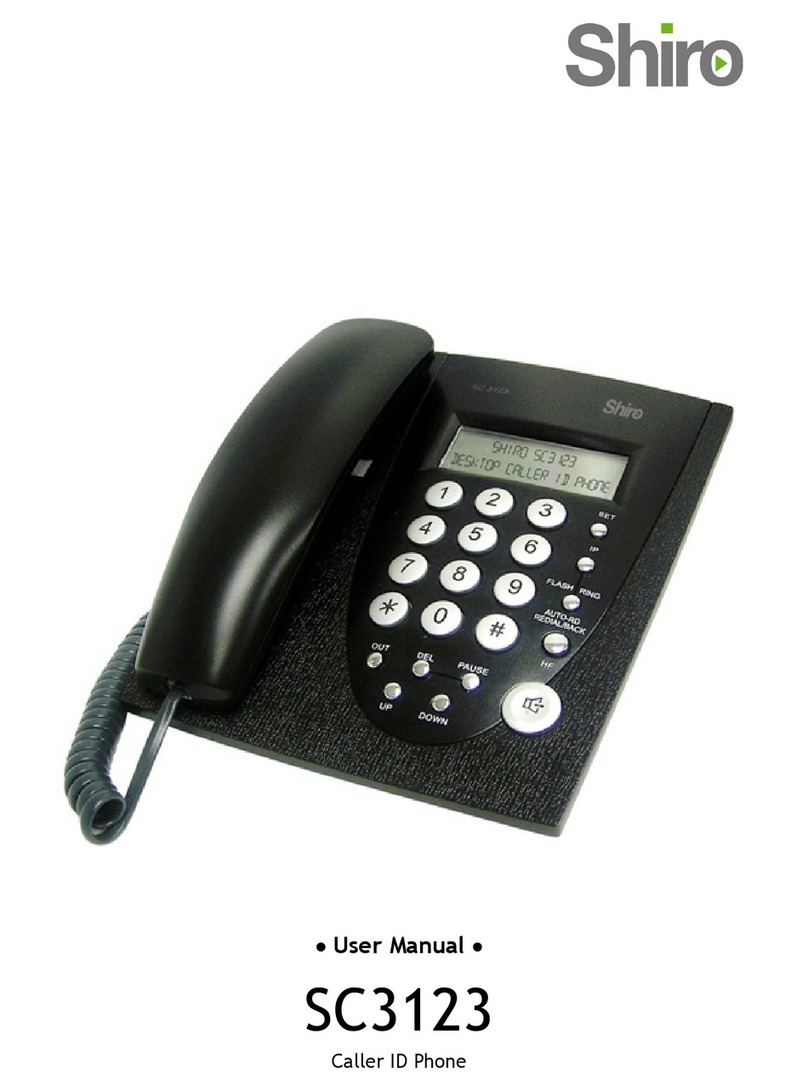
Shiro SC3123 User manual

Shiro

Shiro SC3123 User manual

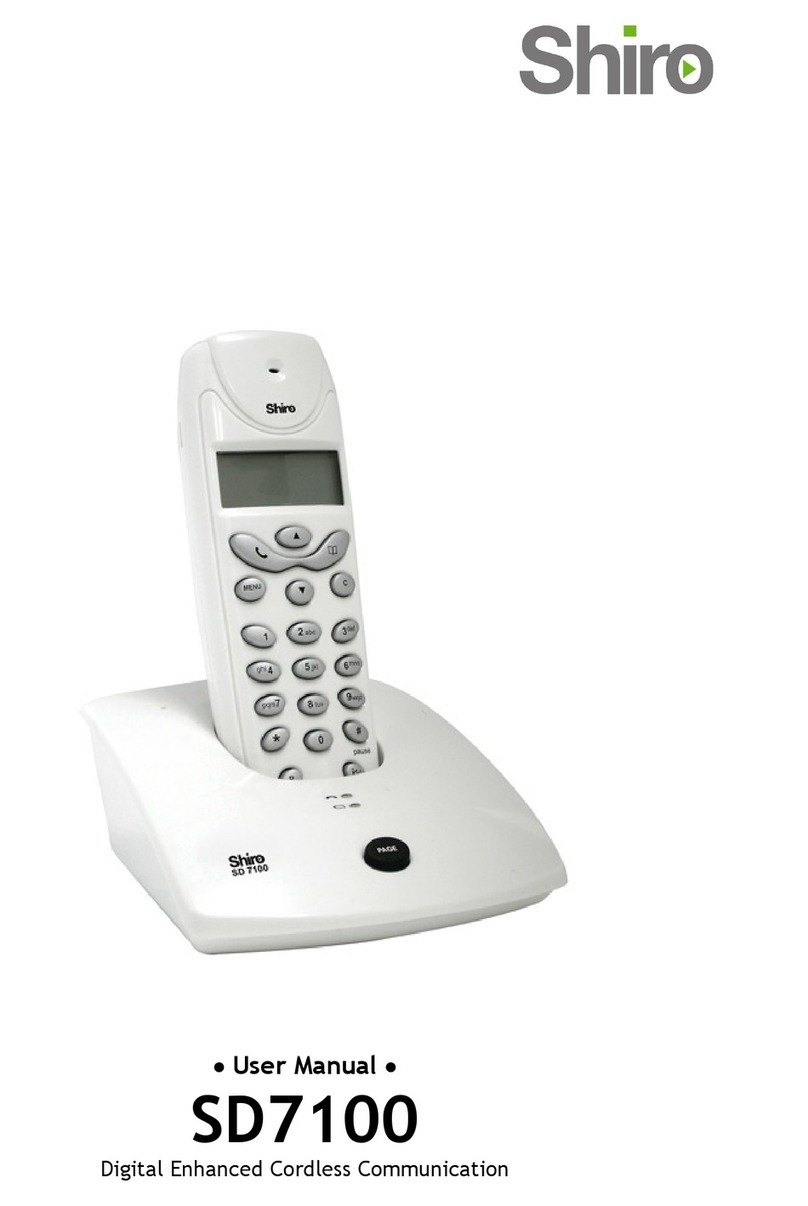
Shiro SD7100 User manual

Shiro

Shiro SD7100 User manual

Shiro SC3128 User manual

Shiro

Shiro SC3128 User manual

Shiro SC3130 User manual

Shiro

Shiro SC3130 User manual

Shiro SK9151 User manual

Shiro

Shiro SK9151 User manual

Shiro SK9500 User manual

Shiro

Shiro SK9500 User manual

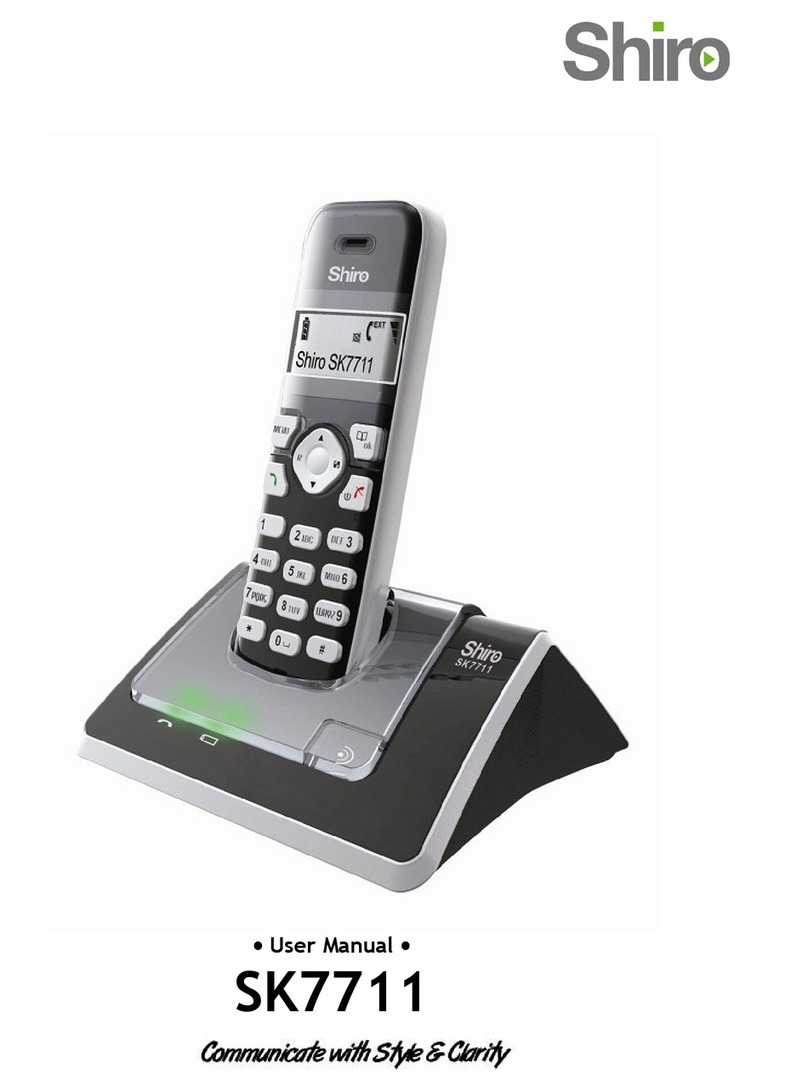
Shiro SK7711 User manual

Shiro

Shiro SK7711 User manual

Shiro SD8421 User manual

Shiro

Shiro SD8421 User manual

Shiro SD8501 User manual

Shiro

Shiro SD8501 User manual

Shiro SD3101 User manual

Shiro

Shiro SD3101 User manual

Shiro SD8301 User manual

Shiro

Shiro SD8301 User manual

Popular Cordless Telephone manuals by other brands

3Com NBX Guide

3Com

3Com NBX Guide

Panasonic KX-TGK210HK operating instructions

Panasonic

Panasonic KX-TGK210HK operating instructions

Panasonic KX-TCA181EX installation manual

Panasonic

Panasonic KX-TCA181EX installation manual

BT FREESTYLE 3200 user guide

BT

BT FREESTYLE 3200 user guide

AT&T CL84102 user manual

AT&T

AT&T CL84102 user manual

BREZZICNI CL-3622 user manual

BREZZICNI

BREZZICNI CL-3622 user manual

Panasonic KX-TG1831NZ operating instructions

Panasonic

Panasonic KX-TG1831NZ operating instructions

Panasonic KX-TG7301E operating instructions

Panasonic

Panasonic KX-TG7301E operating instructions

Sanyo CLT-J70 instruction manual

Sanyo

Sanyo CLT-J70 instruction manual

Amplicomms BigTel 201 user manual

Amplicomms

Amplicomms BigTel 201 user manual

GE 26992 user guide

GE

GE 26992 user guide

AT&T E1812B user manual

AT&T

AT&T E1812B user manual

Sanyo CLT-670 instruction manual

Sanyo

Sanyo CLT-670 instruction manual

GE 15432970 user guide

GE

GE 15432970 user guide

Curtis TC595 owner's manual

Curtis

Curtis TC595 owner's manual

Gigaset Gigaset 3000 Micro operating instructions

Gigaset

Gigaset Gigaset 3000 Micro operating instructions

Poly VVX D230 Quick start user guide

Poly

Poly VVX D230 Quick start user guide

AT&T 7625 user manual

AT&T

AT&T 7625 user manual

manuals.online logo
manuals.online logoBrands
  • About & Mission
  • Contact us
  • Privacy Policy
  • Terms and Conditions

Copyright 2025 Manuals.Online. All Rights Reserved.

•
••
• User Manual •
••
•
SD2206
Digital Enhanced Cordless Communication
1
Contents
What the symbols mean .................................................................. 1
The Handset and Base Unit............................................................... 2
Setting up your telephone................................................................
Installation.................................................................................. 4
Important safety information ............................................................ 4
Making and answering calls............................................................... 5
Conference Calling ........................................................................ 6
Phone Book ................................................................................. 6
Call Logs..................................................................................... 7
Handset Setting ............................................................................ 7
Base Setting ................................................................................ 8
Resetting the system .................................................................... 10
Handset registration..................................................................... 11
Intercom and transfer................................................................... 11
Troubleshooting.......................................................................... 12
Technical Details ........................................................................ 1
Declaration of conformity .............................................................. 1
What the symbols mean
Batteries charge level Whenever this shows ‘nearly empty’ ( ), put the handset on
the base unit to charge the batteries. While the batteries is
being charged, the level shown will keep changing.
Outside call
You are connected to an outside call.
Intercom call You are connected to an intercom call.
hone book Show the names and numbers of stored record.
Mute Your handset's microphone is muted.
Up and down arrows To browse through the programming menu for more options.
Signal level Shows the strength of the signal between the handset and base
unit, and flashes when you are out of range of the base unit,
when the level is low, or the symbol is flashing, move closer to
base unit.
Missed call You have new missed call.
2
U
/
DOWN button
In standby mode, press
to show phonebook list;
Press during
programming to move
through the menu.
Press
during a call to change
the volume in the
earpiece.
The IN USE light comes
on when you
have a connection to the telephone
line.
Clear
/ On
-
Off /
END button
The Handset and Base Unit
Press to enter menu mode
and enter sub-menu. With
the key
" " to lock or
unlock the
keypad.
Press during a call to mute
the microphone
M
ENU/ Mute
button
HONEBOOK/OK
button
In standby mode, press to enter
phonebook menu.
Press to confirm selection.
Press and hold (2
-
seconds)
to switch
the handset on and off. Press during
programming to go back to the
previous option, or to clear digits one
by one from the display.
Press to end the call.
IN USE light
HANDSET LOCATOR button
Press this to make the handset
ring,
if you cannot remember where you put it.
Press it again to stop the handset ringing.
INT button
Press to make an intercom call
(if
you have more than one handset)
Before you can use the handset
to
make calls for the first time, you
will need to fit and fully charge the
battery for 15 hours.
Call button
Recall
button
You
can activate
Recall
function if your phone is
connected to a PABX.
Press to transfer an outside
call to another phone.
Press to begin and
answer the call
3
Setting up your telephone
Connection and conditions for use
You can connect your SD2206 to a direct exchange line (DEL), a line connected to a local
exchange, with its own phone number; to an extension socket connected to a DEL; or to an
extension on an approved compatible PBX. Do not connect the SD2206 as an extension to a
payphone.
How many phones can you connect?
The ringer equivalence numbers (RENs) of all instruments (phones, fax machines, etc.)
connected to an exchange line must not add up to more than 4, otherwise, one or more of
them may not ring and/or answer calls correctly. The SD2206 has a REN of 1, and most other
telephones have a REN of 1unless marked otherwise.
Radio signals between handset and base unit
To use your handset and base unit together, you must be able to establish a radio link between
them. Be aware that:
• Sitting the base unit as high as possible will give better results, in a two-storey house,
the best position may be on the first-floor landing.
• Any large metal object, like a fridge, a mirror or a filing cabinet, between the handset
and base unit may block the radio signal.
• Other solid structures, like walls, may reduce the signal strength.
Choosing a site for the base unit
The base unit should be placed on a level surface, in a position where:
• The mains adapter plug will reach a 2 0-V AC switched mains supply socket; never try
to lengthen the mains power cable.
• The telephone cable will reach your telephone line socket or extension socket.
• It is not close to another telephone, this can cause radio interference.
• It is not close to a sink, bath or shower, or anywhere else
where it might get wet.
• It is not close to other electrical equipment, fridges, washing machines, microwave
ovens, TVs, fluorescent lights, etc.
Wh
at's in this pack
Please check the box contents for completeness.
If any parts are missing, return complete box to
your supplier.
• The cordless handset
• The base unit
• Rechargeable AAA batteries
• A telephone line cable (different from country to country)
• A mains power lead and adaptor (different from country to
country)
• Charger pods (not available for single handset)
• User manual
Note: Keep your proof of purchase to support any guarantee claim
4
Installation
1. Choose a suitable site for the handset unit
Make sure it is not near to another telephone, nor to other electrical equipment.
2. lug the mains power
lead into the power jack
the base unit and plug the telephone
line cord into the telephone port.
3. lug the mains adapter
into a 230 V AC, 50 Hz
mains socket, with the
switch on the socket set to OFF
Note: The illustration of adaptor may vary from country to country.
4. Switch on mains power at the socket
5. Fit the battery in the handset(s)
6. Connect the base unit to the telephone line
Important safety information
This equipment is not designed for making emergency calls in the event of a power failure.
Alternative arrangements should be made for access to emergency services.
(This means that you should also have a basic phone that does not need mains power,
connected to your line so that you can make calls during a power failure)
People with a heart pacemaker should consult their doctor before using the telephone.
If you wear a hearing aid, you should note SD2206 works by transmitting radio waves between
base and handset that may cause a humming noise.
1. DO NOT clean any part of your phone with benzene, thinner or other solvent chemicals,
which may cause permanent damage to your phone. This damage is not covered by the
Guarantee. When necessary, clean it with a damp cloth.
Cleaning it with a wet cloth may give you an electric shock.
2. DO NOT use this equipment in places where volatile or explosive materials may be present.
. DO NOT let the base unit get wet. Electrical equipment can cause serious injury if used
while you are wet or standing in water. NEVER use your phone during a thunderstorm. Unplug
Insert the battery pack as shown .Fit the battery compartment cover,
Sliding it until it clicks firmly into position.
5
the base unit from the telephone line and the mains socket when there are storms in your area.
Damage caused by lightning is not covered by the Guarantee.
4. The SD2206 will produce a certain amount of heat during operation. For this reason it is
recommended that this equipment is NOT placed in direct contact with antique, veneered or
delicate furniture surfaces.
5. DO NOT dispose batteries with normal household waste.
6. The SD2206 DECT phone emits radio signals which could interfere with other electronic
equipment, computers, radio, TV set, clock radio alarms, etc.
A distance of at least one meter should be maintained between SD2206 base station and other
equipment. This will minimize the risk of such interference.
7. When you do not need to carry your handsets around, leave them on the base unit or charger
pod, to keep the batteries charged.
8. If you hear a warning tone as move around during a call, and/ or the sound in the earpiece
becomes faint or distorted; you may be going out of range of the base unit.
Move nearer to the base unit within 20 seconds, until the tone stops. Otherwise your call may
be cut off.
! NOTE: Dispose of used batteries safely, never burn them, or put them where they could
get punctured.
Making and answering calls
To switch the handset ON or OFF
• Press and hold the CLEAR button for 2~ seconds to switch the handset ON /OFF.
To make a call
1. Key in the telephone number (If you make a mistake, press CLEAR button to clear digits
from the display. To clear all digits, press and hold CLEAR button.)
2. Press the CALL button.
. Or you also can dial the stored number through U /DOWN button.
Note: You can dial the number after you press the C LL button if you need, but you won't be
able to correct any mistakes if you do it in this way.
When you dial the outside line access digit e.g. 9) then the telephone number, press and hold
the "#" button about 2 seconds for a pause.
To redial a call
In standby mode, press and hold the CALL button to enter the dial list, and press the U /DOWN
button to scroll through the number you want to dial, then press the CALL button to redial.
To answer a call
When the handset and base unit ring, press the CALL button to answer a call, and the symbol or
appears in the display.
When the AUTO TALK is turned on, you can simply answer the call by lifting the handset from
the base unit (see AUTO TALK part).
To end a call
Press the END button to end a call.
Earpiece volume
During a call, to adjust the volume of the earpiece:
Press the U or DOWN button to change the volume
Muting the mouthpiece
• During a call, if you want the person on the other hand end cannot hear you; press
Mute once to mute the mouthpiece;
6
• While the mouthpiece is muted, you cannot press any number key to send digits down
the line; Press Mute key again to get back to the call.
Conference Calling
You need to register with your fixed line network operator for conference calling service. It is
dependant on service availability and subscription.
To Make Conference Call:
1. Connect the first party;
2. Press INT button, and the first party is put on hold;
. Dial second party’s phone number;
4. When connected, press and hold “#” button to connect the three parties together.
hone Book
Up to 0 records could be stored in each handset's Phone Book. Each record can store up to 20
digits, and names of up to 8 characters could be stored with the number. In standby mode,
press U /DOWN button to show phonebook list. There are two ways to enter phonebook.
In standby mode, press HONEBOOK button to enter phonebook; or through MENU and
U /DOWN button to enter phonebook.
To store new number into phonebook
1. Press the OK button, the display shows ADD
2. Press the OK button again, then key in the name and the number
. Press the OK button to confirm
4. Press the CLEAR button twice to return to standby mode, or you can continue to store
number.
To clear a number from phonebook
1. Press the OK button, the display shows ADD
2. Press U /DOWN button to the location DELETE
. Press OK button to confirm, then press U /DOWN button to select the number you want
to delete
4. Press the OK button to delete the name and number, the display shows DELETE
5. Press the CLEAR button to return to standby mode
To modify (change) a number in phonebook
1. Press the OK button, the display shows ADD
2. Press U /DOWN button to the location EDIT, then press OK to confirm, the display
shows the first stored number
. Press U /DOWN button to select the number you want to modify, then press OK to
confirm
4. Press CLEAR button to clear the old name, then key in the new name;
5. Press OK to save the edit, press CLEAR button to clear the old number and key in the
new number.
6. Press OK to save the change, then Press the CLEAR button to return to standby mode
To clear all numbers from phonebook
1. Press the OK button, the display shows ADD
2. Press U /DOWN button to the location DEL ALL
. Press the OK button to delete all numbers, the display shows OK?
4. Press the OK button to confirm, the display shows EMPTY.
To dial a number from phonebook
1. In standby mode ,press U /DOWN button to enter the phonebook list directly;
2. Key in the first letter of the name to quick search the accordance number you want to
Dial;
. Press CALL button.
7
Call Logs
You must subscribe to Caller ID service from your service provider to use this feature.
Call Logs store information related to received calls, missed calls and dialed calls. The SD2206
can store up to a maximum of 0 calls, consisting of 10 received, missed and dialed calls
respectively.
To check call records
1. Press the MENU button
The display shows CALL LOGS
2. Press the OK button, then press U /DOWN button to the locations MISSED, RECEIVED,
or DIALED calls.
. Press the OK button, then press U /DOWN button to scroll the records
To save a number in call logs
When you received a new number, you want to store in phonebook. The following is for your
reference.
1. Repeat step 1 to above, until the display shows the new number.
2. Press the MENU button, the displays shows SAVE
. Press the MENU button, the displays shows NAME?
4. Key in the name, Press the MENU button to save.
To edit a number in call logs
1. Repeat step 1 to in “To check call records” section, until the display shows the
number;
2. Press the MENU button, then press U /DOWN button to the location EDIT;
. Press the OK button, then press CLEAR button to clear the old number and key in the
new number;
4. Press the OK button to save the change.
To clear a number in call logs
1. Repeat step 1 to in “ To check call records” section, until the display shows the
number;
2. Press the MENU button, then press U /DOWN button to the location DELETE;
. Press the OK button to confirm.
To clear all number in call logs
1. Repeat step 1 to in “To check call records” section, until the display shows the
number;
2. Press the MENU button, then press U /DOWN button to the location DEL ALL;
. Press the OK button, the display shows OK?
4. Press the OK button to confirm.
To dial a number from call logs
1. Ensure the required name/number is visible on the display
2. Press CALL button
Handset Setting
Key tone on and off
Each time you press a key on your handset, you hear a tone. You can turn this off if needed.
1. Press the MENU button, then press U /DOWN button to the location HANDSET
2. Press the OK button
The display shows KEYTONE
. Press the OK button, the display shows ON? or OFF?
4. Press the OK button to confirm
Ringer Volume (EXT / INT)
You can adjust the ringer volume following the below instruction.
1. Press the MENU button, then press U /DOWN button to the location HANDSET
2. Press the OK button, then press U /DOWN button to the location EXT VOL / INT VOL
8
. Press the OK button
The display shows the current volume level
4. Press U /DOWN button to change the volume
5. Press the OK button to confirm the volume level you want
Ringer Melody (EXT / INT)
You can choose the ringer Melody following the below instruction.
1. Press the MENU button, then press U /DOWN button to the location HANDSET
2. Press the OK button, then press U /DOWN button to the location EXT RING / INT RING
. Press the OK button
The display shows the current melody
4. Press U /DOWN button to change the melody
5. Press the OK button to confirm the melody you want
Display language
You can select the language from the menu up to your preference:
1. Press the MENU button then press U /DOWN button to the location HANDSET
2. Press the OK button then press U /DOWN button again to the location LANGUAGE
. Press the OK button
The display shows the current language
4. Press U /DOWN button to the language you prefer
5. Press the OK button to confirm
Your handset name
1. Press the MENU button, then press U /DOWN button to the location HANDSET
2. Press the OK button, then press U /DOWN button to the location SET NAME
. Press the OK button. The display shows the current name
4. Press the CLEAR button repeatedly to clear the display, then key in your chosen name
5. Press the OK button to confirm
Auto Talk
Normally, you need to press the CALL button to answer an incoming call. But with AUTOTALK
turned on, when your handset is resting on the base unit and it rings for an incoming call, you
can answer the call by simply lifting the handset. To turn auto-talk ON/OFF:
1. Press the MENU button then U /DOWN button to HANDSET
2. Press the OK button then U /DOWN button to AUTOTALK
. Press the OK button again, the display shows ON? / OFF?
4. Press the OK button to confirm
! If you have turned auto-talk on, do not press the CALL button after you've answered a call
by lifting the handset, otherwise, you'll disconnect the call.
To Lock /Unlock the keypad
Press MENU button and “ “ button consecutively to lock or unlock the keypad.
Base Setting
Note: The default PIN is: 0000
Call Barring Function ( Optional)
Call barring enables you to restrict or bar certain types of calls from your phone.
To set call barring number
1. Press MENU button then U /DOWN button until the display shows BASE SET
2. Press the OK button, the display shows PIN?
. Key in your PIN number and press the OK button, then press U /DOWN button to the
location BARRING
4. Press the OK button, then U /DOWN button. The display shows one of the numbers
from 1 to 5 (The maximum call barring numbers you can set), and then key in the
telephone number you want to set call barring
5. Press OK button, then the display shows HS?
Key in the handset number that you want to set call barring

9
6. Press OK button to confirm
To delete call barring number
1. Press MENU button then U /DOWN button until the display shows BASE SET
2. Press the OK button, the display shows PIN?
. Key in your PIN number
4. Press the OK button, then U /DOWN button to the location BARRING
5. Press the OK button, the display shows the call barring number you set.
6. Press the CLEAR button to delete the number
7. Press OK button to confirm
Base Melody
You can adjust the Base Melody following the below instruction.
1. Press MENU button then U /DOWN button to the location BASE SET
2. Press OK button and Key in the PIN number
3. Press OK button then U /DOWN button to the location B Melody
4. Press OK button and press U /DOWN button to change the melody
5. Press the OK button to confirm the melody you chosen
Base Volume
You can adjust the base volume following the below instruction
1. Press MENU button then U /DOWN button to the location BASESET
2. Press OK button and Key in the PIN number
. Press OK button then U /DOWN button to the location B VOLUME
The display shows the current volume level
4. Press U /DOWN button to change the volume
5. Press the OK button to confirm the volume level you chosen
Least cost route (LCR) function (Optional)
With the LCR function, the phone will automatically replace a long number (up to 11 digits)
with a comparative short number (up to digits), to simplify the process of dialing a long
number.
Example:
If you program to replace "00" with "17909", whenever you dial a number beginning with
the“00”,the phone will automatically change this to “17909”. If he dials "00 15151500", the
phone will automatically replace the number to be dialed out as “17909 15151500”
Note:
LCR function only replaces the prefix of the phone number you dial.
To set LCR:
1. Press MENU button then U /DOWN button to the location BASE SET
2. Press the OK button, the display shows PIN?
. Key in your PIN number and press the OK button, then U /DOWN button to the location
LCR
4. Press the OK button, the display shows SHORT?
5. Press the OK button, the display shows EMPTY, key in the short number you want to
replace the long number directly
6. Press the OK button to confirm, then the display shows LONG?
7. Press the OK button, the display shows EMPTY, key in the long number
8. Press the OK button to confirm
To Set Dial Mode
You can change dial mode to TONE or PULSE dialing.
To set dial mode:
1. Press MENU button, then U /DOWN button to the location BASE SET
2. Press the OK button, the display shows PIN?
. Key in your PIN number and press the OK button, then press U /DOWN button to the
location DIAL MODE