manuals.online logo
Brands
  1. Home
  2. •
  3. Brands
  4. •
  5. Sony
  6. •
  7. Laptop
  8. •
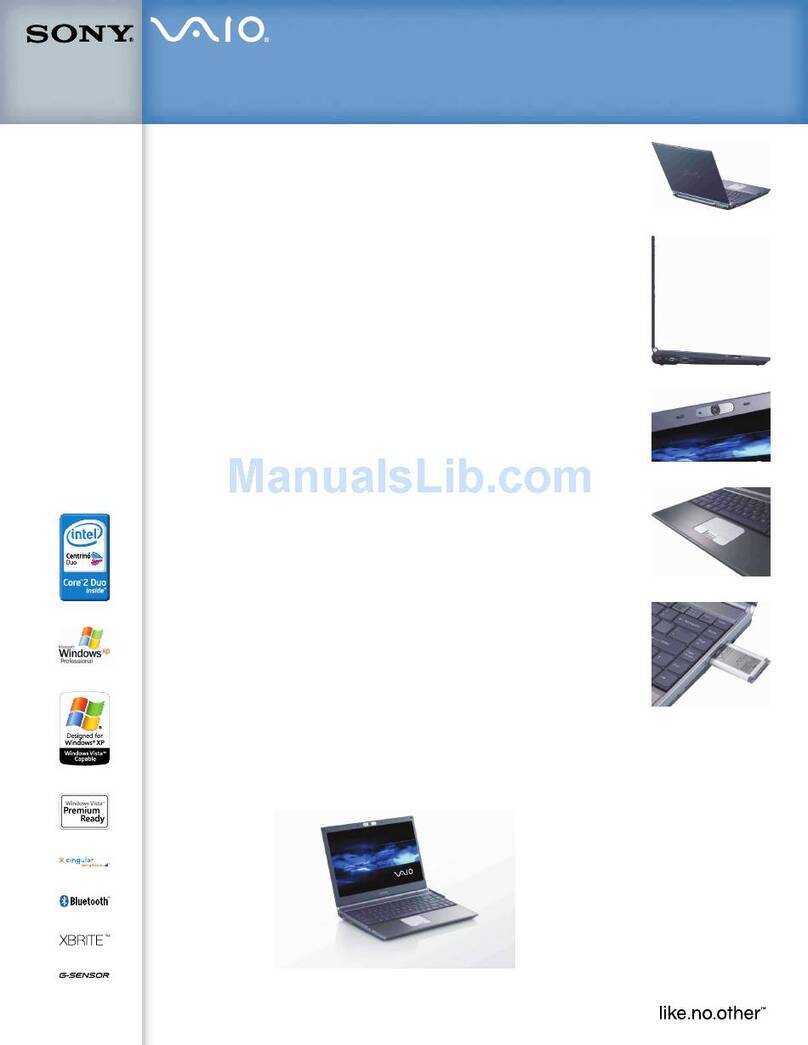
  9. Sony PCG-Z505JE - VAIO - PIII 500 MHz Manual

Sony PCG-Z505JE - VAIO - PIII 500 MHz Manual

Other manuals for PCG-Z505JE - VAIO - PIII 500 MHz

3

This manual suits for next models

4

Other Sony Laptop manuals

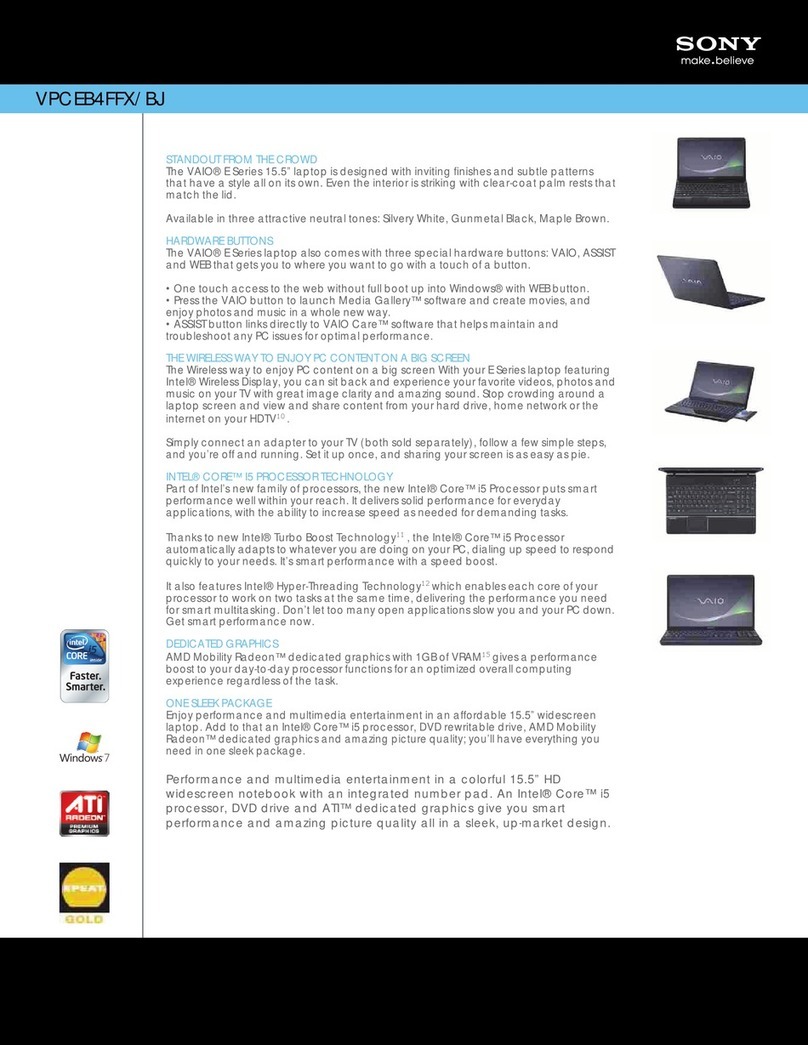
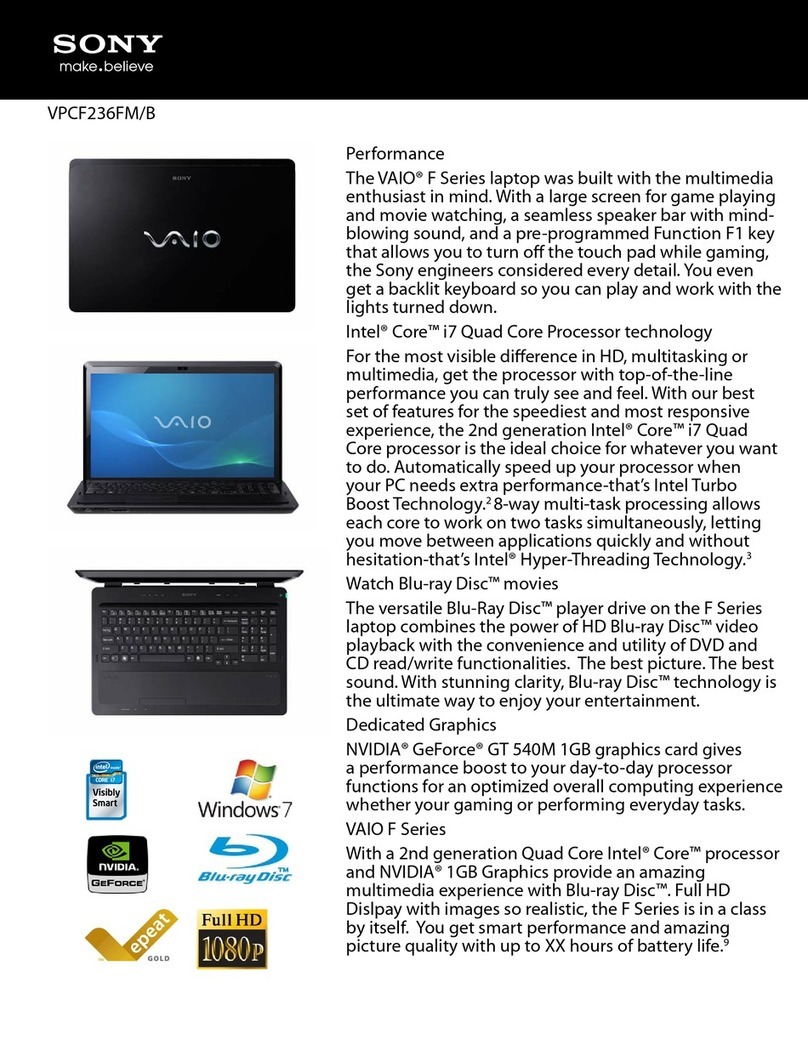
Sony VGN-FW150E Marketing User manual

Sony

Sony VGN-FW150E Marketing User manual

Sony VAIO VGN-C190P/G User manual

Sony

Sony VAIO VGN-C190P/G User manual

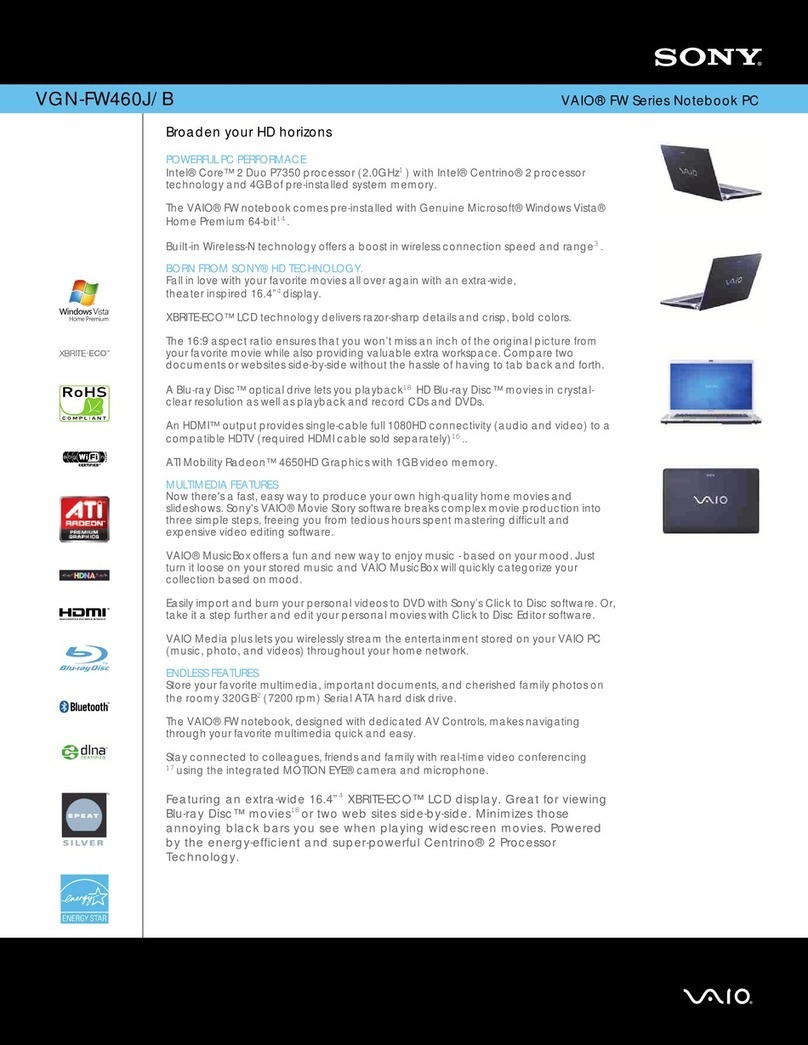
Sony VAIO VGN-FW460J/B User manual

Sony

Sony VAIO VGN-FW460J/B User manual

Sony VAIO VGN-BZ569P44 User manual

Sony

Sony VAIO VGN-BZ569P44 User manual

Sony VAIO VGN-CS290 User manual

Sony

Sony VAIO VGN-CS290 User manual

Sony VAIO SVE14116FXP User manual

Sony

Sony VAIO SVE14116FXP User manual

Sony VAIO VGN-TXN19P User manual

Sony

Sony VAIO VGN-TXN19P User manual

Sony SVP11216PXB Instruction Manual

Sony

Sony SVP11216PXB Instruction Manual

Sony VGN-T250P/S User manual

Sony

Sony VGN-T250P/S User manual

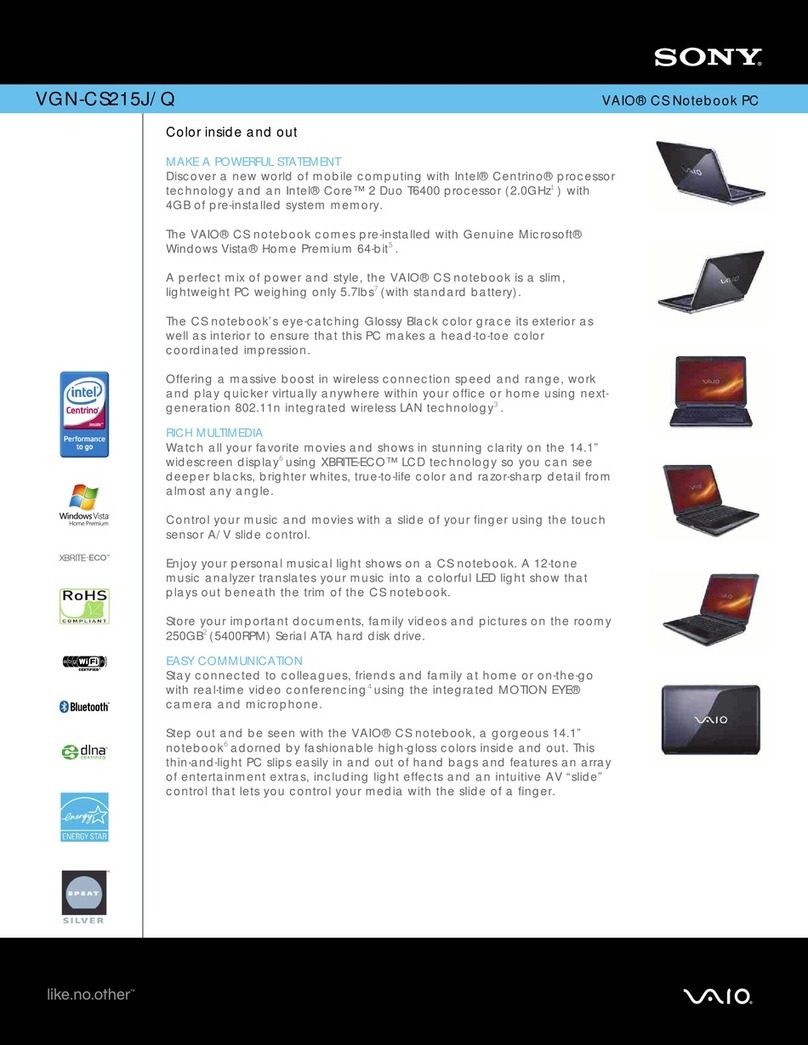
Sony VAIO VGN-CS215J/Q User manual

Sony

Sony VAIO VGN-CS215J/Q User manual

Sony VAIO VPCSE1DGX/B User manual

Sony

Sony VAIO VPCSE1DGX/B User manual

Sony VGN-NW360F/P User manual

Sony

Sony VGN-NW360F/P User manual

Sony VAIO VPCF121FX User manual

Sony

Sony VAIO VPCF121FX User manual

Sony Vaio VPCF2 Series User manual

Sony

Sony Vaio VPCF2 Series User manual

Sony VAIO VGN-BZ570N01 User manual

Sony

Sony VAIO VGN-BZ570N01 User manual

Sony VAIO VGN-CR420E/W User manual

Sony

Sony VAIO VGN-CR420E/W User manual

Sony PCG-SRX51P/A User manual

Sony

Sony PCG-SRX51P/A User manual

Sony VAIO VGN-TZ350NN User manual

Sony

Sony VAIO VGN-TZ350NN User manual

Sony VAIO VGN-T230FP Manual

Sony

Sony VAIO VGN-T230FP Manual

Sony VAIO VPCEE45FX/BJ User manual

Sony

Sony VAIO VPCEE45FX/BJ User manual

Sony VPCZ213GX User manual

Sony

Sony VPCZ213GX User manual

Sony VAIO VPCEE47FX/T User manual

Sony

Sony VAIO VPCEE47FX/T User manual

Sony VAIO PCG-Z1RA Series User manual

Sony

Sony VAIO PCG-Z1RA Series User manual

Sony VAIO VGN-NS135E User manual

Sony

Sony VAIO VGN-NS135E User manual

Popular Laptop manuals by other brands

Lenovo ThinkPad X201 Tablet null

Lenovo

Lenovo ThinkPad X201 Tablet null

Lenovo THINKPAD X31 null

Lenovo

Lenovo THINKPAD X31 null

Lenovo THINKPAD X60S null

Lenovo

Lenovo THINKPAD X60S null

Lenovo ThinkPad X230 Tablet null

Lenovo

Lenovo ThinkPad X230 Tablet null

Lenovo IdeaPad N585 null

Lenovo

Lenovo IdeaPad N585 null

Lenovo ThinkPad Z61E null

Lenovo

Lenovo ThinkPad Z61E null

Lenovo ThinkPad Edge E220s null

Lenovo

Lenovo ThinkPad Edge E220s null

Lenovo V200 null

Lenovo

Lenovo V200 null

Lenovo ThinkPad Edge E120 null

Lenovo

Lenovo ThinkPad Edge E120 null

Lenovo ThinkPad X230 Tablet null

Lenovo

Lenovo ThinkPad X230 Tablet null

Lenovo V200 null

Lenovo

Lenovo V200 null

Lenovo ThinkPad L430 null

Lenovo

Lenovo ThinkPad L430 null

Lenovo ThinkPad R61e null

Lenovo

Lenovo ThinkPad R61e null

Lenovo ThinkPad Edge E320 null

Lenovo

Lenovo ThinkPad Edge E320 null

Lenovo THINKPAD R40 null

Lenovo

Lenovo THINKPAD R40 null

Lenovo ThinkPad Edge E335 null

Lenovo

Lenovo ThinkPad Edge E335 null

Lenovo R50 null

Lenovo

Lenovo R50 null

Lenovo ThinkPad T430s null

Lenovo

Lenovo ThinkPad T430s null

manuals.online logo
manuals.online logoBrands
  • About & Mission
  • Contact us
  • Privacy Policy
  • Terms and Conditions

Copyright 2025 Manuals.Online. All Rights Reserved.

Customizing Your VAIO® Z505
SuperSlim Pro Notebook
You can customize the settings of your notebook. The following sections
briefly describe how to change your computer’s default settings. You can
also refer to Sony Notebook Setup Help for more detailed information.
Displ ying the Sony Notebook Setup Screen
To display the Sony Notebook Setup screen:
1Click the Start button on the Windows® taskbar.
2Point to VAIO and click Sony Notebook Setup.
3Select the tab for the item you want to change. See “Sony Notebook
Setup Tabs” on page 2.
4After you finish, click OK.
Customizing Your VAIO® Z505 SuperSlim Pro Notebook
Sony Notebook Setup T bs
T b Description
About This Computer Display system information, including memory
capacity, serial number, and BIOS version.
Printer Change printer port mode settings.
Initial Setting Change the volume of the sounds that play while the
operating system is loading. Select the order of
drives and devices from which you want to load the
operating system.
Touchpad When you connect an optional mouse to your
computer, you can make your touchpad inactive.
You can also customize your mouse settings using
the mouse utility.
Power On Password Set the password to secure your computer.
Bass Boost Turn the Bass Boost function on/off (available only
when headphone is used). You can also check the
effect of the Bass Boost function by selecting a
sample from “Sound file”and playing it.
Enable Ports Enable or disable ports. Disabling ports releases
resources to the system. To change the serial or
Infrared settings, click Advanced on the Basic/
Advanced tab.
Basic/Advanced Toggle between Advanced mode (additional screens
with advanced settings) and Basic mode of display.
Advanced mode includes Serial, Infrared, and View
Resources tabs.
✍For more information about each option, click Help on the Sony Notebook Setup screen to
display the Help file.
Controlling Power M n gement !
Controlling Power M n gement
The PowerPanel utility allows you to control the power management of
your notebook and provides key information about system activity. The
following sections briefly describe how to conserve your computer’s
battery power. You can also refer to the PowerPanel Help for more
detailed information. To activate a profile or command, see “Displaying
Battery Information”on page 7.
Viewing the PowerP nel icon
The PowerPanel icon (displayed in the task tray) indicates the level of
performance of the CPU. The tooltip will display information about the
active profile.
To ctiv te PowerP nel
1Right-click the taskbar at the bottom of the screen.
2Select Toolbars from the pop-up menu, and then click PowerPanel.
The PowerPanel toolbar appears on the taskbar.
The current profile icon appears on the PowerPanel toolbar. It is the icon
farthest to the left, and its appearance changes depending on which
power management profile is currently selected. To change the power
management profile, click the current profile icon, and then select a
profile from the list. See “Power Management Profiles”on page 4 for a
description of available options. To select another power profile
command, click that option in the PowerPanel toolbar.
✍Refer to ower anel Help for information on customizing the ower anel toolbars.
When you use the battery pack to power your computer, your system selects the Maximum
Battery Life power management profile by default. If you select a different power
management profile while using battery power, that profile is selected automatically the next
time you use the battery pack to power your computer.
Customizing Your VAIO® Z505 SuperSlim Pro Notebook
"
To customize power m n gement settings
You can customize power management settings, such as the system timer
and the brightness of the screen, to your individual tastes. To customize a
setting:
1Click the Current Profile icon on the PowerPanel toolbar.
2Select Edit/Create Profiles from the menu.
3Click a profile whose setting you want to change from the list in the
left panel.
4Double-click an item whose setting you want to change from the list
in the right panel.
5Click the desired setting.
6Click the File menu, and then click Save.
7Click the File menu, then click Exit.
Power M n gement Profiles
PowerPanel provides several predefined power management profiles.
Each profile consists of a group of specific power management settings
that are designed to meet specific power management goals —ranging
from maximum power management to no power management. You can
change the settings for any of the predefined profiles or you can create
your own profile to suit your portable computing needs. The predefined
profiles are:
Icon Description
Maximum Battery Life – Provides power saving features to give
you maximum battery life and good performance. It slows the
computer and puts it into System Suspend mode after a specified
period of inactivity.
Maximum Performance – Provides the best system performance
while still conserving power.
Word Processing – Optimizes power management with longer
timeouts on the hard disk and display screen. You can also establish
settings for LCD (Video) Standby and System Suspend to optimize
power management for your system.
Spreadsheet – Optimizes performance and power requirements for
spreadsheet applications.
Controlling Power M n gement #
Presentation –Keeps the display on at all times while it conserves
power. This option is ideal for slide show presentations. You can
establish settings for LCD (Video) Standby, Hard Disk Sleep, and
System Suspend to optimize power management for your system.
Communications –Extends battery life by initiating a quick display
timeout. The Internal modem remains powered. You can also
establish settings for LCD (Video) Standby and System Suspend to
optimize power management for your system.
Games –Disables the display and the Hard Disk Spindle Down
timer.
Camera –Optimizes performance and power requirements for
camera usage.
AC Power –The power management state when AC power is in
use. Similar to the Power Management Off setting. PowerPanel
automatically loads the AC profile unless you disable this feature.
Power Management Off –Turns off all power management features
such as System Suspend and System Hibernation modes.
DVD –Optimizes performance and power requirements for DVD
usage.
Automatic Profile Selection –Automatically switches to a profile
suitable for active applications.
Customizing Your VAIO® Z505 SuperSlim Pro Notebook
$
Power M n gement Comm nds
PowerPanel also provides power management commands that you can
use to activate specific power management functions and to control
power for a specific device. You might use these commands when you
want to override a profile setting or initiate an immediate action, such as
putting the system into Video Standby mode before the Video Standby
timer expires.
Conserving B ttery Power
When using the notebook with a battery, the LCD display and the hard
drive can be set to switch off automatically to conserve battery power.
For details, see “Power Management Profiles”on page 4.
Icon Description
System Idle –Puts the system into System Idle mode, a state of low
power consumption. This state stops the CPU clock and puts all
peripherals into low power mode. To return the system to the active
state, press any key or power switch on your system.
System Suspend –Puts the system into System Suspend mode, a
power management state that saves the state of the system and
peripheral devices in memory (RAM). Power consumption reduces
to a minimum, and the system remains on. To return the system to
the active state, press any key or the power switch on your
computer.
System Hibernation –Provides for the lowest level of power
consumption. The system writes the state of the system and
peripheral devices to the hard disk and turns off the system power.
To return the system to the original state, use the power switch to
turn on power. The system saves the data in the Save to Disk
Partition on the hard drive.
LCD (Video) Standby –Turns off the LCD to save power. If you
turn off the Video Standby timer in the AC Power-Profile Editor,
the display remains active except when the system enters System
Suspend mode. The video display system is one of the largest
consumers of power in the system.

Displ ying B ttery Inform tion %
Displ ying B ttery Inform tion
You can display detailed information about the battery in your computer.
The following sections briefly describe how to display your computer’s
general battery information. You can also refer to BatteryScope Help for
more detailed information.
To Activ te B tteryScope
1Right-click the taskbar at the bottom of the screen.
2Select Toolbar from the pop-up menu, and then click BatteryScope.
The BatteryScope appears on the taskbar.
You can also view the total capacity remaining in the battery by
placing the pointer over the battery icon in the task tray on the lower
right side of the screen.
❑Percentage indicator
Displays the percentage of the remaining capacity.
❑Time indicator
Displays estimated time (hours/minutes) remaining before the
battery fully drains; also referred to as the time-to-empty.
B ttery Icon Descriptions
B ttery icon B ttery st tus
Charging
Fully Charged
Discharging
No battery
Customizing Your VAIO® Z505 SuperSlim Pro Notebook
&
Displ ying Det iled B ttery Inform tion
Double-click the battery icon in the system tray to display the
BatteryScope window. The screen appears displaying the Battery tab,
which contains information such as the estimated time to empty and the
charging time.
To customize the B tteryScope toolb r nd l rm system
You can customize the BatteryScope toolbar to suit your portable
computing needs, including modifications to the alarm settings. Refer to
BatteryScope Help for more information.
Ch nging the Window Design of Sony Softw re '
Ch nging the Window Design of Sony Softw re
To ch nge the window design of Sony softw re
1Click the Start button, point to Settings, and then click Control Panel.
2Click UI Design Selector.
3Click << or >> and select the desired design.
4Click Apply. The “UI Design Selector”window design changes.
The window design for your Sony software will match the UI Design
Selector window when you click OK.
To try another selection, click << or >> and then, click OK.
The UI Design Selector closes and the new window design of your Sony
software displays.
✍Note: This feature is available with UI Design Selector-compatible software only.
Customizing Your VAIO® Z505 SuperSlim Pro Notebook

Selecting the Displ y Mode
This notebook uses the NeoMagic®video controller. You can select which
display is used when the computer is connected to an external display.
1Click the Start button on the Windows taskbar.
2Point to Settings and click Control Panel.
3Click the Display icon.
4Click the Settings tab, and then click the Advanced button. In
Windows 98, the NeoMagic MagicMedia 256XL+ Properties window
displays. In Windows 2000, the Digital Flat Panel (1024x768) and
NeoMagic 256XL+... window displays.
5Click the NeoMagic tab.
6Select the type of display.
Displ y mode Function
Internal
Display (LCD) Activates your computer’s LCD.
External
Display (CRT/
Projector)
Activates an external computer display or an RGB
projector connected to the Monitor port on your
computer.
(Windows® 98 only) (Windows® 2000 only)