manuals.online logo
Brands
  1. Home
  2. •
  3. Brands
  4. •
  5. Sony
  6. •
  7. Security Camera
  8. •
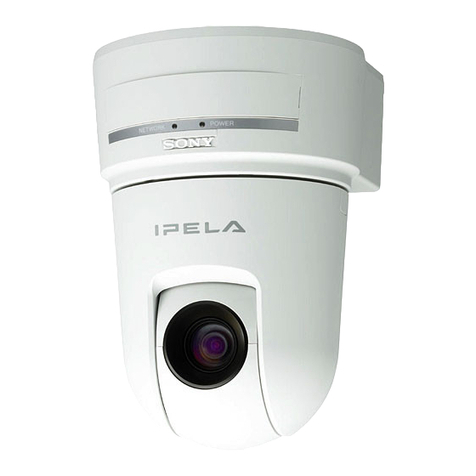
  9. Sony IPELA SNC-CH110 User manual

Sony IPELA SNC-CH110 User manual

Other manuals for IPELA SNC-CH110

7

This manual suits for next models

5

Other Sony Security Camera manuals

Sony SNC-CH115 User manual

Sony

Sony SNC-CH115 User manual

Sony SNCVB630 User manual

Sony

Sony SNCVB630 User manual

Sony IPELA SNC-CH140 User manual

Sony

Sony IPELA SNC-CH140 User manual

Sony NSC-GC1 Network Sharing Camera User manual

Sony

Sony NSC-GC1 Network Sharing Camera User manual

Sony SNCEB600B User manual

Sony

Sony SNCEB600B User manual

Sony Ipela SNC-XM637 User manual

Sony

Sony Ipela SNC-XM637 User manual

Sony G65 User manual

Sony

Sony G65 User manual

Sony IPELA SNC-RZ30N User manual

Sony

Sony IPELA SNC-RZ30N User manual

Sony CD39ZM-4N1-STA User manual

Sony

Sony CD39ZM-4N1-STA User manual

Sony SNC-RZ25 User manual

Sony

Sony SNC-RZ25 User manual

Sony SuperExwave SSC-E453P Installation and operation manual

Sony

Sony SuperExwave SSC-E453P Installation and operation manual

Sony IPELA SNC-Z20N User manual

Sony

Sony IPELA SNC-Z20N User manual

Sony IPELA SNC-DF40N User manual

Sony

Sony IPELA SNC-DF40N User manual

Sony XC-HR300 User manual

Sony

Sony XC-HR300 User manual

Sony UNIONEP520C2 User manual

Sony

Sony UNIONEP520C2 User manual

Sony IPELA SNC-Z20N User manual

Sony

Sony IPELA SNC-Z20N User manual

Sony SNCA-HRX550/EXT User manual

Sony

Sony SNCA-HRX550/EXT User manual

Sony EVI-D70P User manual

Sony

Sony EVI-D70P User manual

Sony SNC-RH124 User manual

Sony

Sony SNC-RH124 User manual

Sony SuperExwave SSC-E453P User manual

Sony

Sony SuperExwave SSC-E453P User manual

Sony SSC-CD79 User manual

Sony

Sony SSC-CD79 User manual

Sony SNC-RS44N User manual

Sony

Sony SNC-RS44N User manual

Sony SNC-M1W User manual

Sony

Sony SNC-M1W User manual

Sony IPELA SNC-CH110 User manual

Sony

Sony IPELA SNC-CH110 User manual

Popular Security Camera manuals by other brands

ADEMCO RapidDome Owners Operating & Installation Guide

ADEMCO

ADEMCO RapidDome Owners Operating & Installation Guide

EverFocus EBA2880 user manual

EverFocus

EverFocus EBA2880 user manual

Honeywell OptiCAM-IR Installation and setup guide

Honeywell

Honeywell OptiCAM-IR Installation and setup guide

Uniq UC-600 user manual

Uniq

Uniq UC-600 user manual

OPTICOM NVD-120-S datasheet

OPTICOM

OPTICOM NVD-120-S datasheet

Steren CCTV-221 instruction manual

Steren

Steren CCTV-221 instruction manual

Arm Electronics C420BCDNVFIR Features

Arm Electronics

Arm Electronics C420BCDNVFIR Features

Eneo PLD-2036PTZ installation guide

Eneo

Eneo PLD-2036PTZ installation guide

Axis AXIS M20 Series installation guide

Axis

Axis AXIS M20 Series installation guide

Panasonic KX-HCM230 operating instructions

Panasonic

Panasonic KX-HCM230 operating instructions

COP-USA CC15NV-SL Specifications

COP-USA

COP-USA CC15NV-SL Specifications

Active Silicon HARRIER H.264 quick start guide

Active Silicon

Active Silicon HARRIER H.264 quick start guide

Motorola Avigilon 1.3C-H5SL-BO1-IR installation guide

Motorola

Motorola Avigilon 1.3C-H5SL-BO1-IR installation guide

INSTEON 2864-232 user manual

INSTEON

INSTEON 2864-232 user manual

Wisenet XNB-6002 quick start guide

Wisenet

Wisenet XNB-6002 quick start guide

Axis M5525-E user manual

Axis

Axis M5525-E user manual

Vitek VTC-IR62NZ922 user guide

Vitek

Vitek VTC-IR62NZ922 user guide

Panasonic WV-SF342 Specifications

Panasonic

Panasonic WV-SF342 Specifications

manuals.online logo
manuals.online logoBrands
  • About & Mission
  • Contact us
  • Privacy Policy
  • Terms and Conditions

Copyright 2025 Manuals.Online. All Rights Reserved.

Network Camera
User’s Guide
Software Version 1.2
Before operating the unit, please read this manual thoroughly
and retain it for future reference.
SNC-CH110/CH210
SNC-DH110/DH110T/DH210/DH210T
4-194-204-13 (1)
© 2010 Sony Corporation
2Table of Contents
Table of Contents
Overview
Features .................................................................. 4
How to Use This User’s Guide .............................. 5
System Requirements ............................................ 5
Preparation
Assigning the IP Address to the Camera ............ 6
Assigning an IP address using SNC toolbox ..... 6
When using Windows XP Service Pack 2 or
later ................................................................... 8
When using Windows Vista ............................. 10
When using Windows 7 ................................... 13
Accessing the Camera Using the
Web Browser ........................................................ 15
Basic Configuration by the Administrator ....... 18
Operating the Camera
Administrator and User ...................................... 19
Logging in to the System ..................................... 20
Logging in as a user ......................................... 20
About Viewers .................................................. 20
Configuration of Main Viewer ........................... 21
Main menu ....................................................... 21
Control panel section ....................................... 21
Monitor image .................................................. 23
Plug-in free viewer ........................................... 23
Using SolidPTZ function ................................. 24
Controlling via the control panel (Operation
common to Area zoom mode and Vector
dragging mode) .............................................. 25
Panning and tilting by clicking the monitor
image (Area zoom mode only) ....................... 25
Panning, tilting and zooming by specifying the
area (Area zoom mode only) .......................... 25
Panning and tilting by dragging the screen
(Vector dragging mode only) ......................... 25
Moving the camera to a preset position
(Common operations in Area zoom and
Vector dragging modes) ................................. 26
Using pan/tilt/zoom operations with the displayed
control bar (PTZ Control bar only) ................ 26
Controlling the Camera on a Full Image .......... 26
Using the Trigger Button ................................... 27
Sending a monitor image via e-mail ................ 27
Sending a monitor image to an FTP server ...... 27
Switching TCP/UDP Transmission Mode ......... 27
Using the System Utility ......................................28
SNC viewer .......................................................28
SNC Desktop viewer ........................................30
Administrating the Camera
Basic Operations of the Administrator Menu ...32
How to set up the Administrator menu .............32
Configuration of the Administrator menu ........33
Configuring the System — System Menu ..........34
System Tab ........................................................34
Date & time Tab ................................................35
Superimpose Tab ..............................................35
Installation Tab .................................................36
Initialize Tab .....................................................37
System log Tab .................................................38
Access log Tab ..................................................38
Setting the Camera Image — Camera Menu ....38
Picture Tab ........................................................38
Day/Night Tab ..................................................40
Video codec Tab ...............................................40
Streaming Tab ...................................................43
Configuring the Network — Network Menu .....44
Network Tab .....................................................44
QoS Tab ............................................................45
Dynamic IP address notification Tab
— Notifying the IP Address ...........................47
Setting the SSL function — SSL Menu ..............49
Common tab .....................................................49
CA certificate tab — Adding the CA certificate
for client authentication ..................................51
How to install the CA certificate ......................52
To remove an installed CA certificate ..............53
Using the 802.1X Authentication Function
— 802.1X Menu ....................................................54
System configuration of 802.1X network ........54
Common Tab — Basic setting of 802.1X
authentication function ...................................54
Client certificate Tab .........................................55
CA certificate Tab .............................................56
Setting the 802.1X authentication function
— Example of Windows Server 2003 ............57
Setting the User — User Menu ...........................60
Setting the Security — Security Menu ...............61
Saving the Camera Position and Action
— Preset position Menu ......................................61
Position Tab — Saving pan/tilt/zoom
position ...........................................................61
Preset tour Tab — Setting a position tour .........63
Sending an Image via E-mail — e-Mail (SMTP)
Menu .....................................................................64

Table of Contents 3
Common Tab — Setting the e-Mail (SMTP)
Function .......................................................... 64

Alarm sending Tab — Setting the e-mail sending
mode when detecting the alarm ...................... 66
Periodical sending Tab — Setting the periodical
e-mail sending mode ...................................... 67
Sending Images to FTP Server — FTP Client
Menu ..................................................................... 68
Common Tab — Setting the FTP client
function .......................................................... 68
Alarm sending Tab — Setting the FTP client
action when detecting the alarm ..................... 68
Periodical sending Tab — Setting the periodical
FTP client activity .......................................... 69
Setting the Operations from the Viewer
— Trigger Menu .................................................. 71
Setting the Schedule — Schedule Menu ............ 72
Setting the Sensor input/Camera tampering
detection/Motion detection
— Event detection Menu ..................................... 73
Sensor input tab — Set the sensor input .......... 73
Camera tampering detection tab — Set the
camera tampering detection ........................... 73
Motion detection tab — Set the motion
detection ......................................................... 73
Setting items for motion detection ................... 74

Configuring the Viewer — Viewer Menu .......... 76
Layout tab ......................................................... 76
HTML output tab ............................................. 78
Others
Using the SNC toolbox ........................................ 79
Starting SNC toolbox ....................................... 79
How to use SNC toolbox .................................. 79
Registering in My device ................................. 81
Changing the Device list display method ......... 82
Setting SNC toolbox options ............................ 83
Using the Custom Homepage — Setting the
customized homepage .................................... 84
Using the Firmware Upgrade ........................... 84
Using the Schedule Task .................................. 85
Configuring the device setting ......................... 87
Camera restart and initialization ...................... 88
Assigning the IP Address to the Camera Using
ARP Commands .................................................. 89
Using the SNMP ................................................... 90
1. Inquiry Commands ....................................... 90
2. Setting Commands ....................................... 91
Glossary ................................................................ 92
Index ..................................................................... 95
Overview
Features
4
Overview
Features
• High quality streaming, maximum image size
(2048 × 1536 (SNC-CH210/DH210/DH210T)/
1280 × 960 (SNC-CH110/DH110/DH110T)).
• High-quality HD (720P) live images from camera can
be monitored at a maximum frame rate of 30 fps.
• Exmor CMOS sensor for high quality streamed
images. (SNC-CH210/DH210/DH210T)
• Dual streaming for transmission of images with
different angles of view. (Stream Squared function)
• Backlight compensation function enables clearer
images for streaming in a bright environment.
• NR enables clearer images for streaming in the low
lightness environment.
• Three video compression modes (video codecs)
JPEG/MPEG4/H.264 are supported.
• Single codec mode and dual codec mode are available.
• Motion detection, camera tampering detection and
alarm functions.
• Up to 5 users can view images from one camera at the
same time.
• Date/time can be superimposed on images.
• PoE (Power over Ethernet) compliant.
NOTICE TO USERS
© 2010 Sony Corporation. All rights reserved. This
manual or the software described herein, in whole or in
part, may not be reproduced, translated or reduced to
any machine readable form without prior written
approval from Sony Corporation.
SONY CORPORATION PROVIDES NO
WARRANTY WITH REGARD TO THIS MANUAL,
THE SOFTWARE OR OTHER INFORMATION
CONTAINED HEREIN AND HEREBY EXPRESSLY
DISCLAIMS ANY IMPLIED WARRANTIES OF
MERCHANTABILITY OR FITNESS FOR ANY
PARTICULAR PURPOSE WITH REGARD TO THIS
MANUAL, THE SOFTWARE OR SUCH OTHER
INFORMATION. IN NO EVENT SHALL SONY
CORPORATION BE LIABLE FOR ANY
INCIDENTAL, CONSEQUENTIAL OR SPECIAL
DAMAGES, WHETHER BASED ON TORT,
CONTRACT, OR OTHERWISE, ARISING OUT OF
OR IN CONNECTION WITH THIS MANUAL, THE
SOFTWARE OR OTHER INFORMATION
CONTAINED HEREIN OR THE USE THEREOF.
Sony Corporation reserves the right to make any
modification to this manual or the information
contained herein at any time without notice.
The software described herein may also be governed by
the terms of a separate user license agreement.
• “IPELA” and are trademarks of
Sony Corporation.
• is a trademark of Sony Corporation.
• “Exmor” and are trademarks of Sony
Corporation.
• Microsoft, Windows, Internet Explorer and
Microsoft DirectX are registered trademarks of
Microsoft Corporation in the United States and/or
other countries.
• Java is a trademark of Sun Microsystems, Inc., in the
United States and other countries.
• Intel and Pentium are registered trademarks of Intel
Corporation or its subsidiaries in the United States
and other countries.
• Adobe, Adobe Reader and Adobe Flash are
trademarks of Adobe Systems Incorporated in the
United States and/or other countries.
All other company and product names are trademarks
or registered trademarks of the respective companies or
their respective makers.
Overview
How to Use This User’s Guide / System Requirements 5
How to Use This User’s
Guide
This User’s Guide explains how to operate the Network
Camera from a computer.
The User’s Guide is designed to be read on the computer
display.
This section gives tips on making the most of the User’s
Guide-read it before you operate the camera.
Jumping to a related page
When you read the User’s Guide on the computer
display, you can click on a sentence to jump to a related
page.
Software display examples
Note that the displays shown in the User’s Guide are
explanatory examples. Some displays may be different
from the ones that appear in actual use.
Printing the User’s Guide
Depending on your system, certain displays or
illustrations in the User’s Guide, when printed out, may
differ from those that appear on your screen.
Installation Manual (printed matter)
The supplied Installation Manual describes the names
and functions of parts and controls of the Network
Camera, connection examples, how to set up the camera,
and precautions. Be sure to read the Installation Manual
beforehand.
System Requirements
The following computer environment is necessary for
the computer to display images and the controls of the
camera.
(Nov. 2010)
CPU
Intel Core 2 Duo, 2 GHz or higher
Memory
1 GB or more
OS
Microsoft Windows XP, Windows Vista (32bit version
only), Windows 7 (32-bit version only)
Authorized editions:
Windows XP: Professional
Windows Vista: Ultimate, Business
Windows 7: Ultimate, Professional
Microsoft DirectX 9.0c or higher
Web Browser
Microsoft Internet Explorer Ver. 6.0, Ver. 7.0, Ver. 8.0
Firefox Ver.3.5 (Plug-in free viewer only)
Safari Ver.4.0 (Plug-in free viewer only)
Google Chrome Ver.4.0 (Plug-in free viewer only)
Display
SNC-CH210/DH210/DH210T:
1600 × 1200 pixels or higher
(2560 × 1600 pixels or higher is recommended)
SNC-CH110/DH110/DH110T:
1600×1200 pixels or higher
Preparation
Assigning the IP Address to the Camera
6
Preparation
The Preparation section explains what the administrator
has to prepare for monitoring images after installation
and connection of the camera.
Assigning the IP
Address to the Camera
To connect the camera to a network, you need to assign
a new IP address to the camera when you install it for the
first time.
You can assign an IP address in two ways:
• Using SNC toolbox stored in the supplied CD-ROM
(see this page)
• Using the ARP (Address Resolution Protocol)
commands (see page 89)
This section explains how to assign an IP address to the
camera using the SNC toolbox and how to configure the
network.
Before starting, connect the camera, referring to
“Connecting the Camera to a Local Network” in the
supplied Installation Manual.
Consult the administrator of the network about the
assigned IP address.
Notes
• SNC toolbox may not operate correctly if you use a
personal firewall or antivirus software in your
computer. In that case, disable the software or assign
an IP address to the camera using another method. For
example, see “Assigning the IP Address to the Camera
Using ARP Commands” on page 89.
• If you are using Windows XP Service Pack 2 or later,
Windows Vista or Windows 7, disable the Windows
Firewall function; otherwise, SNC toolbox will not
operate correctly. For the setting, see “Configuring
Windows Firewall” in “When using Windows XP
Service Pack 2 or later” on page 9, “Configuring
Windows Firewall” in “When using Windows Vista”
on page 11, or “Configuring Windows Firewall” in
“When using Windows 7” on page 14.
Assigning an IP address using SNC
toolbox
1
Insert the CD-ROM in your CD-ROM drive.
A cover page appears automatically in your Web
browser.
If it does not appear automatically in the Web
browser, double-click the index.htm file on the
CD-ROM.
When you are using Windows Vista, the “Auto
play” pop-up may appear. For details, see
“Installing software” in “When using Windows
Vista” on page 10.
2
Click the Setup icon of SNC toolbox.
The “File Download” dialog opens.
When you are using Windows XP Service Pack 2 or
later, Windows Vista or Windows 7, a message
regarding the active contents may appear. For
details, see “Installing software” in “When using
Windows XP Service Pack 2 or later” on page 8,
“Installing software” in “When using Windows
Vista” on page 10, or “Installing software” in
“When using Windows 7” on page 13.
3
Click File Open.
Note
If you click Save on the “File Download” dialog,
you will not be able to perform set up correctly.
Delete the downloaded file, and click the Setup
icon again.
4
Install SNC toolbox on your computer using the
wizard.
If the Software License Agreement is displayed,
read it carefully and click Accept to continue with
the installation.
5
Start SNC toolbox.
When you are using Windows Vista, the message
“User Account Control – An unidentified program
wants access to your computer” may appear. In this
case, click “Allow”.
6
Click Search.
SNC toolbox detects the network cameras
connected to the local network and lists them.
Preparation
Assigning the IP Address to the Camera 7
Tip
The factory setting of the camera network is DHCP
mode.
7
Select a camera you want to assign an IP address
from the list and click Network.
The account settings screen is displayed.
8
Register the name and password of the
administrator and click OK.
The factory settings for both items are “admin”.
The Network Setting screen is displayed.
9
Set the IP address.
To obtain the IP address automatically from a
DHCP server:
Select Obtain an IP address automatically.
The IP address, Subnet mask and Default gateway
are assigned automatically.
Note
When you select Obtain an IP address
automatically, make sure that the DHCP server is
operating on the network.
To specify the IP address manually:
Select Use the following IP address, and type the
IP address, Subnet mask and Default gateway in the
relevant boxes.
10
Set the DNS server address.
To obtain the DNS server addresses
automatically:
Select Obtain DNS server address automatically.
To specify the DNS server addresses manually:
Select Use the following DNS server address, and
type the Primary DNS server address and
Secondary DNS server address in the relevant
boxes.
11
Set the HTTP port No.
Normally, select 80 for the HTTP port No. To use
another port number, type a port number between
1024 and 65535 in the text box.
Note
When using a port number other than 80, check
with the network administrator first.
12
Confirm that all items are correctly set, then click
OK.
If “Setting OK” is displayed, the IP address is
correctly assigned.
13
When setting is finished, to access the camera
directly, double-click the camera name in the list.
Preparation
Assigning the IP Address to the Camera
8
The viewer screen of the network camera is
displayed on the Web browser.
Display sample
Note
If the IP address is not set correctly, the viewer does not
appear after step 13. In that case, try to set the IP address
again.
When using Windows XP Service
Pack 2 or later
Installing software
A warning message regarding the active contents may
appear when you install software such as SNC toolbox
from CD-ROM. In this case, operate as follows:
Example: In case of SNC toolbox
If message “Internet Explorer” appears, click Ye s .
If the message “File Download – Security Warning”
appears, click Run.
Note
If you select Save in the “File Download – Security
Warning” dialog, you will not be able to perform the
installation correctly. Delete the downloaded file, and
click the Setup icon again.
If the message “Internet Explorer – Security Warning”
appears, click Run.
The software installation starts.
Installing ActiveX Control
During installation of ActiveX Control, the
“Information Bar” or “Security Warning” message may
appear. In this case, operate as follows:
If the message “Information Bar” appears, click OK.
Program name
Program name
Preparation
Assigning the IP Address to the Camera 9
If the information bar appears, click on the bar and select
Install ActiveX Control….
If “Internet Explorer – Security Warning” appears, click
Install.
The installation of ActiveX Control starts. When
installation is completed, the main viewer or the Motion
detection menu appears.
Configuring Windows Firewall
SNC toolbox may not operate correctly depending on
the configuration of Windows Firewall. (No cameras are
shown in the list even if they are detected.) In this case,
confirm the Windows Firewall configuration as follows:
Example: In case of SNC toolbox
To turn Windows Firewall off
1
Select Control Panel from the Start menu of
Windows.
2
Select Security Center of the working field.
3
Select Off in the Windows Firewall dialog.
The camera will be displayed in the list.
To turn Windows Firewall on
1
Select Control Panel from the Start menu of
Windows.
2
Select Security Center of the working field.
3
Select Exceptions in the Windows Firewall dialog.
4
Click Add Program….
Program name
Preparation
Assigning the IP Address to the Camera
10
5
In the Add Program dialog, select SNC toolbox and
click OK.
SNC toolbox is added to the Programs and Services
list.
6
Click OK.
When the above procedure is completed, the
camera connected in the local network are
displayed in SNC toolbox.
When using Windows Vista
Installing software
A warning message regarding the active contents may
appear when you install software such as SNC toolbox
from the CD-ROM. In this case, operate as follows:
Example: In case of SNC toolbox
If the pop-up “AutoPlay” appears when a CD-ROM is
inserted into the CD-ROM drive, click Install or run
program.
Note
If you click Open folder to view files, the Web browser
will not open automatically. In this case, double-click
the “index.htm” file in the CD-ROM.
If the “Internet Explorer” message appears, click Ye s .
If the “File Download – Security Warning” message
appears, click Run.
Program name
Program name