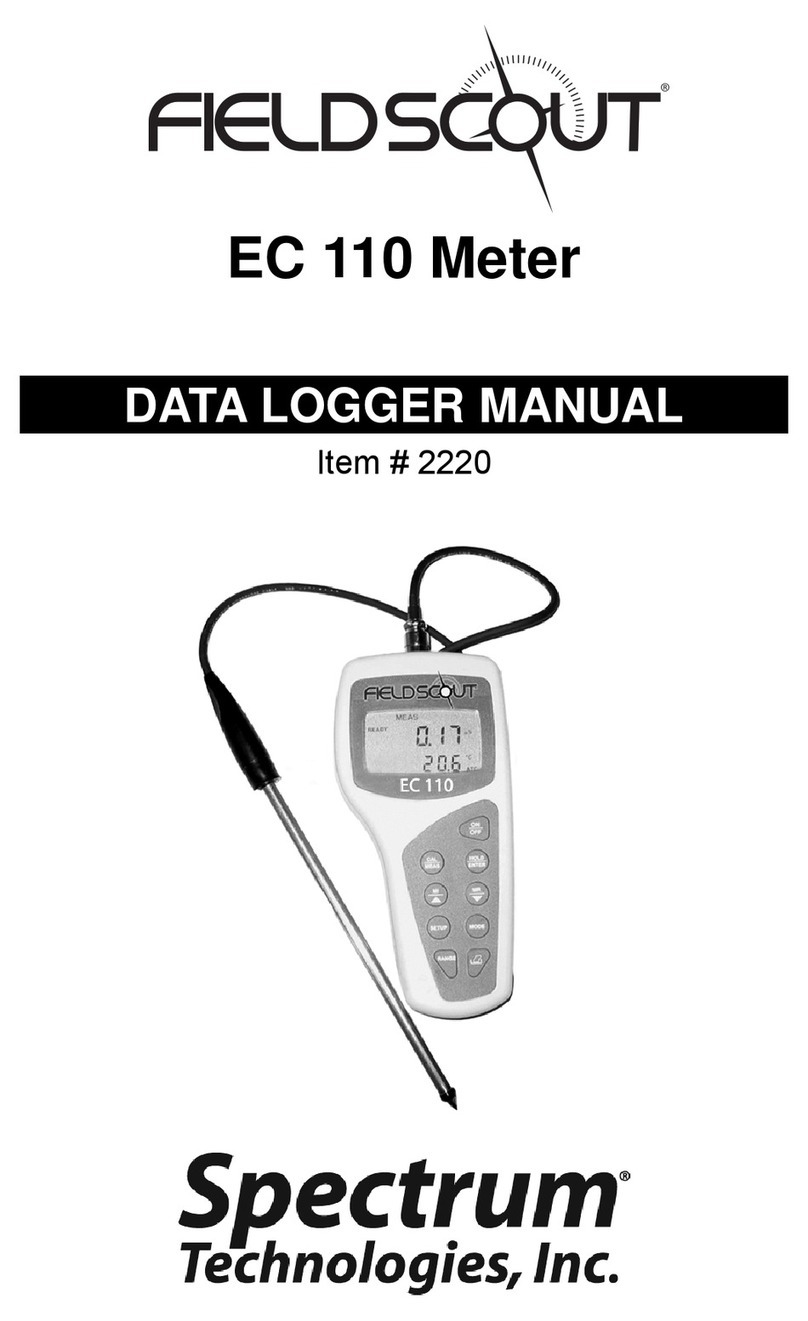
Spectrum 2120WP User manual

pH 450 Meter
Data Logger
PRODUCT MANUAL
Item # 2120WP
®

2
CONTENTS
This manual will familiarize you with the features and operation
of your new data logging pH 110 meter. Please read this
manual thoroughly before using your instrument. For customer
support, or to place an order, call Spectrum Technologies, Inc.
(800)248-8873 or (815) 436-4440
between 7:30 am and 5:30 p.m. CST,
FAX (815)436-4460,
e-mail: specmeters.com.
www.specmeters.com
Spectrum Technologies, Inc
3600 Thayer Court
Aurora, IL 60504
General Overview 3
Data Logger Operation 4
Identifying the Correct Com Port 6
Connecting to a PC 7
Logger Software 8
GPS Connection 10
Data Files 12
Specifications 13
Service and Support 14
Warranty 15

3
General Overview
Thank you for purchasing the data logging pH 450
meter from Spectrum Technologies, Inc. This us-
er’s guide deals with the features that are unique
to the data logging pH 450 meter. Information on
general meter operation is contained in the ac-
companying Instruction manual.
The integrated data logger allows the user to easi-
ly collect field data with the pH 450 meter. The
logger can be used with or without GPS/DGPS.
After a set of data has been collected, it is
transferred to a PC using the included software.
The data is in ASCII text file format and can be
exported into mapping software or popular
spreadsheet software for analysis.
NOTE: THIS BOOKLET CONTAINS INSTRUC-
TIONS ON OPERATING THE GPS-
COMPATIBLE DATALOGGER AND MAINTAIN-
ING THE pH PROBE. INFORMATION REGARD-
ING THE METER’S GENERAL OPERATION,
CALIBRATION PROCEDURE, AND DESCRIP-
TIONS OF ERROR MESSAGES ARE DETAILED
IN THE ACCOMPANYING MANUAL.

4
The data logger has two modes of operation: Com-
munication and Measurement. These modes are
indicated by the PRINT button at the
bottom of the keypad. When the but-
ton is flashing, the meter is in Com-
munication mode. When the button
glows steadily, the meter is in Meas-
urement mode.
Communication Mode
When the meter is turned on, it will be in Communi-
cation mode for approximately 10 seconds. While in
this mode, the PRINT button will flash. It is only in
this mode that a user can initiate a logger communi-
cation (download or reconfiguration). If communica-
tion between the logger and software is attempted
during this 10-second period, the logger will remain
in Communication mode indefinitely. The meter
must be turned off and then on to change to Meas-
urement mode (see following section).
Measurement Mode
Approximately 10 seconds after turning on the meter,
the PRINT button will glow steadily. This indicates
the logger is in Measurement mode. In this mode,
you can calibrate the meter and record data. When
you are finished collecting data, the meter must be
put into Communication mode by turning it off and
back on (see previous section). If you are collecting
data from several sites and need to turn off the meter
between data collection sessions, wait until the me-
ter transitions from Communication to Measure-
ment mode after turning the meter back on.
Data Logger Operation
PRINT button

5
Calibration
The procedure for calibrating the meter is given in
the accompanying meter instruction manual.
Taking and Data Logging Measurements
Note: Spectrum Technologies installs a GPS-
compatible data logger that is distinct from the data
logger built into the meter. The latter uses the SAVE
button to store values. These values are also re-
tained within the meter but cannot be downloaded
with FieldScout software.. The GPS-compatible log-
ger is operated as follows:
When the probe is inserted in soil or water, the me-
ter’s LCD will immediately begin indicating the pH.
When this value stabilizes, the meter locks on to that
value and the LCD will display READY in the lower
left portion of the screen. To capture this value with
the data logger, press the ENTER/
HOLD button followed by the PRINT
button. The PRINT button is the illumi-
nated button at the very bottom of the
keypad.
The PRINT button also indicates whether the data
logger is receiving the GPS signal. See GPS Con-
nection (p. 10) for more details.

6
Identifying the Correct
Com Port
Use FieldScout software
to identify the computer’s
Communications Port.
This is the port to which
the cable is connected
and can be identified by
using a paper clip.
1. Disconnect the serial
cable from the meter.
2. To bring up the Port Selection screen, click on the
Com Port button, select the com port to be tested and
click the Port Test button. Click the Test Port Now
button. If the message “Connection OK” is displayed,
another device (such as a modem) is probably connected
to that port. If the message “No Connection” is displayed,
this port may be the one connected to your serial cable
and you can proceed to the next step.
3. Place a paperclip on the end of the serial pin so that it
touches both the tip of the pin and the metal area
between the two black rings. Again click on the Test Port
Now button. If the message “Connection OK” now
appears, this is the com port connected to your serial
cable.
paper clip
or wire
NOTE: The meter does not short-circuit the serial pin.
Therefore, when the Test Port Now button is clicked
while the meter is connected, the “No Connection”
message will be displayed.

7
The pH 450 Meter software comes with a black PC inter-
face cable. This cable connects to the USB port of your
computer and to the meter’s computer port. The port is
located at the base of the meter behind a rubber cover
marked OUTPUT. The meter’s configuration can be modi-
fied by clicking on the Meter Settings button (see Meter
Settings, p. 8). The Com Port, Meter Type, Download,
Clear Memory and Meter Settings buttons are explained
in the Logger Software section (p. 8).
Connecting to a PC

8
Meter Type
The Field Scout software
supports all of Spectrum
Technologies’ portable
data logging meters. Be
sure to select the pH 100
Meter from the Select
Meter Type screen
Meter Settings
Clicking on this button will bring up the Meter Set-
tings screen. This screen allows you to configure
the data logger. The Meter Name will be the title on
the first line of the downloaded files.
If the box below the logger name field is checked,
the logger will store GPS data only if it has been dif-
ferentially corrected. If the differential correction is
not found, only the pH
reading will be stored
in the data file. An
adjustment for the
time zone should be
entered in the last
box.
Logger Software
New Image if
FW updated
New Image
if model #
updated

9
Download
After click-
ing the Download button, a progress bar will confirm
that data is being extracted from the logger. When
completed, the Save Data As box will appear. From
here you can give the data file a descriptive name
and select a folder in which to save it. The folder se-
lection field on the right allows you to browse to any
folder in your system.
When the file has been saved, the software will give
you the option of immediately viewing the file. The
data file is stored as a comma-delimited text file and
may be viewed in any text editor or spreadsheet soft-
ware.
Clear Memory
Data is not automatically removed from the logger
memory after a download. The Clear Memory but-
ton clears all data from the memory.
New Image
if model #
updated

10
GPS Connection
Cable Connections
A GPS/DGPS cable (item # 2950CV5) is required to
connect the pH 450 meter to a GPS unit. This cable
has a 9-pin male connection and a stereo pin that
connects to the meter’s data port. You will also need
a cable that allows the GPS unit to connect to a 9-pin
male serial port. If this cable doesn’t come standard
with your GPS unit, it should be available from the
manufacturer. This cable is generally used to upload
information from a computer to the GPS unit. These
components should be connected as shown in the
figure below.
GPS Setting
Your GPS unit must be set for NMEA 0183 input/
output messages. If the meter has trouble receiving
the GPS signal, check that it has the following set-
tings:
Data bits: 8 Stop bits: 1
Baud rate: 4800 bps Parity: None
Timing: 1 second GGA data string
Spectrum
GPS/DGPS
Cable
SPAD
Meter
GPS
Unit
GPS computer
interface cable
pH110
Meter
Table of contents
Other Spectrum Data Logger manuals