3.1. Installing the Cube Companion App
You can find the Cube Companion App on the iOS App store or Google Play store by searching for
“SwatchMate”. If you already have the Cube Companion App installed, check for available updates
to make sure you have the latest version. If your mobile device is not compatible with Cube you may
not be able to install the Cube Companion App.
3.2. Initial setup
On iOS: Ensure Bluetooth is on. Unlike most Bluetooth accessories, like headsets, your Cube must
be paired directly through the Cube Companion App, not through the Settings app on your iOS
device.
On Android: Ensure Bluetooth is on. Unlike most Bluetooth accessories, like headsets, your Cube
must be paired directly through the Cube Companion App, not through your Android device’s
Bluetooth preferences.
Setup procedure:
•Open the Cube Companion App
•Select “I have a Cube”
•Swipe left to reach “Care tips”
•Swipe left to reach “Get started”
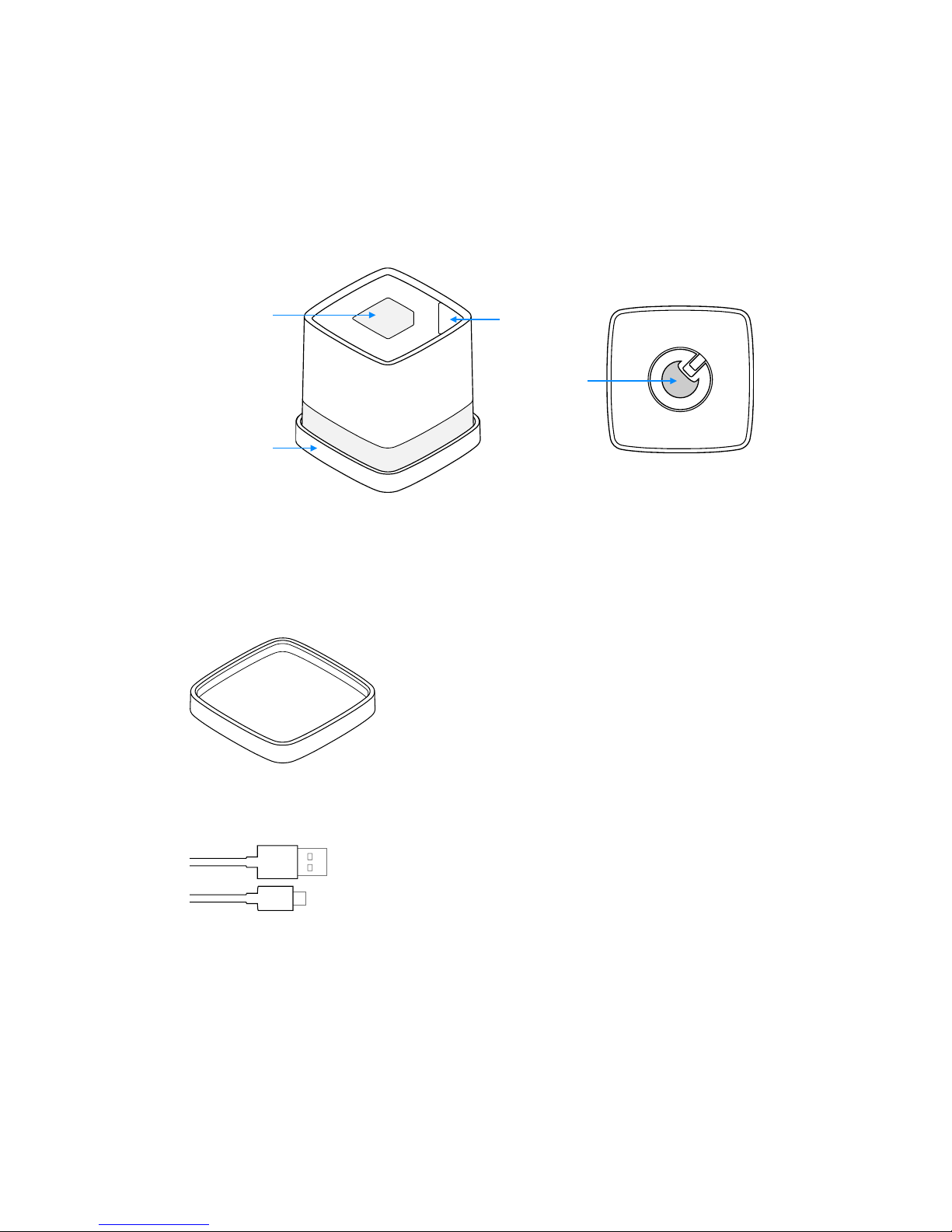
•Tap Cube’s Touch Button to turn it on. Cube’s Status Indicator will be solid white when ready
•Swipe left to reach “Searching for Cube”. Your mobile device will now find and pair with your
Cube
•If Cube pairs successfully, the app will transition automatically to “Success!”
•A pop-up message will let you know if Cube cannot pair to your mobile device. Ensure
Cube is on and that Bluetooth is enabled. Select “Try Again”
•Swipe left to reach “One more thing”
•Place Cube in Calibration Cap and swipe left to reach “Calibration”
•Your Cube will begin flashing continuously when in Calibration mode
•Press Cube’s Touch button to begin calibration. If calibration is completed successfully, the
app will transition automatically to “Your Cube is ready”
•Select “Capture Color”