Swiftpoint PROPOINT User manual

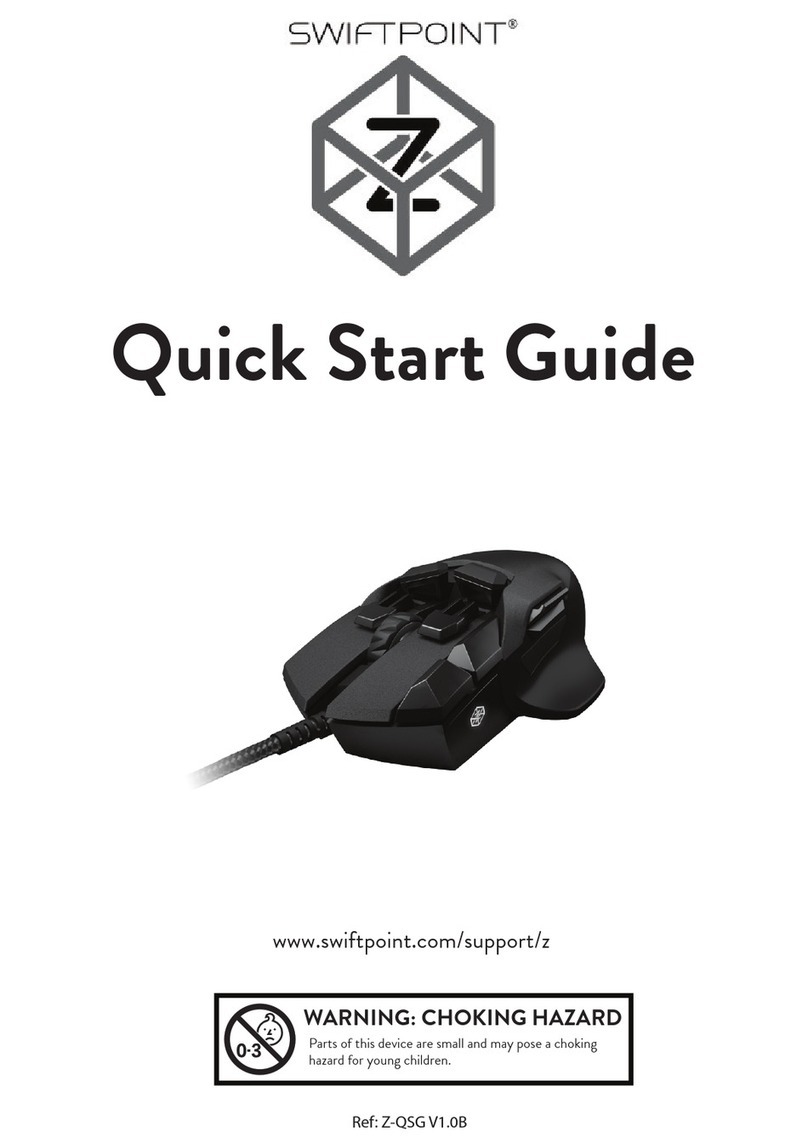
Quick Start Guide
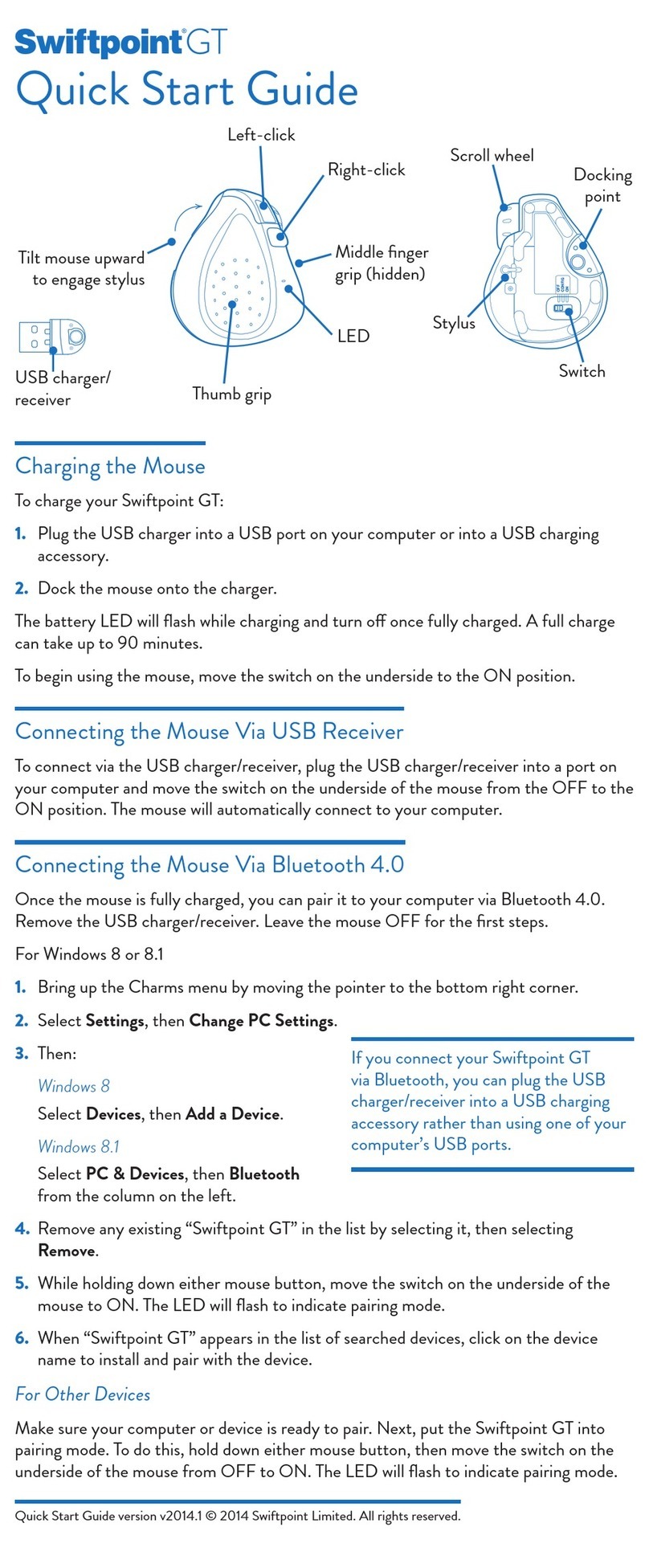
Charging ProPoint
To charge your ProPoint Mouse:
1.
1.
2.
3.
Plug the USB Charger into a USB
port on your computer or into
a USB charging accessory.
2.
Dock the mouse onto the charger.
The battery LED will flash green while charging & stop flashing
once fully charged. The first 60 seconds of charging will give
up to one hour of use. A full charge can take up to 90
minutes, giving up to 2 weeks of use. To begin using the mouse,
move the switch on the underside to the ON position
Connecting ProPoint via Bluetooth
Once the mouse is fully charged, you can pair it to your
computer via Bluetooth. Remove the USB Charger/Receiver.
Leave the mouse OFF for the first steps.
1.
2.
3.
Remove any existing “ProPoint” entries
in the list by selecting it, then select Remove.
4.
5.
When “ProPoint” appears in the list of devices, click on it
to pair your mouse.
If does not appear, check that your system
supports Bluetooth 4.0 (or later) & that Bluetooth is enabled.
Please note that Windows 7 does not support Bluetooth 4.0,
however you can purchase a USB Receiver which will work on
Windows 7. Accessories can be purchased from the Swiftpoint
store (www.swiftpoint.com) & other approved outlets.
“ProPoint”
USB Charger/Receiver
Ensure Bluetooth is switched on, on your device.
Go to the Bluetooth device menu in your system settings
- Windows: Settings > Devices > Add Bluetooth device
- MacOS/iOS: System Preferences/Settings > Bluetooth
Plug the USB Charger/receiver into your computer.
Charge your mouse for at least 2 minutes before using.
Switch On using the switch on the bottom of the mouse.
For more tips & videos, visit www.swiftpoint.com/600
Configuring ProPoint on PC/Mac
Open browser, click in URL box & type:
www.swiftpoint.com/download-propoint-drivers
Follow the on-screen instructions
1.
2.
Left-click (front)
Right-click (center)
Middle-click (rear)
Thumb grip
LED
Middle finger
grip
Scroll-wheel Docking
point
Switch
Connecting ProPointto iPad Applications
1.
2.
Launch your supported remote desktop app, & start
a remote session.
Pair your ProPoint to your iPad over Bluetooth (see above).
6.
If you have a problem, switch the mouse OFF & try again
from step 1.
ProPoint Features
Connecting to more than one Bluetooth device
ProPoint can store pairings with up to three separate
Bluetooth devices.
When switched on, the mouse will first try to reconnect with
the most recently used device. If this cannot be found it will
try to connect to the next device in the list.
If two or more of ProPoint's current Bluetooth connections
are available nearby, you can swap between them by holding
the center button while switching OFF then ON again using
the On/O switch.
While holding down the mouse front button, move the switch
on the underside of the mouse to ON. Release the front
button once the LED starts to flash orange.
If the button is held for more than 5 seconds, the mouse will not
pair via Bluetooth. The LED will flash green & the mouse will enter
USB Receiver (sold separately) pairing mode.
Connecting ProPoint via USB Receiver
To connect via the USB Charger/Receiver, plug the USB
Charger/Receiver into a port on your computer & move the
switch on the underside of the mouse from the OFF to the ON
position. The mouse will automatically connect to your computer.
When not using the mouse for brief periods, dock the mouse
on the USB Charger so it maintains a charge.
The mouse should be fully charged periodically.
When not using the mouse for extended periods, move the
switch on the underside of the mouse to the OFF position.
IMPORTANT
Install the SWIFTPOINT CONTROL PANEL to configure
your ProPoint mouse to perform exactly as you want it to.
Set the cursor speed, scroll speed & direction, assign button
functionality & much more. The driver will be updated
periodically to add & improve functions.

Using ProPoint
Hold the mouse with your thumb on the thumb grip & your
middle finger on the finger grip. Rest your index finger on the
front button.
To right-click, move your index
finger to the center button
Use your index finger to roll
the scroll wheel
Move the mouse forwards & backwards to scroll up & down
Move the mouse left & right to pan sideways
Tilt + Center Button gesture functions can be customized &
reassigned using the Swiftpoint Control Panel.
Zoom In
Zoom Out
Next
Application
Previous
Application
PRESS Center ButtonTILT Mouse
Tilt
Tilt + Move Gestures Functions
Tilt + Center Button Gesture Functions
Presentation Mode
Presentation Mode - Functions
Quick Start Guide V03 En 2019 Swiftpoint Limited. All rights reserved©
Start the show & move the switch on the underside
of the mouse to PRESENT
Presentation mode operates with all presentation software and
any other application. To get started with Presentation Mode;
Ensure the Swiftpoint Control Panel is installed & running.
Hold the mouse
in the palm
of your hand
& use your
thumb to operate.
Next BrowserTab
Mac - Next Window
Previous Browser
Tab
PRESS Rear Button
TILT Mouse
Tilt + Rear Button Gesture Functions
Middle click
(rear)
Move the switch on the underside of the mouse to ON to
return your mouse to standard mouse functionality.
To middle-click, move your index
finger to the rear button
Specifications
Windows 7, 8, 10 or higher
MacOS 10.4 or higher
Android 4.4 or higher
iOS 7 or higher, with compatible applications
Operating Systems
Communications
Power
Right click
(center)
Left click
(front)
To perform tilt gestures:
Tilt the mouse to the right
to engage the tilt gestures
& move the mouse
sideways, backwards,
or forwards.
USB Wireless (2.4GHz)
Bluetooth 4.0
Li-Ion Battery 3.7V, 120mAh
Charging: USB Outlet, 5V , 130mA
Install the SWIFTPOINT CONTROL PANEL at
www.swiftpoint.com/download-propoint-drivers
Use the Swiftpoint Control Panel to customize your settings.
Functions available in Presentation Mode include;
Next Slide/Left Click
Previous Slide/Up
SpotPoint
Laser Pointer
Right Click
Application Switch
Move Cursor
Custom Command
Tilt gestures can be customized using the Swiftpoint Control
Panel.
Tilt + Rear Button gesture functions can be customized &
reassigned using the Swiftpoint Control Panel.
1.
2.
Table of contents
Other Swiftpoint Mouse manuals