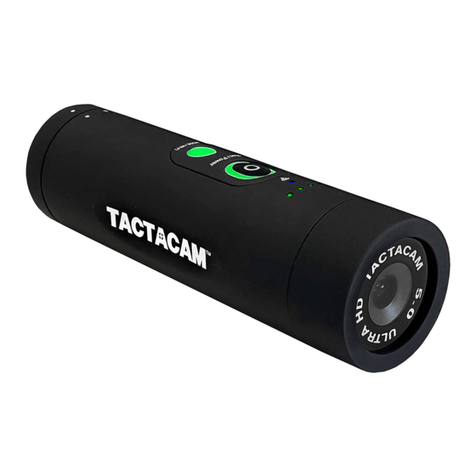
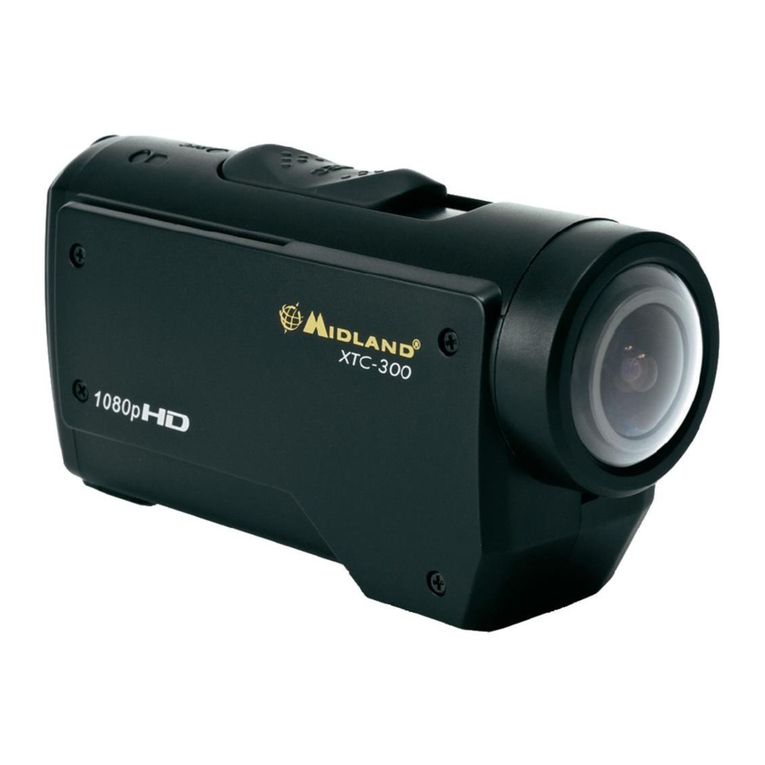
Tactacam 6.0 User manual

INSTRUCTION MANUAL
TACTACAM.COM

2
1. Back cap
2. Power and record
3. 2.5 hour record time on
a single charge
4. Touchscreen display
5. Battery indicator lights
6. TrueVision™ Ultra
HD @30 with Auto
Adjust Low light to
15fps | 2.7k@30fps
| 1080p@120fps,
60fps and 30fps |
720@240fps, 120fps,
60fps and 30fps
7. External waterproof mic
FEATURES
INTRODUCTION
6
1
3
4
2
5
7
TABLE OF CONTENTS
QUICK START GUIDE
Charge your Tactacam
Powering on and Recording
Quick Change Modes
Customizable Modes
Remote Control
Reformatting Your SD Card
CONNECT TO THE TACTACAM APP
PLAYING BACK CONTENT
HELPFUL TIPS
CHARGING/BATTERY INFO
TROUBLESHOOTING
WARRANTY
3
5
6
7
8
9
10
12
14
15
16
18
22

3
QUICK START GUIDE
CONGRATULATIONS ON YOUR NEW TACTACAM!
This is a Quick Start Guide to show you the basics of your new Tactacam. Visit Tacta-
cam.com for the most up-to-date info about your Tactacam.
Please make sure you register your camera within 10 days of purchase at:
www.tactacam.com/warranty-registration
Follow us on Facebook, Instagram and Twitter for the latest updates from the Tacta-
cam team: www.facebook.com/tactacam, www.instagram.com/tactacam, www.twitter.
com/tactacam. Submit your videos at: www.tactacam.com/share
What microSD requirements does my camera have?
Tactacam 6.0 cameras supports up to 4k 60FPS, 1080p 120FPS, 720p 240FPS, high
frame rate video for a better shooting experience. Please use a microSD card that
meets the following specications:
1. Use U3 or higher with your 6.0 (Class 10 U1 cards are not compatible and are too
slow)
2. Tactacam 6.0 supports 64-128 GB
3. FAT32 SD card format. After connecting to the Tactacam connect app, we recom-
mend formatting the card by going to the “Settings-> SD card -> Format SD card”
4. Please use one of the recommended microSD cards (see below)
*Other Brands speed/quality may vary, look for the for best results. Please

4
Before you start lming, charge your Tactacam completely. Twist counter
clockwise to the unlock position to access the components listed below.
You will see the following.
SD card slot
USB C port (for charging and downloading)
Removable battery (up to 2.5 hours continuous recording time)
1
1
1
2
3
QUICK START GUIDE
2
3
1

5
With the back cap removed you will see the USB C charging port and the SD card slot.
Using the included USB cord, plug your Tactacam into a wall outlet.
You will see the solid red light illuminate on your Tactacam and it will remain lit until
your camera is fully charged. When the light has shut off, you can then unplug your
Tactacam.
USB C
CHARGE YOUR TACTACAM

6
POWERING ON AND RECORDING
1. Push the Rec/Power button. You will feel the
camera vibrate 2 times and see a blinking green
light around the Rec/Power button. The green LED
must be blinking for the camera to be recording.
The process takes approximately 3 seconds.
NOTE: If light does not begin to ash, make sure
your SD card is installed, formatted, and not lled
with videos.
2. To pause your recording quickly push the Rec/
Power button. The camera will vibrate 1 time and
the green light will go solid around the rec/power
button.
3. With the camera paused, change the modes by
pushing the mode button.
4. To power your camera completely off push and
hold the Rec/Power button for 5 seconds.
5. The camera will automatically power off to save
battery when left in pause mode after 3 minutes.

7
QUICK CHANGE MODES
“QUICK CHANGE” VIDEO MODES
The camera has three pre-set video modes:
• Green = Standard recording, best for rst time use, general recording and low light
recording.
• Blue = Zoom mode, to get you closer to the subject.
• Light Blue = Slow motion, records at 120fps provides smooth playback of your
shot placement. Best results are with lighted arrow nock or tracer round ammo.
CHANGING MODES
To change modes, simply swipe right and/or left on the screen until you reach the
desired mode. Tap on the screen to select it.
BLACKOUT MODE
Activate blackout mode in the Tactacam Connect app camera settings by turning
black out mode on. Then enter Blackout mode by pressing the MODE button when the
camera is recording.
NOTE: You can only enter and exit the Blackout mode when the camera is recording.
When in Blackout mode your camera functions will remain the same without visible
lights on the camera. You will only feel the camera vibrate. (2 vibrations = recording
and 1 vibration = pause). If at any time you get confused just push and hold the rec/
power button for 5 seconds and the camera will power off.
NOTE: When using Blackout mode, periodically conrm you are recording to avoid
mishaps. The battery indicator light will blink to inform you that the battery has less
then 10% life remaining.

8
The Tactacam 6.0 camera comes from the factory pre-set for optimal use in the
following three settings.
MODE 1 GREEN = General Filming and Low Light
This setting is optimal for general lming and is the mode of choice for many. The
High resolution and lowlight capability is recommended for rst time, as well as
experienced users. A s you familiarize yourself with the Tactacam 6.0 you will enjoy
the exibility to adjust the Tactacam 6.0’s zoom which is available when connecting
to the Tactacam’s WiFi with the Tactacam Connect app.
MODE 2 BLUE = Zoom Mode
This setting is optimal for use when the subject is in the distance. The Tactacam
6.0 is set at 8x. You are able to customize the zoom setting on your Tactacam 6.0,
connect to the Tactacam Connect app and select your desired zoom setting.
MODE 3 LIGHT BLUE = Slow-mo
This setting is optimized for high speed action at 120fps.
NOTE: To customize Mode settings connect your (Tactacam 6.0) to the Tactacam WiFi
app. Select your preferred settings and you are ready to start sharing your hunt. This
customization is only available for the Tactacam 6.0.
DEFAULT SETTINGS
6.0 default: Green = 4k@60fps 3x zoom, Blue =2.7@30fps 8x zoom, Light Blue =
1080@120fps 3x zoom. ALL three modes on the 6.0 can be customized using the
Tactacam Connect app. Use any combination of resolution and zoom on Green, Blue
and Light Blue modes.
Zoom Options
Tactacam 6.0 zoom can be customized from the Tactacam Connect app’s camera
home screen and will be saved to your camera.
Available resolution‘s are: 4k@60 with Auto Adjust Low light to 15fps | 2.7k@30fps |
1080p@120fps, 60fps and 30fps | 720@240fps, 120fps, 60fps and 30fps
CUSTOMIZABLE MODES

9
REMOTE CONTROL
The Tactacam 6.0 is compatible with the Tactacam remote. Please see the Tactacam
support page for more remote and operation instructions.
1. Turn on both your Tactacam Remote and 6.0
2. On your 6.0, swipe down on the LCD screen, click “RF Remote”
3. Click “Connect”
NOTE: You will see the remote connection number increase by 1 number. If this is
the rst camera synced a 1 will be displayed on the remote. After initial pairing, your
remote can control up to (5) Tactacam remote compatible cameras with one button.
Functions include Power ON Auto Record / PAUSE/ OFF and when not recording
conserves batteries with the Auto Power off feature. All cameras and Remote will
power down after 3 min when not recording. But don’t worry they all will power back on
just as fast with a push of the Tactacam remote button. Tactacam Remote Technology
gives you the feed back you need, all on an LCD screen: Number of connected cameras,
Record length, Remote Battery life and the Green LED indicates Recording, Pause/On
and Off Tactacam Remote has been optimized at 100 feet giving you the distance and
control over your cameras. NOTE: Tactacam Remote is only compatible with Tactacam
compatible cameras.
REMOTE CONTROL

10
Always use the recommended SD card for your camera. Tactacam 6.0 requires
UHS Speed Class 3 (U3) to deliver the necessary write speed for cameras like the
Tactacam 6.0 that can shoot 4K and high-bit rate video. U3-certied SD cards must
be able to maintain a minimum write speed of 30MB/s to ensure that recording
continues smoothly without any dropped frames. You can use up to a 64GB card with
the Tactacam 6.0 only.
Note: You should always format your SD card before using it in your Tactacam for the
rst time or after it has been used in any other device. Only use high quality microSD
cards. Tactacam SD cards, Lexar, or SanDisk Ultra Extreme are recommended.
Please see more info on SD cards at www.tactacam.com/support
Use one of the following methods to access videos located on your microSD card.
1. Using the provided USB cord connect your Tactacam to your computer. Power on
your camera to allow the computer and camera to communicate. You will see an icon
on your computer desktop (usually named TACTACAM). Open it, any videos taken
with your Tactacam will be in the “Video” folder.
REFORMATTING YOUR SD CARD REFORMATTING YOUR SD CARD - MAC/PC
Table of contents
Other Tactacam Action Camera manuals