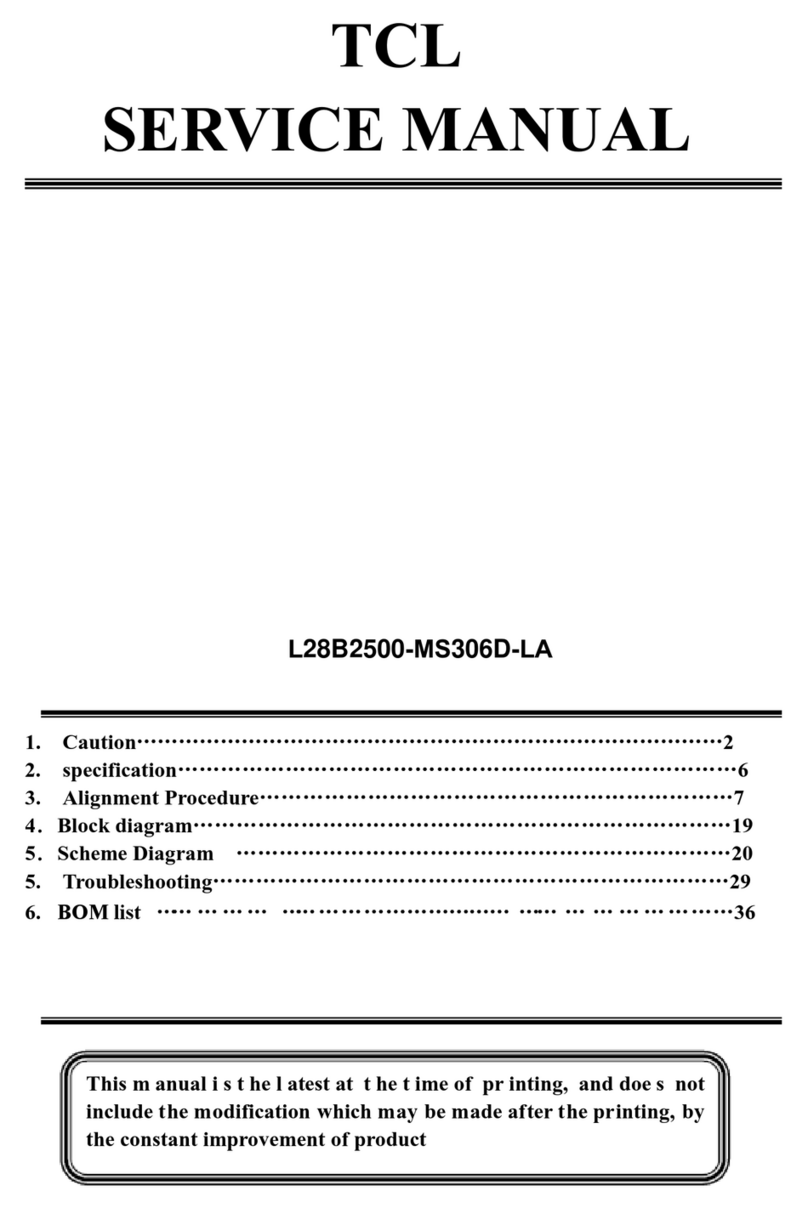
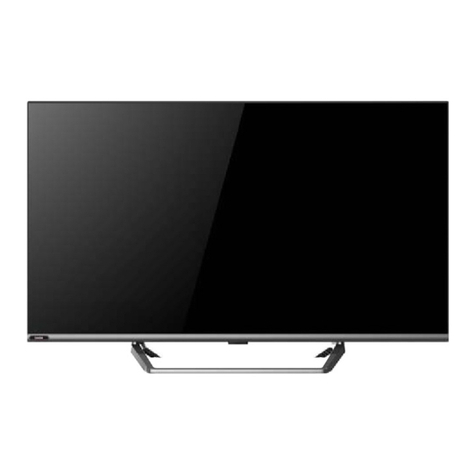
TCL 40S6500 User manual

谢鸣晨
制作表编号:HZ2018-10-209R
物 料 编 号:72-RT41KT-EAPAN
内 容:说明书
型 号: 40S6500
日 期:2018-12-22
BOM H3-40F60LF-ISNA0AA编 号 :
牌子名称: TCL 40S6500
批 次 号:ELK138831D
机 芯: RT41KT1-AP
制作人
PREPARED BY:
项目 美工 工程师/
EN G . C H E C K E D BY :
市场业务中心确认
C O N F IR M BY:
i)
ii)
iii)
(SCALE)
(SIZE)
(COLOUR) :
:
:1:1
A5
PLS. PRINT IN BLACK ON 80G WHITE PAPER.
白底黑字,80g双胶纸
TCL 电子控 股有限公司
制造中心 - 惠州TV工厂 - PE 部
产 品 辅 助 设 室 外 销 单
销 往 地: ISRAEL
基础说明书72-RT41KT-EAP1D
说明书封面封底为客户提供,以业务签名确认为准。
2018.10.23
09:07:54
+08'00'
钟庆
数字签名人钟庆DN:cn=钟庆,ou=Huizhou,dc=com
日期:2018.10.23
09:44:52 +08'00'

32S6500
40S6500
43S6500
49S6500


2
Table of Contents
Chapter 1: Introduction
Precautions ...............................................................3
Warning ...................................................................3
Product ....................................................................3
Power and Plug .......................................................3
Power Cord and Signal Cable .................................3
Use Environment .....................................................3
Cleaning ..................................................................3
Hanging the TV Set on the Wall ...............................3
Sockets ......................................................................4
Remote Control Functions ...................................... 5
Installing Batteries ....................................................5
Exclusive Remote Control .......................................6
How to use the remote control..................................6
Installing Batteries ...................................................6
Chapter 2: Getting Started
Switching On .............................................................7
Network Connection .................................................8
TV Buttons ...........................................................9
Initial Setup .............................................................9
Chapter 3: Basic TV Operations
Accessing Channels ..............................................10
Watching Connected Devices ...............................10
Adjusting Volume ...................................................10
Accessing Smart TV Homepage ............................10
Accessing T recommended ....................................10
Using System Settings Menu .................................10
Using TV Settings Menu ........................................10
Chapter 4: Using More of Your TV
Installing Channels .................................................11
Common Interface ..................................................11
Using the Common Interface Function ...................11
Accessing Common Interface Services .................11
Using Subtitles ........................................................11
Enabling Subtitle Languages on Digital TV
Channels ................................................................11
Selecting a Subtitle Type on Digital TV Channels ...12
Using Teletext .........................................................12
Selecting Decoding Page Language ......................12
Digital Teletext Language .......................................12
Network Wake Up ................................................12
Using Instant Power On ..........................................12
T-Link .......................................................................12
Enabling or Disabling T-Link ...................................12
Using Auto Power On .............................................12
Using Auto Standby ................................................12
Using EPG (Electronic Program Guide) ...................12
Bluetooth Function .................................................13
Password in Parental Control ................................13
Chapter 5: Other Information
Problems & Solutions .............................................14
Troubleshooting .....................................................15
Legal Statement ......................................................16

3
IntroductionChapter 1
Precautions
Read all of the instructions before operating the set.
Keep these instructions well for future use.
Warning
Never place a television set in an unstable location. A
television set may fall, causing serious personal injury
or death. Many injuries, particularly to children, can be
avoided by taking simple precautions such as:
-Using cabinets or stands recommended by the
manufacturer of the television set.
-Only using furniture that can safely support the
television set.
-Ensuring the television set is not overhanging the
edge of the supporting furniture.
-Not placing the television set on tall furniture
(for example, cupboards or bookcases) without
anchoring both the furniture and the television set to
a suitable support.
-Not placing the television set on cloth or other
materials that may be located between the television
set and supporting furniture.
-Educating children about the dangers of climbing on
furniture to reach the television set or its controls.
If your existing television set is being retained and
relocated, the same considerations as above should be
applied.
Product
• Do not block or cover the ventilation openings on the
back cover.
• Do not push objects of any kind into this unit through
the cabinet slots as they could touch the current
electric shock, or damage to the unit.
• Do not attempt to open the cabinet as this may cause
damage. There are no parts inside you can service by
•
may scratch or mar the TV screen.
• Do not impact the TV screen with hard pressure as
this may damage the TV screen severely.
Power and Plug
• Unplug the set under the following conditions:
-If the set will not be used for a long period of time.
-If the power cord or the power outlet/plug is
damaged.
-Follow the instructions to install and adjust the
product. Adjust those controls that are covered in
these operating instructions as improper adjustment
of other controls may result in damage. If this
happens, unplug the set and refer to the service
personnel.
-If the set is subject to impact or has been dropped
and the cabinet has been damaged.
• Where the mains plug or an appliance coupler is used
as disconnect device, the disconnect device shall
remain readily operable.
(*Where an all-pole mains switch is used as the
disconnect device, the switch shall remain readily
operable.)
Power Cord and Signal Cable
• Do not allow anything to rest on or roll over the power
cord and the signal cable.
• Protect the power cord and the signal cable from
being trampled.
• Do not overload the power cord or the power outlet.
• Do not expose the power cord and the signal cable to
moisture.
Use Environment
• Do not place the set on an unstable cart, stand, or
table.
• Place the set on a place that allows good ventilation.
• Do not use the set near damp, and cold areas.
• Do not expose the set to excessive heat such as direct
such as lighted candles, should be placed on the
apparatus.
• Do not expose the set to dripping or splashing and
placed on the apparatus.
• Do not use the set in dusty environments.
• Operating Temperature: 5°C to 35°C (41°F to 95°F)
Operating Humidity: 20% to 80%, non-condensing
Storage Temperature: -15°C to 45°C (5°F to 113°F)
Storage Humidity: 10% to 90%, non-condensing
Cleaning
• Dust the set by wiping the screen and the cabinet with
a soft, clean cloth or some special liquid cleaner.
• Do not apply excessive force to the screen when
cleaning.
• Do not use water or other chemical cleaner to clean
the screen as this may damage the surface of the TV
screen.
Hanging the TV Set on the Wall
Warning: This operation requires two people.
To ensure a safe installation, observe the following
safety notes:
• Check that the wall can support the weight of the TV
set and wall mount assembly.
• Follow the mounting instructions provided with the
wall mount.
• The TV set must be installed on a vertical wall.
• Make sure to use only screws suitable for the material
of the wall.
• Make sure that the TV set cables are placed so that
there is no danger of tripping over them.
All other safety instructions about our TV sets are
also applicable here. (Note: Certain TV model is not
designed to be mounted to the wall.)
4
Introduction
Sockets
Note: The location and names of the sockets on the TV may vary according to TV model, and not all sockets
available on all models.
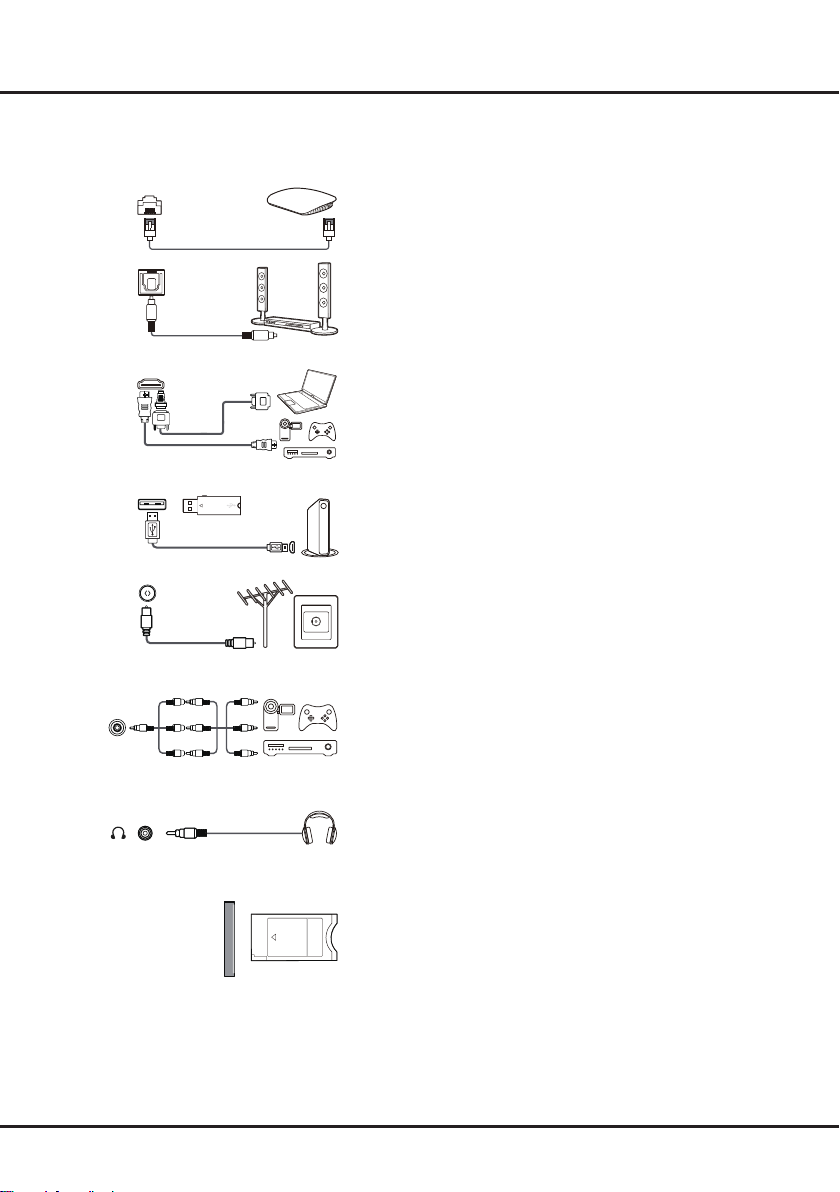
LAN
This socket can be used to connect to external modem or network
access equipment.
SPDIF socket (output)
This socket can be used to connect a compatible digital audio
receiver.
HDMI(SERVICE) or HDMI(ARC) socket (input)
used to connect a Blu-ray player, PC with a compatible video
digital satellite decoder. This socket provides an uncompressed
digital connection that carries both video and audio data by way
of an integrated mini-plug cable.
USB2.0 socket (input)
These sockets can be used to connect a USB device.
Note: The number of USB sockets on the TV may vary according
to TV model.
ANTENNA/CABLE IN socket (input)
This socket can be used to connect the outside aerial or cable
network.
AV IN adapter socket
The AV IN adapter socket can be used to connect the attached
AV adapter cable with VIDEO and AUDIO L & R IN sockets. The
AV IN sockets can be used to connect a range of equipment,
including video recorders, camcorders, decoders, satellite
receivers, DVD players, or games consoles.
Headphone socket (output)
This socket can be used to connect headphones or stereo
earphones.
Warning: Excessive sound pressure from earphones and
earphones and headphones can cause hearing loss.
COMMON INTERFACE socket
This slot can be used to watch encrypted digital TV channels by
inserting a CAM(Conditional Access Module) along with a smart
card provided by a digital TV service operator.
SPDIF
ANTENNA
/CABLE IN
AV IN
adapter
V L R
V L R
V L R
COMMON INTERFACE
LAN
Router / Modem
USB 2.0
HDD
HDMI
(SERVICE)
or HDMI
(ARC)

5
Introduction
Installing Batteries
1. Push to open the back cover as illustrated.
2. Insert two AAA batteries according to the
polarities marked on the battery case.
3. Replace the back cover as illustrated.
Remote Control Functions
Most of your television's functions are available via the menus that appear on the screen. The remote control(s)
Note:
product appearance. Certain function may not be available for some models, e.g. GUIDE/SUBTITLE functions are
only available under DTV source. And DTV is not available for certain model.
Standby / quit standby.
Numeric buttons To enter channel numbers or a digit.
To access T recommended apps.
LIST To display the channel list.
/ To control the volume.
To display program information, if available.
To display the Settings menu.
P/ To change channels.
To access or exit the Smart TV homepage.
To display the Option menu.
/ Navigation direction buttons.
OK
To return to the previous menu or quit an App.
To select input source.
EXIT To exit the Settings menu.
LANG To select an audio language available for selected
digital TV program.
GUIDE (only
available for digital channels.)
TEXT
SUBT. To select a subtitle language available for selected digital TV
program.
Colour buttons To select tasks or Teletext pages.
To start fast reverse.
To pause playback.
To start fast forward.
ZOOM To select the desired screen format.
To start playback.
To stop playback.
(Not available for some models.)
6
Introduction
Note: This remote control is only available for selected models. The remote control type may be changed without
notice.
How to Use the Remote Control
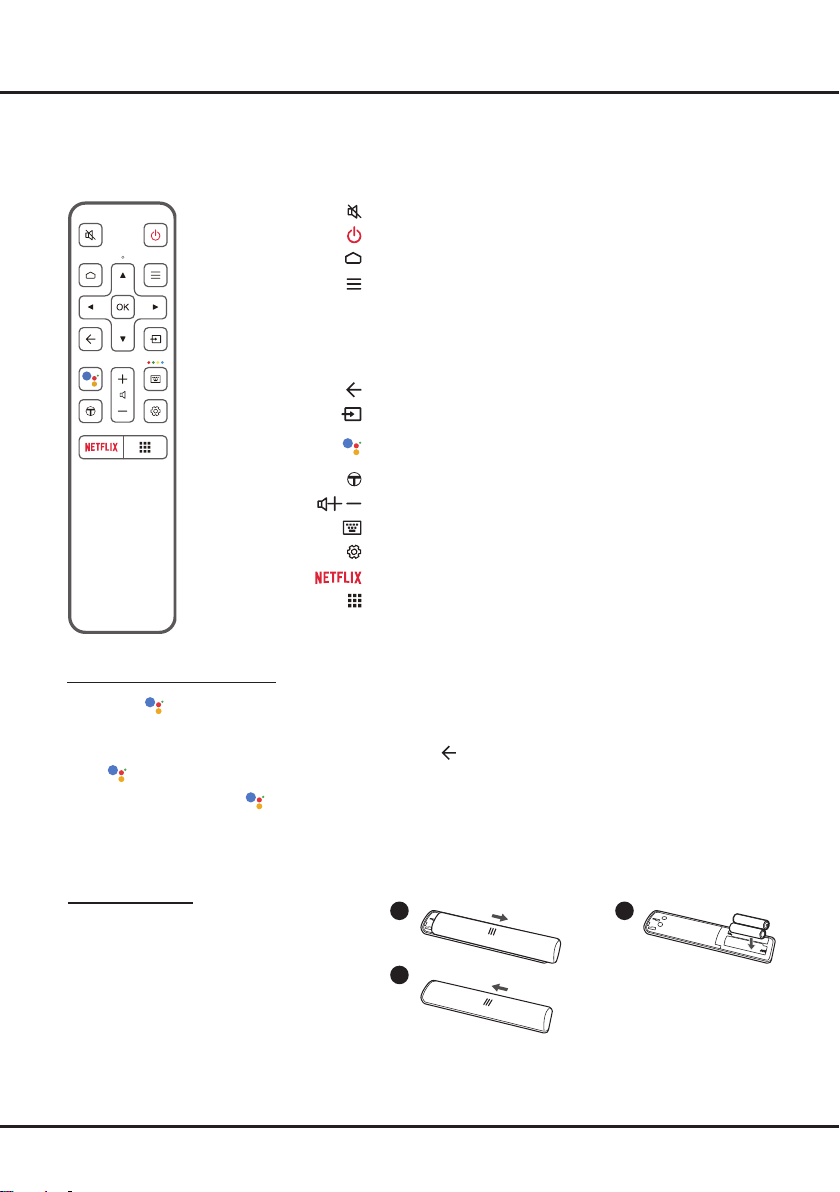
When using
screen guide for paring instructions.
a.Keep the remote control and TV in 1 meter, press OK and button on the remote at the same time. You can
use button after activating successfully.
b.This voice search function is only available for content search from certain apps.
c.Set languages in the TV settings-
fully.
1 2
3
Installing Batteries
1. Push to open the back cover as illustrated.
2. Insert two AAA batteries according to the
polarities marked on the battery case.
3. Replace the back cover as illustrated.
Standby / quit standby.
To access the Smart TV homepage.
To display the Option menu.
/ to
change channels in TV mode.
OK This button is also used to
display the channel list in TV mode.
To return to the previous menu or quit an App.
To select input source.
To turn on the voice function. (Available only when the network
connection works normally.)
To access T recommended Apps.
/To control the volume.
To pop up the virtual remote control keyboard when available.
To display the Settings menu.
(Not available for some models.)
To access Apps view page directly.
Exclusive Remote Control

7
Chapter 2 Getting Started
Switching On
Follow the instructions on this page on how to switch on your TV set
and the remote control before going on to following pages describing
how to use the channel set-up procedure.
1. Insert two AAA batteries in the remote control.
Precautions on using batteries:
- Make sure you use the correct polarity.
- Do not mix new and used batteries.
- Do not use rechargeable batteries.
- Do not expose batteries to excessive heat such as sunshine,
them, as this could cause them to leak or explode.
- Remove the batteries from the remote control if you are not using
it for a long period of time.
- Attention should be drawn to the environmental aspects of battery
disposal.
2. Connect the power cable FIRST to the television, THEN to a mains
socket. (Note: If the power cable is connected to the television,
please only connect the power cable to the mains socket.)
Your TV set should only be connected to an AC supply. It must not
be connected to a DC supply. If the plug is detached from the ca-
ble, do not, under any circumstances, connect it to a mains socket,
as there is a risk of electric shock.
Note:
3. Connect an outside aerial to the ANTENNA IN socket at the back
of the TV set.
The aerial socket (75 OHM - VHF / UHF / cable) can be used for
Note: If you want to receive the signal from your cable or cable
box, please connect a coaxial cable to the CABLE IN socket at the
back of the TV set.
4. When powered on, the TV will be turned on directly or be in
standby mode.
If the power indicator lights up, the TV set is in standby mode.
Press the button on the remote control or on the TV set to turn
on the TV.
Switching Off
• To put the TV set into standby mode, press the button on the
remote control. The TV set remains powered up, but with low
energy consumption.
•
outlet.
8
Getting Started
Network Connection
Your TV will require an internet connection to operate all functions. Data usage charges may apply.
Please refer to your Internet Service Provider (ISP) for additional information.
To access the Internet, you must subscribe to high speed broadband Internet service with your Internet service
provider (ISP).
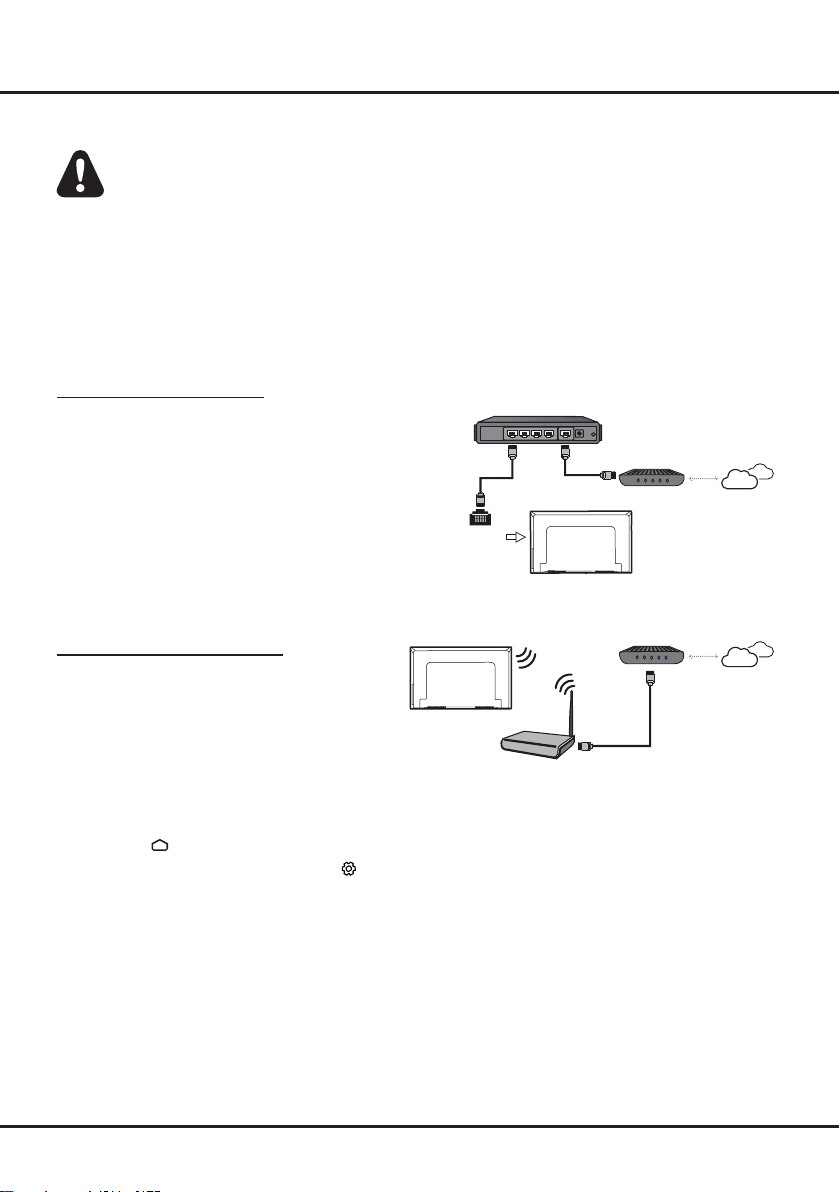
Your TV can be connected to your home network in two ways:
• Wired, using the RJ45 (LAN) connector on the back panel.
• Wireless, using the internal wireless and your home wireless network.
Note: Instructions below are just the usual ways to connect your TV to the wired or wireless network. The connection
home network, please refer to your ISP.
Connecting to a Wired Network
To connect to a wired network:
1. Ensure you have:
• An Ethernet cable long enough to reach your TV
• A router or modem with an available Ethernet
port
• A high-speed Internet connection
• An Ethernet (LAN) port on the back of the TV
2. Connect your Ethernet cable to the router and to
the Ethernet port on the back of the TV.
3. Use the Network menu to configure the TV.
Connecting to a Wireless Network
To connect to a wireless network:
1. Ensure you have:
• A router broadcasting a high-speed wireless
signal
• A high-speed Internet connection
2. Use the Network menu to configure the TV.
Note: Please follow below steps to enter the Network menu.
1. Press on the remote control to display the Smart TV homepage.
2. Press / to move the cursor to (Settings) on the right top of the screen and press OK to enter the
system settings.
3. Press / to select Network, then press OK to enter the submenu and follow the on-screen guidance to
set up your network.
Router
Modem Internet
LAN port
Modem Internet
Wireless router
This manual suits for next models
4
Table of contents
Other TCL LED TV manuals