manuals.online logo
Brands
  1. Home
  2. •
  3. Brands
  4. •
  5. Tiger
  6. •
  7. Game
  8. •
  9. Tiger Harry Potter Wizards Apprentice 36284 User manual

Tiger Harry Potter Wizards Apprentice 36284 User manual

Other Tiger Game manuals

Tiger Kaboom 65-194 User manual

Tiger

Tiger Kaboom 65-194 User manual
Tiger Giga Fighters 70-354 User manual
Tiger

Tiger Giga Fighters 70-354 User manual

Tiger 11-007 User manual

Tiger

Tiger 11-007 User manual

Tiger 60-052 User manual

Tiger

Tiger 60-052 User manual

Tiger Star Wars Jedi Hunt 88-002 User manual
Tiger

Tiger Star Wars Jedi Hunt 88-002 User manual

Tiger Wheel of Fortune Deluxe Use and maintenance manual
Tiger

Tiger Wheel of Fortune Deluxe Use and maintenance manual

Tiger WCW Nitro Sting 74-092 User manual
Tiger

Tiger WCW Nitro Sting 74-092 User manual

Tiger 70-133 User manual

Tiger

Tiger 70-133 User manual
Tiger Jumble 07-010 User manual

Tiger

Tiger Jumble 07-010 User manual
Tiger Hollywood Hogan 80-605 User manual
Tiger

Tiger Hollywood Hogan 80-605 User manual

Tiger Rugrats 64-212 User manual

Tiger

Tiger Rugrats 64-212 User manual
Tiger Pokedex Deluxe User manual

Tiger

Tiger Pokedex Deluxe User manual
Tiger Lights 65-101 User manual

Tiger

Tiger Lights 65-101 User manual
Tiger Tech Warriors User manual

Tiger

Tiger Tech Warriors User manual

Tiger Mission Paintball Trainer 42792 User manual
Tiger

Tiger Mission Paintball Trainer 42792 User manual

Tiger Mini Action Games User manual

Tiger

Tiger Mini Action Games User manual
Tiger Goldberg 08-008 User manual

Tiger

Tiger Goldberg 08-008 User manual
Tiger Lights Out Cube 7-592 User manual
Tiger

Tiger Lights Out Cube 7-592 User manual

Tiger Animaniacs 72-539 User manual

Tiger

Tiger Animaniacs 72-539 User manual
Tiger 88-509 User manual

Tiger

Tiger 88-509 User manual
Tiger Monsters Scream Catcher Tabletop Game 59854 User manual

Tiger

Tiger Monsters Scream Catcher Tabletop Game 59854 User manual

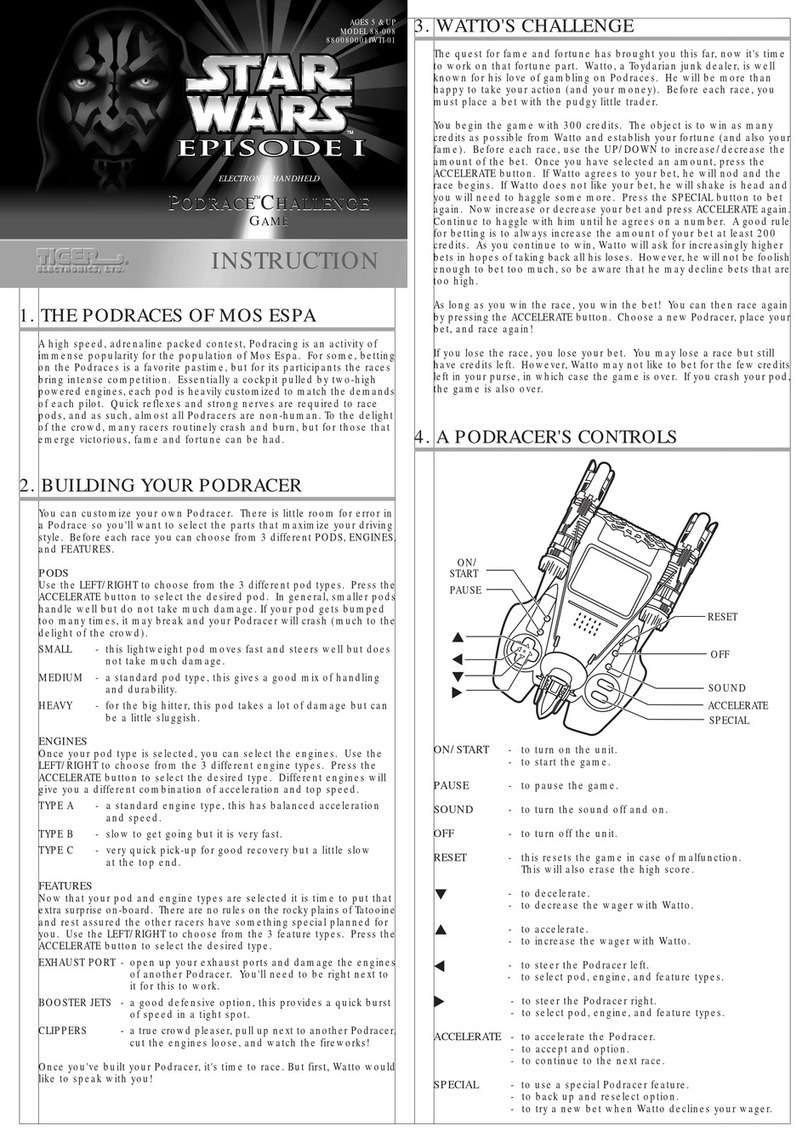
Tiger Star Wars Podrace 88-008 User manual

Tiger

Tiger Star Wars Podrace 88-008 User manual

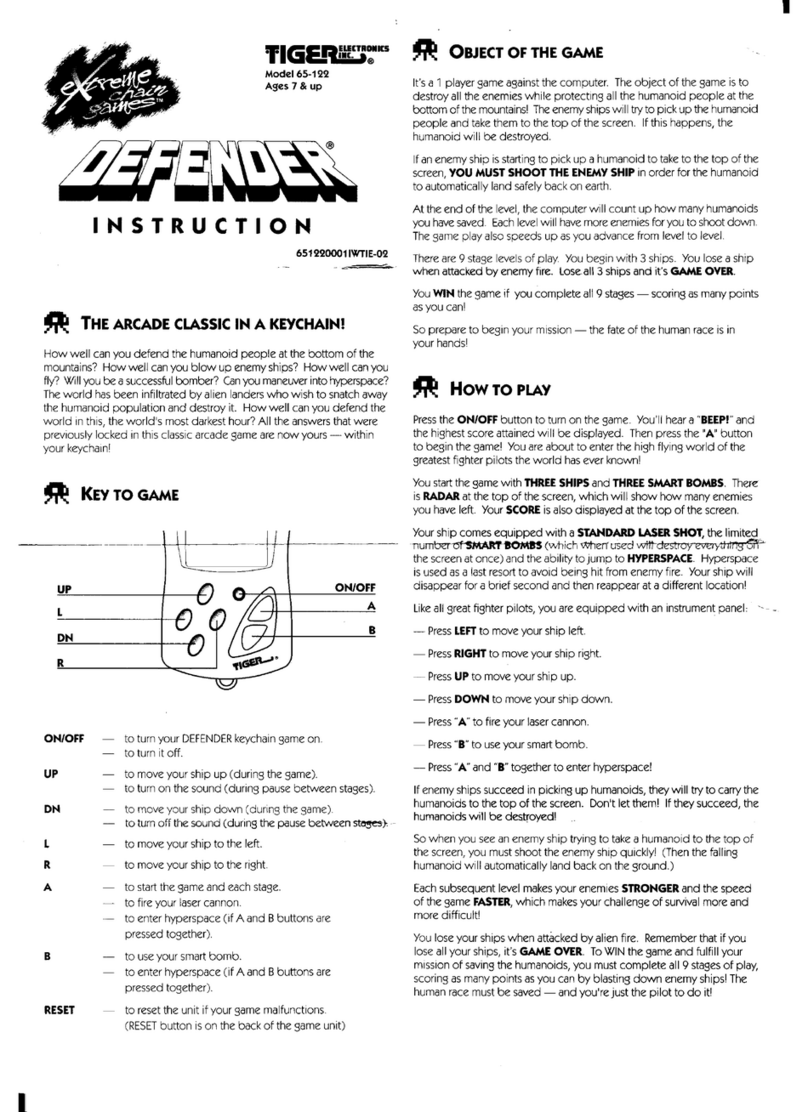
Tiger Defender 65-122 User manual

Tiger

Tiger Defender 65-122 User manual

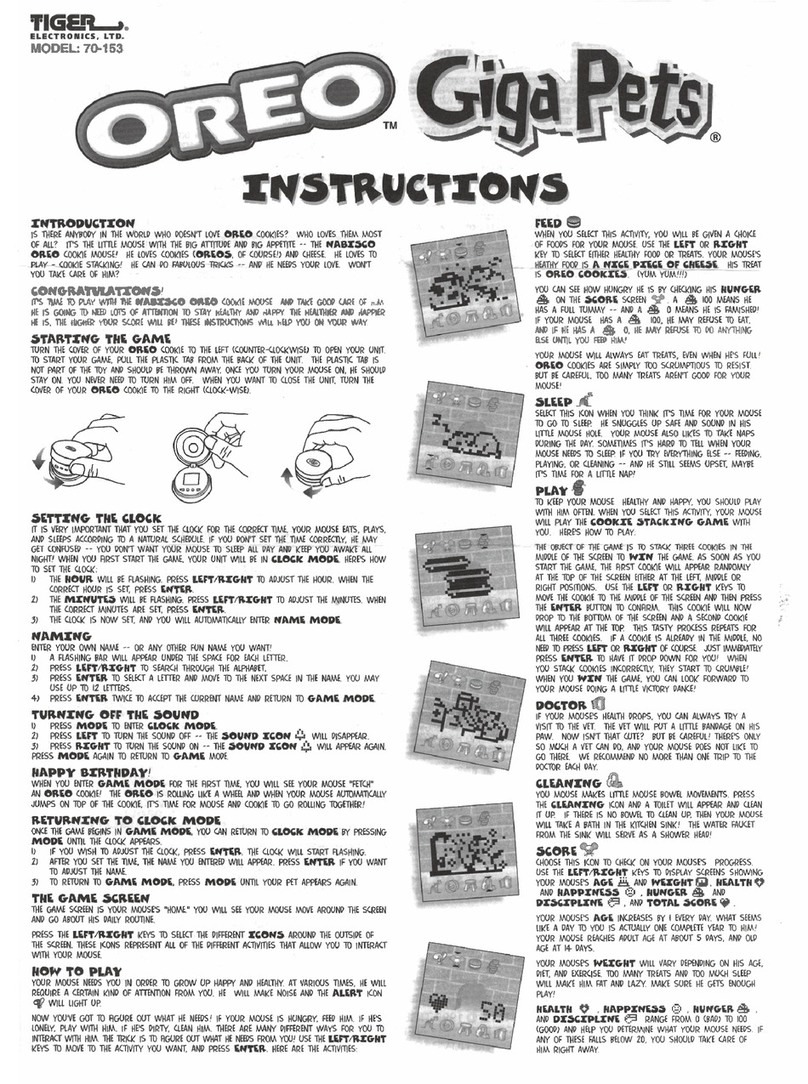
Tiger Oreo Gigapet 70-153 User manual

Tiger

Tiger Oreo Gigapet 70-153 User manual

Popular Game manuals by other brands
Bay Tek Games GRIDIRON BLITZ Service manual

Bay Tek Games

Bay Tek Games GRIDIRON BLITZ Service manual

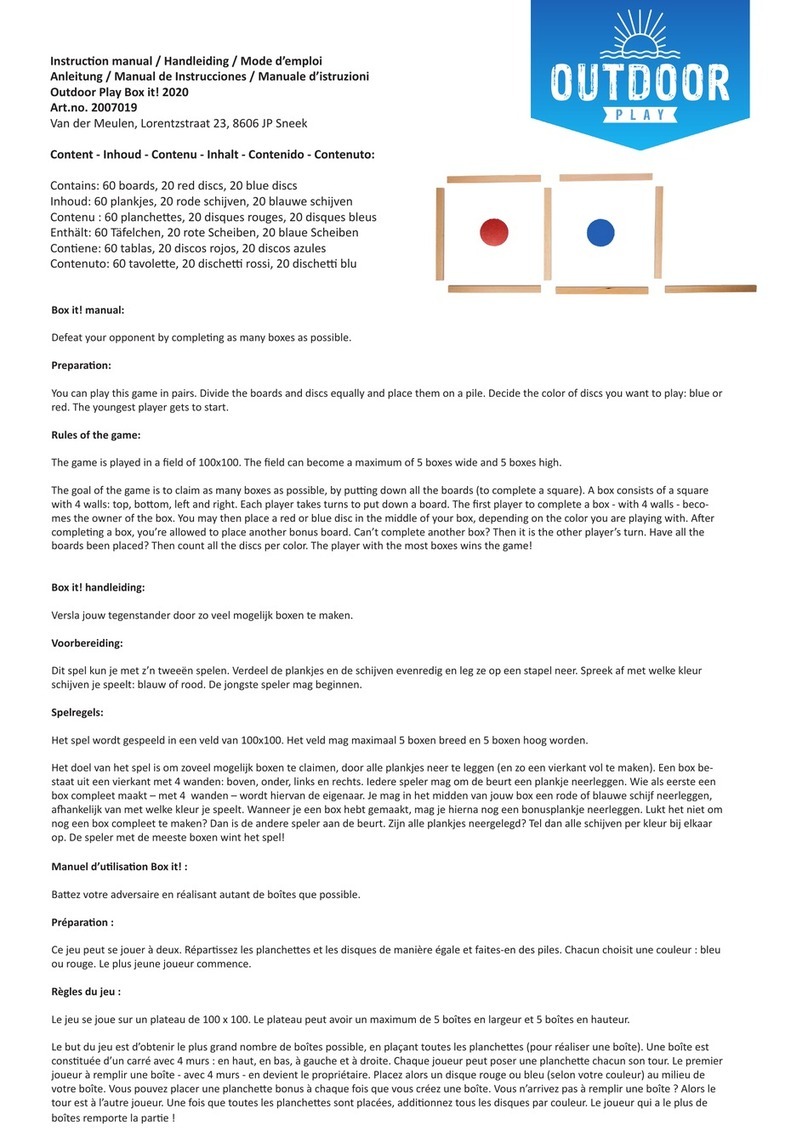
Outdoor Play Box it! 2020 instruction manual

Outdoor Play

Outdoor Play Box it! 2020 instruction manual

Beleduc Papilio Instruction

Beleduc

Beleduc Papilio Instruction

Costway UY10001 user manual

Costway

Costway UY10001 user manual

Vex Add It Up Assebly instructions

Vex

Vex Add It Up Assebly instructions

Radica Games BUCKAROO 630 instruction manual

Radica Games

Radica Games BUCKAROO 630 instruction manual

Roberto Sport INGLESE Assembly instructions
Roberto Sport

Roberto Sport INGLESE Assembly instructions

Koala Technologies KoalaWare Spider Eater owner's manual

Koala Technologies

Koala Technologies KoalaWare Spider Eater owner's manual

Tomy The Magic Oven manual

Tomy

Tomy The Magic Oven manual
Tiger Electronics Last Out 7-584-0 instructions
Tiger Electronics

Tiger Electronics Last Out 7-584-0 instructions

Fisher-Price RollOverRover manual

Fisher-Price

Fisher-Price RollOverRover manual

Mattel World Championship Football instructions
Mattel

Mattel World Championship Football instructions
DGT Centaur manual

DGT

DGT Centaur manual

Haba Dragon Diego Dart manual

Haba

Haba Dragon Diego Dart manual

Tiger Electronics Brain Warp instruction manual

Tiger Electronics

Tiger Electronics Brain Warp instruction manual

Tiger Electronics Bot-Ster 59704 instruction manual

Tiger Electronics

Tiger Electronics Bot-Ster 59704 instruction manual

Fundex Games Timber Tumble User instructions

Fundex Games

Fundex Games Timber Tumble User instructions

Crivit DS-1532 Playing and user instructions

Crivit

Crivit DS-1532 Playing and user instructions

manuals.online logo
manuals.online logoBrands
  • About & Mission
  • Contact us
  • Privacy Policy
  • Terms and Conditions

Copyright 2025 Manuals.Online. All Rights Reserved.

Item No. 36284
200102270IWTI-01
INSTRUCTION
AGES 5 & UP
Wizard’s
Apprentice
1
ContentsContents
ContentsContents
Contents
WELCOMEWELCOME
WELCOMEWELCOME
WELCOME 22
22
2
MAIN MENUMAIN MENU
MAIN MENUMAIN MENU
MAIN MENU 33
33
3
1.1.
1.1.
1. CARD DATABASECARD DATABASE
CARD DATABASECARD DATABASE
CARD DATABASE 44
44
4
2.2.
2.2.
2. TRADE LISTTRADE LIST
TRADE LISTTRADE LIST
TRADE LIST 77
77
7
3.3.
3.3.
3. DECK BUILDERDECK BUILDER
DECK BUILDERDECK BUILDER
DECK BUILDER 1010
1010
10
4.4.
4.4.
4. CLOCKCLOCK
CLOCKCLOCK
CLOCK 1212
1212
12
5.5.
5.5.
5. CALENDARCALENDAR
CALENDARCALENDAR
CALENDAR 1313
1313
13
6.6.
6.6.
6. CALCULATORCALCULATOR
CALCULATORCALCULATOR
CALCULATOR 1515
1515
15
INSERTIN OR REPLACIN BATTERIESINSERTIN OR REPLACIN BATTERIES
INSERTIN OR REPLACIN BATTERIES 1616
1616
16
CAUTIONCAUTION
CAUTIONCAUTION
CAUTION 1818
1818
18
DEFECT OR DAMA EDEFECT OR DAMA E
DEFECT OR DAMA E 1919
1919
19
90-DAY LIMITED WARRANTY90-DAY LIMITED WARRANTY
90-DAY LIMITED WARRANTY 2020
2020
20
2
WELCOMEWELCOME
WELCOMEWELCOME
WELCOME
Your Wizard’s Apprentice opens the door to a whole new
world of Harry Potter™ information based on the first
set of Harry Potter™ Trading Cards from Wizards of the
Coast®. You will be able to search, sort, view and
rearrange Harry Potter™ information as you access
Potter knowledge based on:
Card Number
Rarity
Name
Type
Keyword
Text
You can also use the incredible memory of your Wizard’s
Apprentice to store trade lists and build decks!
Like most wizards, you’ll also want certain other features
to help life run a little smoother, including functions for
clock, alarm, calendar, reminder and calculator.
QUITQUIT
QUITQUIT
QUIT
ON/OFFON/OFF
ON/OFFON/OFF
ON/OFF
EDITEDIT
EDITEDIT
EDIT
DELETEDELETE
DELETEDELETE
DELETE
RESETRESET
RESETRESET
RESET
ENTERENTER
ENTERENTER
ENTER
SPACE/SPACE/
SPACE/SPACE/
SPACE/
CLEARCLEAR
CLEARCLEAR
CLEAR
3
MAIN MENUMAIN MENU
MAIN MENUMAIN MENU
MAIN MENU
Turn ON the unit. You’ll see the opening animation as
well as the time and the date followed by a menu screen
with six icons on it. You’ll see a “select” arrow
highlighting one of the icons.
If the current day is a “reminder” day, then the day will
flash and you will also hear a “reminder” alarm.
These six icons on screen represent the MAIN MENU.
Use the four arrow buttons to scroll to the icon of your
choice (the “select” on-screen arrow will move as you
toggle) and press ENTER to select the function of your
choice.
CLOCK CALENDAR CALCULATOR
CARD DATABASE TRADE LIST DECK BUILDER
4
1. CARD DATABASE1. CARD DATABASE
1. CARD DATABASE
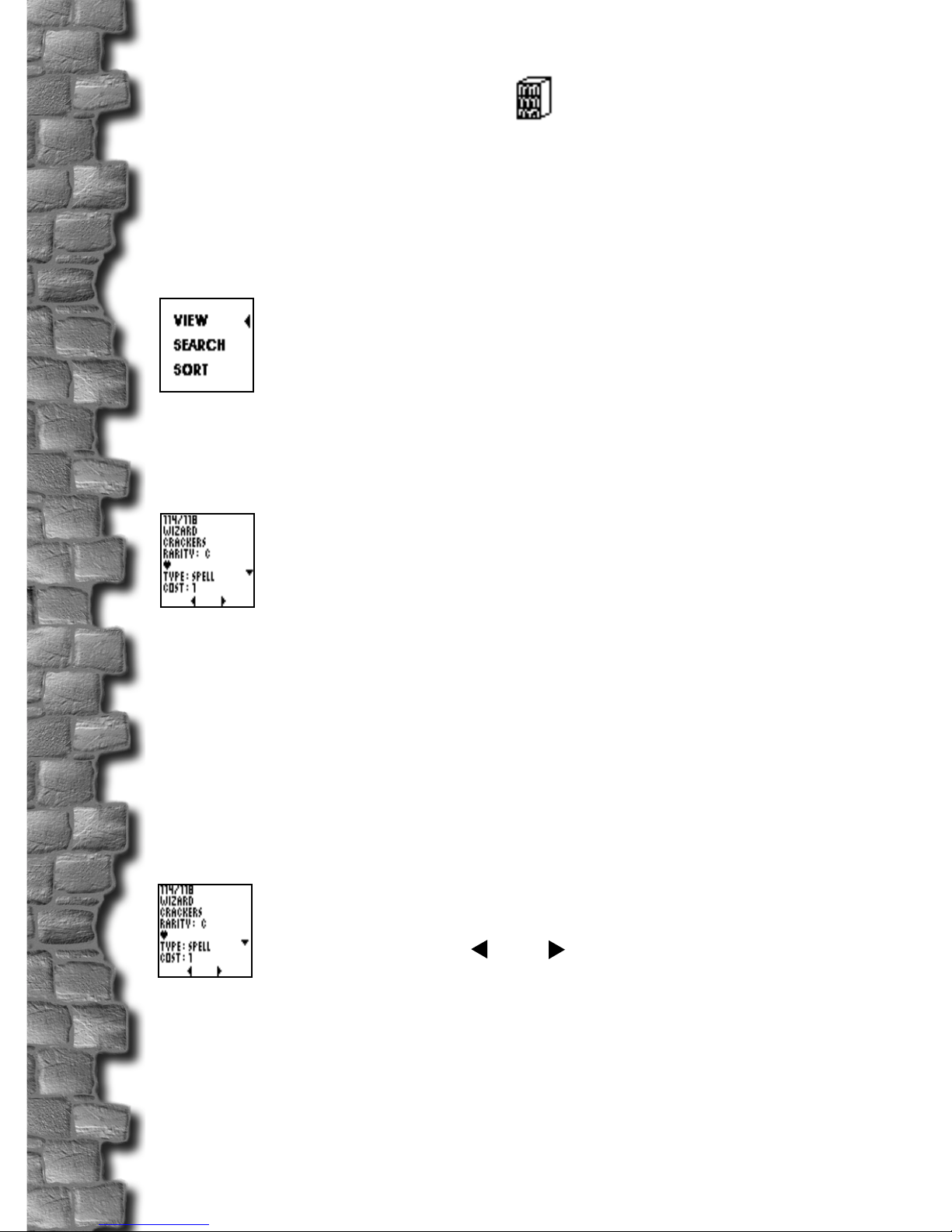
Highlight the card database from the MAIN MENU and
press ENTER.
You can VIEW, SEARCH, or SORT.
VIEW Let’s try VIEW. Scroll to it and press ENTER.
The default database is the FULL SET sorted by card
number. Use the UP and DOWN arrows to scroll through
the current text display.
By viewing, you can check the CARD NUMBER.
For example, 114/118 means it’s card number
114 out of the first set of 118 cards.
Then you see the NAME of the card, for example,
“WIZARD CRACKERS”.
You see the RARITY of the card, for example “C”, which
is common.
You see the TYPE of card, for example, “SPELL”.
Scroll down and you can then see the text of the card.
You can also use the LEFT and RI HT arrows
to automatically move to the PREVIOUS or
NEXT card. The < and > symbols should appear
at the bottom of the screen.
Adding Cards to your Trade ListAdding Cards to your Trade List
Adding Cards to your Trade List
You can press EDIT to automatically add cards to your
trade list.
5
When you press EDIT, a new screen will come
up that says ‘ADD TO TRADE LIST? Y/N’.
If you answer “Y”, then the words WANTED and FOR
TRADE are displayed.
Use your UP and DOWN arows to choose either of these
two lists, and press ENTER to confirm.
Let’s say you add the card or you press “N” instead. Your
Wizard's Apprentice will then back out of this menu
screen and return to viewing.
SECRET TIPS
If the card you’re looking at on screen has a TIP
on it, then you will see a “?” between the < and >
symbols at the bottom of the screen.
Press ENTER and you can view the TIP! You will only
get to see one tip per day, so make sure you pay careful
attention!
SEARCH
Scroll to SEARCH and press ENTER.
You will see
You can then use the left and right arrows to toggle
between the different ways to search, which are:
NUMBER
RARITY
NAME
TYPE
KEYWORD
TEXT
6
When you highlight and of the six groups above, you will
see “PLEASE ENTER SEARCH ITEM”.
Example 1: Search by NUMBER. Enter in a number, for
example, “89” and then press ENTER. Your Wizard’s
Apprentice will find all the cards that have that number.
After the database is done searching, it will return to the
DATABASE submenu.
On screen, you will see
Highlight VIEW and press ENTER.
You will see all the information for card 89/118, which
happens to be:
FOUL BREW
RARITY: C
TYPE: SPELL
COST: 5
DO 2 DAMA E TO YOUR OPPONENT OR TO A
CREATURE OF YOUR CHOICE.
Example 2: Search by NAME:
Enter a few letters, for example “QU” and press ENTER.
You will see VIEW, SEARCH, or SORT. Press VIEW
and the database will find all the cards that contain those
letters in the NAME field.
You’ll see the cards for:
106/118 SNAPE’S QUESTION
107/118 SQUI LE QUILL
because these are the two cards with a “QU” in the name
field.
7
SORT
The SORT function allows you to sort cards before
viewing. Scroll to SORT and press ENTER and you will
be able to sort in a sub-menu of 5 choices:
SORT BY:
NUMBER
RARITY
NAME
TYPE
KEYWORD
After the database is sorted, you will return to the
DATABASE submenu.
2. TRADE LIST2. TRADE LIST
2. TRADE LIST
Highlight TRADE LIST from the main menu. To add
cards to your Trade List, select WANTED or FOR
TRADE.
Use your UP and DOWN arrows to toggle between the
two options and press ENTER to select.
Highlight WANTED and press ENTER. If you haven’t
entered anything yet, it will say “NO RECORD”.
Highlight FOR TRADE and press ENTER. If you
haven’t entered anything yet, it will say “NO RECORD”.
If the card is already in the WANTED list, it can’t be
added to the FOR TRADE list. The reverse is also true-
if the card is already in your FOR TRADE list, it can’t
be added to your WANTED list.
The WANTED and FOR TRADE lists can support up to
1000 cards, including up to 99 of any single card.
Press QUIT to go back to the main menu.
Let’s look at the “WANTED” and “FOR TRADE”
features a little more closely:
8
WANTED
When the word WANTED appears at the top of the
screen, press ENTER to display all of the cards currently
on the WANTED list. When the list is empty, “NO
RECORD” appears at the middle of the screen. The
number of the current card is highlighted.
Use your UP and DOWN arrows to scroll through the
highlighted card.
You can press ENTER to bring up the TEXT of the
currently highlighted card, or you can press DELETE to
remove the currently highlighted card from the list.
When the card is the last one in your list, you will be
prompted with “DELETE: Y/N” before anything else
happens on screen.
You can also press EDIT to add cards to your WANTED
list. Each time you press EDIT, the highlighted card will
increase by 1. (To add a completely new card to your list,
you must follow the instructions above for the
DATABASE.)
You can also press EDIT to add cards to your FOR
TRADE list. Each time you press EDIT, the highlighted
card will increase by 1. (To add a completely new card to
your list, you must follow the instructions above for the
DATABASE.)
Press QUIT to go back to the main menu.
FOR TRADE
You can also view your FOR TRADE entries.
When the word FOR TRADE appears at the top of the
screen, press ENTER to display all of the cards currently
on the FOR TRADE list. When the list is empty, the
words NO RECORD appear at the middle of the screen.
If there are entries on the list, the number of the current
card will be highlighted. Use your UP and DOWN arrows
9
to scroll and highlight different cards.
Press ENTER to bring up the TEXT of a highlighted
card.
Press DELETE to remove a highlighted card from your
list. When the card is the last one in a list, you will be
prompted with “DELETE: Y/N” before the final delete
happens.
Press EDIT to add a highlighted card into the FOR
TRADE list.
Press QUIT to return to the Main Menu.