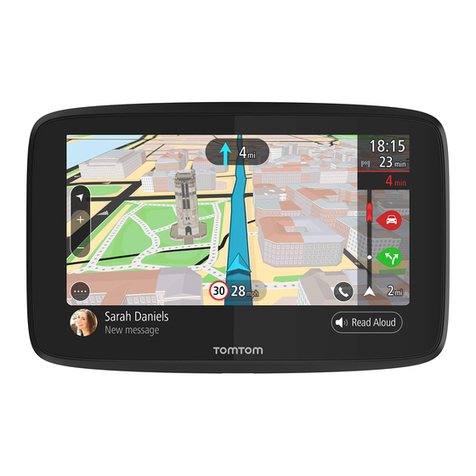
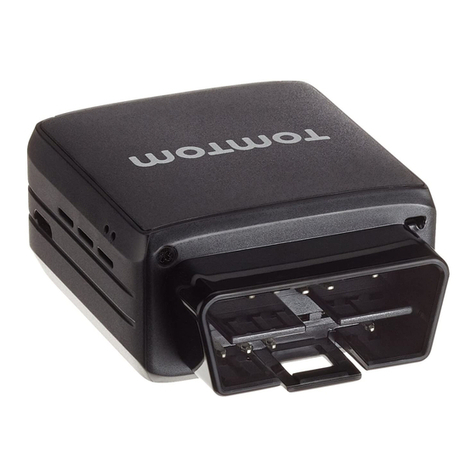
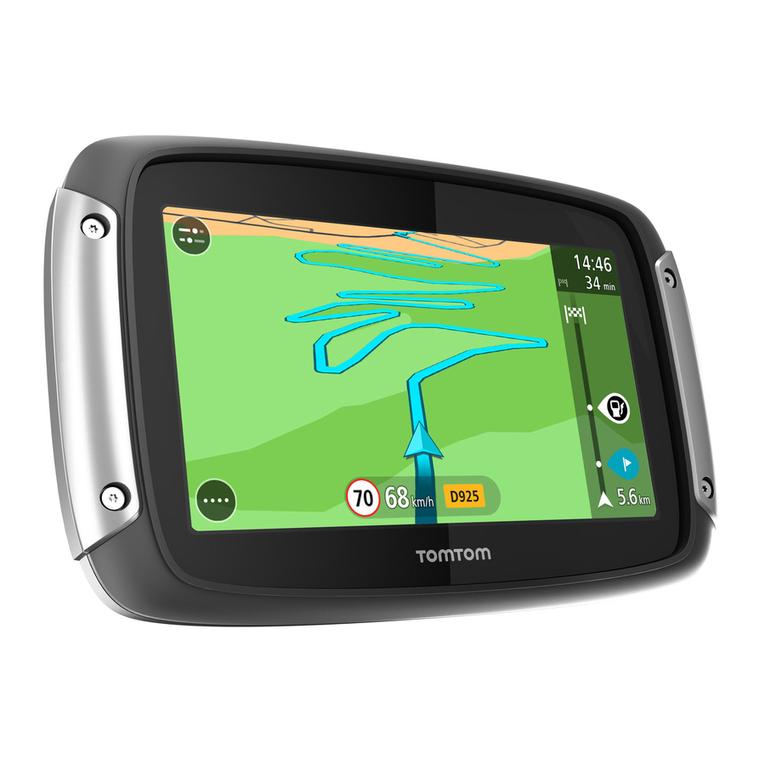
TomTom GO User manual

3
UK
3
TomTom GO Quick Start Guide
UK
DK
NL
FI
FR
DE
IT
NO
PT
ES
SE
Contents
What's in the box? 4
Unpacking 4
Your TomTom GO 5
Remote control 6
Docking shoe 6
Installation 7
Assembly 7
Switching on for the first time 8
Starting up 8
Using TomTom GO 8
Using the remote control 9
How to plan your first route 10
Helping with your journey 12
What's on the screen? 13
Finding alternative routes 14
Advanced planning 15
Preferences 16
Use night colours 16
Manage POI 17
Hide POI 17
Change Home location 17
THE SMART CHOICE IN PERSONAL NAVIGATION
Connecting to your phone 18
More information 20
TomTom PLUS 20
General information 20

4
UK
4
Unpacking
Unpack your TomTom GO box and identify the
contents. The model number of your TomTom
GO can be found on the bottom of the device
itself. You should have:
• TomTom GO (1). Its main features are a
touch-sensitive LCD screen, a power (On/
Off) button, a release button (for removing
TomTom GO from its cradle) and a Secure
Digital (SD) memory card slot (included in
GO 500 and GO 300 models).
• A pre-installed SD card (2) (included with
GO 500 and GO 300 models). The GO 700
includes a pre-installed hard disk.
• The component parts (3/4) of a suction-mount
cradle, for attaching to your windscreen.
• A DC power lead (5), with 12V cigarette
lighter adaptor. This is the normal way of pro-
viding power to TomTom GO when it’s in your
vehicle.
• An installation poster (6), showing how to
assemble the cradle, how to fix it to your
windscreen and how to insert TomTom GO.
• A carry case (7), for storing TomTom GO when
it’s not in your vehicle.
• A USB data cable (8) for connecting TomTom
GO to a Windows PC or Mac.
• A Microsoft® Windows® and Mac®
compatible CD (9) containing documentation
and optional extras.
• A Product Code Card (10) for product
activation, support and future map
upgrades.
• This Quick Start Guide (11).
• An AC adaptor (12) , included for you to char-
ge and work with TomTom GO even when it’s
not in your vehicle (included with GO 700 and
GO 500 models). Note that this comes with
several international pin adaptors, for use any-
where in the world. When you use the adaptor,
please make sure it is cooled by placing it in a
ventilated area.
• A remote control (13) (included with GO 700
model), for operating TomTom GO when out
of reach. This is available as an accessory for
GO 700 and GO 500 models.
What's in the box?
1
1
6
7
8
9
5
2
3
4
2345
78910 11 12 13
6

5
UK
5
What's in the box?
NOTE: Do not expose TomTom GO to high or low temperatures. We recommend that you do not leave TomTom GO in
direct sunlight for long periods or in an unattended car on sunny days. High or low temperatures can cause permanent
damage. Do not attempt to service TomTom GO yourself! Do not open, puncture or disassemble it. Doing so may be
dangerous and will invalidate your warranty. Do not leave your TomTom GO in your glove box when driving.
Your TomTom GO
1. Touchscreen
2. SD card slot (included on GO
500 and GO 300 models)
3. Release button
4. On/Off button
5. Charging LED
6. Speaker
7. AC-connector
8. USB-connector
9. Docking connector

6
UK
6
What's in the box?
Docking Shoe
1. Integrated microphone (included with
GO 700 and GO 500 models).
2. Charger socket
3. External microphone socket
Remote control
1. Volume up/down
2. OK button
3. Arrow buttons
4. Left and Right soft buttons
5. Keyboard button
6. Batteries
7. Battery compartment

7
UK
SE
7
Assembly
1. Assemble the suction-mount cradle as shown
in the installation poster.
2. Plug the small plug end of the DC power lead
into the socket on the back of the
cradle. Plug the other end into your vehicle’s
12V (cigarette lighter) socket.
3. Ease TomTom GO onto its cradle by locating
its front edge first and then rotating back firmly
until you hear a click. You’ll feel TomTom GO
lock into place. The green LED on TomTom
GO’s front panel will light up if the cradle is
also connected to your vehicle’s 12V socket.
4. Clean the inside of your windscreen (or side
window), to remove any dust and grease.
Place the cradle in a suitable location on your
windscreen and push the black plastic lever
to the right, fixing the cradle in position.
NOTE: Some newer vehicles may have a heat reflec-
tive shield embedded in the windscreen. In some
cases this can prevent proper GPS signal reception.
If this turns out to be a problem in your vehicle,
you will need to purchase and install the TomTom
External Antenna Kit (available as an accessory).
Tip:You don’t have to use the cradle if you don’t want
to. If necessary, TomTom GO can be positioned on its
own anywhere that’s convenient, provided that it’s safely
secured.
Under normal journey conditions, the suction
mount is perfectly sufficient to hold the cradle
in position. Note that suction may be lost if
left overnight, due to condensation and low
Installation
temperature. For this reason, and for security,
we recommend removing both the suction
mount cradle and TomTom GO when leaving
your vehicle overnight. To remove the cradle,
pull the suction mount lever to the left. If the
cradle still doesn’t detach from your wind-
screen, tug gently on the clear plastic tab at
the edge of the suction mount, to break the
vacuum seal.
Tip: To activate your 12V socket, you may need to set
your ignition key in an ‘Accessories’ position. Please
consult your vehicle handbook. In addition, TomTom GO
contains a rechargeable battery and can be used for up
to 4 hours without charging, so for short journeys it may
be possible to do without the DC power lead for simpler
and tidier operation.
To adjust the angle of TomTom GO, slacken
the adjustable knobs on the cradle and then
turn it gently. In addition to tilting the cradle
up and down and from side to side, you can
also rotate TomTom GO in the cradle, from
left to right, ±45°. When you’re happy, tighten
up the knobs again.
Tip: After using TomTom GO, remove it from the cradle
by pressing the release button while rotating the unit
forward gently. Put it in the supplied bag. If you want
to clean it, use a soft, dry cloth. Do not use water or a
solvent.

8
UK
8
Switching on for the first time
Starting up
1. Refer to your installation poster for setup
instructions.
2. Follow the on-screen instructions, using your
finger on the touchscreen to select your
preferences.
Using TomTom GO
Note: Your TomTom GO does not transmit your location,
so others cannot use it to track you while driving.
TomTom GO starts by displaying the navigation
view. The screen will appear in black and white
until your TomTom GO locates your current
position. Once this is done, the navigation view
is shown in full colour. In future, your position
will be found much faster, normally within a few
seconds. Everything on TomTom GO can be
accomplished easily using just your finger on the
touchscreen. Importantly, you can bring up the
main options menu by tapping your
finger somewhere in the middle of the screen.
Note: When you use the GO for the first time we advise
you to make a backup of your SD card using the backup
option on the CD.
As with many of the menus in TomTom GO, there
are more options than can be shown on one
screen. Try tapping on a few times, to cycle
through all the different things you can do.
Note that this image of the main menu may vary per
model and region.

9
UK
9
Switching on for the first time
Using the remote control
The remote control is included with the GO 700
model and is also available as an accessory for
GO 700 and GO 500 models.
You can use the TomTom remote control instead
of the main touchscreen in circumstances where
you’d rather not reach over and tap the screen
directly. The remote control uses radio waves so
you don’t need to point it at your TomTom GO.
Use the arrow buttons to select something on the
screen and the central ‘OK’ button to activate the
selected command button or icon.
You can change the loudness of the GO speaker
by using the volume buttons. The two keys near
the bottom of the remote control can be used
to mimic the buttons appearing at the bottom
left and right of the TomTom GO screen. Finally,
you can use the keyboard button to make an
on-screen keyboard appear or disappear, if
appropriate, allowing you to search for something
by name.

10
UK
10
How to plan your first route
1. Move outside, if you haven’t already done
so, so that the GPS hardware can locate
your position. This may take some time,
and will happen more quickly if you remain
stationary. The screen displays your current
position on its map, represented in a ‘3D’
navigation view, from a driver’s perspective.
When you start moving, the navigation view
will match the streets outside as you would
see them through your windscreen.
Your position (and direction) is indicated by the
icon.
2. Bring up the main menu as explained previ-
ously. Use a few times to browse through
all the different things you can do, then
choose ‘Navigate to...’ to start plan-
ning your first route.
Remember that always means that there’s
more to see on the next page, in this case
extra ways of choosing a destination.
3. Choose ‘Address’ . You’ll see a
standard keyboard, used for entering place
names (e.g. towns, streets and favourite
locations). Above the keyboard is a small
browser window in which your TomTom GO
will present locations from its database.
Don’t worry if some of the icons are ‘greyed out’,
this just indicates that these menu options aren’t
available yet. E.g. as you haven’t yet planned a


route then ‘Find alternative...’, ‘
View route’ and ‘Clear route’ are all greyed out.

11
UK
SE
11
How to plan your first route
4. The best way to see how your TomTom GO
works is to use it for real, so think of the
address that you want to visit and enter the
first few letters of the city, town or village.
Be as specific as possible. As you type, the
letters are compared to the built-in list of
possible names and any matches appear in
the browser window.
Quick-matching a town name. Use and to scroll
through other possible matches. If you make a mistake,
use to delete the last letter entered.
5. When you see the name of the place you
want, select it by tapping on the name. A
new browser window is now shown, this time
with the prompt ‘Street:’ at the top.
Again, start entering the road name of your
destination, selecting it when the full name
is shown among the matches.
6. A third and final keyboard and browser are
shown, this time for you to select a house
number. For some roads (such as those that
don’t have house numbers), you’ll be asked
to select a particular ‘Crossing:’ (i.e. an
intersection). Select a crossing, or enter the
house number and then choose ‘Done’.
If you’d rather pick a crossing than a house number,
just select the ‘Crossing’ button.

12
UK
12
How to plan your first route
7. The fastest route from your current position
to your destination is then calculated.
This should only take a few seconds and
its progress is shown on the screen. When
done, a summary is shown, on a suitably
scaled map.
Studying this summary can be useful for you to get a
feel for your journey’s scope and to check if the route
includes roads that you’d rather avoid (in which case,
see ‘Finding alternative routes’, below).
8. Select ‘Done’ and you’ll find yourself back
at the main navigation view, but with the
route now clearly coloured in for you.
Helping with your journey
That’s the planning all done, so simply buckle
your seat belt and drive. As you approach a
specific turn in the calculated route, your chosen
voice will tell you what to do. For example,
“In 100 metres, turn left”, followed by “Turn left”,
without you having to take your eyes off the road.
As you travel, following the voice instructions,
you’ll notice that the navigation view is updated
constantly, always showing coming roads and
junctions and presenting the best route to you.
Don’t worry if you miss a turn or drive down the wrong
road. A new fastest route will be calculated automati-
cally, based on your new position and direction of travel.
Wherever you go, it will always give you instructions
that will take you to your chosen destination.
Other manuals for GO
29
Table of contents
Other TomTom GPS manuals

TomTom
TomTom One XL User manual

TomTom
TomTom START User manual

TomTom
TomTom Carminat GPS Receiver User manual

TomTom
TomTom Go 2435TM User manual

TomTom
TomTom LTO 200D User manual

TomTom
TomTom Navigator Navigator 2 User manual

TomTom
TomTom GPS Receiver User manual

TomTom
TomTom 1EE0.052.01 User manual

TomTom
TomTom START User manual

TomTom
TomTom Go 2535M LIVE User manual

TomTom
TomTom NAVIGATOR 6 User manual

TomTom
TomTom LINK 300 User manual

TomTom
TomTom RIDER User manual

TomTom
TomTom GO User manual

TomTom
TomTom Navigator SDK and Operating manual

TomTom
TomTom Go 920 User manual

TomTom
TomTom ONE User manual

TomTom
TomTom GO User manual

TomTom
TomTom Start 60 User manual

TomTom
TomTom ONE User manual