manuals.online logo
Brands
  1. Home
  2. •
  3. Brands
  4. •
  5. TP-Link
  6. •
  7. Wireless Router
  8. •
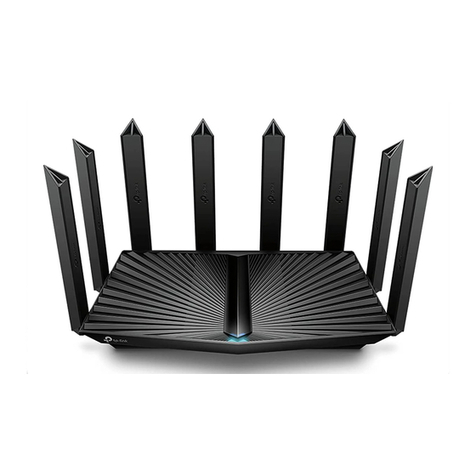
  9. TP-Link Archer AX6000 User manual

TP-Link Archer AX6000 User manual

Other manuals for Archer AX6000

3

Other TP-Link Wireless Router manuals

TP-Link Archer AX3000 User manual

TP-Link

TP-Link Archer AX3000 User manual

TP-Link Archer C9000 User manual

TP-Link

TP-Link Archer C9000 User manual

TP-Link TL-MR3020 User manual

TP-Link

TP-Link TL-MR3020 User manual

TP-Link TL-WR1043N User manual

TP-Link

TP-Link TL-WR1043N User manual

TP-Link TL-WR710N User manual

TP-Link

TP-Link TL-WR710N User manual

TP-Link TD-W8901GB User manual

TP-Link

TP-Link TD-W8901GB User manual

TP-Link TL-WR841HP Product information sheet

TP-Link

TP-Link TL-WR841HP Product information sheet

TP-Link Archer C5 User manual

TP-Link

TP-Link Archer C5 User manual

TP-Link TD-W9970 User manual

TP-Link

TP-Link TD-W9970 User manual

TP-Link TL-WR841HP User manual

TP-Link

TP-Link TL-WR841HP User manual

TP-Link TL-WR841N User manual

TP-Link

TP-Link TL-WR841N User manual

TP-Link Deco P7 User manual

TP-Link

TP-Link Deco P7 User manual

TP-Link Deco M5 User manual

TP-Link

TP-Link Deco M5 User manual

TP-Link TL-WA830RE User manual

TP-Link

TP-Link TL-WA830RE User manual

TP-Link Kasa Smart KP200 User manual

TP-Link

TP-Link Kasa Smart KP200 User manual

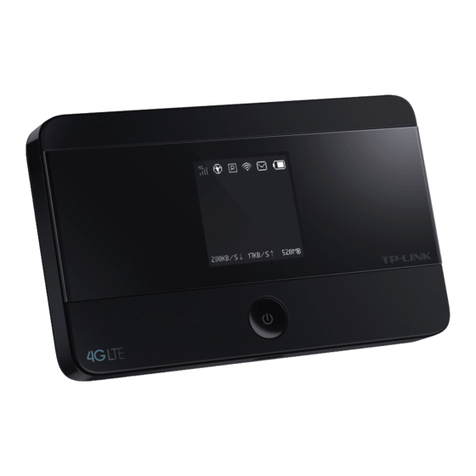
TP-Link M5360 User manual

TP-Link

TP-Link M5360 User manual

TP-Link TL-WR802N User manual

TP-Link

TP-Link TL-WR802N User manual

TP-Link TL-WR720N User manual

TP-Link

TP-Link TL-WR720N User manual

TP-Link TD-W8151N User manual

TP-Link

TP-Link TD-W8151N User manual

TP-Link M5350 User manual

TP-Link

TP-Link M5350 User manual

TP-Link TL-MR3220 User manual

TP-Link

TP-Link TL-MR3220 User manual

TP-Link Archer AC2600 User manual

TP-Link

TP-Link Archer AC2600 User manual

TP-Link TL-WR802N User manual

TP-Link

TP-Link TL-WR802N User manual

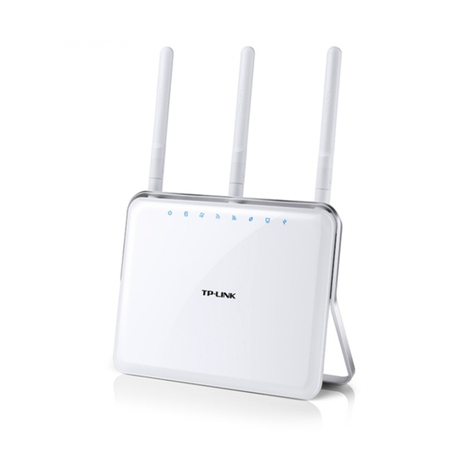
TP-Link Archer C7 User manual

TP-Link

TP-Link Archer C7 User manual

Popular Wireless Router manuals by other brands

NETGEAR Zing user guide

NETGEAR

NETGEAR Zing user guide

Proroute GEM420 user manual

Proroute

Proroute GEM420 user manual

ICP DAS USA WF-2000 Series Faq

ICP DAS USA

ICP DAS USA WF-2000 Series Faq

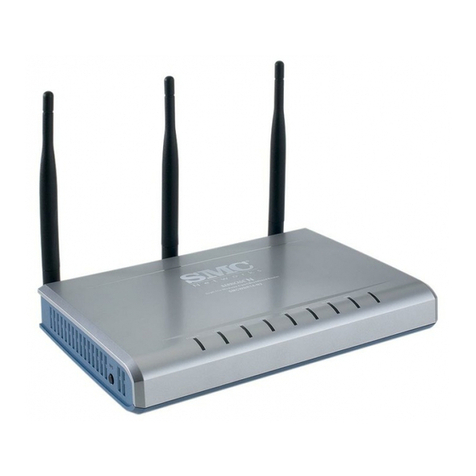
SMC Networks 7904WBRA-N FICHE user guide

SMC Networks

SMC Networks 7904WBRA-N FICHE user guide

Hamlet HRDSL300N user manual

Hamlet

Hamlet HRDSL300N user manual

Icidu NI-707517 Quick installation guide

Icidu

Icidu NI-707517 Quick installation guide

Hawking HWRGM1A user manual

Hawking

Hawking HWRGM1A user manual

Airlogic AirSync Class 1 Features

Airlogic

Airlogic AirSync Class 1 Features

Samsung WCH730B user manual

Samsung

Samsung WCH730B user manual

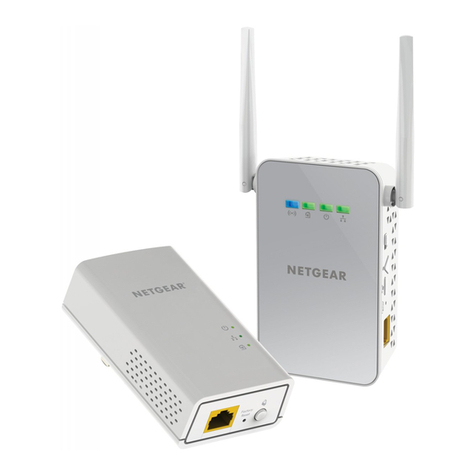
NETGEAR PowerLINE WiFi 1000 Series quick start

NETGEAR

NETGEAR PowerLINE WiFi 1000 Series quick start

TRENDnet TEW-211BRP user manual

TRENDnet

TRENDnet TEW-211BRP user manual

Cisco Valet M10 user guide

Cisco

Cisco Valet M10 user guide

Alloy WLF2454AP-S user guide

Alloy

Alloy WLF2454AP-S user guide

TELEFONICA USB Adapter quick start guide

TELEFONICA

TELEFONICA USB Adapter quick start guide

Hama 53120 Operating	 instruction

Hama

Hama 53120 Operating instruction

Asus RT-N10P user guide

Asus

Asus RT-N10P user guide

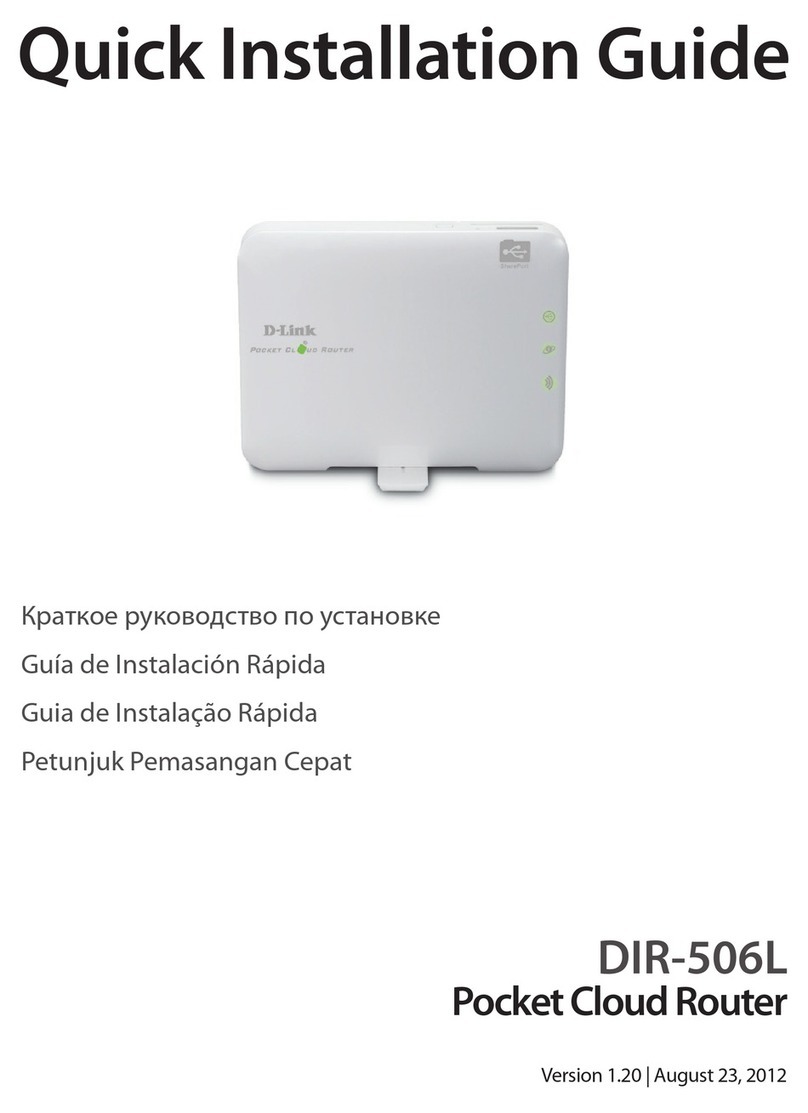
D-Link DIR-506L Quick installation guide

D-Link

D-Link DIR-506L Quick installation guide

Crypto WF250 user manual

Crypto

Crypto WF250 user manual

manuals.online logo
manuals.online logoBrands
  • About & Mission
  • Contact us
  • Privacy Policy
  • Terms and Conditions

Copyright 2025 Manuals.Online. All Rights Reserved.

If your internet comes from an Ethernet outlet instead of a DSL / Cable / Satellite modem, connect the
router’s WAN port to it, then follow Step 3 and Step 4 to complete the hardware connection.
Internet
1Connect the powered-off
modem to the router’s WAN
port with an Ethernet cable.
Connect the power adapter to the
router and turn it on.
4Verify the LED on the top is solid on (red or blue) before moving on.
Method ONE: Via TP-Link Tether App
1. Download the Tether app.
Scan for Tether Tether
or
Choose your device type
Router
Range Extender
Gaming Router
Archer AX6000
3. Tap the button in the Tether app and
select Archer AX6000. Follow the steps
to complete the setup and connect to
the internet.
2. Open the Tether app and log in with your
TP-Link ID.
Note: If you don’t have an account, create one first.
Method TWO: Via a Web Browser
3. Follow the step-by-step instructions to
set up the internet connection and
register for the TP-Link Cloud service.
The default wireless network names (SSIDs) and password are
printed on the label at the bottom of the router.
1. Connect your device to the router with an
Ethernet cable or through a Wi-Fi network.
Wireless Password/PIN:XXXXXXXX
SSID:TP-Link_XXXX
SSID:TP-Link_XXXX_5G
2. Launch a web browser, and enter
http://tplinkwifi.net or http://192.168.0.1 in
the address bar. Create a password to log in.
Note: If the login window does not appear, please refer to Q1 of Need
Help? in this guide.
http://tplinkwi.net
Let’s Get Started
Conrm Password
Password
Power on the modem, and then wait
about 2 minutes for it to restart.
Set up with videos:
Scan QR code or visit
https://www.tp-link.com/support/setup-video/#wi--routers
Connect the Hardware
Set Up the Network
2
Unplug the power to turn o your modem, if any, and
remove the backup battery if it has one.
Place the router horizontally and orient the antennas vertically.
Modem
Unplug the power
*Images may dier from actual product.
©2020 TP-Link 7106509101 REV2.0.0
Need Help?
Q1. What should I do if I can’t access the web
management page?
• Reboot your router and try again.
• If the computer is set to a static IP, change its settings to
obtain an IP address automatically.
• Verify that http://tplinkwifi.net is correctly entered in the web
browser. Alternatively, enter http://192.168.0.1 or
http://192.168.1.1 in the web browser.
• Use another web browser and try again.
• Disable and enable the network adapter in use.
Q2. What should I do if I can’t access the internet?
• Power off your modem for about 5 minutes, then power it on
and check the internet.
• Check if the internet is working normally by connecting a
computer directly to the modem via an Ethernet cable. If it is
not, contact your internet service provider.
• Log in to the web management page of the router, and go to
the Network Map page to check whether the internet IP
address is valid or not. If it’s valid, go to Advanced > Network >
Internet, click Advanced Settings, select Use the Following
DNS Addresses, set the primary DNS to 8.8.8.8, and set the
secondary DNS to 8.8.4.4. If it is not, check the hardware
connection or contact your internet service provider.
• For cable modem users, log in to the web management page
of the router. Go to Advanced > Network > Internet > MAC
Clone, select Clone Current Device MAC and click SAVE.
Then reboot both the modem and the router.
Q3. What should I do if the router can’t be found via
Bluetooth in Tether (how to reset the router)?
The router's Bluetooth will be enabled for 30 minutes following
a reset to factory defaults. There are two ways to reset the
router:
• With the router powered on, use a pin to press and hold the
Reset button on the back of the router for at least 2 seconds
until the LED begins circulating blue.
• Log in to the web management page of the router. Go to
Advanced > System > Backup & Restore, and click FACTORY
RESTORE. The router will reset and restart automatically.
LED Explanation
AX6000 8-Stream Wi-Fi 6 Router
AX6000
Quick Installation Guide
Wi-Fi Button
Press and hold the Wi-Fi button for about 2 seconds to turn on
or o the wireless function of your router.
WPS Button
Press the WPS button for 1 second, and immediately press the
WPS button on your client to start the WPS process.
LED Button
Press the LED button for about 2 seconds to turn on or o the
LED of your router.
Button Explanation
Circulating Blue
The system is starting up or the
router is being reset.
Solid Orange
The router is connected to the
internet, but the wireless function is o.
Circulating Blue in Parallel
The rmware is being upgraded or
WPS connection is being established.
Solid Blue
The router is working normally.
Solid Red
No internet connection.
For technical support, replacement services, user guides, and other
information, please visit https://www.tp-link.com/support.
Email techwriter@tp-link.com.cn to give suggestions.
To communicate with TP-Link users or engineers, please join the
TP-Link Community at https://community.tp-link.com.
Safety Information
Keep the device away from water, fire, humidity or hot environments.
Do not attempt to disassemble, repair, or modify the device. If you need
service, please contact us.
Do not use damaged charger or USB cable to charge the device.
Do not use any other chargers than those recommended.
Do not use the device where wireless devices are not allowed.
Adapter shall be installed near the equipment and shall be easily accessible.