manuals.online logo
Brands
  1. Home
  2. •
  3. Brands
  4. •
  5. Universal Electronics
  6. •
  7. Universal Remote
  8. •
  9. Universal Electronics URC - 4130 User manual

Universal Electronics URC - 4130 User manual

Other Universal Electronics Universal Remote manuals
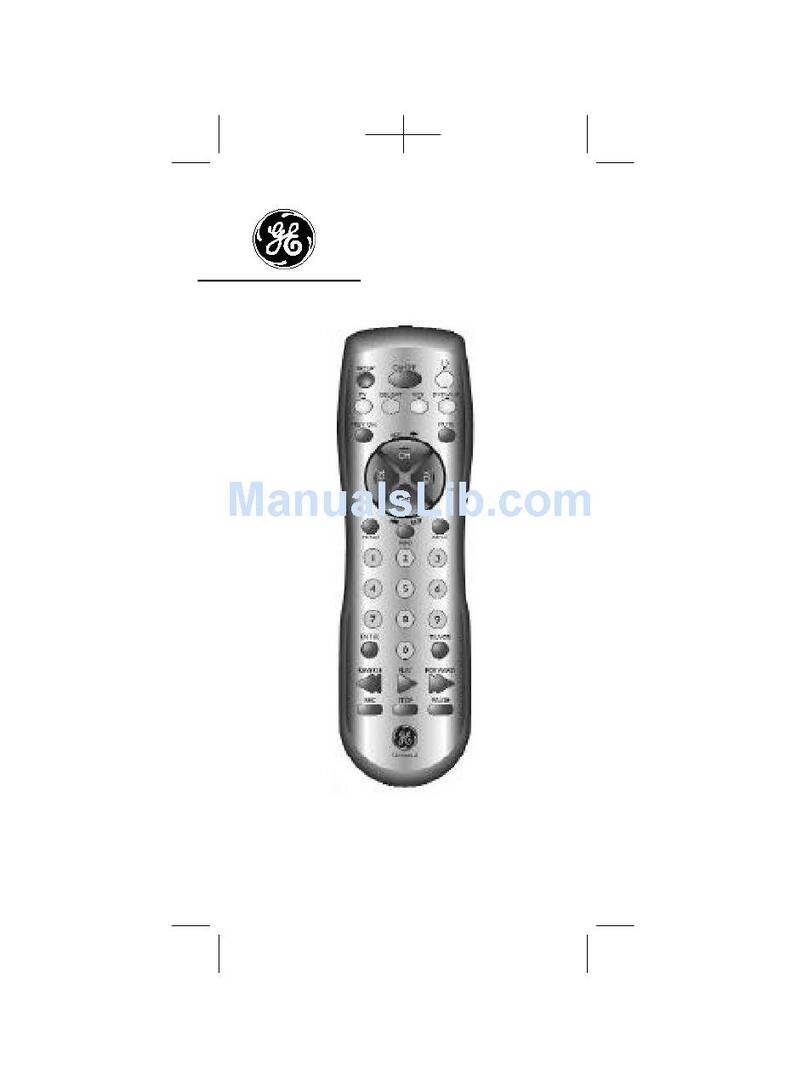
Universal Electronics Polaris User manual

Universal Electronics

Universal Electronics Polaris User manual

Universal Electronics CRICKET KIDS REMOTE CONTROL User manual

Universal Electronics

Universal Electronics CRICKET KIDS REMOTE CONTROL User manual

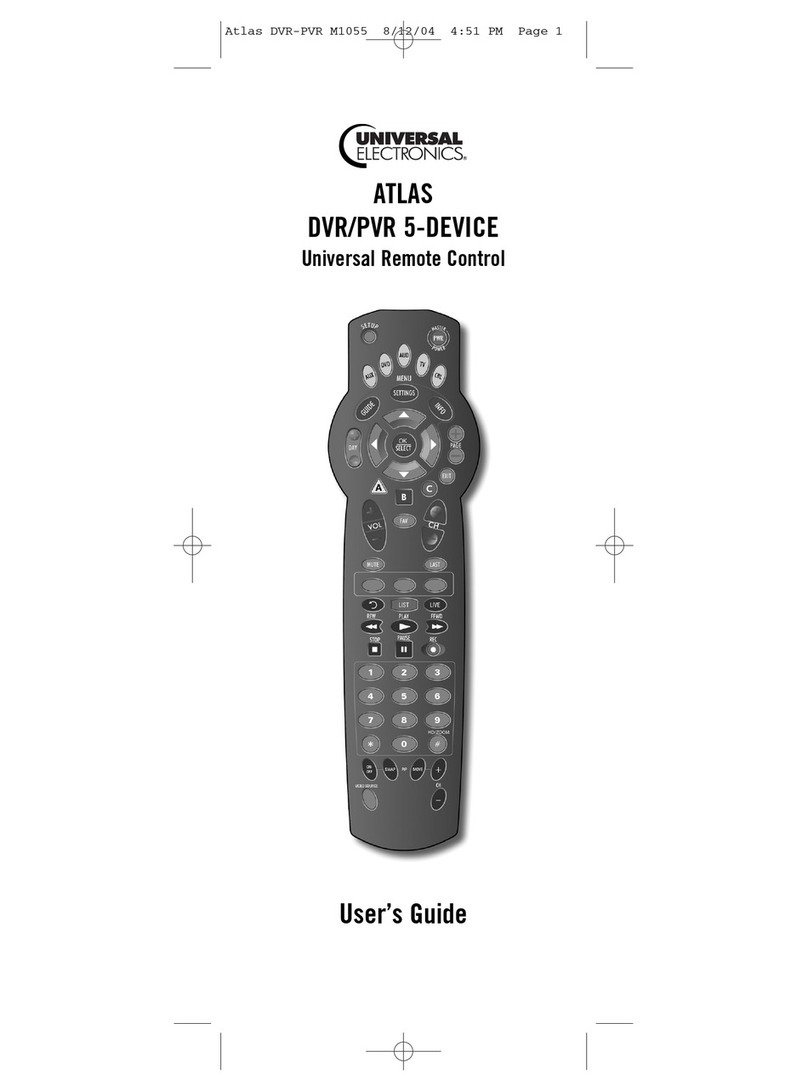
Universal Electronics COGECO ATLAS DVR 5-DEVICE User manual

Universal Electronics

Universal Electronics COGECO ATLAS DVR 5-DEVICE User manual

Universal Electronics UEI User manual

Universal Electronics

Universal Electronics UEI User manual

Universal Electronics FOXTEL iQ Assembly instructions

Universal Electronics

Universal Electronics FOXTEL iQ Assembly instructions

Universal Electronics URC-3021 User manual

Universal Electronics

Universal Electronics URC-3021 User manual

Universal Electronics PVR 5 User manual

Universal Electronics

Universal Electronics PVR 5 User manual

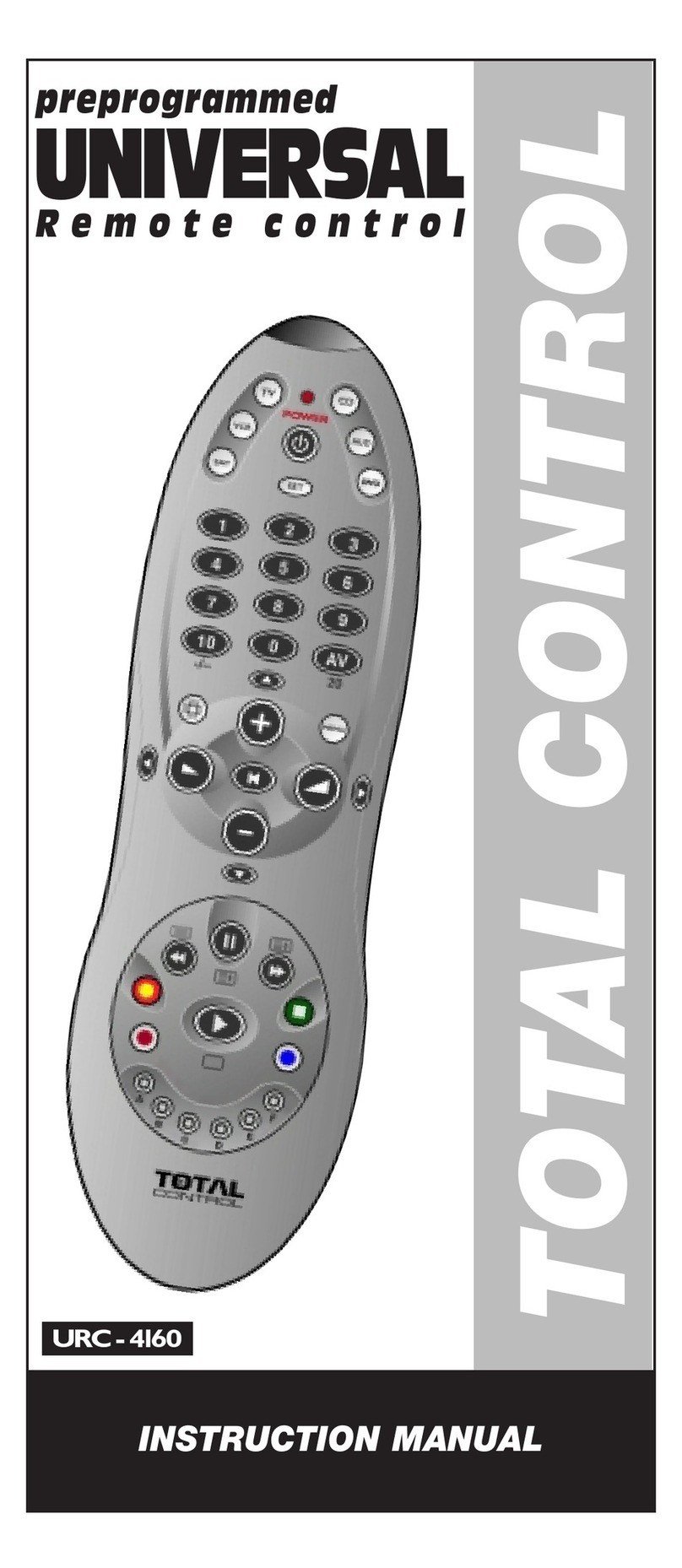
Universal Electronics URC - 4160 User manual

Universal Electronics

Universal Electronics URC - 4160 User manual

Universal Electronics M1055 User manual
Universal Electronics

Universal Electronics M1055 User manual

Universal Electronics Titan M2056-C User manual

Universal Electronics

Universal Electronics Titan M2056-C User manual

Universal Electronics C6 User manual

Universal Electronics

Universal Electronics C6 User manual

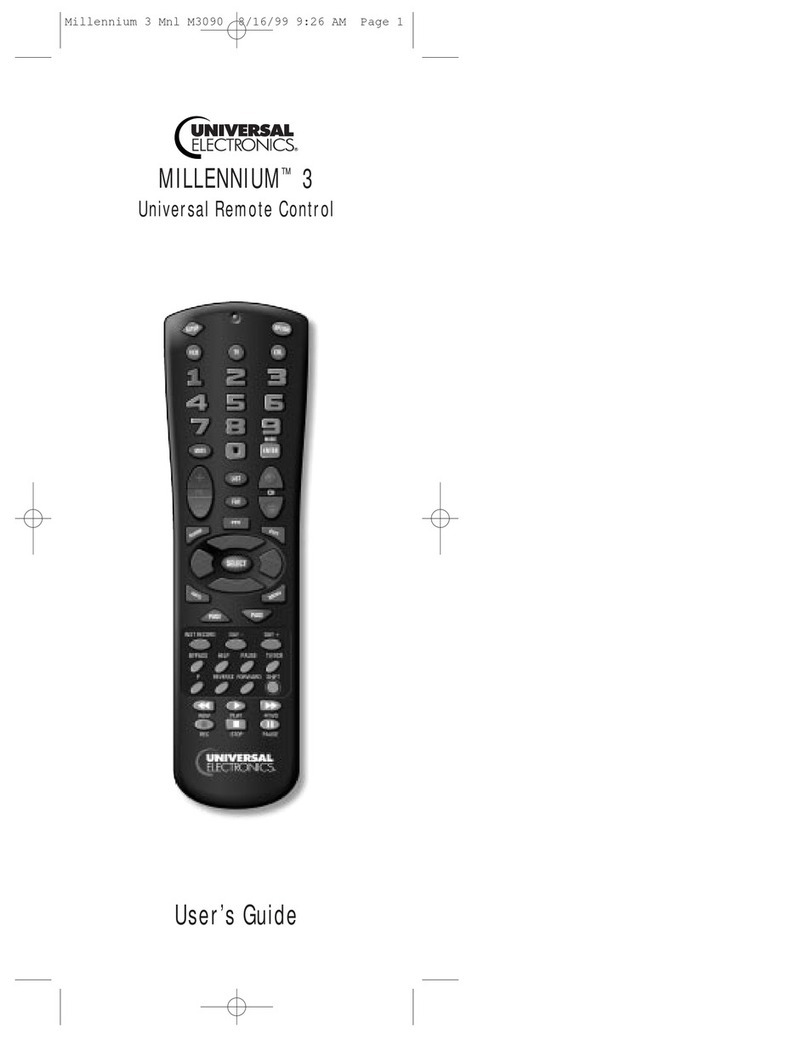
Universal Electronics MILLENNIUMTM 3 User manual

Universal Electronics

Universal Electronics MILLENNIUMTM 3 User manual

Universal Electronics pmn User manual

Universal Electronics

Universal Electronics pmn User manual

Universal Electronics Millennium 4 User manual

Universal Electronics

Universal Electronics Millennium 4 User manual

Universal Electronics DVR M1055F User manual

Universal Electronics

Universal Electronics DVR M1055F User manual

Universal Electronics COGECO ATLAS DVR 5-DEVICE User manual
Universal Electronics

Universal Electronics COGECO ATLAS DVR 5-DEVICE User manual
Universal Electronics COGECO ATLAS DVR 5-DEVICE User manual
Universal Electronics

Universal Electronics COGECO ATLAS DVR 5-DEVICE User manual

Popular Universal Remote manuals by other brands

RCA RCR350 owner's manual

RCA

RCA RCR350 owner's manual

Philips SBC RU 760/00 Instructions for use

Philips

Philips SBC RU 760/00 Instructions for use

Pronto Peel quick start guide

Pronto

Pronto Peel quick start guide

Radio Shack Wireless Remote Control System owner's manual

Radio Shack

Radio Shack Wireless Remote Control System owner's manual

AUVIO Universal Home Theater Remote user guide

AUVIO

AUVIO Universal Home Theater Remote user guide

THOMSON ROC4309 Operating	 instruction

THOMSON

THOMSON ROC4309 Operating instruction

GE RM94931 instruction manual

GE

GE RM94931 instruction manual

Blackweb BWB17AV002 user guide

Blackweb

Blackweb BWB17AV002 user guide

Marmitek DoorGuard 300 user manual

Marmitek

Marmitek DoorGuard 300 user manual

Chunghop RM-L618 user manual

Chunghop

Chunghop RM-L618 user manual

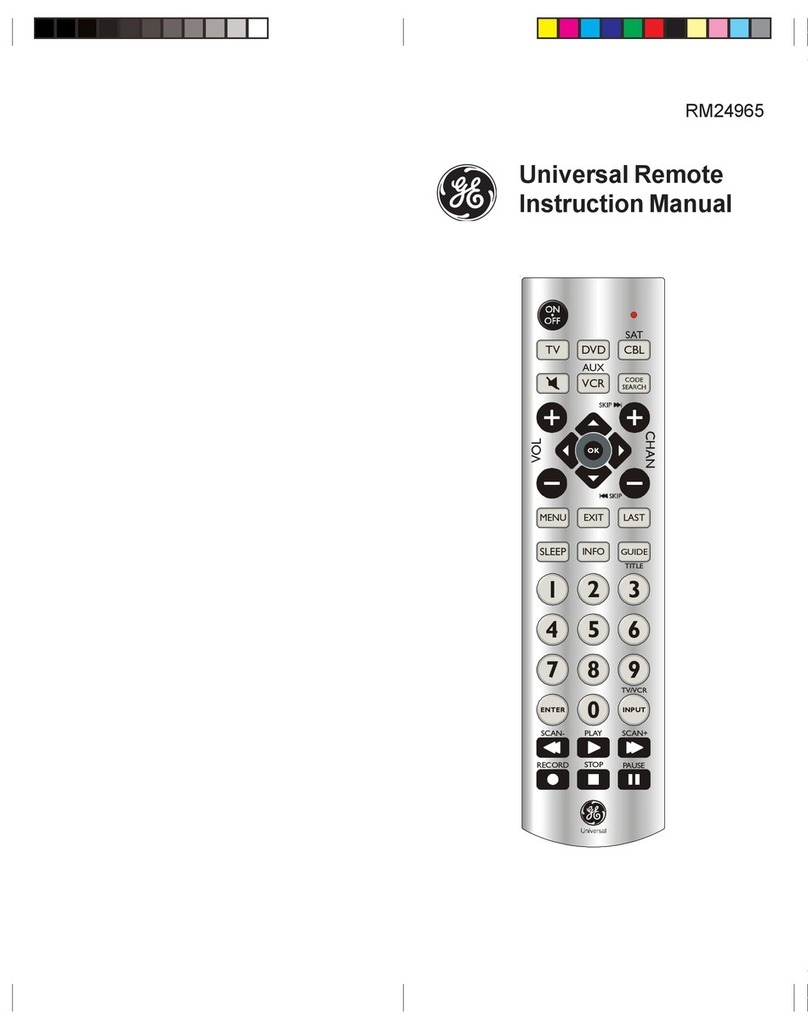
GE 24929 instruction manual

GE

GE 24929 instruction manual

Sunwave Tech. SRC-2200 user manual

Sunwave Tech.

Sunwave Tech. SRC-2200 user manual

Philips PM725T manual

Philips

Philips PM725T manual

Philips Icon SRU4106 Specifications

Philips

Philips Icon SRU4106 Specifications

Philips SRU 5040 Specifications

Philips

Philips SRU 5040 Specifications

Philips pm625S instruction manual

Philips

Philips pm625S instruction manual

Acoustic Research Xsight uno owner's manual

Acoustic Research

Acoustic Research Xsight uno owner's manual

RCA NAVILIGHT8 RCR860 user manual

RCA

RCA NAVILIGHT8 RCR860 user manual

manuals.online logo
manuals.online logoBrands
  • About & Mission
  • Contact us
  • Privacy Policy
  • Terms and Conditions

Copyright 2025 Manuals.Online. All Rights Reserved.

INSTRUCTION MANUAL
TOTAL CONTROL
preprogrammed
UNIVERSAL
Remote control
URC - 4130
Table of contents
Picture of the TOTAL CONTROL. . . . . . . . . . . . . . . . . . . . . . . . . . 3
Installing the batteries. . . . . . . . . . . . . . . . . . . . . . . . . . . . . . . . . . . . . . . 4
Features and Functions. . . . . . . . . . . . . . . . . . . . . . . . . . . . . . . . . . . . . . 4
Set Up:
Setting up your de ices . . . . . . . . . . . . . . . . . . . . . . . . . . . . . . . . . 6
The Search Method . . . . . . . . . . . . . . . . . . . . . . . . . . . . . . . . . . . . . 7
Blink out the Current Code. . . . . . . . . . . . . . . . . . . . . . . . . . . . . . . 8
Quick Code Reference. . . . . . . . . . . . . . . . . . . . . . . . . . . . . . . . . . . . 8
Changing a Device Ke . . . . . . . . . . . . . . . . . . . . . . . . . . . . . . . . . . . . 9
Resetting a Device ke . . . . . . . . . . . . . . . . . . . . . . . . . . . . . . . . . . . . 9
Volume Punch Through . . . . . . . . . . . . . . . . . . . . . . . . . . . . . . . . . . . . . 10
Colour & Brightness. . . . . . . . . . . . . . . . . . . . . . . . . . . . . . . . . . . . . . . . 10
Trouble-Shooting . . . . . . . . . . . . . . . . . . . . . . . . . . . . . . . . . . . . . . . . . . . 11
Customer Service . . . . . . . . . . . . . . . . . . . . . . . . . . . . . . . . . . . . . . . . . . 11
Set Up Codes:
Tele isions . . . . . . . . . . . . . . . . . . . . . . . . . . . . . . . . . . . . . . . . . . . . . 12
Video Recorders . . . . . . . . . . . . . . . . . . . . . . . . . . . . . . . . . . . . . . . 19
DVD Players. . . . . . . . . . . . . . . . . . . . . . . . . . . . . . . . . . . . . . . . . . . . 21
About our TOTAL CONTROL
B choosing the TOTAL CONTROL Universal Remote Control ou
have opted for eas use. Made of the strictest qualit , it will provide
long-term satisfaction. Please read these enclosed instructions
carefull before putting our TOTAL CONTROL to use.
Your TOTAL CONTROL manual is divided into two parts: Set Up
Instructions and Device Codes. You will need our manual to set up
our new TOTAL CONTROL so please be sure to keep it.
Your TOTAL CONTROL can operate three devices: a Television,
a Video Recorder and a DVD Pla er.
Your TOTAL CONTROL needs 2 new AA/LR6 batteries.
2
3
5
8
2
1
4
11 / 12
10
3
7
6
9
4
Installing the Batteries
Your TOTAL CONTROL needs two new AA/LR6 alkaline batteries.
1Remove the batter cover from the back of our
TOTAL CONTROL.
2Match the batteries to the (+) and (-) marks inside the
batter case, then insert the batteries.
3Press the batter cover back into place.
Features and Functions
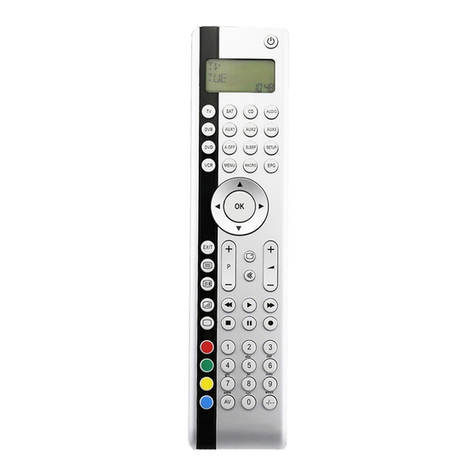
Picture of the TOTAL CONTROL on page 3.
LED
The LED (Light Emitting Diode) flashes red to show the
remote is working.
De ice keys
The TV, VCR and DVD ke s select the device to be
controlled. For example pressing the TV ke allows the
remote to control the functions of our Television, after
pressing the VCR ke ou can operate our Video
Recorder etc.
Power key
The Power ke controls the same function as on our
original remote.
SET key
The SET ke is used to set up our TOTAL CONTROL and
to access special functions.
Number keys
The number ke s (0-9, 10, 20 (AV)) provide functions just
like our original remote. If our original remote uses
one/two digit input switching (-/-- s mbol), this function
can be obtained b pressing the -/-- ke . If our original
remote has a 20 ke , this function can be found under the
AV k e .
AV k e y
The AV ke operates the same function as it did on our
original remote control.
Menu Key
The Menu ke controls the same function as it did on our
original remote control.
2
1
3
4
5
6
7
21
Siera 0104
Silva 0060
Silver 0301
Sinudyne 0027 0104
Solavox 0043
Sonitron 0070
Sonneclair 0095
Sonoko 0301
Sonolor 0071
Sontec 0060
Sony 0056 0057 0055 0129
1055
Soundwave 0060
Ssangyong 0095
Standard 0301
Starlite 0060 0127
Stern 0301
Sunkai 0371 0301
Sunstar 0023
Suntronic 0023
Sunwood 0095
Supra 0060 0263
Symphonic 0023 0095
Taisho 0027
Tandberg 0301
Tashiko 0023 0071 0263 0104
0060
Tatung 0023 0064 0104 0071
0066 0371 0375
Teac 0064 0023 0301 0060
0104 0330
TEC 0043 0301 0095
TechniSat 0371
Teleavia 0064
Telefunken 0064 0343 0344 0407
0516 0517 0553 0301
Teletech 0095 0301 0023
Tempest 0043
Tenosal 0095
Tensai 0023 0060 0095 0027
Tevion 0371
Thomson 0064 0407 0343 0229
0344 0516 0517 0551
Thorn 0064 0127 0060
Tokai 0095 0060 0064 0127
Tokiwa 0095
Topline 0371
Toshiba 0068 0064 0407 0066
0104
Towada 0095
Trakton 0043
TVA 0043
Uher 0060 0263
Ultravox 0301
Unitech 0263
United Quick
Star 0301
Universum 0023 0348 0104 0263
0060 0129 0371 0218
0029 0026
Victor 0031 0090
Watson 0104 0375
Weltblick 0060
Yamishi 0095 0301
Yokan 0095
Yoko 0060 0095 0043 0263
DVD
3DLAB 0562
Akai 0634
Denon 0513 0657
Denzel 0688
Diamond 0674
Dual 0688
Enzer 0688
GoldStar 0614
Grundig 0562 0675
Harman/
Kardon 0605
Hitachi 0688 0596
JVC 0581 0646
Kenwood 0557 0513
Kiss 0688
LG 0614
Magnavox 0526
Marantz 0562
Matsui 0674
Micromedia 0526
Micromega 0562
Mitsubishi 0544
Monyka 0688
Neufunk 0688
Onkyo 0635 0526
Optimus 0548
Oritron 0674
Panasonic 0513
Philips 0562 0526
Pioneer 0548 0594
Proline 0675
Raite 0688
REC 0513
Samsung 0596
SEG 0688
Sharp 0653
Sony 0556
Technics 0513
Tevion 0674
Thomson 0574
Tokai 0688
Toshiba 0526
Universum 0614
Yamaha 0513 0568
Yamakawa 0688
Zenith 0526 0614
* Exclut quelques modèles de la serie LX, LS et MX.
* Ausschließlich einige Modelle der LX, LS und MX Serie.
* Excluye unos pocos modelos de la serie LX, LS y MX
modelos.
* Exclui alguns modelos da série LX, LS y MX.
* Exclusief een paar modellen in de LX, MX en LS serie.
* Sono esclusi modelli della serie LX, LS e MX.
Programme (+/-) keys
The Programme (+/-) ke s operate just as those on our
original remote. If available on our original remote, these
ke s will allow ou to navigate through the menu.
Volume (+/-) keys
The Volume (+/-) ke s operate just as those on our
original remote. If available on our original remote, these
ke s will allow ou to navigate through the menu.
Mute key
The Mute ke operates the same function as it did on our
original remote. Also, if our original remote control
required that ou press an “OK” or “ENTER” ke during
Menu operation, the mute ke can be used for this
function.
Video Recorder Keys
After pressing the VCR ke , these ke s operate the
functions of our Video Recorder. To prevent accidental
recording on our Video Recorder, the RECORD ke must
be pressed twice to start recording.
Teletext Keys
After pressing the TV ke , these ke s are used to operate
the main Teletext functions. Of course, our Television
must have Teletext capabilit .
When accessing the text mode, the colour ke s marked
red, green, ellow and blue, allow ou to acces the Fastext
functions of our Television. If on our original remote
control these ke s are used for Menu navigation, the
TOTAL CONTROL Fastext ke s ma operate the same.
For a more detailed explanation of Teletext and Fastext,
please refer to the manual of our Television. Remember,
different televisions control Teletext and Fastext functions
in different wa s. Not all of the Teletext functions ma be
available on our particular model.
TEXT ON: Puts the television in the Teletext mode.
TEXT OFF: Switches the television back to regular viewing
mode. On some televisions, this ma be done b pressing
the TEXT ON ke several times.
HOLD/STOP: Stops changing pages.
EXPAND: Shows the top half of the Teletext page in larger
letters. B pressing again, ou can see the bottom half of
the Teletext page enlarged. To return to regular Teletext
viewing, press the EXPAND ke again, or press
the TEXT ON ke , depending on our television.
5
9
10
11
12
8
Setting up our devices
Example: to set up the TOTAL CONTROL for your Tele ision:
1Find our device code in the code section (page 12 – 21).
Codes are listed b brand name. The most popular
code is listed first. Make sure our television is switched on
(not on standb ).
2Press and release the TV ke on our TOTAL CONTROL.
3 Press and hold down the SET ke until the red light blinks
twice (the red light will blink once and then twice).
4Enter our four-digit code using the number ke s.
The red light will blink twice.
5Now, aim our TOTAL CONTROL at our television and
press POWER. If our television switches off, our TOTAL
CONTROL should be read to control our television.
- If your device does not respond, follow steps 1 through 5 with each
code listed for your brand. If none of the codes listed for your brand
operate your device, then try the Search Method described on page 7,
even if your brand is not listed at all.
- Some codes are uite similar. If your device does not respond or is not
functioning properly with one of the codes, try another code listed
under your brand.
- If the original remote control from your Video Recorder did not have a
Power key, press PLAY instead of POWER during step 5.
- To set up your other devices, follow the same instructions above, only
press the appropriate device key during step 2.
- Write your code in the boxes provided in the battery compartment
and on page 8, for uick, easy reference.
De ices can be found under the following keys:
- To set up a second TV, VCR or DVD see page 9.
6
TV
SET
P
____
POWER
Television
Video Recorder DVD player
SET MENU
TV
VCR DVD
POWER
7
The Search Method
If our device does not respond to the TOTAL CONTROL after ou
have tried all the codes listed for our brand, tr the Search Method.
The Search Method ma also work if our brand is not listed at all.
Example: to search for your Tele ision code:
1Switch our Television on (not on standb ).
2Press the TV ke on our TOTAL CONTROL.
3Aim the TOTAL CONTROL at our Television. Press and
hold down the SET ke until the red light on the TOTAL
CONTROL blinks twice.
4Press 9 9 1, the red light will blink twice.
5Now alternate between the TV and POWER ke ,
over and over, until our Television turns off.
You ma have to press these ke s man times
(up to 150 times) so please be patient. Remember to
keep pointing the TOTAL CONTROL at our Television
when pressing these ke s.
6When our Television switches off, press the SET ke to store
the code. Don’t forget, as soon as our Television switches
off, press the SET ke . Now, our TOTAL CONTROL should
be read to control our television.
- If you cannot control your Television properly, please continue the
Search Method, you may be using the wrong code.
- To search for your other devices, follow the same instructions above,
only press the appropriate device key during step 2 and 5.
- If your Video’s original remote control does not have a POWER key,
press PLAY instead of POWER when searching for your code.
TV
SET
P
SET
P
9 9 1
TV
POWER
8
Blink out the Current Code
If ou have set up our TOTAL CONTROL via the Search Method,
ou can blink back our code for future reference.
Example: To blink out your tele ision code:
1Press the TV ke on our TOTAL CONTROL.
2Aim the TOTAL CONTROL at our Television. Press and
hold down the SET ke until the red light blinks twice.
3Press 9 9 0, the red light will blink twice.
4For the first digit of our four-digit code, press 1and
count all the red blinks. If there are no blinks, the digit is "0".
5For the second digit, press 2and count all the red blinks.
6For the third digit, press 3and count all the red blinks.
7For the fourth digit, press 4and count all the red blinks.
- To blink back the code for your other devices follow the instructions
above, only press the appropriate device key during step 1.
Quick Code Reference
Write down the codes for our devices in the boxes below and in the
batter compartment for quick and eas reference.
Device t pe Code
1. . . . . . . . . . . . . . . . . . . . . . . . . . . . . .
■■■■■■■■
2. . . . . . . . . . . . . . . . . . . . . . . . . . . . . .
■■■■■■■■
3. . . . . . . . . . . . . . . . . . . . . . . . . . . . . .
■■■■■■■■
1
2
3
4
TV
SET
P
9 9 0
9
Changing a Device ke
It is possible to change an device ke .
Example 1:
To program a second television on the DVD ke ou need to change
the DVD ke into a TV ke :
1(*) (**)
The DVD key has now become a second TV key.
2Now enter the Set Up code for our second TV b pressing:
(*) (TV Code ) (**)
Example 2:
To program a second Video recorder on the DVD ke ou need to
change the DVD ke into a VCR ke :
1(*) (**)
The DVD key has now become a second VCR key.
2Now enter the Set Up code for our second VCR b pressing:
(*) (VCR Code) (**)
(*) Hold down the SET key until the red light blinks twice (the
red light will blink once then twice).
(**) The red light blinks twice.
Resetting a Device Ke
Example: To reset the DVD ke press:
(*) (**)
(*) Hold down the SET key until the red light blinks twice (the
red light will blink once then twice).
(**) The red light blinks twice.
____
DVD
SET
P
SET
P
SET
P
SET
P
9 9 2DVD DVD
9 9 2TV DVD
DVD SET
P
____
9
9
2
VCR
DVD