User Instruction for
VIP-350
PC Keyboard Extender System
FEDERAL COMMUNICATIONS COMMISSION
This equipment has been tested and found to comply with the limits for a Class A digital device, pursuant to Part 15 of the
FCC Rules. These limits are designed to provide reasonable protection against harmful interference when equipment is
operated in a commercial environment. This equipment generates, uses, and can radiate radio frequency energy and, if not
installed and used in accordance with the instruction manual, may cause harmful interference to radio communications.
Operation of this equipment in a residential area is likely to cause harmful interference in which case the user will be required
to correct the interference at his own expense.
CE
This equipment has been tested and found to conform to the directives and standards for a Class A Information Technology
Equipment type and for the Commercial and Light Industrial equipment class.
INTRODUCTION
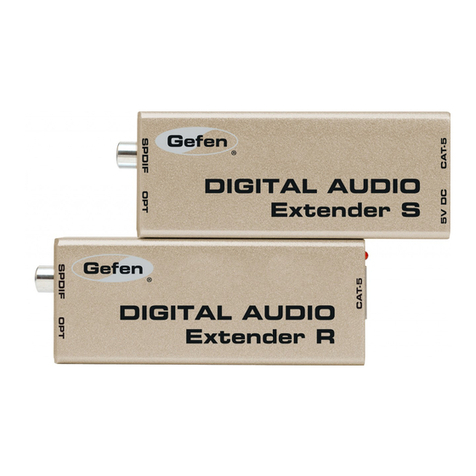
Vetra's Model VIP-350PC Keyboard Extender System allows a PS/2 compatible keyboard to be located remotely
from the PC. It also accepts a local keyboard, which can be connected to the Receiver Unit. The Extender System consists of
one VIP-350-R Receiver Unit, one VIP-350-T Transmitter Unit and one VIP-210 Power Supply (5Vdc 2 A 100 – 240 Vac 50/60
Hz). The Receiver Unit is powered from the PC while the Transmitter Unit receives it's power from the VIP-210.
NOTE: If a Power Supply other then the VIP-210 is used, then all claims to FCC and or CE regulations cease
to exist.
INSTALLATION
Follow these steps to install the VIP-350 Keyboard Extender System.
Connection of the Receiver Unit to the PC must be made with the PC powered off !
1. Connect the Receiver Unit to the PC. Use the male-male keyboard extension cable (5-pin DIN) supplied with the
system to connect the PC's keyboard input to the female 5-pin DIN connector of the Receiver marked "TO PC KBD IN". If
necessary, use an adapter supplied to convert the 5-pin DIN connection into a 6-pin DIN connection.
2. Connect the local keyboard (optional). Use the local keyboard's cable to connect it to the female 5 or 6-pin DIN
connector of the Receiver marked "KBD IN". The local keyboard is powered from the PC via Receiver and via the keyboard
cable.
3. Connect the remote keyboard to the Transmitter Unit. Use the keyboard's cable to connect to the 5 or 6-pin DIN
female connector on the Transmitter marked "KBD IN".
4. Connect the Power Supply to the Transmitter Unit. Connect the PL6 connector of the Power Supply to the PL6
female connector on the Transmitter Unit marked "EXT. +5VDC".
5. Set the baud rate on both units. The four available baud rates, 1200, 2400, 4800, and 9600, are controlled by
switches 1 and 2 of the Dipswitch SW1 as shown in the Baud Rate Selection Diagram. Dipswitch SW1 is located next to
the DB9 connector on both units. For a new baud rate to take effect, the units must be powered off, and then powered on
again. The factory default is 9600 baud. The system will not operate properly unless the baud rates for both units are not set
the same.
275-J MARCUS BLVD HAUPPAUGE, NY 11787 USA
Tel: 631-434-3185 Fax: 631-434-3516
www.vetra.com email: sales@vetra.com