VidOn.me Android Mini pc User manual

VidOn.me
Android 4.0 Mini PC

Index
DECLARATION.....................................................................................................................................1
A. APPEARANCE INTRODUCTION .............................................................................................2
B. INITIAL OPERATION ..................................................................................................................2
1. HARDWARE CONNECTION INSTRUCTION.......................................................................................2
2. BOOTING SCREEN.........................................................................................................................3
3. OS INTERFACE .............................................................................................................................3
C. OPERATION UNDER ANDROID LAUNCHER .......................................................................5
1. MANAGE SOFTWARE ICON............................................................................................................5
2. MOVE TO THE LAST/NEXT DESKTOP .............................................................................................6
3. BASIC OPERATION BAR.................................................................................................................7
4. STATUS BAR .................................................................................................................................8
5. PROGRAM ICON AND PROGRAM MANAGEMENT ............................................................................9
6. SETTINGS ...................................................................................................................................10
7SUPER-HD PLAYER....................................................................................................................16
8MUSIC PLAYER...........................................................................................................................16
9FILEMANAGER...........................................................................................................................17
10 VISIT WEBSITE ...........................................................................................................................18
11 KEYBOARD AND MOUSE.............................................................................................................19
D. OPERATION UNDER VIDON.ME TV.....................................................................................20
1. WEATHER...................................................................................................................................20
2. PICTURES ...................................................................................................................................21
3. VIDEOS ......................................................................................................................................21
4. MUSIC........................................................................................................................................23
5. PROGRAMS.................................................................................................................................24
6. SYSTEM......................................................................................................................................24
7. BASIC OPERATIONS ....................................................................................................................26
E. HOW TO UPGRADE VIDON.ME TV.......................................................................................27
F. HOW TO REINSTALL FIRMWARE.........................................................................................29
G. QUESTIONS & ANSWERS......................................................................................................33
H. SPECIFICATIONS......................................................................................................................35

VidOn.me Android 4.0 Mini PC-1
Declaration
The user manual includes all the information of safe and correct operation instruction. To
avoid any accident and product damage, please make sure go through all the content
carefully before using the product.
Please keep the product away from high temperature, humid and dusty environment.
Do not drop or crash the product.
Do not power off the device when it is formatting or upgrading. Otherwise it will cause
operation system error.
Do not dismantle the device. Do not clean it by alcohol, thinner and Benzene
We keep the right to upgrade and modify the product.
Disclaimer: We only take the responsibility to provide the product warranty and after sale
service. Users have to take care of their data in the device by themselves. We are not
responsible for any data loss.
The product is not water-proof.
All the pictures in the instruction are just for reference.

VidOn.me Android 4.0 Mini PC-2
A. Appearance Introduction
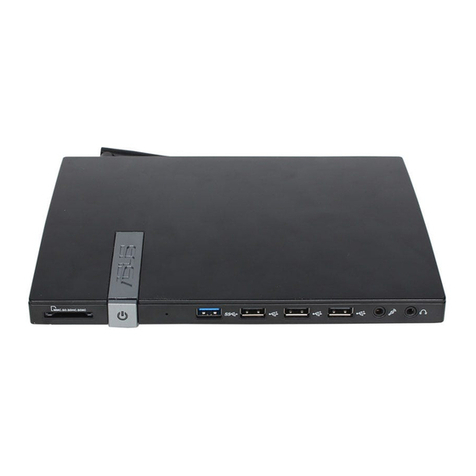
AV out: HDMI
TF-CARD:Could be expended by T-Flash memory
Mini USB OTG:for data transfer with computer, and reinstalling the OS. It could be
converted to standard USB2.0 Port by converter.
USB Host:For pen drive, mouse, keyboard, external HDD, etc, could be expended
by USB Hub.
B. Initial Operation
1. Hardware connection instruction
Connect the TV set or LCD monitor by HDMI cable (in package). Set up the TV data
receiving mode to HDMI port. (Refer to TV set user manual)
2.4GHz wireless mouse and keyboard are suggested for you to use. Plug 2.4GHz
receiver in USB Host connector. Or Plug in USB OTG port via OTG cable (in package). If
only mouse is plugged, the device will provide soft keyboard in operation system. If a
physical keyboard connection is detected by the device, the soft keyboard will hide

VidOn.me Android 4.0 Mini PC-3
automatically.
Mouse left button for “OK”, right button for “Return”, rolling for page up and down. Hold
left button to pull icon or copy & paste file. Hold middle button for Properties
2. Booting screen
Connect power supply and the device, the booting screen will show up in seconds.
3. OS interface
After the booting screen, you will be prompted as following about which operation and
management manner would you like. Android “Launcher”or “VidOn.me TV”? Choose one, and
you can click “Use by default for this action”to set your choice as default.

VidOn.me Android 4.0 Mini PC-4
If you choose “Launcher”, the OS interface comes as below.
And if “VidOn.me TV”is chosen, then you’ll see the startup screen like this:
And the following main interface:

VidOn.me Android 4.0 Mini PC-5
C. Operation Under Android Launcher
1. Manage software icon
Move icon: Left click on an icon and hold it, then you can move it to any position you like.
Remove icon: Hold the icon and throw it into the “Remove”mark “X” on the top of the screen, it
will be removed.

VidOn.me Android 4.0 Mini PC-6
2. Move to the last/next desktop
You can roll your mouse up/down for moving to the last/next desktop.
Or, just left click and hold on any blank space of the desktop, move to left or right for last or
next desktop.

VidOn.me Android 4.0 Mini PC-7
3. Basic operation bar
Return button: click it to return to the upper level directory.
Homepage button: Click it anytime to return to homepage.
Program button: Click it to check all the running program at present:
Volume Down button & Volume Up button
Properties button: Clicking it will show properties menu at the right bottom corner:

VidOn.me Android 4.0 Mini PC-8
4. Status bar
The status bar can show the status of T-Flash Card, USB connection, Time, Wi-Fi and
Download… and so on.
Click the status bar, and the hidden menu will pop up.
Click this icon , it will show up more details.
This manual suits for next models
1
Table of contents