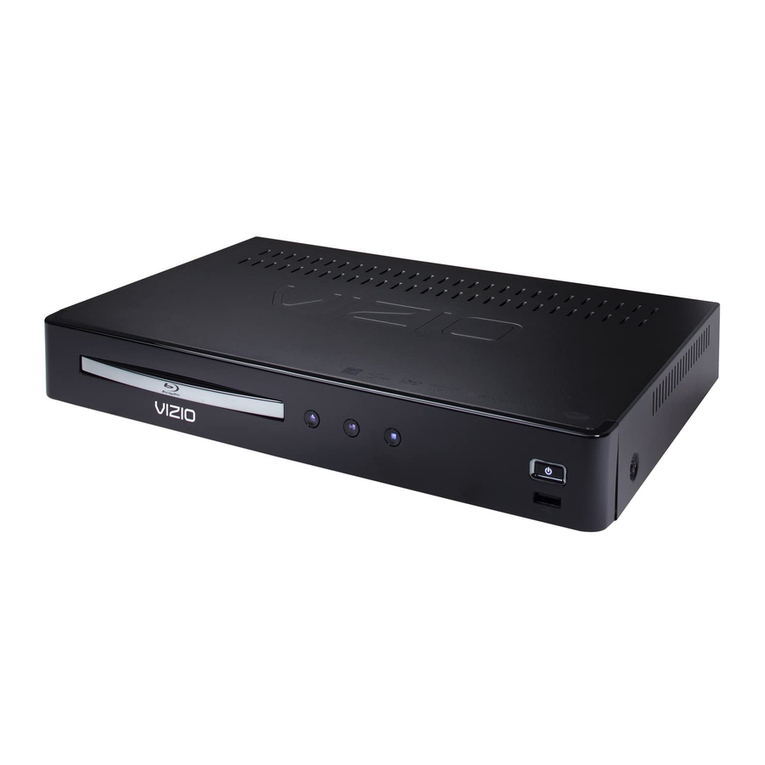
Vizio VBR100 - Blu-Ray Disc Player User manual

VIZIO VBR100 User Manual
Dear VIZIO Customer,
Congratulations on your new VIZIO VBR100 Blu-ray DVD Player purchase.
Thank you for your support. For maximum benefit of your Blu-ray DVD
Player, please read these instructions before making any adjustments, and
retain them for future reference. We hope you will experience many years
of enjoyment from your new VIZIO Blu-ray DVD Player.
For assistance, please call (877) 668-8462 or e-mail us at www.vizio.com.
To purchase or inquire about accessories and installation services for your
VIZIO Blu-ray DVD Player, please visit our website at www.VIZIO.com or
call toll free at (888) 849-4623.
We recommend you register your VIZIO Blu-ray DVD Player at our website
www.VIZIO.com. For peace of mind and to protect your investment
beyond the standard warranty, VIZIO offers on-site extended warranty
service plans. These plans give additional coverage during the standard
warranty period. Visit our website or call us to purchase a plan.
Write down the serial number located on the back of your player.
__ __ __ __ __ __ __ __ __ __ __ __ __
Purchase Date _____________________
VIZIO is a registered trademark of VIZIO, Inc. dba V, Inc.
HDMI logo and “High Definition Multimedia Interface” are registered trademarks of HDMI Licensing LLC.
Manufactured under license from Dolby Laboratories.
Dolby and the double-D symbol are trademarks of Dolby Laboratories.
ENERGY STAR and the ENERGY STAR mark are registered U.S. marks.
THE TRADEMARKS SHOWN HEREIN ARE THE PROPERTY OF THEIR RESPECTIVE OWNERS;
IMAGES USED ARE FOR ILLUSTRATION PURPOSES ONLY. BRAVO, VIZIO AND THE V LOGO AND
WHERE VISION MEETS VALUE AND OTHER VIZIO TRADEMARKS ARE THE INTELLECTUAL
PROPERTY OF VIZIO INC. PRODUCT SPECIFICATIONS ARE SUBJECT TO CHANGE WITHOUT
NOTICE OR OBLIGATION. © 2009 VIZIO INC. ALL RIGHTS RESERVED.
Version 8/19/2009 1
www.VIZIO.com

VIZIO VBR100 User Manual
2
www.VIZIO.com
Important Safety Instructions
Your Blu-ray DVD Player is designed and manufactured to operate within defined design limits,
and misuse may result in electric shock or fire. To prevent your Blu-ray DVD Player from being
damaged, the following instructions should be observed for the installation, use, and maintenance
of your Blu-ray DVD Player. Read the following safety instructions before operating your Blu-ray
DVD Player. Keep these instructions in a safe place for future reference.
1. Read these instructions.
2. Keep these instructions.
3. Heed all warnings.
4. Follow all instructions.
5. Do not use your player near water.
6. Clean only with a dry cloth.
7. Do not block any ventilation openings. Install in accordance with the manufacturer's instructions.
8. Do not install near any heat sources such as radiators, heat registers, stoves, or other heat-
generating devices (including amplifiers) that produce heat.
9. Do not defeat the safety purpose of the polarized or grounding-type plug. A polarized plug has two
blades with one wider than the other. A grounding type plug has two blades and a third grounding
prong. The wide blade or the third prong are provided for your safety. If the provided plug does not fit
into your outlet, consult an electrician for replacement of the obsolete outlet.
10. Protect the power cord from being walked on or pinched particularly at plugs and convenience
receptacles and the point where they exit from your player.
11. Only use attachments/accessories specified by the manufacturer.
12. Use only with the cart, stand, tripod, bracket, or table specified by the manufacturer or sold with your
player. When a cart is used, use caution when moving the cart and player combination to avoid injury
from tip-over.
13. Unplug your player during lightning storms or when unused for long periods of time.
14. Refer all servicing to qualified service personnel. Servicing is required when your player has been
damaged in any way, such as when the power-supply cord or plug is damaged, when liquid has been
spilled or objects have fallen into your player, when your player has been exposed to rain or moisture,
or when your player does not operate normally or has been dropped.
15. To reduce the risk of fire or electric shock, do not expose your player to rain or moisture. Your player
should not be exposed to dripping or splashing and no objects filled with liquids, such as vases,
should be placed on your player.
16. The main power plug is the disconnect device and should easy to access. Make sure that the plug is
easy to remove.
17. Do not install your player in a confined space, such as a bookcase, without allowing enough space for
ventilation. Do not cover the ventilation openings with items such as newspaper, tablecloths, or
curtains. Make sure that you allow at least 4 inches (10 cm) of space on all sides of your player to
allow for ventilation.
18. Do not place items with flames, such as candles, on your player.
19. Dispose of batteries according to local hazardous waste regulations.
20. Use your player in mild climates. Excessive heat or cold can damage your player.
21. Use of controls or adjustments other than these specified in this guide may result in hazardous
radiation exposure.

VIZIO VBR100 User Manual
Table of Contents
Important Safety Instructions..................................................................................................................... 2!
Table of Contents ...................................................................................................................................... 3!
Opening the Package................................................................................................................................5!
Package Contents ..................................................................................................................................... 5!
Blu-ray DVD Player Accessories and Services.........................................................................................5!
Before Setting Up Your Blu-ray DVD Player .............................................................................................5!
CHAPTER 1 FEATURES & FORMATS....................................................................................................... 6!
Features .................................................................................................................................................... 6!
Supported Discs ........................................................................................................................................6!
Supported file extensions ..........................................................................................................................6!
Region codes.............................................................................................................................................6!
CHAPTER 2 BASIC CONTROLS AND CONNECTIONS............................................................................7!
Front .......................................................................................................................................................... 7!
Rear Panel Connections............................................................................................................................8!
VIZIO Remote Control...............................................................................................................................9!
Insertion of Batteries in the Remote Control..........................................................................................9!
Remote Control Range .......................................................................................................................... 9!
VIZIO Remote Control Precautions .......................................................................................................9!
Remote Control Buttons.......................................................................................................................10!
CHAPTER 3 USING YOUR PLAYER FOR THE FIRST TIME ..................................................................11!
CHAPTER 4 CONNECTING EQUIPMENT................................................................................................12!
Which Video Connection Should I Use? .................................................................................................12!
Connecting to a TV.................................................................................................................................. 13!
Using HDMI (Best)...............................................................................................................................13!
Using Component Video (Better).........................................................................................................14!
Using Composite (AV) Video (Compatible) .........................................................................................15!
Ethernet Connection................................................................................................................................ 16!
USB Connection...................................................................................................................................... 16!
CHAPTER 5 PLAYING A DISC .................................................................................................................17!
CHAPTER 6 ACCESSING BD-LIVETM CONTENT....................................................................................18!
CHAPTER 7 VIEWING PICTURES............................................................................................................19!
Using the Picture Menu ...........................................................................................................................19!
Add all to playlist .................................................................................................................................. 19!
Previous folder ..................................................................................................................................... 19!
Play Files ............................................................................................................................................. 19!
Browse Music....................................................................................................................................... 19!
Now Playing ......................................................................................................................................... 19!
Controlling Picture Playback ...................................................................................................................19!
Using Playlist for Pictures........................................................................................................................20!
Create a Playlist................................................................................................................................... 20!
Play the Playlist.................................................................................................................................... 20!
Delete Pictures from the Playlist..........................................................................................................20!
CHAPTER 8 PLAYING MUSIC FILES.......................................................................................................21!
Using the Music Menu.............................................................................................................................21!
Add all to playlist .................................................................................................................................. 21!
Previous folder ..................................................................................................................................... 21!
Play Files ............................................................................................................................................. 21!
Version 8/19/2009 3
www.VIZIO.com

VIZIO VBR100 User Manual
4
www.VIZIO.com
Browse Pictures ................................................................................................................................... 21!
Now Playing ......................................................................................................................................... 21!
Controlling music playback......................................................................................................................22!
Using Playlists for Songs.........................................................................................................................22!
Create a Playlist................................................................................................................................... 22!
Play the Playlist.................................................................................................................................... 23!
Delete Songs from the Playlist.............................................................................................................23!
CHAPTER 9 ADJUSTING BLU-RAY DVD PLAYER SETTINGS .............................................................23!
Display Menu...........................................................................................................................................24!
HDMI Status......................................................................................................................................... 24!
HDMI preferred Format........................................................................................................................24!
TV Type ...............................................................................................................................................24!
Resolution ............................................................................................................................................24!
TV Aspect ............................................................................................................................................ 25!
Film Mode (1080p24)........................................................................................................................... 25!
Audio Menu ............................................................................................................................................. 26!
PCM Downsampling ............................................................................................................................26!
Digital Output ....................................................................................................................................... 26!
Dynamic Range Control.......................................................................................................................26!
OSD .....................................................................................................................................................27!
Menu ....................................................................................................................................................27!
Audio....................................................................................................................................................27!
Subtitle ................................................................................................................................................. 27!
Parental Menu .........................................................................................................................................27!
Parental Country .................................................................................................................................. 28!
Parental Control ................................................................................................................................... 28!
Parental Level ...................................................................................................................................... 28!
Parental Password...............................................................................................................................28!
System Menu...........................................................................................................................................29!
Optical Disc AutoPlay ..........................................................................................................................29!
BD-LiveTM Internet Access...................................................................................................................29!
BD-LiveTM Internet Storage..................................................................................................................29!
Erase Blu-ray Storage..........................................................................................................................29!
Screen Saver Duration.........................................................................................................................29!
Reset Settings...................................................................................................................................... 29!
Network Menu .........................................................................................................................................30!
Wired....................................................................................................................................................30!
Link Status ........................................................................................................................................... 30!
IP Mode................................................................................................................................................30!
Network Test........................................................................................................................................ 30!
MAINTENANCE AND TROUBLESHOOTING...........................................................................................31!
Maintenance ............................................................................................................................................ 31!
FAQ & Troubleshooting...........................................................................................................................32!
Telephone & Technical Support..............................................................................................................36!
SPECIFICATIONS ...................................................................................................................................... 37!
LEGAL NOTICES ....................................................................................................................................... 38!
ONE-YEAR LIMITED WARRANTY............................................................................................................40!
INDEX ......................................................................................................................................................... 41!

VIZIO VBR100 User Manual
Opening the Package
Your Blu-ray DVD Player and its accompanying accessories are carefully packed in a cardboard carton
that has been designed to protect it from transportation damage. Once you have opened the carton,
check that your player is in good condition and that all of the contents are included.
IMPORTANT: Save the carton and packing material for future shipping.
Package Contents
! VIZIO VBR100
! VIZIO remote control
! AA batteries for the remote control (2)
! Composite (AV) cable
! This User’s Manual
! Quick Setup Guide
Blu-ray DVD Player Accessories and Services
Additional certified accessories for your player are sold separately:
! High Definition Video cables (HDMI or Component)
! High Definition Audio cables (HDMI, Coaxial, or Optical)
! Extra or replacement remote
VIZIO also offers installation services and extended warranty services for your Blu-ray DVD Player.
To purchase or inquire about additional accessories and services for your player, visit our website at
www.VIZIO.com or call us toll free at 888-VIZIOCE (888-849-4623).
Before Setting Up Your Blu-ray DVD Player
! Read this user manual carefully before installing your player.
! The power consumption of your player is about 25W (average). Use the included power cord.
When an extension cord is required, use one with the correct power rating. The cord must be
grounded and the grounding feature must not be compromised.
! For proper ventilation, you must allow at least 4 inches (10 cm) between the back of your player
and the wall.
! Avoid installing your player in places with high humidity, dust, or smoke so you do not shorten the
service life of the electronic components.
Version 8/19/2009 5
www.VIZIO.com
VIZIO VBR100 User Manual
Chapter 1 Features & Formats
Features
! Full, high-definition video playback at up to 1080p resolution for an amazing viewing experience.
! Up-conversion of standard-definition DVDs for enhanced picture quality at up to 1080p via HDMI.
! Rich multi-channel surround sound.
! Easy HDTV connection using a single HDMI cable (cable not included).
! Multiple outputs for connecting your home theater system or amplifier.
! PIP functionality that lets you display primary and secondary video at the same time (if available
on the Blu-ray Disc).
! Pop-up menu display without interrupting playback (if available on the Blu-ray Disc).
! HDMI 1080p output (Blu-ray Disc only) that provides smooth playback of video with a frame rate
of 60 frames per second (TV must be connected with an HDMI cable and be compatible with
1080p 60 frames per second).
! Java support that enables you to get the most out of the latest Blu-ray discs. When a BD disc
loads explore the title menu to enjoy these extra features.
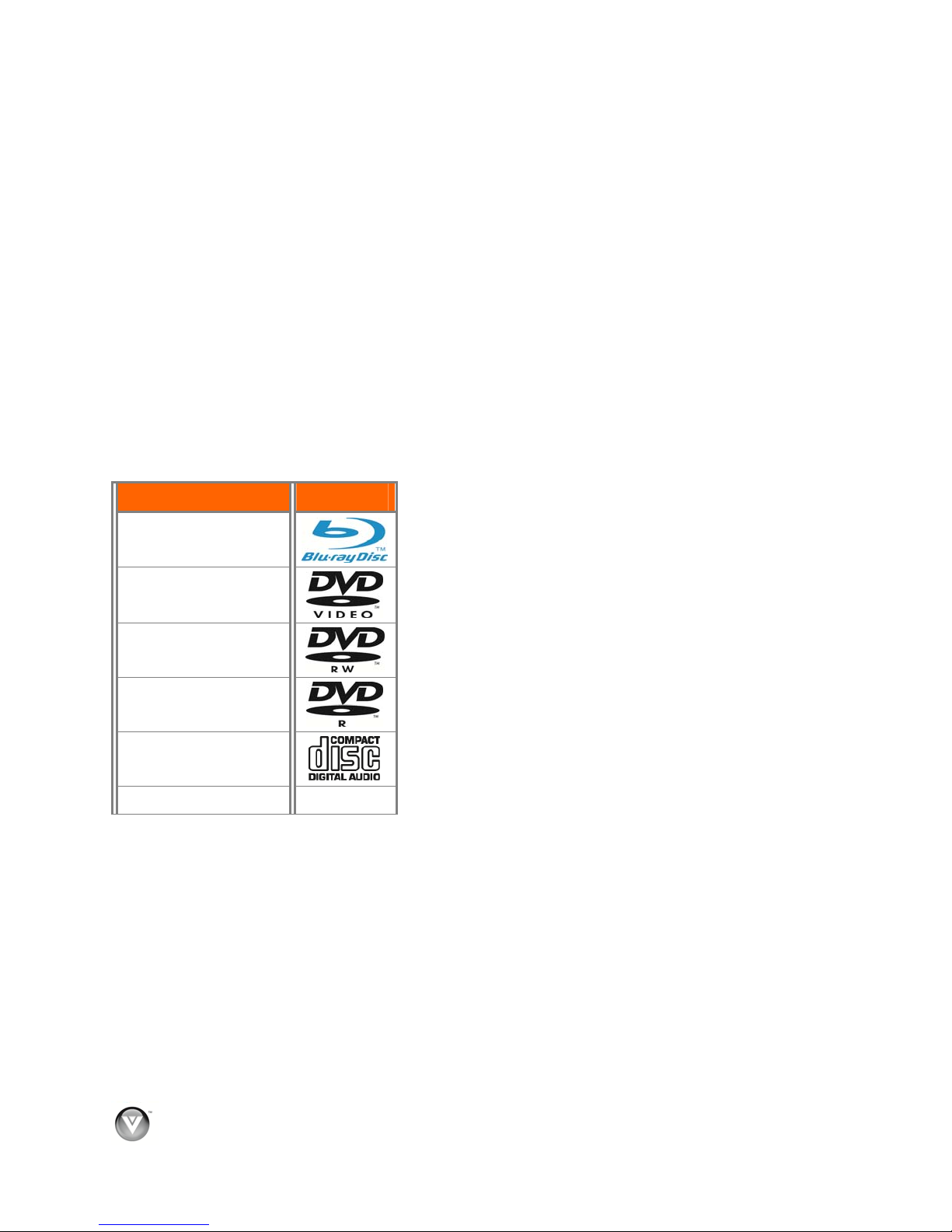
Supported Discs
Disc Type Logo Note:
Blu-ray Disc
DVD-video (DVD-
ROM)
DVD-RW
DVD-R
Audio CDs (CDDA)
MP3/JPEG/Data CD
! Your player can play CD-Rs, CD-RWs, DVD-RWs,
and DVD-Rs recorded with UDF or ISO9660 format.
! Writeable DVDs (DVD-RW, DVD-R) must be finalized
(VR mode only).
Supported file extensions
! .mp3 (high bit-rate or variable bit-rate .mp3 files may
not play back correctly)
! .jpeg
! .jpg
Region codes
Blu-ray Discs and DVDs have region codes to help prevent illegal distribution of discs. If the disc’s region
code does not match your player’s region code, the disc will not play. Your player’s region code is
displayed on the back of your player. The disc’s region code is displayed on the disc or disc packaging.
6
www.VIZIO.com

VIZIO VBR100 User Manual
Chapter 2 Basic Controls and Connections
Front
The controls on the front of your player are touch-sensitive. Just touch a finger anywhere on the front
panel and the controls will light up.
1. Standby/On ( )—Press to turn on your player or put your player in standby mode. When your
player is in standby mode, power is still entering your player. To disconnect all power, unplug the
power cord.
2. Remote Control Sensor—Point the remote control directly at this sensor for the best response
to the remote signal.
3. Disc Tray—Insert a disc with the label side up into this tray.
4. Open/Close ( ) —Press to open or close the disc tray.
Note: Due to the nature of Blu-ray discs, it may take a moment for the disc tray to respond.
5. Play/Pause ( )—Press to start or pause playback.
6. Stop ( )—Press to stop playback, and then press to begin playback at the beginning of the
disc.
7. Previous ( )—Press to go to the previous title, chapter, or track.
8. Next ( )—Press to go to the next title, chapter, or track.
Version 8/19/2009 7
www.VIZIO.com

VIZIO VBR100 User Manual
Rear Panel Connections
1. VIDEO OUT—Connect a standard AV TV. For composite TVs, you will also need to connect
the red and white audio jacks (see #6 below) to the Analog L/R Audio Out jacks.
2. ANALOG L/R AUDIO OUT—Connect the audio for the TV you connected to the VIDEO OUT
or COMPONENT jack to these audio jacks. You can connect the audio for a component TV to a
sound system instead of to the TV.
3. COAXIAL DIGITAL AUDIO OUT—Connect a sound system that has a coaxial audio jack.
4. USB—Connect a USB flash drive to view multimedia content or save BD-LiveTM Content.
5. POWER—Connect this cord into a power outlet.
6. COMPONENT (Y/CbPb/CrPr) —Connect a component video device, such as a TV. For
component TVs, you will also need to connect the red and white audio jacks (see #2 above) to
the Analog L/R Audio Out jacks.
7. HDMI—Connect a digital video and audio device, such as TV, to this all digital connector. No
additional audio connection is needed.
8. ETHERNET—Connect an Internet cable to this jack and to your home networks to access BD
Live Content.
9. OPTICAL DIGITAL AUDIO OUT—Connect a sound system that has an optical audio jack.
8
www.VIZIO.com

VIZIO VBR100 User Manual
VIZIO Remote Control
Insertion of Batteries in the Remote Control
1. Remove the battery cover.
2. Insert two AA batteries into the remote control. Make sure that you
match the (+) and (-) symbols on the batteries with the (+) and (-)
symbols inside the battery compartment.
3. Replace the battery cover.
Precautionary Tips for Inserting the Batteries:
! Only use the specified AA batteries.
! Do not mix new and old batteries. This may result in cracking or
leakage that may cause a fire or lead to personal injury.
! Inserting the batteries incorrectly may also result in cracking or
leakage that may cause a fire or lead to personal injury.
! Dispose of batteries according to local hazardous waste regulations.
! Keep the batteries away from children and pets.
Remote Control Range
! The effective range of the remote control is approximately 23 feet (7
meters) from the front of the remote control sensor, 30° to the left
and right, 30° up and down.
! Point the remote control at the remote control sensor to transmit the commands.
! Do not place any obstacles between the remote control and the remote control sensor.
VIZIO Remote Control Precautions
! The remote control should be kept dry and away from heat sources. Avoid humidity.
! If your player responds erratically to the remote control or does not respond at all, check the
batteries. If the batteries are low or exhausted, replace them with fresh batteries.
! When not using the remote control for a long period of time, remove the batteries.
! Do not take the batteries apart, heat them, or throw them into a fire.
! Do not subject the remote control to undue physical stress, such as striking or dropping it.
! Do not attempt to clean the remote control with a volatile solvent. Wipe it with a clean, damp
cloth.
Version 8/19/2009 9
www.VIZIO.com

VIZIO VBR100 User Manual
Remote Control Buttons
OPEN/CLOSE ( )—Press to open or close the disc
tray. Note: Due to the nature of Blu-ray discs, it may
take a moment for the disc tray to respond.
STANDBY/ON ( )—Press to turn your player on
from the Standby mode. Press it again to return to the
Standby mode.
A (red), B (green), C (yellow), D (blue)—Press to
control playback of Blu-ray Discs that have a Java™
application (BD-J). For more information, see the
documentation that came with the Blu-ray Disc.
SETUP—Press to open the setup menu to adjust
various options.
DISC MENU—Press to stop playback and return to
the main Blu-ray/DVD title menu. This button also
opens a menu to control playback of MP3 or JPEG
files.
!"# $—Press to navigate the disc menu when
playing a Blu-ray Disc or DVD. These buttons also
navigate the pop-up menu when playing MP3 or JPEG
files.
SELECT—Press to select an option after it has been
highlighted in the menu.
RETURN—During MP3 or JPEG playback, press to
return to the previous menu.
POPUP MENU/TITLE MENU—Press to open a menu
that lets you control Blu-ray Disc playback. This button
also opens the DVD menu (if available).
PREVIOUS ( )—Press to go to the previous title,
chapter, or track.
NEXT ( )—Press to go to the next title, chapter, or
track.
FAST REVERSE( )—Press repeatedly to increase
the fast reverse speed from Fast x2, Fast x4, Fast x8,
Fast x16, Fast x32, Fast x64, to Fast x128. Press to
resume playback.
Play/Pause ( )—Press to start or pause playback of
discs or multimedia files.
FAST FORWARD ( )—Press repeatedly to increase
the fast forward speed from Fast x 2, Fast x 4, Fast x
8, Fast x 16, Fast x 32, Fast x 64, to Fast x 128. Press
to resume playback. When viewing picture files,
press to change the slideshow speed from 5 secon
2 seconds, 1 second, to No Delay
ds,
.
STOP ( )—Press to stop playback and then press
to begin playback at the beginning of the disc.
STEP ( )—Press to advance the disc one frame at a time. Press to resume normal playback.
VIZIO TV VOLUME DOWN (-)—If you have a VIZIO TV, press to turn the volume down on that TV.
10
www.VIZIO.com
Other manuals for VBR100 - Blu-Ray Disc Player
2
Table of contents
Other Vizio Blu-ray Player manuals



Vizio
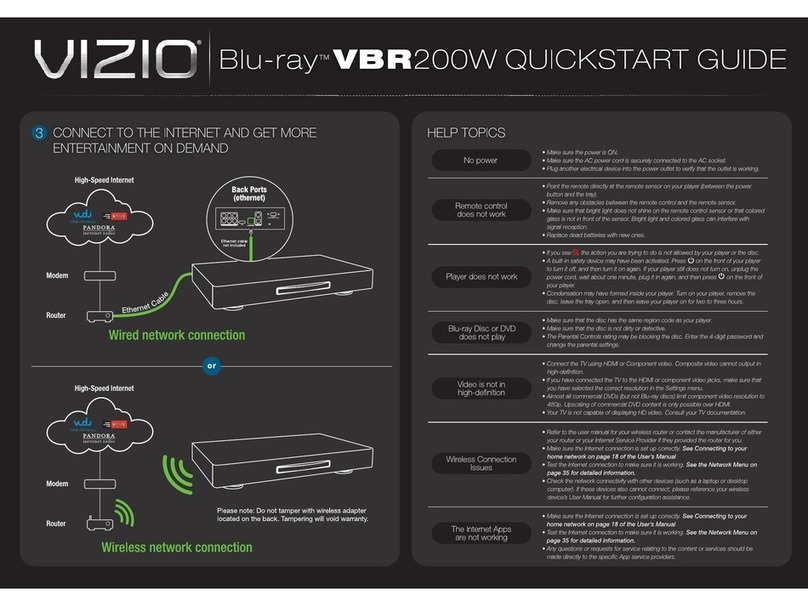
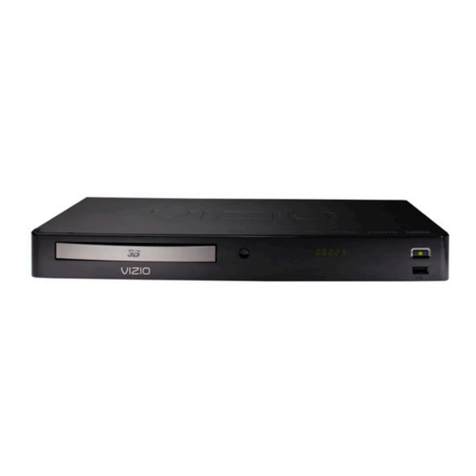
Vizio VBR200W User manual
Vizio
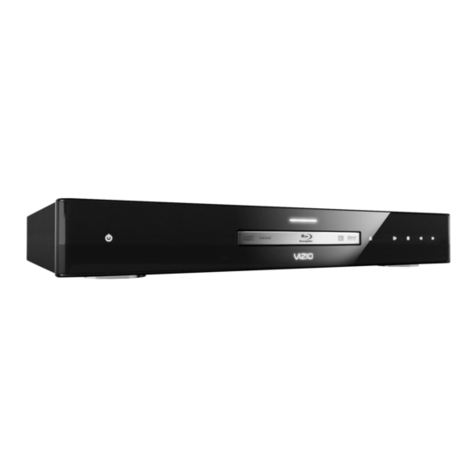
Vizio VBR100 - Blu-Ray Disc Player User manual
Vizio
Vizio VBR210 User manual
Vizio
Vizio VBR220 User manual
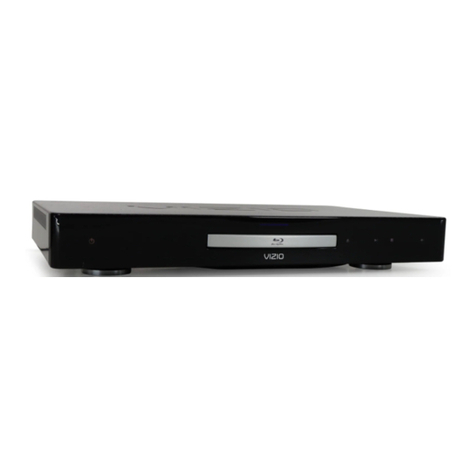
Vizio
Vizio VBR210 User manual
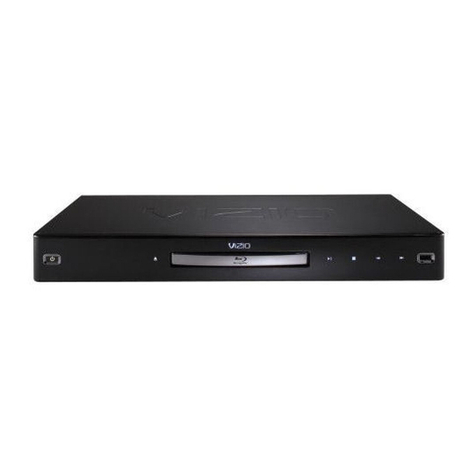
Vizio
Vizio VBR220 User manual
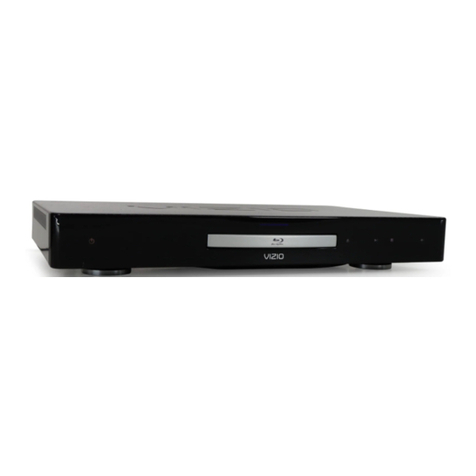
Vizio
Vizio VBR210 User manual
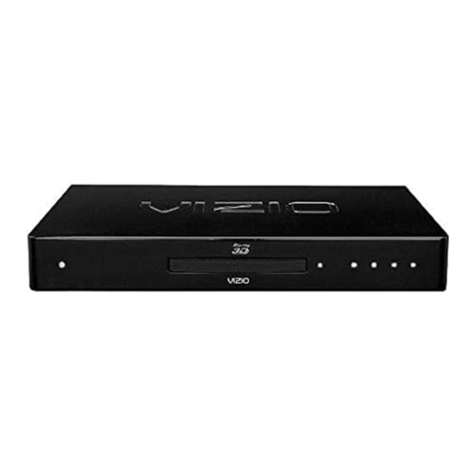
Vizio
Vizio 3D BLU-RAY VBR334 User manual
Vizio
Vizio VBR121 User manual
Vizio
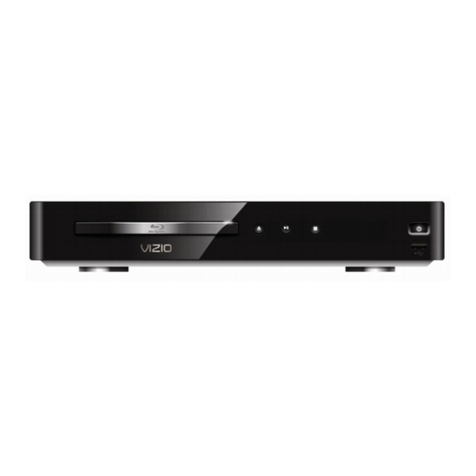
Vizio VBR120 User manual