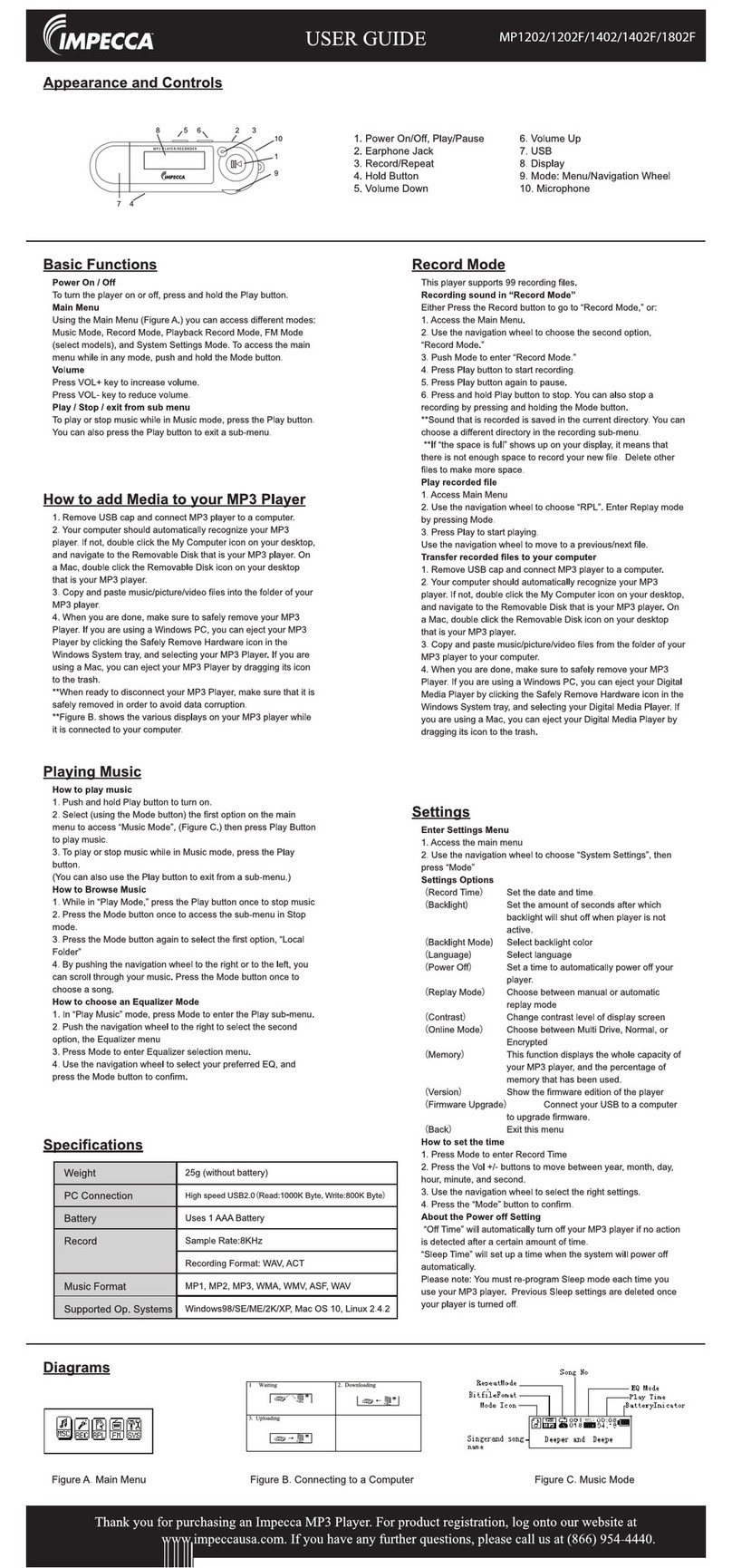
3
Getting Started
Step 1: Set up the software:
1: If your computer is running Windows 98, you should download the Windows 98 driver from the
software CD included with your MP3 Player. To do this insert the CD in your CD-ROM drive and follow the
steps below:
Double-click on the ”My Computer” icon, then double click on “Set-Up” to install the soft ware and
follow the installation instructions.
After you finish the installation, you can find this file in your “Program files” in your “C” drive.
If your computer is running Windows ME/2000/XP or Vista your MP3 player will be “seen” by the
computer upon plugging the unit into the computer via the USB cable connector. No extra set up steps
are necessary.
Step 2: Transferring Music and Content
Once your MP3 player is seen by the computer you may now begin to transfer music files onto the
device.
1: How to copy Music files from your PC to MP3 Player directly:
Select the music file by clicking on the file, - Choose “Copy” – then go to the MP3 player Icon and
choose “Paste”, it is that simple. Repeat this procedure to add the music files you want to listen to.
2: If you want to transfer music or individual songs from a CD, please use the Windows Media Player
software which may be on your computer to convert the CD file to MP3 music files. For the detailed
software which may be on your computer to convert the file to MP3 music files. For the detailed
instructions of this procedure please check your Windows Media Player software guide for reference
.
3: For those people who may have some music files that are not in .mp3 format, all is not lost. In fact,
anything that you can play on your computer can be easily recorded as an MP3 with the free program,
Audacity. Just go to: http://audacity.sourceforge.net/ And as you know, MP3s can be played on
anything. Please note that this is a 3rd party software and any support for it would be done by
contacting Audacity.
Step 3: Disconnect your player
When you have finished transferring files, disconnect your MP3 player.
Be careful not to disconnect your player while files are still being downloaded, otherwise you may lose or
damage the content being transferred.
Step 4: Playing Media Files, listening to Music
You are now ready to play media files on your player.
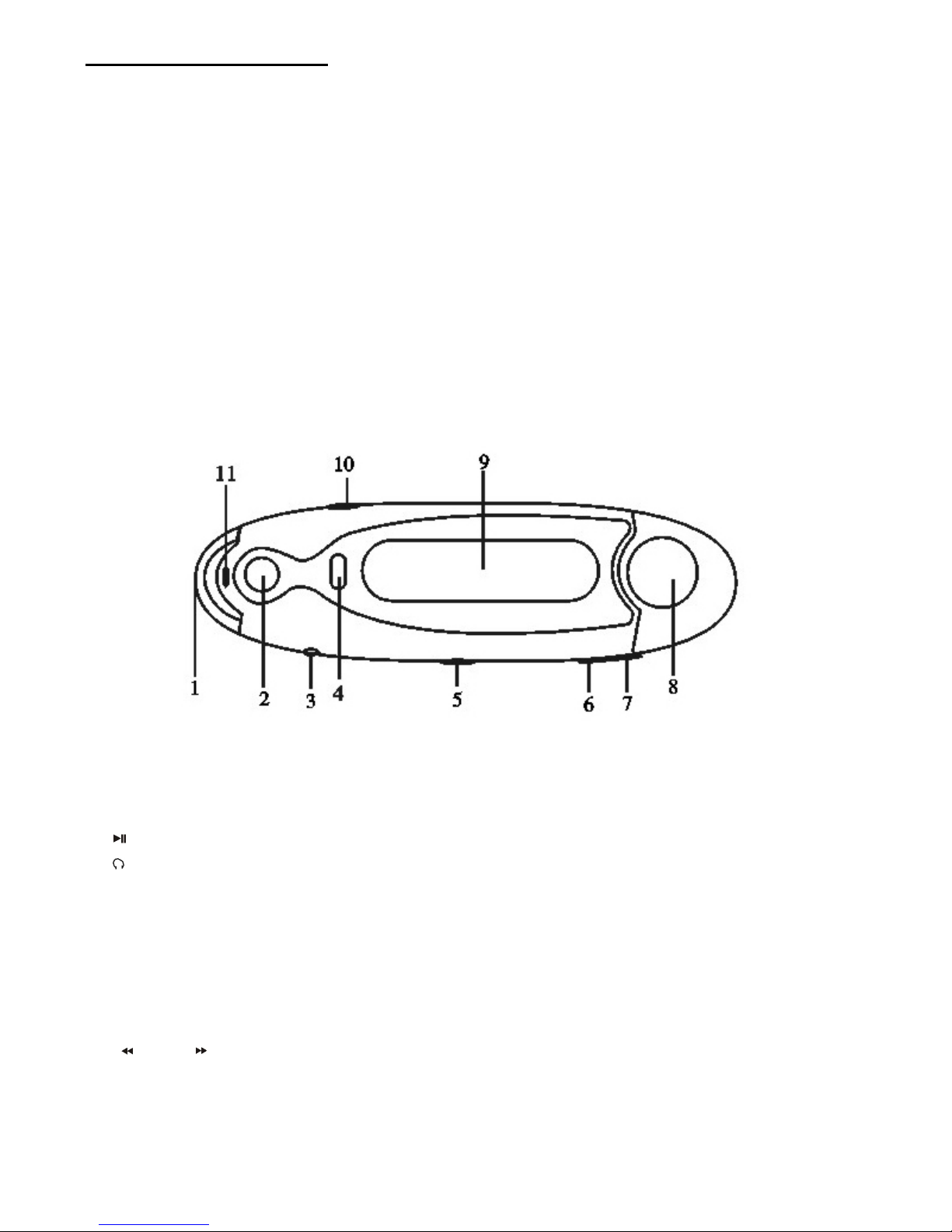
- Insert the earbuds into the earphone jack output.
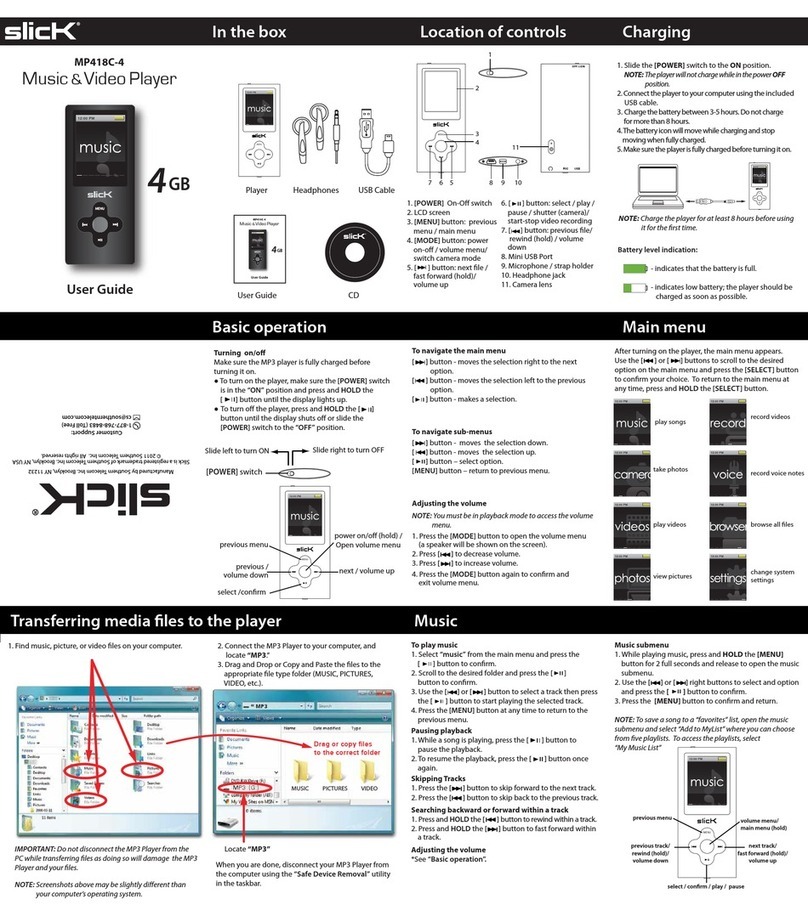
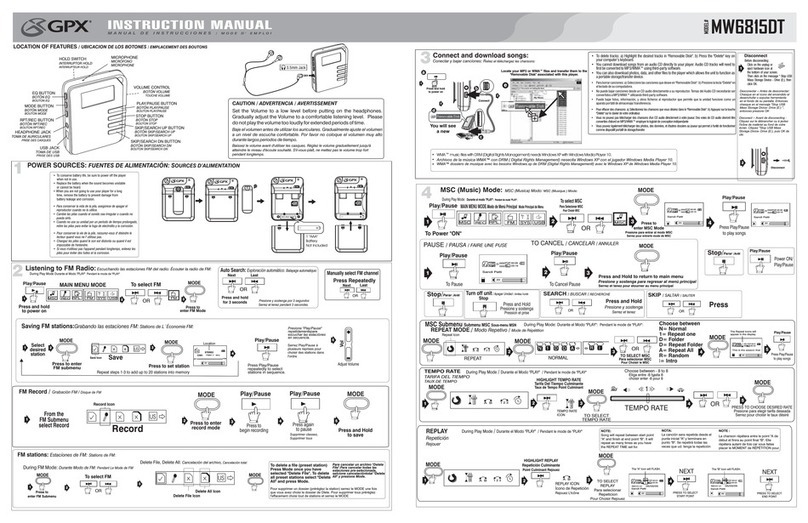
- Firmly press the “Play” button to turn the unit on, choose the “MSC” (music) mode, then lightly
depress the “MODE” button to view the audio files, press “Play” to activate the play mode.
- Press “VOL+” or “VOL-“ when in play mode to adjust the volume.
- Enjoy your MP3 Player!