OAS - Connecting to External Devices
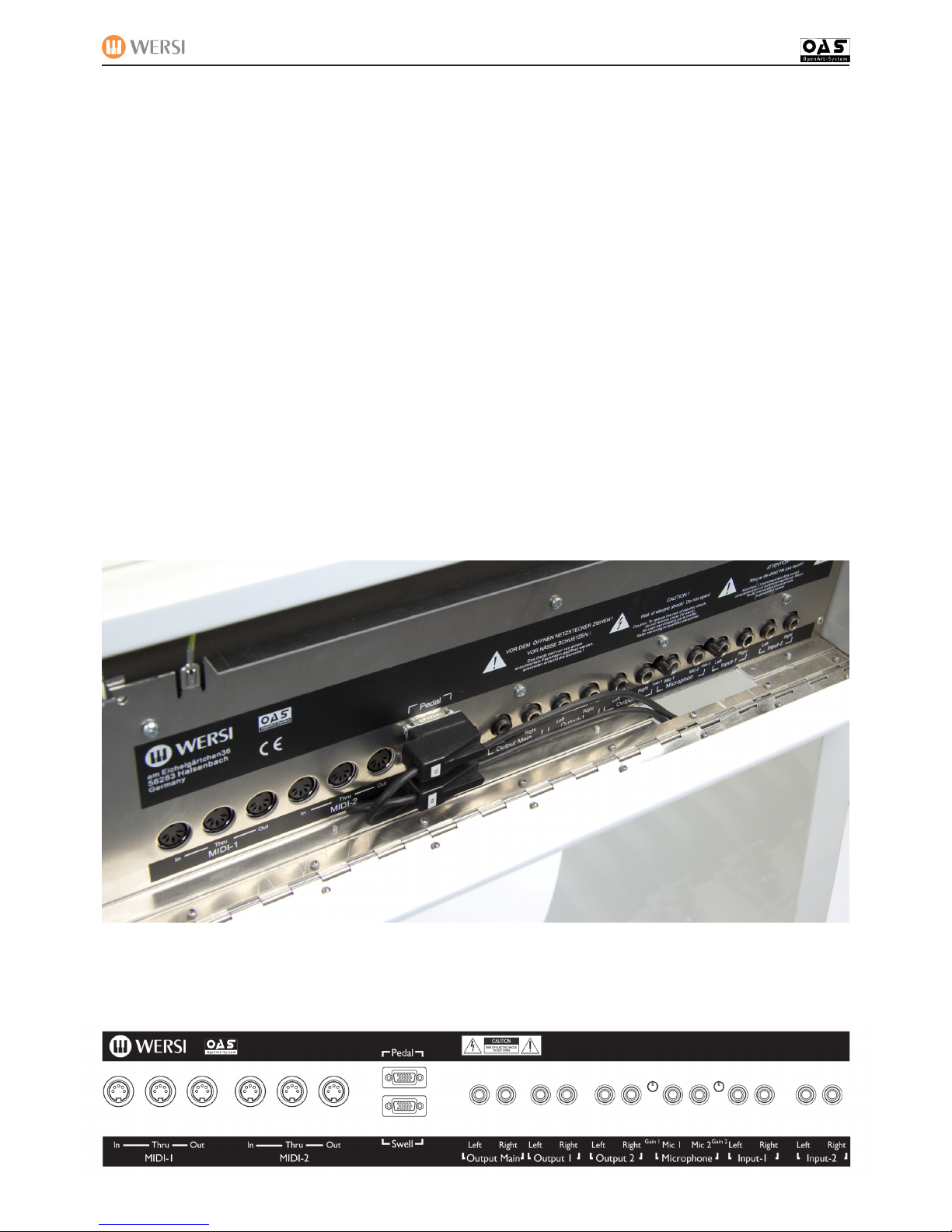
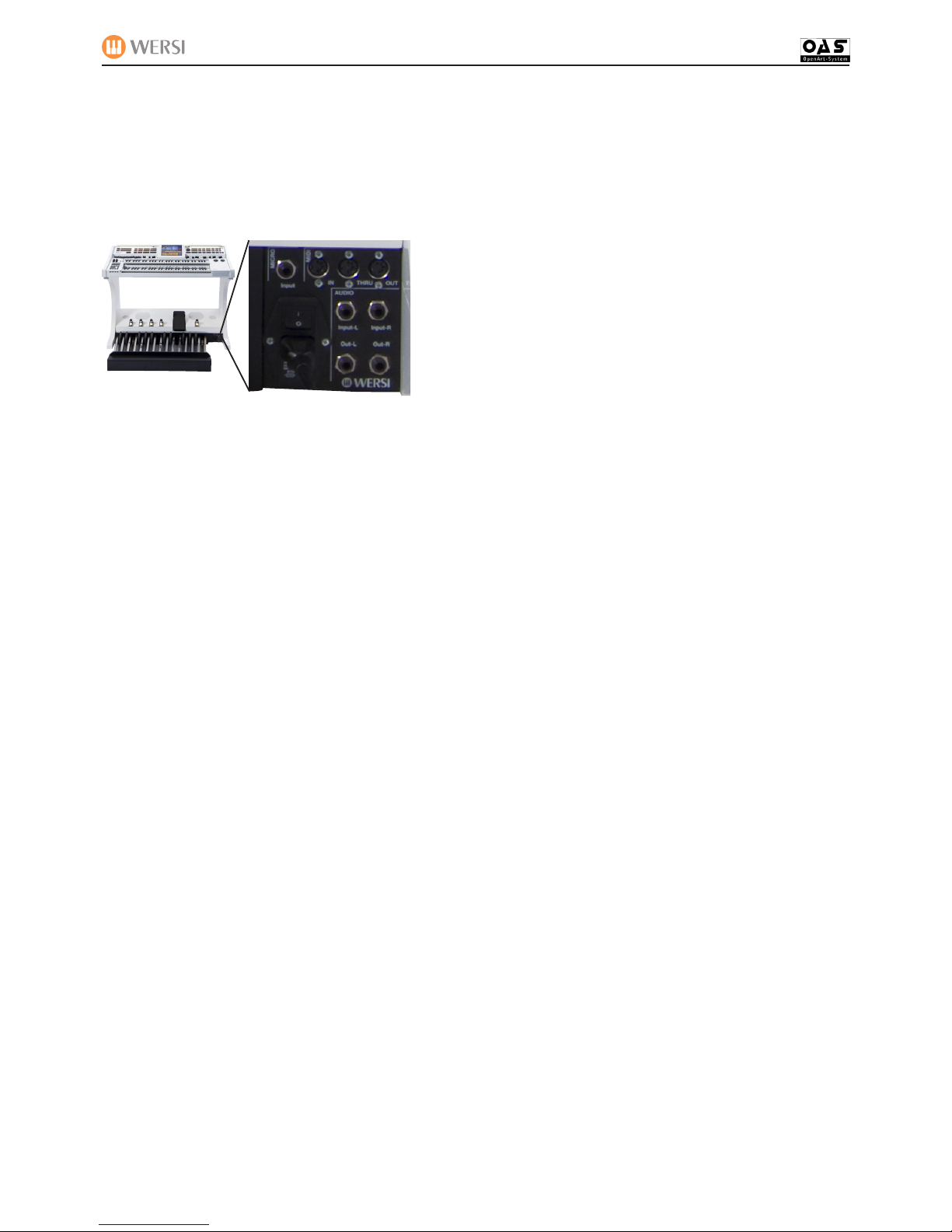
MIDI 1 & MIDI 2 Ports
This is where you connect MIDI In Cables, MIDI Out Cables
or MIDI Cables to connect through instruments in the event
of setting up a MIDI chain of instruments.
MIDI In 1
Equipment connected to Midi In 1, act like the manuals & pedals on your OAS instrument, in that you can still control
what happens on your instrument, even though you are using a separate keyboard or pedal board.
MIDI In 2
Equipment connected to Midi In 2 has full and independent control of your OAS instrument, and so it is ideal for external se-
quencers such as Cubase.
Midi In 2: No settings within the OAS 7 MIDI Settings are available here, as everything is controlled by
the externally connected Midi equipment.
Example 1: Turning an Abacus into a Duo for Synth or Piano players
1. You purchase a Midi keyboard and Midi Pedal board which has no sound system on-board.
• NOTE: Piano Players can choose an 88 note Hammer Action keyboard, and Synth Players can choose a light action 61 note
keyboard (Providing it has Midi Out, any type of keyboard can be used).
2. You connect the Midi Out connector of the Pedal board to the Midi In connection of the Midi keyboard and then
connect the Midi Out of the Midi keyboard to Midi in 1 of the Abacus.
NOTE: You will need to adjust the Midi Keyboard to allow the Midi In from the Pedal board, to pass through its
information to the Midi Out of the keyboard (If your external keyboard does not allow this).
3. From the Operating Manual of the Midi Pedal and keyboard, You nd out what channel they transmit on (Most can
also be altered so that the channels don’t clash) and set these channels in the Abacus Midi in 1 settings for Lower
& Pedal.
4. Un-tick the controller boxes for the items that you do not want the external Pedal board/Keyboard to control, and
then return to the main screen.
5. You can now use your Abacus as if it was the Duo version, with whatever size and type of Midi Pedal board/Key
-board you want. (Piano, Synth etc.)
Example 2: You add an additional arranger keyboard to our OAS Instrument:
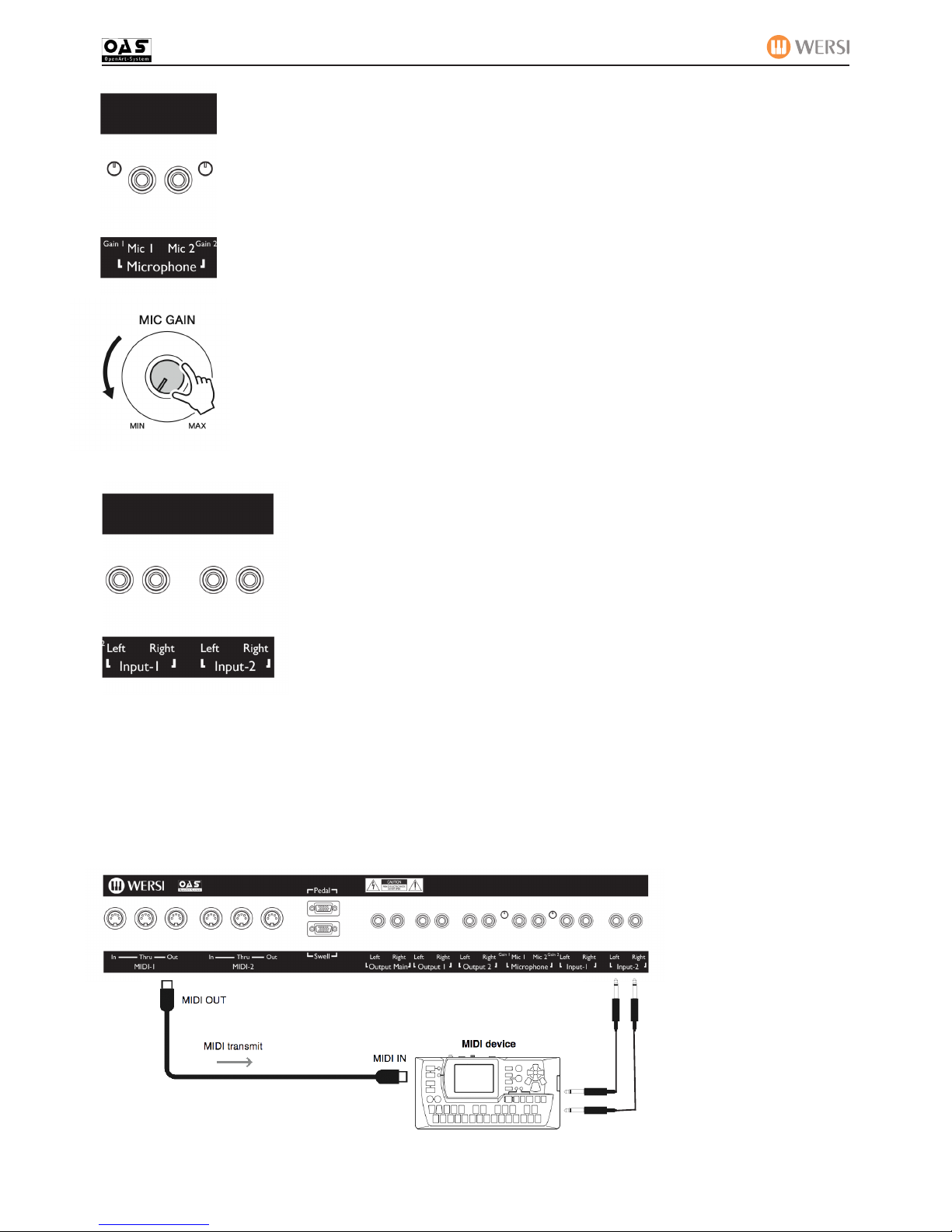
1. Connect the Midi out of your Arranger Keyboard to the Midi In 1 of your instrument, and the Audio out of your
arranger keyboard to Audio In 1 of your OAS instrument.
NOTE: You will need to set the mixer settings of your arranger keyboard and OAS instrument to match. (You will need to look
in both instruments operating manuals for this information, however normally it just requires matching of volume levels.)
2. Find out from the manual what channels the arranger keyboards right and left hand keyboard sections transmit
on.
3. Set your Midi in 1 Upper to the right hand channel number, and the Lower to the Left hand channel number, and
activate Midi Out on your arranger keyboard.
4. Un-tick the controller boxes for any items you do not wish the arranger keyboard to control.
5. Setup your OAS instrument how you wish, and do the same for the arranger keyboard.
6. Play your OAS instrument and you will have the glorious OAS sound, however play your arranger keyboard and
you will hear both the sound of your OAS instrument and the arranger keyboard, thus giving you the best of both
worlds. (More advanced uses are beyond this basic introduction.)