manuals.online logo
Brands
  1. Home
  2. •
  3. Brands
  4. •
  5. Whistler
  6. •
  7. GPS
  8. •
  9. Whistler Whistler WGPX-635 Instructions for use

Whistler Whistler WGPX-635 Instructions for use

Other manuals for Whistler WGPX-635

2

This manual suits for next models

1

Other Whistler GPS manuals

Whistler GPS100 Troubleshooting guide

Whistler

Whistler GPS100 Troubleshooting guide

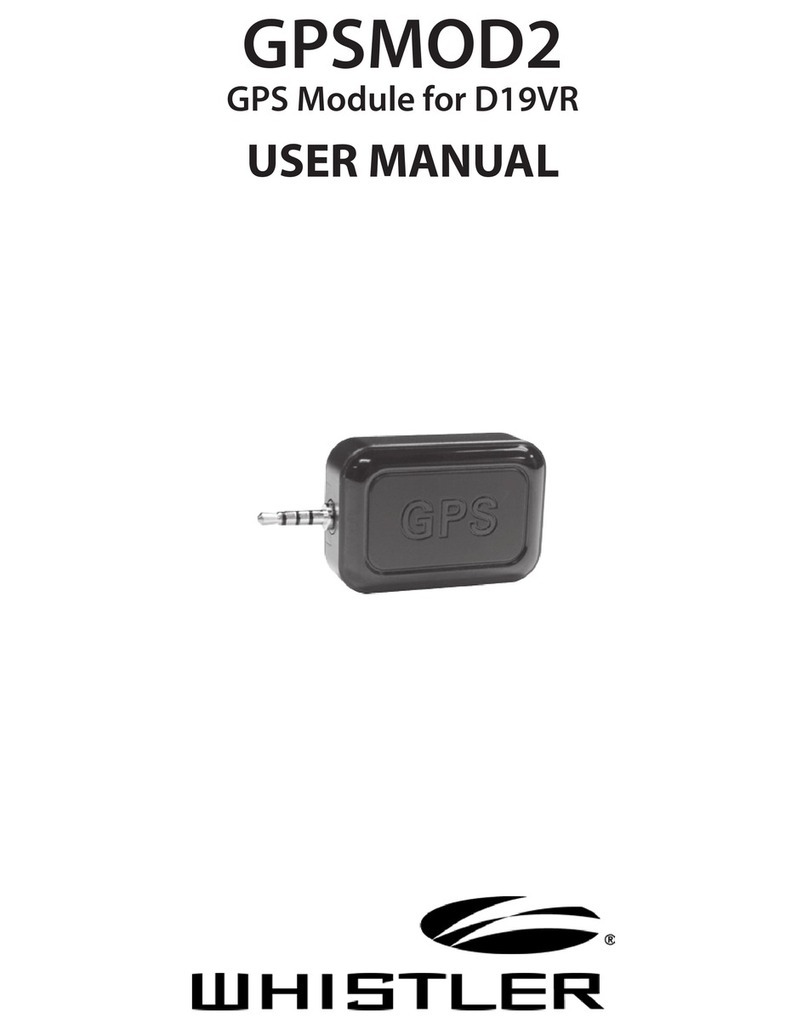
Whistler GPSMOD2 User manual

Whistler

Whistler GPSMOD2 User manual

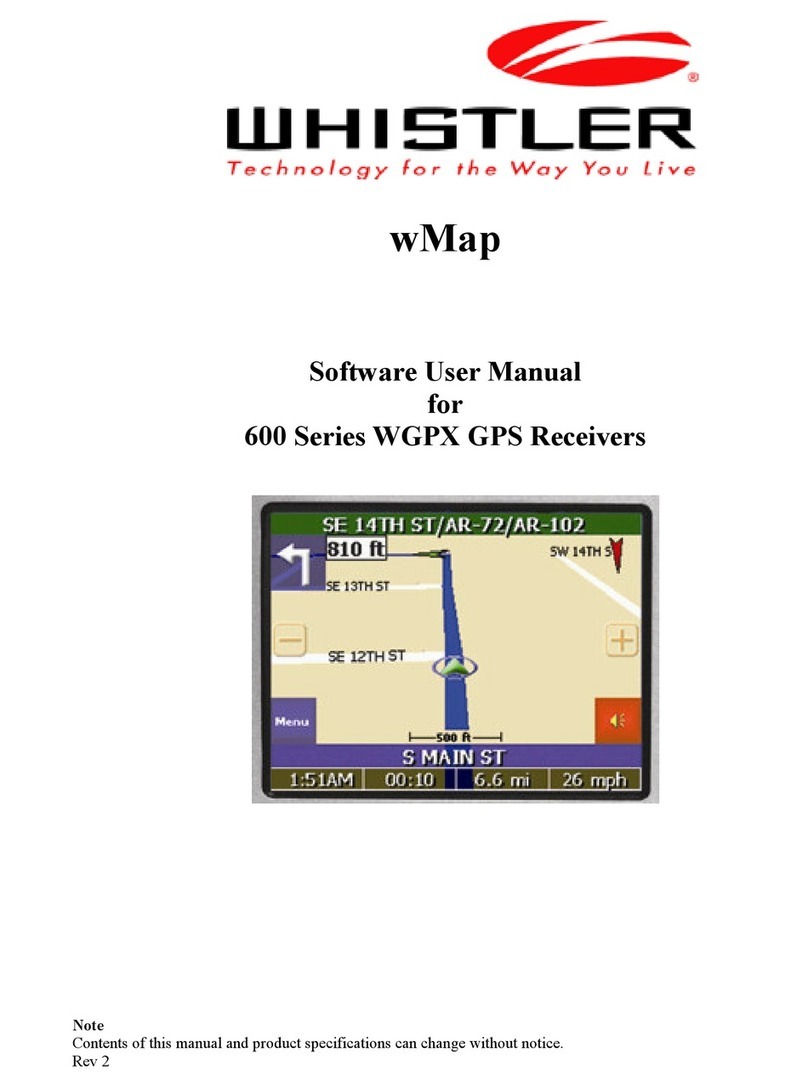
Whistler Whistler WGPX-635 User manual

Whistler

Whistler Whistler WGPX-635 User manual

Whistler GolfDigest GLF-125 User manual

Whistler

Whistler GolfDigest GLF-125 User manual

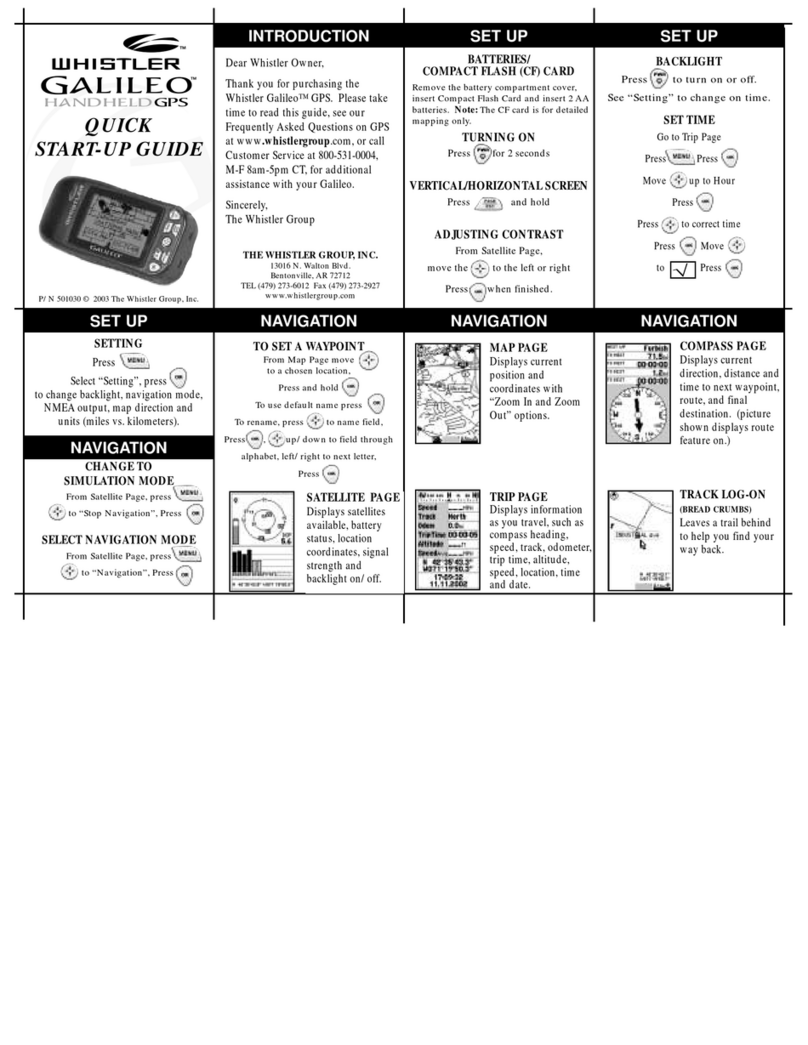
Whistler GPS User manual

Whistler

Whistler GPS User manual

Whistler WGPX-545 Instructions for use

Whistler

Whistler WGPX-545 Instructions for use

Whistler WGPX-545 Instructions for use

Whistler

Whistler WGPX-545 Instructions for use

Whistler GolfDigest GLF-100 User manual

Whistler

Whistler GolfDigest GLF-100 User manual

Whistler Whistler WGPX-635 Instructions for use

Whistler

Whistler Whistler WGPX-635 Instructions for use

Popular GPS manuals by other brands

Polar Electro RCX3 Getting started guide

Polar Electro

Polar Electro RCX3 Getting started guide

Tobii Pro Spectrum user manual

Tobii Pro

Tobii Pro Spectrum user manual

Gosafe G91I user manual

Gosafe

Gosafe G91I user manual

Fisher TW-8800 operating manual

Fisher

Fisher TW-8800 operating manual

LG LN740 Series Specifications

LG

LG LN740 Series Specifications

Prestigio GeoVision 430 user manual

Prestigio

Prestigio GeoVision 430 user manual

JVC KW-NT3HDT instructions

JVC

JVC KW-NT3HDT instructions

Yoctopuce Yocto-GPS user guide

Yoctopuce

Yoctopuce Yocto-GPS user guide

RightWay GPS Navigator RW 200 user manual

RightWay

RightWay GPS Navigator RW 200 user manual

TomTom VIA user guide

TomTom

TomTom VIA user guide

Garmin ECHOMAP PLUS owner's manual

Garmin

Garmin ECHOMAP PLUS owner's manual

Telit Wireless Solutions GM862GPS Series Hardware user's guide

Telit Wireless Solutions

Telit Wireless Solutions GM862GPS Series Hardware user's guide

Hama 53118 Operating	 instruction

Hama

Hama 53118 Operating instruction

Garmin DEZL 580 owner's manual

Garmin

Garmin DEZL 580 owner's manual

Jigabot EX quick start guide

Jigabot

Jigabot EX quick start guide

Pointer Cellocator CelloTrack XT LTE overview

Pointer

Pointer Cellocator CelloTrack XT LTE overview

Queclink GV55LITE user manual

Queclink

Queclink GV55LITE user manual

Starcom Systems Kylos Compact user guide

Starcom Systems

Starcom Systems Kylos Compact user guide

manuals.online logo
manuals.online logoBrands
  • About & Mission
  • Contact us
  • Privacy Policy
  • Terms and Conditions

Copyright 2025 Manuals.Online. All Rights Reserved.

1
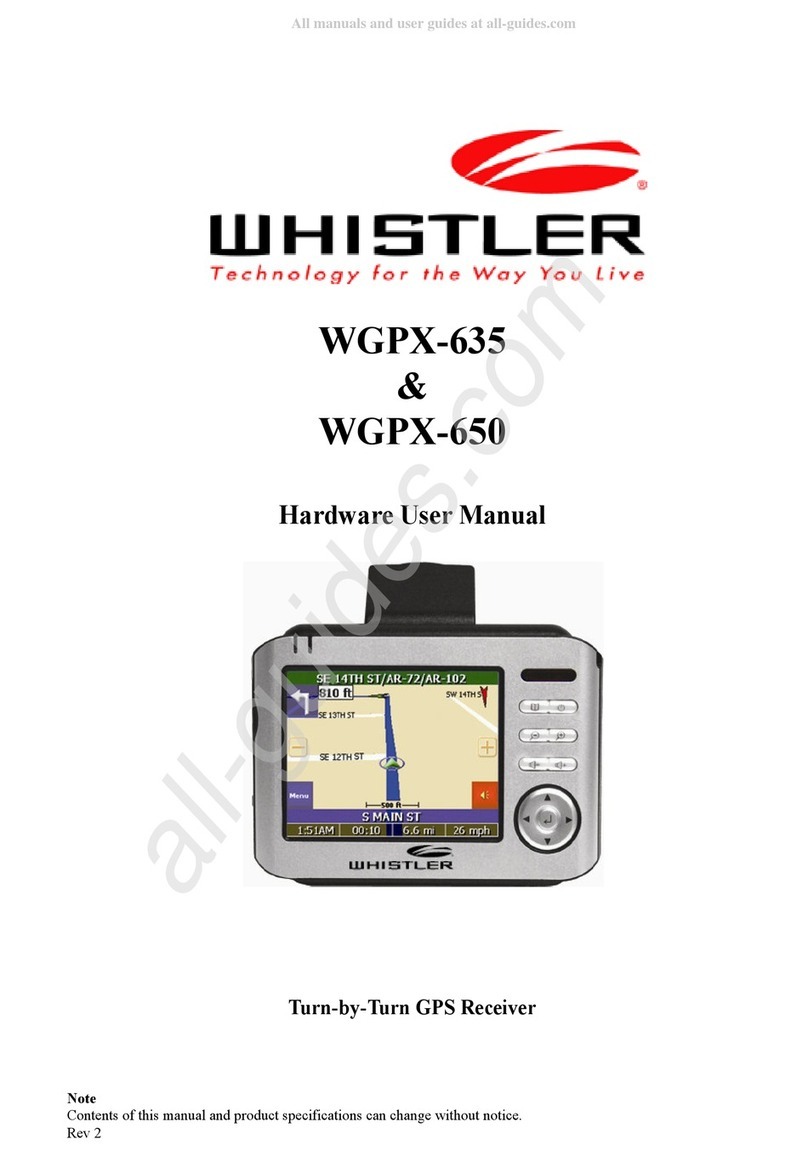
Whistler WGPX-635/650
WGPX-635
&
WGPX-650
Hardware User Manual
Turn-by-Turn GP Receiver
Note
Contents of this manual and product specifications can change without notice.
Rev 2
2
Whistler WGPX-635/650
Introduction
If you have any questions concerning the operation of this Whistler product please call:
Whistler Customer ervice
1-800-531-0004
Hours: Monday Friday
8:00 am to 5:00 pm CT
or visit
www.whistlergroup.com
Please keep the receipt in a safe place. You may register your WGPX online at:
www.whistlergroup.com. If the unit is returned without a dated store receipt, an out of warranty
service charge applies.
Note: Your warranty period begins at the time of purchase. The warranty is validated only by a
copy of the original store receipt. Now is the time to record the serial number of the unit in the
space provided in the warranty section of the manual.
3
Whistler WGPX-635/650
Dear Whistler Owner,
Thank you for purchasing the Whistler Turn-By-Turn (TBT) GPS Receiver. Please take some
time to read both this hardware manual and the GPS mapping software manual in order to
understand and maximize the operating features. There is no better way to experience what’s near
you or how to get there than by using a Whistler WGPX series GPS. Both the WGPX and wMap
Mapping software were designed for ease of use to make your experience a pleasant one.
Both manuals and our Whistler Customer Service Representatives are here to assist you. For more
general GPS information or frequently asked questions, please see our FAQ page at
www.whistlergroup.com or call customer service 800-531-004 M-F 8AM to 5PM CST.
Before using the WGPX for the first time make sure that you read the important Safety
Information in the sections that follow.
Enjoy the WGPX. Please drive safely.
Sincerely,
The Whistler Group, Inc.
Enjoy
4
Whistler WGPX-635/650
Table of Contents
Contents
Introduction ........................................................................................................2-3
Safety Information................................................................................................. 5
Software ............................................................................................................... 6
FCC ...................................................................................................................... 7
Components.......................................................................................................... 8
Features ...........................................................................................................9-11
Front iew .............................................................................................................................. 9
Rear iew ............................................................................................................................. 10
Left iew .............................................................................................................................. 10
Top iew .............................................................................................................................. 11
Bottom iew ......................................................................................................................... 11
Right iew ............................................................................................................................ 11
Main Power Switch ...............................................................................................12
Battery Charging ..................................................................................................12
Charging the Battery—In Home ......................................................................................... 12-13
Charging the Battery—In Car.................................................................................................. 13
Secure Digital (SD) Card Information .....................................................................14
Inserting the SD card............................................................................................................. 14
Removing the SD card ........................................................................................................... 14
Installation......................................................................................................15-16
Assembling the Windshield Bracket.................................................................................... 15-16
Power Connection ................................................................................................................. 16
Operation........................................................................................................ 17-29
Startup ................................................................................................................................. 17
Shutdown ............................................................................................................................. 17
Using the Function Buttons .................................................................................................... 18
Using the Stylus .................................................................................................................... 19
Functions of the Stylus ...................................................................................................... 19
Using the Remote Control.................................................................................................. 19-20
System Reset......................................................................................................................... 21
Care, Maintenance and Storage.............................................................................22
Troubleshooting ...................................................................................................23
Warranty Information ...................................................................................... 24-25
Specifications .......................................................................................................26
Accessories ..........................................................................................................27

5
Whistler WGPX-635/650
Important afety Information
WARNING: It is the user’s responsibility to use this product prudently and maintain safe-driving
practices at all times. This GPS should be used only by someone able to clearly understand the
instructions and able to operate the controls. For proper safety we recommend that a passenger
operate the GPS unit. However, in cases where you are alone, it is recommended that you pull
over to make any adjustments to the GPS unit. It is also important to make sure that the unit is
secure, does not block the driver’s field of vision, and will not become a hazard in case of an
accident. Do not mount or place the GPS unit on an air bag equipped steering wheel or passenger
area. In case of an accident this can be deadly.
The Global Positioning System (GPS) is operated by the government of the United States, which
is solely responsible for its accuracy and maintenance. The system is subject to changes which
could affect the accuracy and performance of all GPS equipment.
afety Information
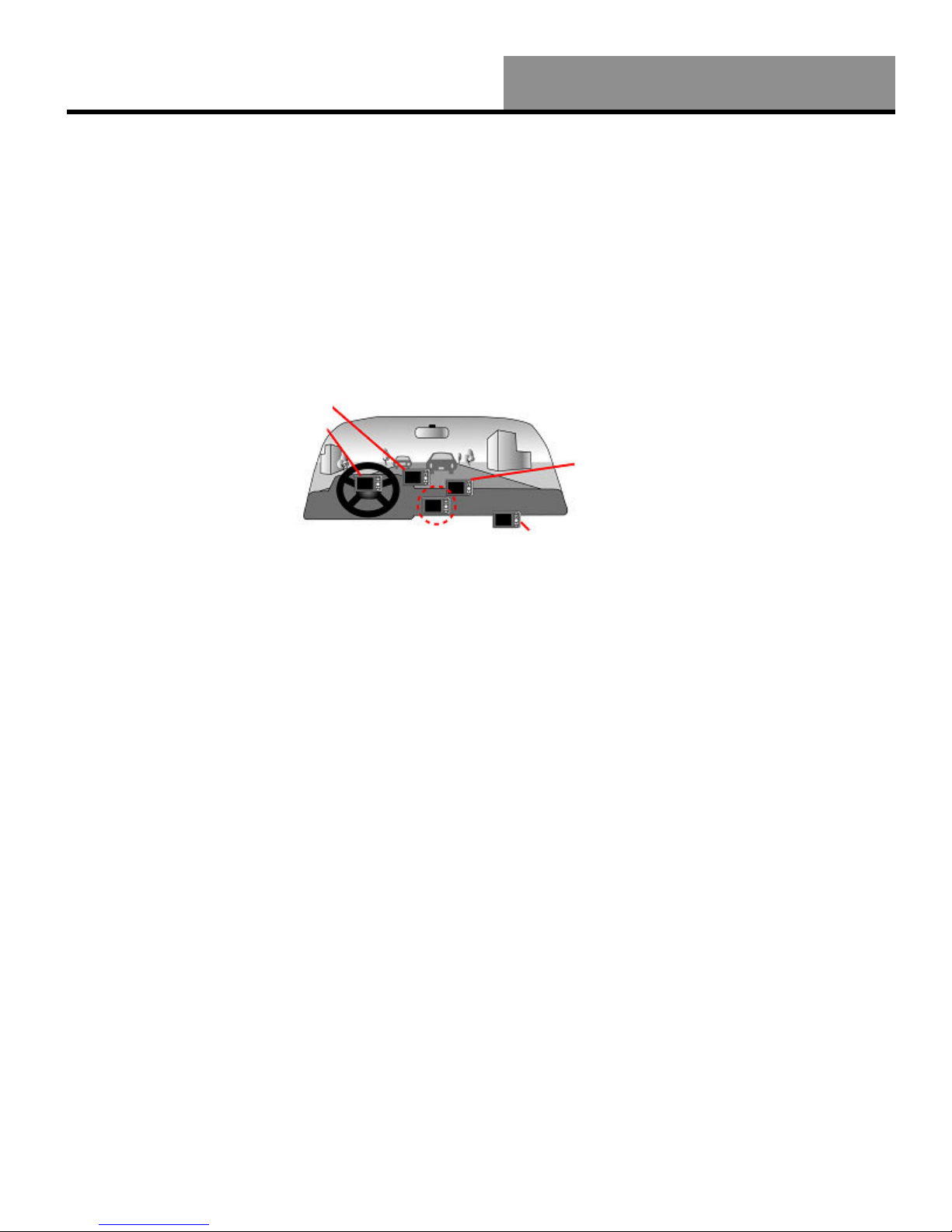
X Do not secure in
front of airbag
X Do not loosely place
on dashboard
X Do not block
driver’s view
X Do not secure in
front of airbag
6
Whistler WGPX-635/650
The detailed mapping software is provided by NAVTEQ and Netropa. The detailed mapping
software is as accurate and detailed as possible. Whenever maps are digitized, there is still a
possibility that some inaccurate or incomplete data can be found. It is because of these
inaccuracies that the WGPX is a travel aid and is not intended for precise measurement in
navigation or aircraft use.
Differences between manufactured and shipped versions of the software may be present; this
software may be updated frequently. If the descriptions in this manual are different from your
software version, please follow the software version currently on hand.
oftware Use Terms
Copyright laws protect the WGPX’s operating system and internal mapping software. Whistler’s
wMap mapping software is copyrighted by their respective owners. Please carefully review the
software agreement information enclosed in the Whistler’s wMap Mapping Software User’s
Guide.
Note: By opening the DVD package you accept the terms and conditions listed in the agreement.
Once opened, the DVD package cannot be returned to the place of purchase.
oftware
7
Whistler WGPX-635/650
This device complies with Part 15 of the FCC Rules. Operation is subject to the following two
conditions:
(1) This device may not cause harmful interference, and
(2) this device must accept any interference received, including interference that may cause
undesired operation.
This equipment has been tested and found to comply with the limits for a Class B digital device,
pursuant to part 15 of the FCC Rules. These limits are designed to provide reasonable protection
against harmful interference in a residential installation. This equipment generates, uses and can
radiate radio frequency energy and, if not installed and used in accordance with the instructions,
may cause harmful interference to radio communications. However, there is no guarantee that
interference will not occur in a particular installation. If this equipment does cause harmful
interference to radio or television reception, which can be determined by turning the equipment
off and on, the user is encouraged to try to correct the interference by one or more of the following
measures:
• Reorient or relocate the receiving antenna.
• Increase the separation between the equipment and receiver.
Changes and modifications not expressly approved by the Whistler Group, Inc., may void the
warranty. Repairs should be made only by an authorized Whistler Repair Center.
FCC Compliance
8
Whistler WGPX-635/650
Contents :
Components
1 2 3
4 5 6
7 8 9
10
• Cradle - accepts the windshield
bracket.
• SD Card—Preloaded
with detailed maps.
• Whistler Mapping Software
on DVD includes maps of the
United States and Canada.
• WGPX with color TFT
LCD touch screen display.
1 WGPX Unit 7 SD Memory Card
2 Windshield Mount 8 D D
3 Mounting Cradle 9 Quick Start Guide
4 DC Power Cord 10 Stylus
5 AC Power Cord (2 pcs) 11 Remote (WGPX-650 only)
6 USB/Power Cable
Note: Actual
accessory
appearances may
differ from the
drawings pictured.
WGPX Feature Highlights
11
9
Whistler WGPX-635/650
Features
1
1 GPS and Battery
Charge Indicators
Green LED indicates GPS search. Yellow LED
indicates battery charging—turns Red when
battery is low
2 IR indow Window for optional remote control
(Remote included with model WGPX-650)
3 Menu Button
Returns to the Menu window
4 Power Button Switches the power on/off
5 Zoom Out Button Zooms out of the map view
6 Zoom In Button Zooms in on the map view
7 Volume Down Lowers the volume
8 Volume Up Raises the volume
9
Directional Button Press up/down/left/right keys to change page
views or press the center of button to select items
10 Touch Screen
(Anti Glare)
Displays system status. Use stylus to directly input
data or select items on the screen
Front View
Note: The unit has a protective plastic layer over the display screen. Remove this layer before use.
2
3
4
5
6 7
8
9
10
10
Whistler WGPX-635/650
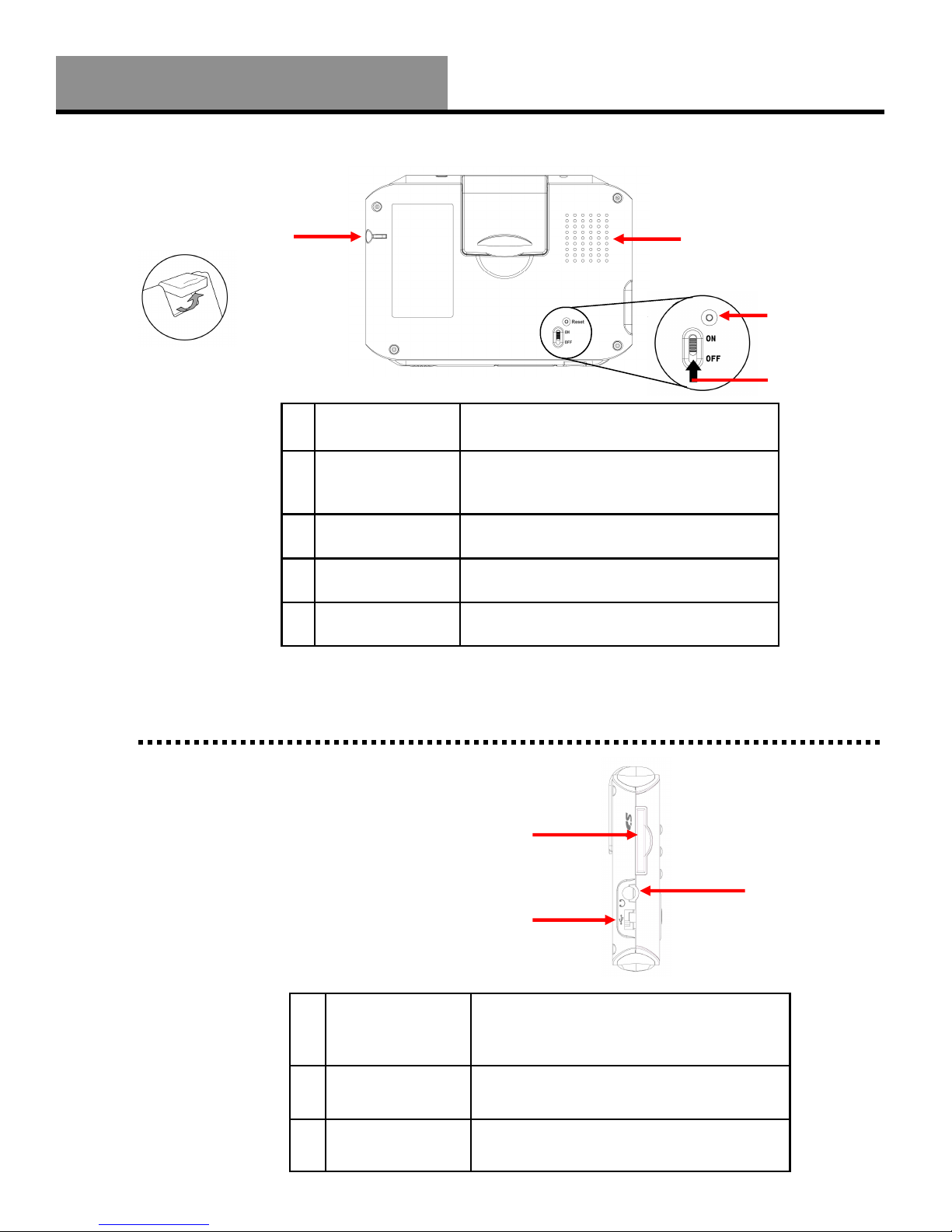
1 Retractable Flip
up Antenna
Receives satellite signals– flip up 90
degrees to use
2 External
Antenna
Connector
For connection of an external antenna -
(MMCX type)
3 Speaker Audio output
4 Main Power
Switch
Disconnects power to the unit
5 Master Reset Clears unit’s memory and resets it
Rear View
Features
1 SD/MMC Card
Slot
Location for the preloaded SD memory card.
The maps are saved on this memory card.
Do not remove this card while in use.
2 Headphone
Jack
Connection to external headphones.
3 USB Connection Allows connection to a PC.
Left View
1
3
2
1
2 3
4
5
Note: Remember
to flip up antenna
for best
performance.