manuals.online logo
Brands
  1. Home
  2. •
  3. Brands
  4. •
  5. Whistler
  6. •
  7. GPS
  8. •
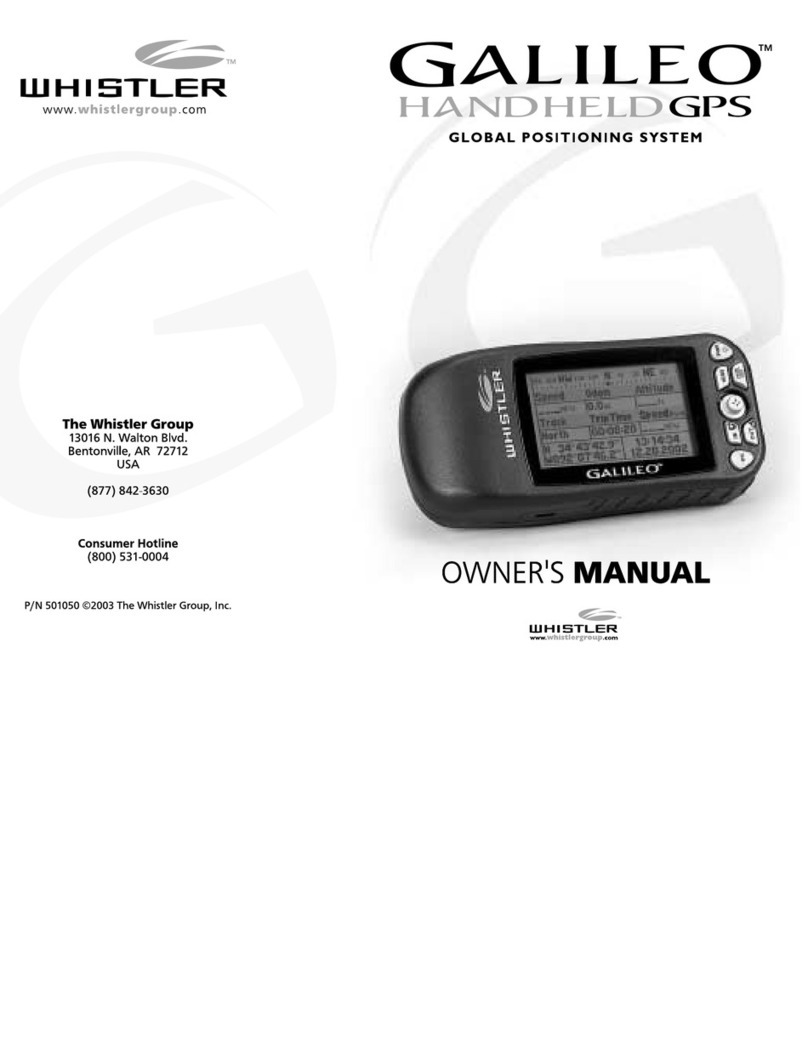
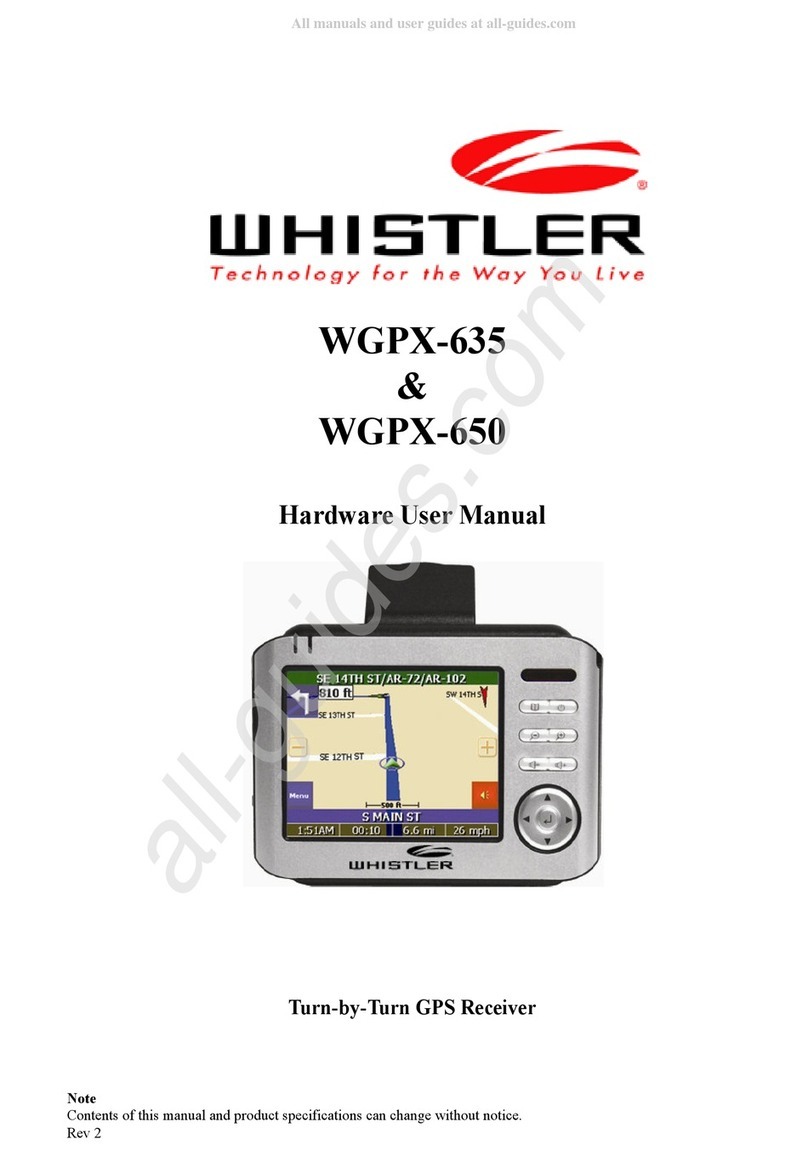
  9. Whistler Whistler WGPX-635 User manual

Whistler Whistler WGPX-635 User manual

Other manuals for Whistler WGPX-635

2

This manual suits for next models

3

Other Whistler GPS manuals

Whistler Whistler WGPX-635 Instructions for use

Whistler

Whistler Whistler WGPX-635 Instructions for use

Whistler Whistler WGPX-635 Instructions for use

Whistler

Whistler Whistler WGPX-635 Instructions for use

Whistler WGPX-545 Instructions for use

Whistler

Whistler WGPX-545 Instructions for use

Whistler GPS100 Troubleshooting guide

Whistler

Whistler GPS100 Troubleshooting guide

Whistler GolfDigest GLF-125 User manual

Whistler

Whistler GolfDigest GLF-125 User manual

Whistler WGPX-545 Instructions for use

Whistler

Whistler WGPX-545 Instructions for use

Whistler GPS User manual

Whistler

Whistler GPS User manual

Whistler GPSMOD2 User manual

Whistler

Whistler GPSMOD2 User manual

Whistler GolfDigest GLF-100 User manual

Whistler

Whistler GolfDigest GLF-100 User manual

Popular GPS manuals by other brands

Polar Electro RCX3 Getting started guide

Polar Electro

Polar Electro RCX3 Getting started guide

Tobii Pro Spectrum user manual

Tobii Pro

Tobii Pro Spectrum user manual

Gosafe G91I user manual

Gosafe

Gosafe G91I user manual

Fisher TW-8800 operating manual

Fisher

Fisher TW-8800 operating manual

LG LN740 Series Specifications

LG

LG LN740 Series Specifications

Prestigio GeoVision 430 user manual

Prestigio

Prestigio GeoVision 430 user manual

JVC KW-NT3HDT instructions

JVC

JVC KW-NT3HDT instructions

Yoctopuce Yocto-GPS user guide

Yoctopuce

Yoctopuce Yocto-GPS user guide

RightWay GPS Navigator RW 200 user manual

RightWay

RightWay GPS Navigator RW 200 user manual

TomTom VIA user guide

TomTom

TomTom VIA user guide

Garmin ECHOMAP PLUS owner's manual

Garmin

Garmin ECHOMAP PLUS owner's manual

Telit Wireless Solutions GM862GPS Series Hardware user's guide

Telit Wireless Solutions

Telit Wireless Solutions GM862GPS Series Hardware user's guide

Hama 53118 Operating	 instruction

Hama

Hama 53118 Operating instruction

Garmin DEZL 580 owner's manual

Garmin

Garmin DEZL 580 owner's manual

Jigabot EX quick start guide

Jigabot

Jigabot EX quick start guide

Pointer Cellocator CelloTrack XT LTE overview

Pointer

Pointer Cellocator CelloTrack XT LTE overview

Queclink GV55LITE user manual

Queclink

Queclink GV55LITE user manual

Starcom Systems Kylos Compact user guide

Starcom Systems

Starcom Systems Kylos Compact user guide

manuals.online logo
manuals.online logoBrands
  • About & Mission
  • Contact us
  • Privacy Policy
  • Terms and Conditions

Copyright 2025 Manuals.Online. All Rights Reserved.

1
wMap GPS Software
wMap
Software User Manual
for
600 Series WGPX GPS Receivers
Note
Contents of this manual and product specifications can change without notice.
Rev 2
2
wMap GPS Software
Introduction
Introduction
Congratulations on your purchase of a Whistler GPS receiver and the wMap mapping software.
This system can provide an auto route to the destination of your choice using signals from Glo al
Positioning Satellites (GPS) or iting the earth.
There are 24 GPS satellites or iting the earth. A GPS device can calculate your position on the
earth if it can receive signals from at least three of these satellites. When it receives at least four
signals, a GPS device can also calculate your altitude (height a ove sea level).
To use the GPS receiver for the first time you need to charge the attery and install the map data
onto the Secure Digital/Multi-Media Card (SD/MMC). N TE: Some models may have the maps
preloaded on the SD/MMC card so map loading is not necessary. If the GPS receiver offers other
countries, these country maps will e on the included CD/DVD. Simply copy the country maps to
an appropriately sized SD/MMC card and insert the card into the GPS receiver. See page 23 for
loading instructions.
Important! If the GPS receiver’s maps are preloaded on a SD/MMC card, please make a ackup
copy of the card to the PC. If the card is reformatted, erased or lost, a new copy of the map files
can e placed onto a new SD/MMC card y using the ackup copy. If a ackup is not performed
and replacement maps are needed, a replacement fee will e charged.
See the unit’s hardware manual for detailed instructions for attery loading and charging
information as well as important hardware and software restrictions and precautions. All other
hardware questions and operation of other non GPS mapping programs are listed in the hardware
manual.
3
wMap GPS Software
Software Agreement
Whistler Map™ (wMap) Software License
ATTENTION: PLEASE READ THIS DOCUMENT CAREFULLY. THE INDIVIDUAL OR
ENTITY OPENING THE CD/DVD (THE "END-USER") AGREES TO BE BOUND BY THE
TERMS OF THIS LICENSE. IF YOU OPEN THE CD/DVD, YOU CANNOT RETURN THE
GPS FOR CREDIT.
The enclosed software files and the accompanying documentation are provided to the End-User
y The Whistler Group, Inc. ("Whistler") and Netropa Corporation for use only under the
following terms. Whistler reserves any right not expressly granted to the End-User. The End-User
owns the disk on which the Software is recorded, ut Whistler retains ownership of all copies of
the Software itself. The End-User assumes sole responsi ility for the installation, use and results
o tained from use of the Software.
1. License. End-User is granted a limited, non-exclusive license to do only the following:
A. Install and maintain the Software on one computer at any time for use only in the End-
User's own usiness.
B. Make one copy in machine-reada le form solely for ackup or archival purposes for the
computer on which the Software is installed. The Software is protected y copyright law.
As an expressed condition of this License, the End-User must reproduce on the copy
Whistler's copyright notice and any other proprietary legends on the original copy supplied
y Whistler.
C. Transfer the Software and all rights under this License to another party together with a copy
of this License and all written materials accompanying the Software, provided (i) the End-
User gives Whistler written notice of the transfer (including in such notice the identity of
the transferee), and (ii) the other party reads and agrees to accept the terms and conditions
of this License.
2. Restrictions. The End-User may NOT su license, assign, or distri ute copies of the Software
to others. The End-User may NOT decompile, reverse engineer, disassem le, or otherwise reduce
the Software to a human reada le form. THE END-USER MAY NOT MODIFY, ADAPT,
TRANSLATE, RENT, LEASE, LOAN, RESELL FOR PROFIT, DISTRIBUTE, OR
OTHERWISE ASSIGN OR TRANSFER THE SOFTWARE, OR CREATE DERIVATIVE
WORKS BASED UPON THE SOFTWARE OR ANY PART THEREOF, EXCEPT AS
EXPRESSLY PROVIDED IN SECTION 1.C. ABOVE.
3. Protection and Security. The End-User agrees to use its est efforts and to take all reasona le
steps to safeguard the Software to ensure that no unauthorized person shall have access thereto
and that no unauthorized copy, pu lication, disclosure or distri ution in whole or in part, in any
form, shall e made. The End-User acknowledges that the Software contains valua le confidential
information and trade secrets and that unauthorized use and/or copying are harmful to Whistler.
4. Termination. This License is effective until terminated. This License will terminate
immediately without notice from Whistler if the End-User fails to comply with any of its
provisions. Upon termination the End-User must destroy the Software and all copies thereof, and
the End-User may terminate this License at any time y doing so.
Legal
4
wMap GPS Software
Software Agreement - Continued
5. Export Law Assurances. The End-User agrees that the Software is to e used only in North
America and the Software will not e transferred or exported, directly or indirectly, outside North
America.
6. Limited Warranty. Whistler warrants that, for one year from the date of initial use y the
original End-User, the Software shall operate su stantially in accordance with the pu lished
functional specifications current at the time of shipment. If, during the warranty period, a defect
appears, the End-User shall return the Software to Whistler and Whistler's only o ligation shall e,
at Whistler's election, to replace the defective Software. The End-User agrees that the foregoing
constitutes the End-User's sole and exclusive remedy for reach y Whistler under any warranties
made under this Agreement. This warranty does not cover any Software that has een altered or
changed in any way y anyone other than Whistler or Netropa Corporation. Whistler or Netropa
Corporation is not responsi le for pro lems associated with or caused y incompati le operating
systems or equipment, or for pro lems in the interaction of the Software with software not
furnished y Whistler. No oral or written information or advice given y Whistler or its dealers,
distri utors, employees or agents shall in any way extend, modify or add to the foregoing
warranty.
THE WARRANTY AND REMEDY PROVIDED ABOVE ARE EXCLUSIVE AND IN LIEU
OF ALL OTHER WARRANTIES, EXPRESS OR IMPLIED, INCLUDING BUT NOT
LIMITED TO THE IMPLIED WARRANTIES OF MERCHANTABILITY AND FITNESS FOR
A PARTICULAR PURPOSE. THE END-USER ASSUMES ALL RISK AS TO THE
SUITABILITY, QUALITY, AND PERFORMANCE OF THE SOFTWARE. IN NO EVENT
WILL WHISTLER, OR ITS DIRECTORS, OFFICERS, EMPLOYEES OR AFFILIATES, BE
LIABLE TO THE END-USER FOR ANY CONSEQUENTIAL INCIDENTAL, INDIRECT,
SPECIAL OR EXEMPLARY DAMAGES (INCLUDING DAMAGES FOR LOSS OF
BUSINESS PROFITS, BUSINESS INTERRUPTION, LOSS OF DATA OR BUSINESS
INFORMATION, AND THE LIKE) ARISING OUT OF THE USE OF OR INABILITY TO USE
THE SOFTWARE OR ACCOMPANYING WRITTEN MATERIALS, EVEN IF WHISTLER
HAS BEEN ADVISED OF THE POSSIBILITY OF SUCH DAMAGES. WHISTLER'S
LIABILITY TO THE END-USER (IF ANY) FOR ACTUAL DIRECT DAMAGES FOR ANY
CAUSE WHATSOEVER, AND REGARDLESS OF THE FORM OF THE ACTION, WILL BE
LIMITED TO, AND IN NO EVENT SHALL EXCEED, THE AMOUNT ORIGINALLY PAID
TO WHISTLER FOR THE LICENSE OF THE SOFTWARE.
7. Enhancements. From time to time Whistler may, in its sole discretion, advise the End-User of
updates, upgrades, enhancements or improvements to the Software and/or new releases of the
Software (collectively, "Enhancements"), and may license the End-User to use such
Enhancements upon payment of prices as may e esta lished y Whistler from time to time. All
such Enhancements to the Software provided to the End-User shall also e governed y the terms
of this License. IN ORDER FOR THE END-USER TO BE ASSURED THAT IT WILL BE
ADVISED OF AND LICENSED TO USE ANY ENHANCEMENTS TO THE SOFTWARE,
THE END-USER MUST COMPLETE THE ONLINE REGISTRATION FORM AT
WWW.WHISTLERGROUP.COM OR CALL 1-800-531-0004.
Legal

5
wMap GPS Software
Software Agreement - Continued
8. General. This License will e governed y and construed in accordance with the laws of the
State of Arkansas, and shall inure to the enefit of Whistler, End-User and their successors,
assigns and legal representatives. If any provision of this License is held y a court of competent
jurisdiction to e invalid or unenforcea le to any extent under applica le law, that provision will
e enforced to the maximum extent permissi le and the remaining provisions of this License will
remain in full force and effect.
Any notices or other communications to e sent to Whistler must e mailed first class, postage
prepaid, to the following address:
The Whistler Group, Inc.
Attn: Customer Service
13016 North Walton Blvd.
Bentonville, AR 72712
This Agreement constitutes the entire agreement etween the parties with respect to the su ject
matter hereof, and all prior proposals, agreements, representations, statements and undertakings
are here y expressly cancelled and superseded.
This Agreement may not e changed or amended except y a written instrument executed y a
duly authorized officer of Whistler.
9. Acknowledgment. BY OPENING THIS PACKAGE, THE END-USER ACKNOWLEDGES
THAT IT HAS READ THIS LICENSE, UNDERSTANDS IT, AND AGREES TO BE BOUND
BY ITS TERMS AND CONDITIONS. Should you have any questions concerning this License,
contact Whistler at the address set forth a ove.
Legal
6
wMap GPS Software
Table of Contents
Contents
Introduction ...........................................................................................................2
Software Agreement - Legal...............................................................................3 - 5
Operation..........................................................................................................7-22
Map Page..................................................................................................................................... 7
Zoom In Out ....................................................................................................................... 7
Track Up North Up ........................................................................................................... 7-8
Navigation and Panning Modes.......................................................................................... 8-9
POI info.......................................................................................................................... 9
Saving a Location............................................................................................................ 9
Current Route Page ................................................................................................................. 9
Trip Information Page............................................................................................................ 10
GPS Info ............................................................................................................................... 10
Almanac................................................................................................................................ 10
Current Location.................................................................................................................... 11
Map View Style (2D 3D)......................................................................................................... 11
Creating and Using an Auto Route............................................................................................... 12
Destination by Address ........................................................................................................... 13
Destination by Intersection ..................................................................................................... 14
Destination by Points Of Interest (POI).................................................................................... 15
Destination by Favorites ......................................................................................................... 16
Destination by Recent ............................................................................................................ 16
Destination by City Center ...................................................................................................... 16
Set a Detour .......................................................................................................................... 17
Add a Stop Over .................................................................................................................... 17
Set Route Options .................................................................................................................. 18
Demo an Auto Route.............................................................................................................. 18
Setting Options .......................................................................................................................... 19
Local Settings ........................................................................................................................ 19
Display Options ...................................................................................................................... 19
Creating or Adding Favorites................................................................................................... 20
Programming the Go Home button.......................................................................................... 20
Panning and Zooming ................................................................................................................. 21
Guidance Volume Setting ............................................................................................................ 21
About Page ............................................................................................................................... 21
Speed Alert Setting..................................................................................................................... 22
Installing Maps.....................................................................................................23
Troubleshooting ...................................................................................................23
FAQs ...................................................................................................................24
7
wMap GPS Software
Navigating the Software
Once the GPS receiver is turned on, the unit will automatically go to the GPS receiver’s main
menu or depending on the GPS hardware, display the wMap’s map page. See the GPS receiver’s
hardware manual to determine the correct procedure to start the GPS unit’s mapping software.
A warning screen will appear first. Simply read and tap the OK icon.
It is est to e outside and have a clear sky a ove to allow
the GPS to o tain etter reception of the satellites. Clear
sky means: no trees, ridges, overhangs, carports etc.
Cloudy skies are ok. The unit is ready to travel and navigate
once the map page is displayed. The wMap software is
designed to e easy to use. Important! See the Setting
ptions section on page 19 to enter correct time zone!
The following sections will descri e the many features and
settings. Pressing the direction utton on the unit either left
or right will toggle through the availa le screens.
Map Page
The Map Page displays your current position, zoom in/out uttons and zoom level in miles, street
traveling on, attery life and Menu and Mute Icons. The pointer represents your location and
direction on the map.
The pointer icon also indicates the signal strength of the satellite signals: Silver = no signal;
Red = poor signal; Yellow = weak signal and Green = good signal.
Zoom In/Out
The zoom level is displayed in the lower center of the map page . To change the zoom level, tap
the zoom icons on the screen or the (+) or (-) uttons on the GPS unit. Note: Street details are not
shown higher than zoom level of 2000 ft.
Track Up (Heading) or North Up
In the upper right hand corner is the North indicator icon. (See Figure 7B) This indicator will
always point to the north. While traveling, the direction of travel (Pointer Icon) is always pointing
up and the map rotates around the Pointer Icon.
peration
Zoom In Icon
Mute Icon
North Icon
Zoom Out Icon
Menu Icon
Pointer Icon
Current Road
Traveling
Current Speed
Figure 7B Zoom Level
SE
Figure
7C
Figure 7A
8
wMap GPS Software
Track Up or North Up—continued
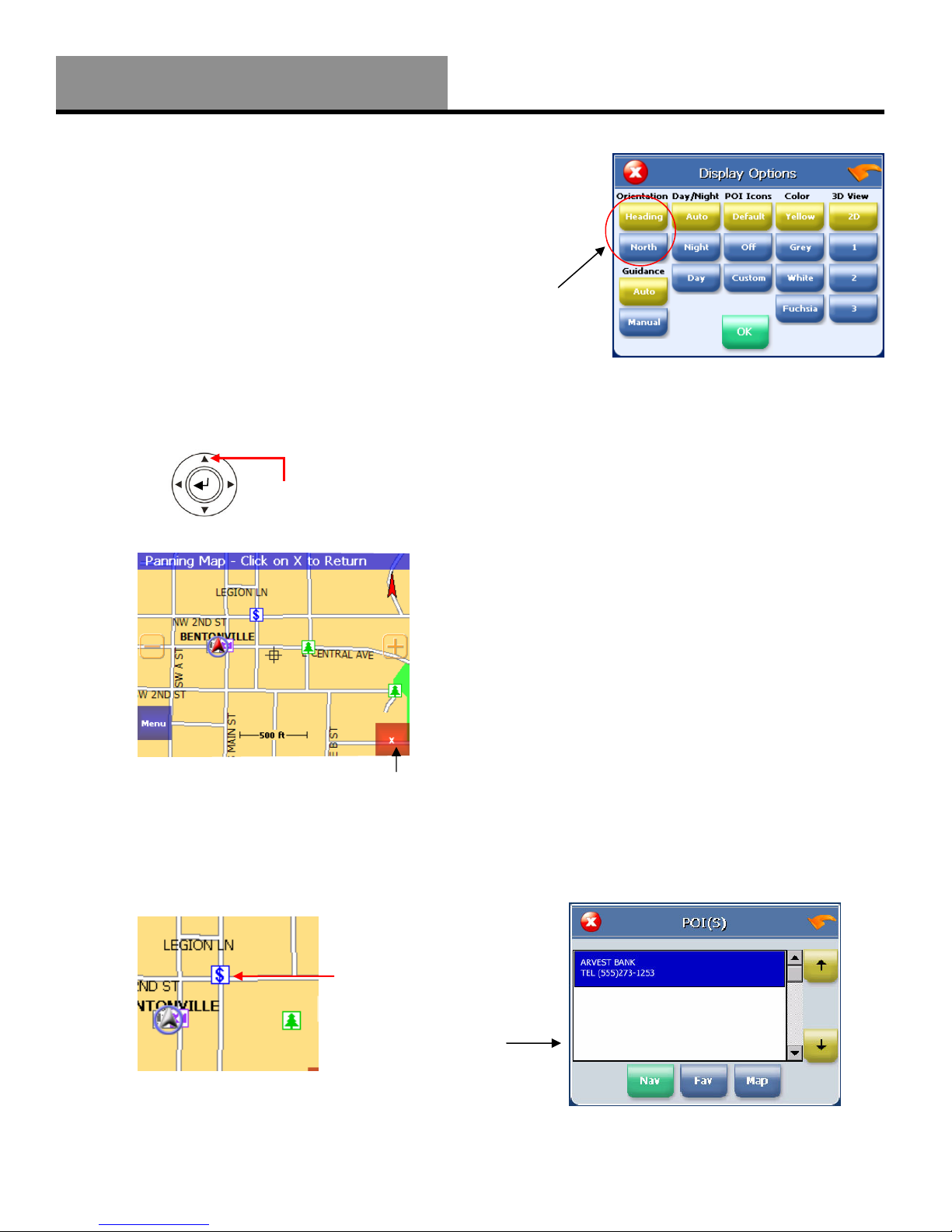
When the map is switched to North Up from the defaulted
Track Up, the direction of travel (N,S,E,W etc) is displayed
under the red arrow. See Figure 7C for an example for a SE
direction of travel.
There are three ways to change the
display:
1. Simply tap the North indicator and the icon will change
from one setting to the other.
2. Go to: Main Menu/Settings/Display ptions/
rientation and change the option.
3. Simply press the direction utton in the up position.
Navigation and Panning Modes
The map page can e displayed in two views; Navigation
Mode (See Figure 7B) and Panning Mode (See Figure 8C).
Navigation Mode displays movements along the map.
Panning Mode allows Points of Interest (POI) and street
name information to e displayed and also allows movement
of the map to different areas for viewing.
To enter Panning Mode: Simply tap and drag along the
screen to allow movement of the map to view different areas.
To exit Panning Mode, tap the red “X” utton in the lower right corner of the display.
To find out more info on a POI, simply tap on the POI’s icon and the POI Info screen will e
displayed.
The POI Info screen provides the POI’s name and phone num er. (See Figure 8E)
peration
Select the display
heading style
Figure 8A
Figure 8C Tap here to exit panning mode
Tap here to get detailed
POI information
Figure 8D
Figure 8E
POI Information screen
is displayed
Press the up arrow to
change views
Figure 8B Generic utton shown
Note: Menu layouts throughout this
manual may differ from what is shown.
9
wMap GPS Software
Figure 9C
Navigation and Panning Modes continued
At the ottom of the POI Info page there are three choices for the POI info displayed:
Nav = Set an auto route to the POI
Fav = Saves this POI into the Favorites folder
Map = Return to the map page
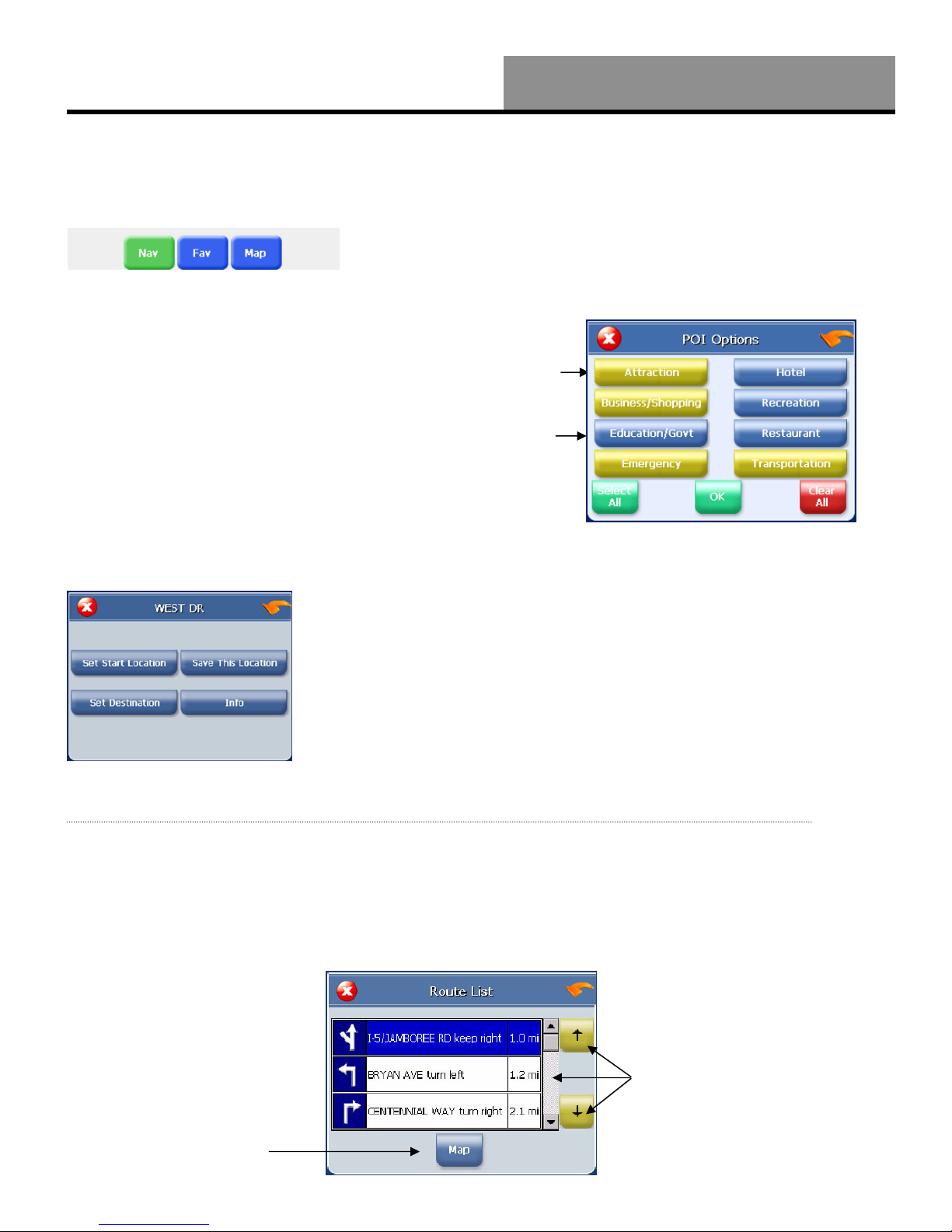
POI’s Displayed on the Map Page
Selecting only certain POI’s is helpful in large city areas
where the POI icons could overwhelm the map page.
To change the default settings.
1. Tap Menu/Settings/Display ptions.
2. Under the POI Icons column, select Custom. This will select
what POI’s are shown on the map page. Default setting is all
POI’s are selected.
3. Tap K
Saving a Current Location
To save current location.
1. Tap and hold anywhere on the map and an option menu will e
displayed. See figure 9C.
2. Select the desired option:
Set Start Location allows the auto route to use this location
instead of GPS location.
Set Destination creates an end point for an auto route.
Save This Location places this location into the Favorites folder.
Info provides county and latitude/longitude coordinates for the
selected area.
The following screens can e accessed y moving the direction utton on the GPS unit either left
or right.
Current Route
This page is normally lank unless an auto route is entered. All turns within the auto route are
displayed. This page is useful when looking for the next turn or turns that are approaching.
peration
Figure 9A
Figure 9D
Tapping the Map icon will
show the highlighted turn on
the map. The map page will e
shown in panning mode.
Figure 9B
POI on
POI off
Tap on either the yellow
arrow icons or the scroll
ar to see all turns in the
route.
Figure 9B
10
wMap GPS Software
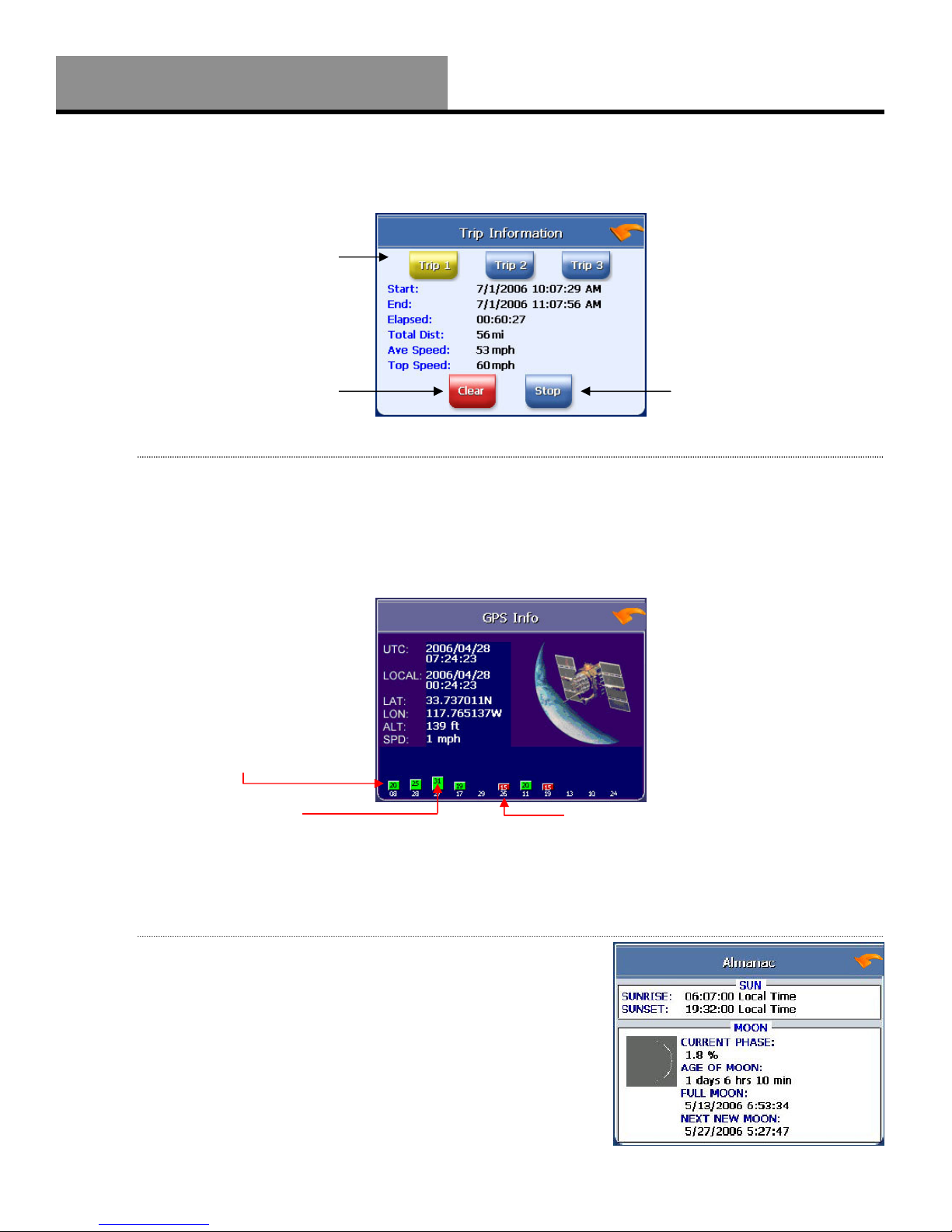
Trip Information Page
The Trip Information Page can store three different trips. The information displayed includes: trip
time, top speed, average speed, total distance, date and time information.
GPS Info
This page displays the GPS receiver’s satellite reception, local and UTC time (24hr format -
independent of the GPS receiver’s own clock), current longitude and latitude, altitude and
traveling speed.
The vertical ars on the Satellite page indicate the signal strength of the received satellite(s). The
higher the ar, (also higher the num er), the stronger the signal. The num er elow the ars
indicates the satellite num er.
Almanac
The Almanac is a simple page that provides sunrise and
sunset times, current phase of the moon, age of the moon, full
moon and the next new moon expected.
Figure 10A
Tap the Clear icon to erase a
trip.
Tap the Start icon to
egin the trip. Once a trip
has started this icon
changes to Stop. To end
the trip tap the Stop icon.
Trip 1 ready
Figure 10B
Num ers elow the ars indicate satellite num er
peration
Figure 10C
Bars indicate receiving satellites
Satellite signal strength.