21
devices nearby.
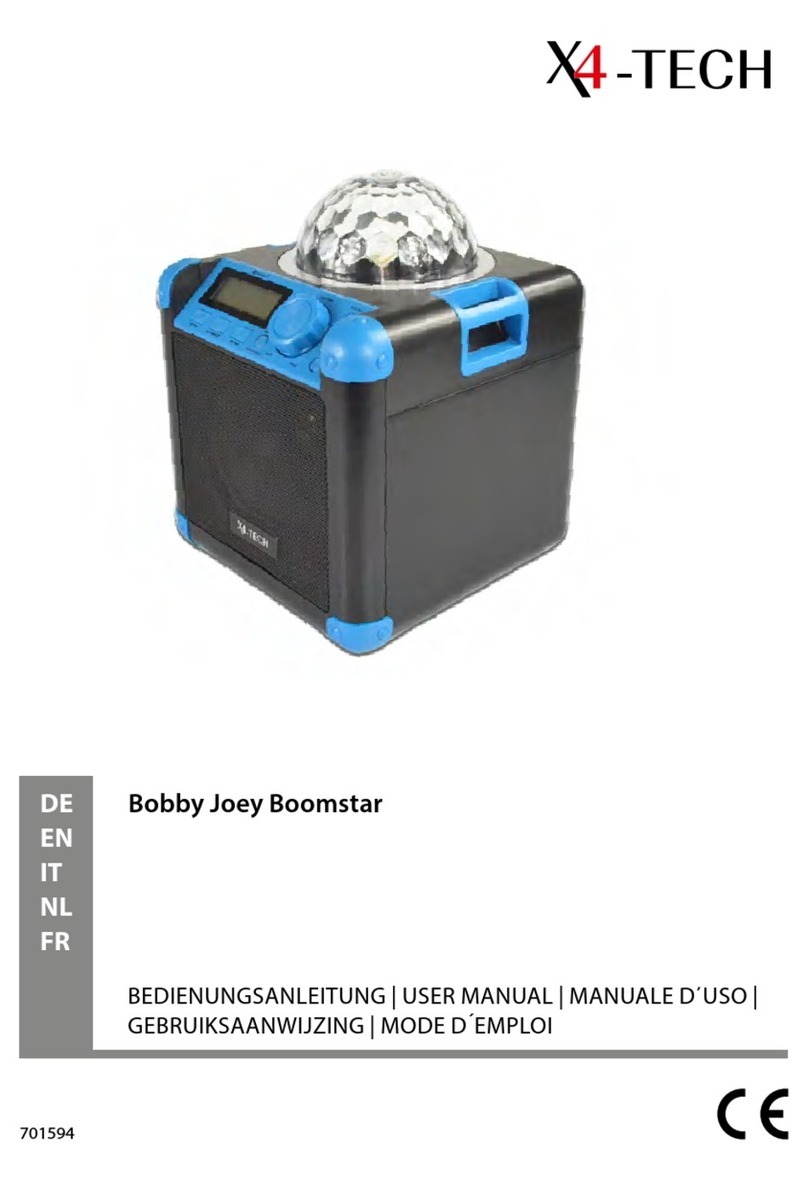
➝Select the device BOOMSTAR BT and press “connect”.
If a password is required, please use “0000”.
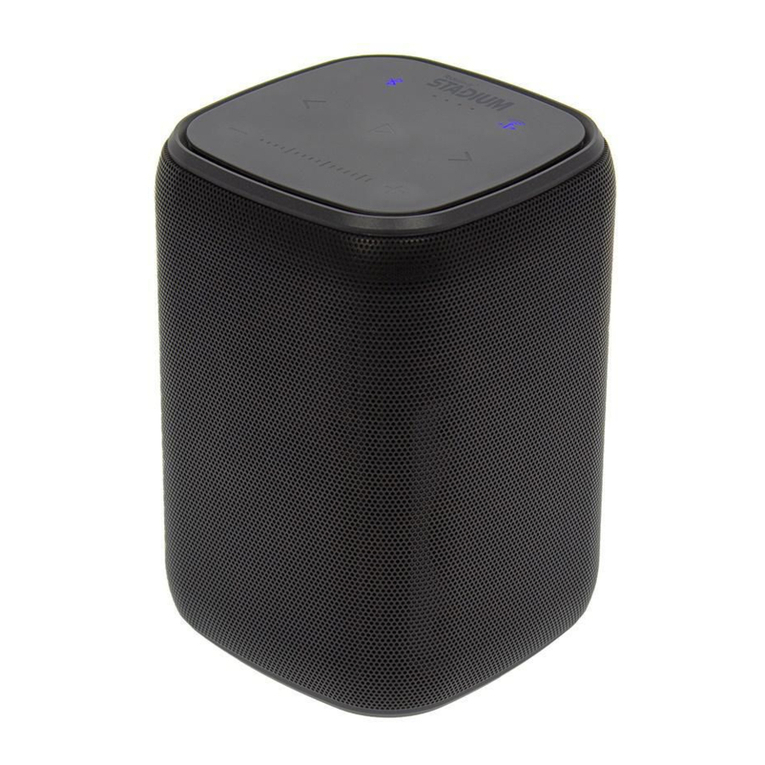
➝The blue Bluetooth symbol (7) will stop blinking and switch on
constantly when connected.
➝Start playing the music. You’re connected Bluetooth device will
mute and the music will be played by the BoomStar BT.
➝Press the next/last button (5/6) to go to the last/next song.
➝Press the Bluetooth symbol (7) to pause the current song.
Note
The connection only needs to be programmed once. If you’re Bluetooth
device has Bluetooth activated, the BoomStar BT will automatically
connect any time the devices are near enough to each other.
Connecting through NFC
➝The smartphone/tablet must be equipped with the NFC function
➝Switch the BoomStar BT on (1).
➝Activate the NFC function on your device and, if needed when
using Android, download a pairing app. (e.g. Tap and Pair)
➝Hold your device within a few centimetres (2 – 4 cm) of the
control panel of the BoomStar BT
➝The BoomStar BT will now play the music from the phone.
Accepting a phone call
When the BoomStar BT is connected to a mobile phone with NFC
standard, calls can be taken and the BoomStar BT can be used as a
hands-free device.
➝When receiving a call, tip onto the blue Bluetooth symbol (7).
➝The music will automatically mute and the call will be received.
➝You can now speak and hear hands-free.
➝To end the call, tip onto the Bluetooth symbol (7).
➝To reject a call, press and hold the Bluetooth symbol (7) for two
seconds.
➝To hold a call, press and hold the Bluetooth symbol (7) for two
seconds.