manuals.online logo
Brands
  1. Home
  2. •
  3. Brands
  4. •
  5. Zenith
  6. •
  7. Monitor
  8. •
  9. Zenith L26W58HA and Installation guide

Zenith L26W58HA and Installation guide

Other manuals for L26W58HA and

1

Other Zenith Monitor manuals

Zenith ZVM-1240 User manual

Zenith

Zenith ZVM-1240 User manual

Zenith P50W28A Series Installation guide

Zenith

Zenith P50W28A Series Installation guide

Zenith ZVM-1380 User manual

Zenith

Zenith ZVM-1380 User manual

Zenith ZVM-130 User manual

Zenith

Zenith ZVM-130 User manual

Zenith P50W38 User manual

Zenith

Zenith P50W38 User manual

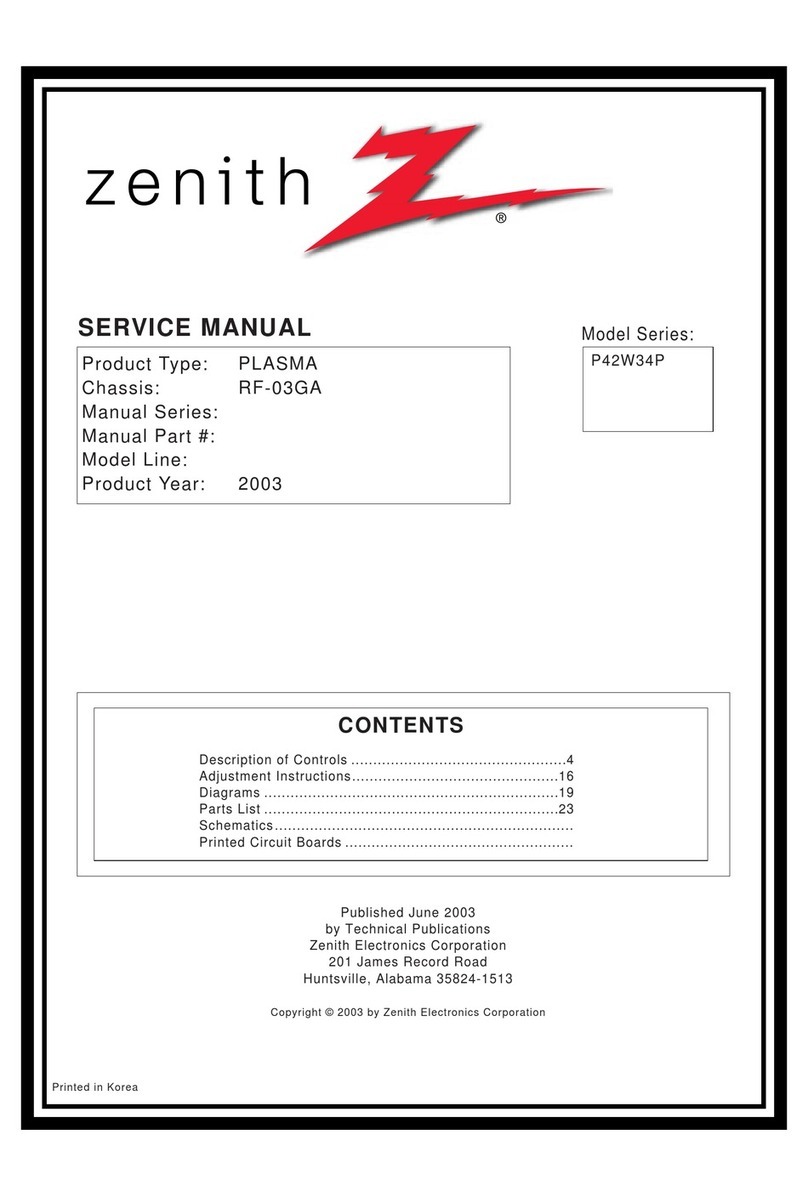
Zenith P42W34P Installation guide

Zenith

Zenith P42W34P Installation guide

Zenith ZVM-133-TC User manual

Zenith

Zenith ZVM-133-TC User manual

Zenith P60W26 Series User manual

Zenith

Zenith P60W26 Series User manual

Zenith DPDP60W User manual

Zenith

Zenith DPDP60W User manual

Zenith P42W24BX Installation guide

Zenith

Zenith P42W24BX Installation guide

Zenith L30W36 Installation guide

Zenith

Zenith L30W36 Installation guide

Zenith P50W26 Installation guide

Zenith

Zenith P50W26 Installation guide

Zenith P40V24 Installation guide

Zenith

Zenith P40V24 Installation guide

Zenith L26W58HA and Operating and maintenance manual

Zenith

Zenith L26W58HA and Operating and maintenance manual

Zenith P42W24BX Installation guide

Zenith

Zenith P42W24BX Installation guide

Zenith L30W26 User manual

Zenith

Zenith L30W26 User manual

Zenith P42W34P Installation guide

Zenith

Zenith P42W34P Installation guide

Zenith CV-2562 User manual

Zenith

Zenith CV-2562 User manual

Zenith PRO880X User manual

Zenith

Zenith PRO880X User manual

Zenith DT2 Series User manual

Zenith

Zenith DT2 Series User manual

Zenith ZCM-1490 User manual

Zenith

Zenith ZCM-1490 User manual

Zenith P50W26 Installation guide

Zenith

Zenith P50W26 Installation guide

Zenith L26W56SA and Installation guide

Zenith

Zenith L26W56SA and Installation guide

Zenith C27V22 Operating and maintenance manual

Zenith

Zenith C27V22 Operating and maintenance manual

Popular Monitor manuals by other brands

Linear Acoustic LQ-1000 user guide

Linear Acoustic

Linear Acoustic LQ-1000 user guide

AOC I2579V user manual

AOC

AOC I2579V user manual

ViewSonic VX1945WM - ViewDock - 19" LCD Monitor null

ViewSonic

ViewSonic VX1945WM - ViewDock - 19" LCD Monitor null

ViewSonic VA705M null

ViewSonic

ViewSonic VA705M null

BenQ FP757 null

BenQ

BenQ FP757 null

ViewSonic VA703MB - 17" LCD Monitor null

ViewSonic

ViewSonic VA703MB - 17" LCD Monitor null

Gateway FPD1520 user guide

Gateway

Gateway FPD1520 user guide

Furuno Mu 120c Operator's manual

Furuno

Furuno Mu 120c Operator's manual

Asus VB171D - 17" LCD Monitor Service manual

Asus

Asus VB171D - 17" LCD Monitor Service manual

Dell S2230MX Setting up

Dell

Dell S2230MX Setting up

Philips 107C64 user manual

Philips

Philips 107C64 user manual

Dell S2409WFP user guide

Dell

Dell S2409WFP user guide

EverFocus EN-7517E instruction manual

EverFocus

EverFocus EN-7517E instruction manual

Panasonic TH152UX1 - 152" PLASMA TV Service manual

Panasonic

Panasonic TH152UX1 - 152" PLASMA TV Service manual

Dell Precision 7680 Connection guide

Dell

Dell Precision 7680 Connection guide

LG 50PM1M -  - 50" Plasma Panel Service manual

LG

LG 50PM1M - - 50" Plasma Panel Service manual

Bosch DDU 9 manual

Bosch

Bosch DDU 9 manual

Acer A231HL user manual

Acer

Acer A231HL user manual

manuals.online logo
manuals.online logoBrands
  • About & Mission
  • Contact us
  • Privacy Policy
  • Terms and Conditions

Copyright 2025 Manuals.Online. All Rights Reserved.

Installation and Operating Guide i Warranty
Model Number I L26W58HA I LCDTV/Monitor
1
table of contents
insta[terquicksetupguide
zenith
Z_,sith and the [ightni_g Z loge ate _egist_ed
© Copyright 2007, LG Electronics U.S.A,. lnc. tradema_&sof Zenith E_ectro_icsCorporation
For Customer Support/Service please ca[{:
ve_vw,zenith,com
www.[gcommercial.com
RECORDTHE MODEL NUMBER /
The mode[ and serial number of this LCDTVit4o_itor a_e
Located on the back of the cabinet, For future reference,
we suggest that you record the serial number here:
MODELNO. L26W58HA
SERIAL NO,....................................................................................................................................................................................................................
CAUTION
CAUTION:
TO REDUCE THE RISKOF ELECTRICSHOCK DO NOT REMOVE COVER {OR BACK).NO USER SERVICEABLE PARTS INSIDE.REFERTO QUALIFIED
SERVICE PERSONNEL.
The Lightning flash with arrowhead symboL,within an equiLateraL triangle, is intended to alert the user to the
presence of uninsu[ated "dangerous voltage" within the product's enclosure that may be of sufficient magnitude
to constitute a risk of electric shock to persons.
The exclamation point within an equilateral triangle is intended to a[ert the user to the presence of important
operating and maintenance (servicing) instructions in the Literature accompanying the appliance.
WARNING:
TO PREVENT FIRE OR SHOCK HAZARDS, DO NOT EXPOSE THIS PRODUCT TO RAIN OR MOISTURE.
THIS PRODUCT MUST BE USED WITH UL LISTED MOUNTING BRACKET.
IT IS FORBIDDENTOCONNECTTHIS TVTOANY TELECON_4UNICATIONNETWORK/TELEPHONE.
NOTETO CABLETV INSTALLER:
This reminder is provided to ca[[ the CATVsystem instaUer's attention to ArticLe 820-40 of the Na_ona[ ELectricCode (U.S.A.). The code
provides guidelines for proper grounding and, in particular, specifies that the cable ground shaLLbe connected to the grounding system of
the buiNing, asclose to the point of the cable entry as practicaL.
REGULATORY INFORMATION:
Thisequipment has been testedand _und to comply with the Limitsfora CLassB digitaldevice,pursuantto Part 15 of the FCC RuLes.
These Limitsare designed to providereasonableprotectionagainstharmfu[ interferencewhen the equipment isoperated in a residential
insta[Lation, This equipment generates, uses and can radiate radio frequency energy and, if not instaLLed and used in accordance with the
instruction manuaL, may cause harmful interference to radio communications. However; there is no guarantee that interference wiLL not
occur in aparticular insta[[ation. If this equipment does cause harmful interference to radio or television reception, which can be
determined by turning the equipment off and on, the user is encouraged to try to correct the interference by one or more of the foEowing
measures:
• Reorient or relocate the recei_ng antenna.
• Increase the separation between the equipment and receiver.
• Connect the equipment into an outlet on a circuit different from that to which the receiver is connected.
• ConsuLt the dealer or an experienced radio fry technician for help,
t4arketed and Distributed in the United States by LG ELectronicsU,S,A,., Inc.
2000 M_[[b_ookDrive, Lincol_'mhire,IL 60069.
CAUTION:
Do not attempt to modify this product in any way without written authorization from Zenith Electronics Corporation.
Unauthorized modification couLd void the user's authority to operate this product,
COMPLIANCE:
The responsible party for this product's compliance is:
LG ElectronicsU.S.A.,Inc.,
2000 MiltbrookDrive
Lincolnshire, IL 60069, USA.
Phone: 1-847-941-8000
WARNING:
Apparatus shall not be exposed to dripping or splashing and no objects filled with liquids, such as vases, shall not be placed on the
apparatus.
CAUTION:
THESE SERVICING INSTRUCTIONS ARE FOR USE BY QUALIFIED SERVICE PERSONNEL ONLY.TO REDUCE THE RISK OF ELECTRIC
SHOCK, DO NOT PERFORM ANY SERVICING OTHER THAN THAT CONTAINED IN THE OPERATING INSTRUCTIONS UNLESS YOU ARE
QUALIFIED TO DO SO.
CAUTION:
When used ouLside of the U.S., it may be used HAR cord wiLh filling of an approved agency is employed.
(When used outside of U.S., other power supply cords may be used if the cord is approved by the local regulating agency.)
CAUTION:
I. Do not put this product next to the patient's bed where it can be reached by the patient.
2. Install product in such a way that patients will not be able to touch this product.
3. This product should only be mounted on a wall.
CLEANING AND DISINFECTION:
Cleanthe exteriorofthistelevisionby removingdustwitha lint-freecloth.
CAUTION:To avoid damage to the surface of the television, do not use abrasive or chemical cleaning agents.
IMPORTANT SAFEGUARDS FOR YOU AND YOUR NEW PRODUCT
YOURPRODUCTHASBEENMANUFACTUREDAND TESTEDWITH YOURSAFETYIN MIND. HOWEVER,IMPROPERUSECAN RESULTIN
POTENTIALELECTRICALSHOCKORFIRE HAZARDS.TOAVOID DEFEATINGTHESAFEGUARDSTHATHAVEBEENBUILT INTOYOURNEW
PRODUCT,PLEASEREADAND OBSERVETHE FOLLOWINGSAFETYPOINTSWHENINSTALLINGAND USINGYOURNEWPRODUCT,AND SAVE
THEMFORFUTUREREFERENCE.OBSERVINGTHESIMPLE PRECAUTIONSDISCUSSEDIN THIS MANUAL CANHELPYOU GETMANYYEARSOF
ENJOYMENTAND SAFEOPERATIONTHATARE BUILT INTO YOURNEWPRODUCT.
fNotes
- If the TVfeels cold to the touch, there may be a small "flicker" when it is turned on. This is normal, there is nothing wrong
with the TV.
- Some minute dot defects may be visible on the screen, appearing as tiny red, green, or blue spots. However, they have no
adverse effect on the TVs performance.
- Avoid touching the LCDscreen or holding your finger(s) against it for Longperiods of time. Doing so may produce some
temporary distortion effects on the screen.
x. J
PAGE 3
1. Readtheseinstructions.
2. Keeptheseinstructions.
3. HeedaLLwarnings.
4. FolLowaLLinstructions.
5. Donotusethisapparatusnearwater.
6. CLeanonLywithdrycLoth.
7. DonotbLockanyventiLationopenings.InstaLLinaccordancewiththemanufacturer'sinstructions.
8. DonotinstaLLnearanyheatsourcessuchasradiators,heatregisters,stoves,orotherapparatus(incLudingamplifiers)that
produceheat.
9. Donotdefeatthesafetypurposeofthepolarizedorgrounding-typepLug.ApoLarizedpLughastwobLadeswithonewider
thantheother.AgroundingtypepLughastwobLadesandathirdgroundingprong.ThewidebLadeorthethirdprongis
providedforyoursafety.Ifthe providedplugdoesnotfitintoyouroutLet,consuLtan eLectricianforrepLacementofthe
obsoLeteoutLet.
10.Protectthe powercordfrombeingwa[l<edon orpinchedparticuLarLyatpLugs,conveniencereceptacLes,and thepointwhere
theyexitfromthe apparatus.
11.OnLyuseattachments/accessoriesspecifiedbythe manufacturer.
12.Use onLywiththecart,stand,tripod,bracket,ortabLespecifiedby the manufacturer,orsoLdwiththeapparatus.When a cart
isused,usecautionwhen movingthecart/apparatuscombinationto avoidinjuryfromtip-over.
PORTABLE CART WARNING
13. UnpLugthis apparatus during Lightning storms or when unused for Longperiods of time.
14. ReferaLLservicing to quaLified service personnel Servicing is required when the apparatus has been damaged in any way,
such as power-suppLycord or pLugis damaged, Liquid hasbeen spiLLedor object have faLLeninto the apparatus, the apparatus
has been exposed to rain or moisture, does not operate normaLLy,or has been dropped.
Outdoor Antenna Grounding
If an outside antenna or cable system is connected to the product, be sure the antenna or cable system is grounded so as to
provide some protection against voLtage surges and buiLt-up static charges. ArticLe 810 of the National ELectricaLCode (U.S.A.),
ANSI/NFPA 70 provides information with regard to proper grounding of the mast and supporting structure, grounding of the
Lead-in wire to an antenna discharge unit, size of grounding conductors, Location of antenna-discharge unit, connection to
grounding electrodes, and requirements for the grounding eLectrode.
ExampLeof GroundingAccordingto NationaLElectricalCode InstrucUons
Ground Clamp "1--'----- Antenna Iead inWire
_ Aiitelllla Dischal ge Ullg
(NEC Section 810 20)
Glounding Conduutol
IE,o._,_Z_ L _" ',NECSecti ....... )
_ Ground Clamps
Power £ervice Grounding
• Electrode £yst em (NEC
Art 250, Part II)
NEC -NationalELectricaLCode
PAGE 4
The table of contents lists the pages to go to for setting up the features for the end user.
Safety Warnings .......................... 2-3
Important Safety Instructions ................... 4
TabLe of Contents ........................... 5
Step 1. LCDW/Monitor InstaLLation and Connections
Setup CheckList ............................ 6
InstaLLation/Connections Overview ................ 7
VESA Standard TV Mounts ...................... 8
TV and other Equipment Hookup
Antenna ................................. 9
CabLeService ............................. 10
Antenna 8,VCR............................ 11
CabLeService with VCR ...................... 12
S-Video (DVD-VCR) ......................... 13
Component Video (DVD) ...................... 13
PiLtwSpeaker Hook Up ....................... 14
Power Cord Hookup ......................... 15
Front Panel ControLs ....................... 16
Menus and DispLaysOverview
On-Screen Menus Overview .................... 17
Other Menus and On-Screen DispLays.............. 18
User Remote ControLKey Functions ............... 19
TnstaLLerRemote Key Functions ................. 20
Step 2. Channel Search and Reception Setup
Auto Program (Do a ChanneL Search) ........... 2t
ChanneL Menu
Channel List ............................. 22
Channel LabeLs Setup ....................... 23
Step 3. Customize the TV's Features
Setup Menu
CLock Setup ............................. 24
Menu Language ........................... 27
V-Chip ............................... 28-31
Caption Menu ............................ 32
Sound Menu .......................... 34-35
Picture Menu .......................... 36-37
Managing the ChanneL Banks ............... 38-40
InstaLler Overview ......................... 41
Commercial Mode Setup ...................... 42
CLoning Connections/Learning Setup .............. 43
CLoning Programmer Learning Setup .............. 44
CLoning Connections/Teaching Setup ............. 45
InstaLLer Menu .......................... 46-51
Reference ............................. 52-55
L26W58HA Camport Auto Sense Operation .......... 56
L26W58HA Aux Input Configuration/TroubLeshooting . . .57
TroubLeshooting ........................... 58
Reference: CLoning Procedure TroubLeshooting ....... 59
CLone TroubLeshooting FLow Chart ................ 60
TV Operating Check ......................... 61
GLossary of Terms .......................... 62
InstaLLer Quick Setup Guide.................... 63
Warranty ......................... Back Cover
Optional USER and Ins[aLter Remote ControLs for Mode[ No. L26W58HA
Shown herein is an optiona[ InstaLLer remote controL avaitabte for the L26W58HA mode[ onty. The
InstaLLer remote control is NOTincLuded with the LCD W/Monitor. However, both the User and
InstaLLer remotes can be purchased separateLy, see your Zenith dealer.
Purchase the Optional Insta[[er's Remote and CLone Programmer
To perform a normal instaLLation set up, you need an instaLLer's remote and the LT2002 Quickset II CLone Programmer -
both are shown and described in Later sections. See your Zenith/LG deaLer if you wish to purchase the InstaLLer remote and
LT2002. The instaLLer remote aLLows access to the InstaLLer menus, User menus, and ChanneL Banks in the ManuaL ChanneL
Set options on the Setup menu. The instaLLer remote has Menu, SeLect, and Adjust Keys. The LT2002 Quickset II CLone
Programmer is used to dupLicate a TV's setup and instaLL it on another identical TV.
*Note: Design and speci_cations are subject to change without prior notice.
PAGE 5

Installation Overview
• Unpackthe LCDW/Monitorand art
accessories.
• Determine instaLLation Locationfor the
LCDW/Monitor, TV stand or mount.
•Determine mounting and instaLLation
requirements. If used, AC Power
source outlet, Antenna!Cable service
connectors, any external equipment
required for system or TV operation,
all necessary cables, wires, connectors
and any other additional required
hardware, etc.
InstaL[ation Overview & System Setup:
Questions to Consider Before
Instal[ation
VESABracket
Doesthe VESABracket have to be
mounted to the TV?Y: Install VESA
Bracket on TVfollowing the instructions
supplied with the bracket.
Yes No
WStand
Doesthe TV have to be mounted on the
stand? Y: Mount the TV on the stand
following the instructionsprovided with
the TV stand.
Yes No
InstaL[er's Remote Control
Does the InstaLLer have an the optionaL
InstaLLer's remote controL availabLe to
use to set up the TV (This is a must for
TV setup.)?
Yes No
Master TV Setup
Will the Master TV'sfeatures setup be
cloned and be copied to other identical
LCDW/Monitors?
Yes No
LTIO02 Quickset II CLone Programmer
To copy the TV's setup, the installer will
need a clone programmer. Is there a
Zenith LTIO02 CLone Programmer
available?
Yes No
End-User Remote Control
Wilt a remote control be provided to the
end user to operate the TV?(No remote
is includedwith the TV.)
Yes No
End-User Menu Access
Will the end-user have access to all the
menus on the TVs from the front panel?
Yes No
LCDW/Monitor Setup Checklist
1. Install the LCDW/Monitor where it
will be used.
Prior to Operation
The LCDW/Monitor must be connected
to all external antenna/cable, video, and
audio source equipment and AC power
source. See page 5, Table of Contents.
2. Make aLLexternaL source equipment
connections. See pages 10 -15.
3. Connect the LCDW/Monitor to a
standard 120V, 60 Hertz, AC power
source. See page 15.
4. Turn on the TV and all source
equipment.
Review TV Setup Options in the
Insta[ler's Menu Section
The InstaLLer's menu incLudes a number
of options for the master TV's setup that
enabLe the instalLer or system
administrator to devise a unique system
using the many different options and
variables avaiLabLe. See Instal[er's menus
section.
Master TV Features Setup for Cloning
Overview
• Set up InstaLLer's remote control, see
page 20.
• Do a Channel Search, see page 21.
• Channel List.
• ChanneLLabeL.
• Video/picture appearance options
setup, see Picture menu.
• Audio/sound options setup, see Sound
menu.
• Set up all other features. See page 5,
Table of Contents, for a Listof features
available on this LCDW/Monitor.
Clone Master TV's Setup
See CLoneProgrammer section.
PAGE 6
To hook up source equipment, see below and also refer to the Table of
Contents on page 5; shows pages to go to for equipment hookup options,
o
J
RS_232C SELECT
/SWITCH
o
UPDATESWITCH
RS-232C PORT
--AUDIO /VIDEO 1, 3 IN
Connect Audio/Video
equipment to t_se jacks.
COMPONENT i, 2 IN
i
i
PC IN
| |1 _1
DIGITAL AUDIO OUT
(Optica{)
DVI/PCAUDIO IN
HDMI/DVI IN
FUTURE USE ANTENNA CABLE
Connect to a_ antenna or
PILLOW 3ACK IN cablesystem.
U_ to con_ct t_ p_t/ow speake_
(12V DC_4OmA)
AC IN
*Note: R5-232C Update Switch and RS-232_ SeLect Switch _re _¢rved for quaJ_qcd and autho-
rized service and technic_ support personal only.
PAGE 7
VESA Standard 200rnm W Mounts and Stands
Following are shown some examples of VESA standard 200ram mounts. Since there are numerous types of
stands and mounts available, only a few are shown here. Refer to the instructions prodded with the Tl/
stand that will be used to mount the T¢.
Typicat Wat[ Stud Type Mount with Swivet Bracket
200ram
t
Generat Guidetines: Choosing a location for
installing a VESA Standard Mount
Be sure the style of stand selected is capable of supporting
the weight of the TE
If the mount will be on a wall atypical wooden stud behind
the wall board would be the preferred choice for alocation
to attach the wall mount. The wall mount location chosen
should be appropriate fgr drilling holes and have available
the required power source as well as antenna/cable and
other equipment leads.
For pedestaf-_pe moun_, a sturdy surface on adesk or
other similar flat table-like surface would be the appropriate
location for mounting a pedestal-style Wstand. (Some
stands are portable and can be moved from one location to
another.) Be sure all safety considerations are followed.
Most stands are designed so that the wiring would be
threaded through the stand itse_ or a loop-through style
clamp so that the wiring is neatly bunched and not strung in
such a way as to create apotential hazard to the user.
PAGE 8
Connect an off-air antenna to the LCD YV!Monitor.
Locate the Antenna/Cabte jack on the back
of the LCDTV!Monitor,
Connect the antenna wire (Rat or Round)
that runs from the wat[ to this jack,
according to one of the diagrams shown to
the right.
After at[ connections are comptete, plug in
the TW The LED W/Monitor is designed to
operate on AC power.
(300ohm)
jS
j_
300/75 ohm

_apter
If the antenna _s a 75 ohm RF cable, then no
adapters are requked.
A 300 to 75 ohm adapter is not h_duded with
the Zenith [.CD TV/MonRor; [
tConnections P_r_[
75 OHM RFCABLE The wire that comes from an off-air antenna or cable sewice providen Each end [oaks like a hex shaped nut with a wire stic:kin!j
through the middle, and it screws onto the threaded jack on the back of the TV.
300 TO75 OHM A sma[[ device that con_e(:ts a twoowife 300 ohm antenna to a 75 ohm RFjack. They are usuaUy about an inch k)n9with two screws
ADAPTER on one end and a ,ound ope.i.g witha wife stickk, g out on the ot_ e.d.
PAGE 9
Conne_ cable seMce to the LCD TV/t4onitor.
Locate the Antenna/Cable jack on the
back of the TVo
Connect the cable wire to the
Antenna/Cable jack according to one
of the diagrams to the right.
Aftera[[connectionsarecomplete,
p[uginthe W. The LCD W!Monitor is
designedto operateon AC power,
[:orcablebox operation,[eavethe te[e_sion
Iunedto channelthreeo_ fourand use the
cable box to change channets.
Cab_eIV
WaLlJack
RF Coaxia_
Wire (75 ohm)
CabLeTV
'@a[[Jack
C_×ia[WireR_
(75 ohm)
Cor_nect_ons Pa_e[
Connections Pane_
75 OHM RFCABLE
30O TO 75 OHM
ADAPTER
The w4re that comes fFom an off-air antenna or cable seMce provide[, Each end looks like a hex shaped nut with a wi_e sticking
through t_ middle, and it screws onto the threaded jack on the back of the TV.
A small device that connects a two-v_4re 300 ohm antenna to a 75 ohm RFjack. They am usual[y about an inch Ion9 w_th two screws
on one end and a r_und opening wit|_ a wire sticking out on the oti°_r en&
PAGE I0