INZennioZ38
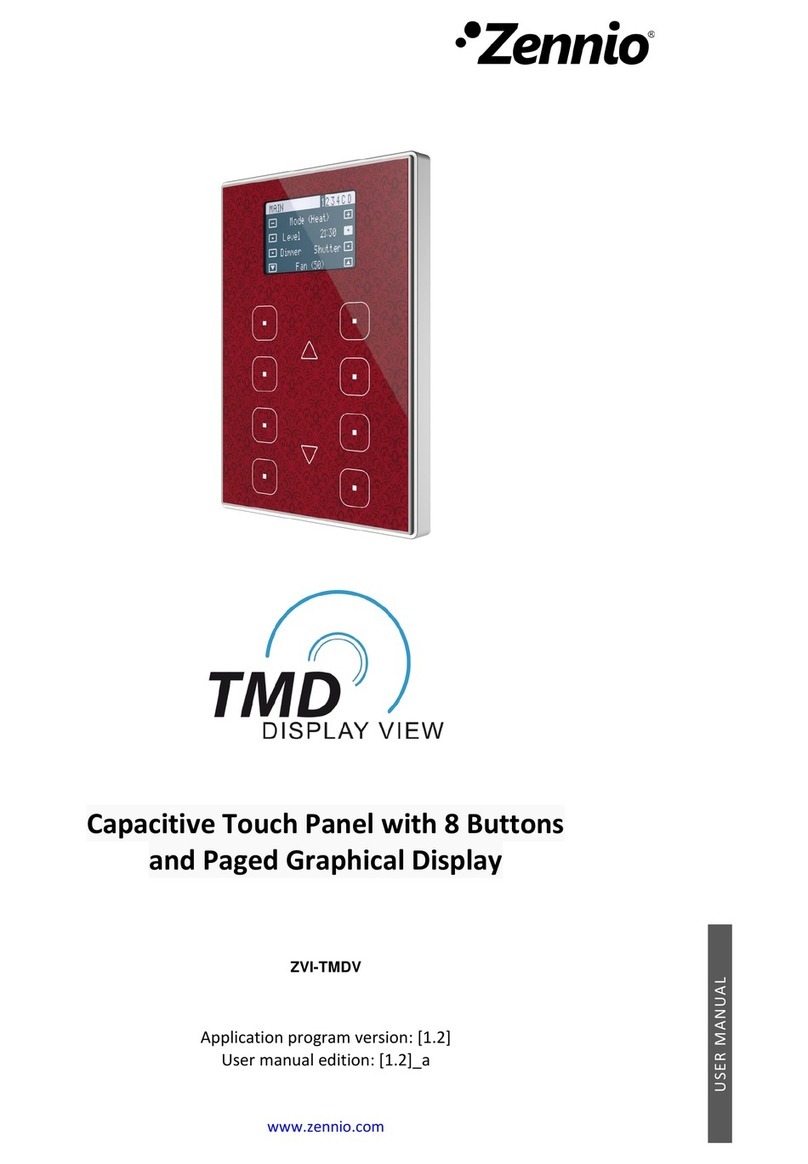
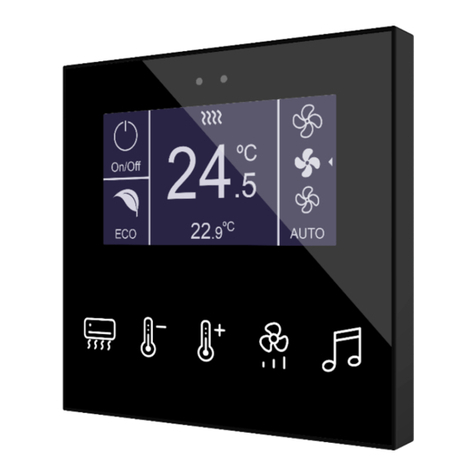
INZennioZ38–TouchDisplaywithAmbientThermostat,IRreceiverandBinaryInputs.
ZN1VI‐TP38
TechnicalDocumentation
© Zennio Avance y Tecnología S.L. Edition 7 Further information www.zennio.com Page 4de 4
TechnicalDocumentation
•Once installed, the Touch Panel will be configured
via ETS.
•When the download is finished, you should touch the
corner 1 and, afterwards, the corner 2 to define the
touch zone.
•These limits are saved by the device even after a
Bus Voltage Failure.
•Nevertheless, after every ETS download you should
touch again the corners 1 and 2
•Programming Mode can be set, via the display,
as follows: Menu ÆTools Æprogramming
(upper left corner) ÆON. To keep this option, it is
necessary to configure it in ETS parameters.
•Enabling the “Contrast” and “Programming”
functions included in the CONFIGURATION section
is recommended for any device configuration
Room Temperature Regulator and Internal Clock Specifications.
General Care
Clean the product with a clean, soft, damp cloth. Do not use aerosol sprays, solvents, or abrasives that might
damage the InZennio Z38 finish.
SAFETY INSTRUCTIONS
Do not connect the Main Voltage (230 V) or any other external voltages to any point of the BUS.
Connecting an external voltage might put all the EIB/KONNEX system into risk.
•Ensure there is enough insulation between the AC Voltage cables and the BUS ones.
•To prevent EMC interference, avoid running input cables in parallel with the Main Voltage ones.
CONCEPT DESCRIPTION
oMeasuring range 0º C to +40º C
oResolution 0,1 K
oSensor precision ± 0,5º C
oInternal clock resolution 1 minute
oTime error To keep the time error low, set and thus update the
internal clock via the bus every hour.
oDate/Time Set Manual: Set from screen
Auto: Through BUS telegrams from a KNX clock
oResponse to Bus Power Failure Internal clock saves last time displayed
oResponse to Bus Power Recovery Internal clock recovers last time displayed