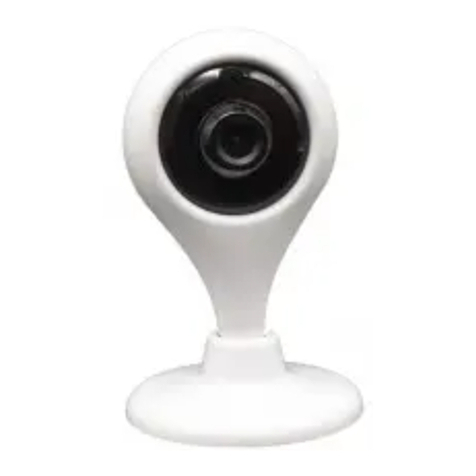
ZIGBEE Agara G2H Pro User manual


Camera Hub G2H Pro User Manual
Bedienungsanleitung für Kamera-Hub G2H Pro
Caméra Hub G2H ProManuel d’utilisation
Manual de instrucciones paraCámara Hub G2H Pro
Camera Hub G2H Pro Manuale di Istruzioni
Камера Хаб G2H ProРуководство по эксплуатации
· 01
· 11
· 20
· 30
· 39
· 48
· 56
· 64

01
Product introduction
Aqara Camera Hub G2H Pro is an intelligent product that integrates dual functions
of camera and hub. It has functions such as video intercom, motion detection,
sound detection, MicroSD card recording, NAS storage, timelapse, privacy area
covering and so on.It can also be used as a Zigbee hub in collaboration with other
sensors, controllers, and otheraccessoriesto realize the functions such as home
guard, data reporting, and smart control. It also supports for HomeKit Secure
Video.
Speaker hole
Micro USB slot
Function button
Indicator light
Micro SD card slot
Lens
Microphone
pickup hole
Reset button

02
Preparation before Use
Download the Aqara Home app
Power up and turn on the Camera Hub G2H Pro
Quick Setup
1. A smartphone or tablet that supports Wi-Fi or a cellularnetwork (with iOS or
Android system) is required.
2. Please make sure that there is a Wi-Fi connection and yourinternet connection
is stable.
Search for "Aqara Home" in the Apple App Store, Google
Play,Xiaomi GetApps, Huawei App Gallery, or scan the
following QR code to download the Aqara Homeapp.
1
2
Add the product to the Aqara Home app
3
Choose the installation location of the hub: Ensure that the hub and the routing
connection are not disturbed, and avoid metal obstacles between the hub and
the router or around thehub.
Locate the power interface at the backof the product andplug theMicroUSB
power cord to connect the power adapter. When the Camera Hub G2H Prois
started, the status indicator will turn yellow and flash quickly. Make sure your
mobile phone is connected to a Wi-Fi network in the 2.4 GHz frequency band.
Please open the Aqara Home app, tap “Home” and then tap “+” in the topright
corner to enter the “Add Device (Accessory)” page, select “Camera Hub G2H Pro”,
and add it according to instructions in the Aqara Home app. Aer a successful
connection, the status indicator of the device willturn blue and keep the light
constant.

03
Aer theCamera Hub G2H Prois added successfully, please open the Aqara Home
app and refer to the user manual of the accessory to add.
Add accessory
4
Open the Apple Home app, click “+” on the upper right corner, and then enter the
“Add Accessory” page. Scan or manually enter the HomeKit Setup Code at the
bottom of the camera to bind the camera to HomeKit.
If the camera is failed to add to the HomeKit:
* “Failed to add accessory”. Due to multiple adding failures, the error information of the iOS
cache cannot be removed. Please restart the iOS device and reset the camera;
* “Accessory already added”. Aer restarting the iOS device and reset the camera, you can
manually enter the HomeKit setup code and add it again;
Connect to Apple HomeKit
5
NOTICE: If the device addition fails, please confirm the following points:
* The Wi-Fi name or password contains an unsupported special character, such as, @, #, %, -, $,
etc., resulting in a failure to connect to the router. Please change it to a commonly used
character and try again.
* If the camera cannot recognize the QR code generated by the mobile phone. Please make sure
that the screen size of the mobile phone is not less than 4.7 inches, and make sure that you
don't use the backlight of the camera to shoot the QR code.
* Check whether the router has enabled the Wi-Fi anti-squatter setting, which causes the camera
to be unable to connect to the Internet.
* Check whether the router has enabled AP isolation, which leads to the failure to search the
camera on the mobile phone in the LAN.
*Make sure the camera is connected to the 2.4GHz Wi-Fi network.

04
4
3
2
1
Notice
Product Installation
Use of the Works with Apple badge means that an accessory has been designed to work
specifically with the technology identified in the badge and has been certified by the developer to
meet Apple performance standards. Apple is not responsible for the operation of this device or its
compliance with safety and regulatory standards.
A 10-day recording history from your Camera Hub G2H Pro is securely stored in iCloud and
available to view in the Apple Home app on your iPhone, iPad, or Mac. You can add one camera to
your 200GB plan or up to five cameras to your 2TB plan at no additional cost. Camera recordings
don’t count against your iCloud storage limit.
Communication between iPhone, iPad, Apple Watch, HomePod, or Mac and the HomeKit-
enabled Camera Hub G2H Prois secured by HomeKit technology.
Please make sure the camera is added successfully, and then install it onto
the wall.
You can place the camera on a horizontal surface, such as a desk, table,
bookcase, and so on.
The base of the camera contains a magnet, which can be attached to the
surface of ferrous material, such as refrigerator, iron door, and so on. Do not
place it near the main unit of the computer or hard disc.
You can also use double-sided tape to attach the magnet to the surface of
smooth materials, such as glass, tile, latex wall, and so on, or fastening
screws can be used to fix the magnet sheet on the wall, and then attach the
camera to the magnet.
* “Accessory not found”. Please wait for 3 minutes aer resetting the camera. You can manually
enter the HomeKit setup code and add it again.

05
*Please make sure the installation position is
within the coverage range of the Wi-Fi.
* Do not place it near strong electromagnetic
interference sources.
* The product is only limited to be used indoors.
Please do not use it in humid environments or
outdoors.
* Please make sure there is no obstacle around
the device.
Warnings
*This product is NOT a toy. Please keep children away from this product.
*This product is designed for indoor use only. Do NOT use in humid environments or outdoors.
*Beware of moisture, do NOT spill water or other liquids onto the product.
*Do NOT place this product near a heat source.
*Do NOT place it in an enclosure unless there is normal ventilation.
* Do NOT attempt to repair this product by yourself. All repairs should be performed by an
authorized professional.
*This product is only suitable for improving the convenience of your home life and reminding
you about the status of your devices. It should NOT be used as security equipment for homes,
buildings, warehouses, or any other places. If a user violates the product use instructions, the
manufacturer will NOT be liable for any risks and property losses.
*The base of this product has been designed with strong magnetic properties, which can ensure
that product will not fall off when it is installed on the wall. In order to prevent falling off and
possibly causing personal injury, we recommend that the installation of the device should be
less than 2 meters.
* This product does not come with a power adapter by default. Please purchase a separate
adapter from a regular source.

06
Description ofButton Operations
Description of Indicator Light Status
Button Operations
Click the function button one time
Click the function button three times
Click the reset button five times
Long press the reset button for 5seconds
Long pressthe function button for 3 seconds
Status Description
Turn off alert
Initiate a child device access request
Reset the device but clear local information
Reset the device but retain local information
Initiate a voice call request
Indicator Light Status
Yellow light is on steady
Yellow light flashes quickly
Yellow light flashes slowly
Blue light flashes quickly
Blue light flashes slowly
Status Description
The camera is turning on
Waiting to connect to the network
The camera is being resetting/OTA upgrading
Connecting to the network
Connected to the network successfully and the account is being bound
Blue light is on steady Working properly
Red light is on steady Live video is in progress
White light is on steady No network is connected in 10 minutes aer starting
Purple light flashes slowly Accessories are allowed to be added
Off The indicator is turned off/the device sleeps/the device is not powered

07
Specifications
Product Model: CH-C01
Video Coding: H.264
Resolution: 1080p
Power Supply Input:5V 1A
Viewing Angle: 146° (diagonal)
Overall Power Consumption: 5 W
Product Dimensions: 82.4×56.5×50.5 mm (3.24×2.33×1.99 in.)
Working Temperature:-10°C~40°C (14°F~104°F)
Operating Humidity:15%~85%RH, no condensation
WirelessProtocols: Zigbee 3.0 IEEE 802.15.4, Wi-Fi IEEE 802.11 b/g/n 2.4 GHz
Local Storage: MicroSD card (CLASS 4 or above is supported, up to 512 GB storage)
Supported Device: Android 4.0 or iOS 13.2 and above
What is in the Box: G2H Pro Camera Hub × 1, User Manual × 1, Screw × 2, Metal
Plate × 1, Micro USB to USB-A Cable × 1, Ejector Tool × 1, Sticker × 1
Wi-Fi Operation Frequency 2412-2472 MHz
≤ 20 dBm
2405-2480 MHz
≤ 13 dBm
Wi-Fi Maximum Output Power
ZigbeeOperation Frequency
Zigbee Maximum Output Power
Under normal use of condition, this equipment should be kept a separation distance
of at least 20cm between the antenna and the body of the user.
This manual suits for next models
1
Table of contents
Languages:
Other ZIGBEE Security Camera manuals