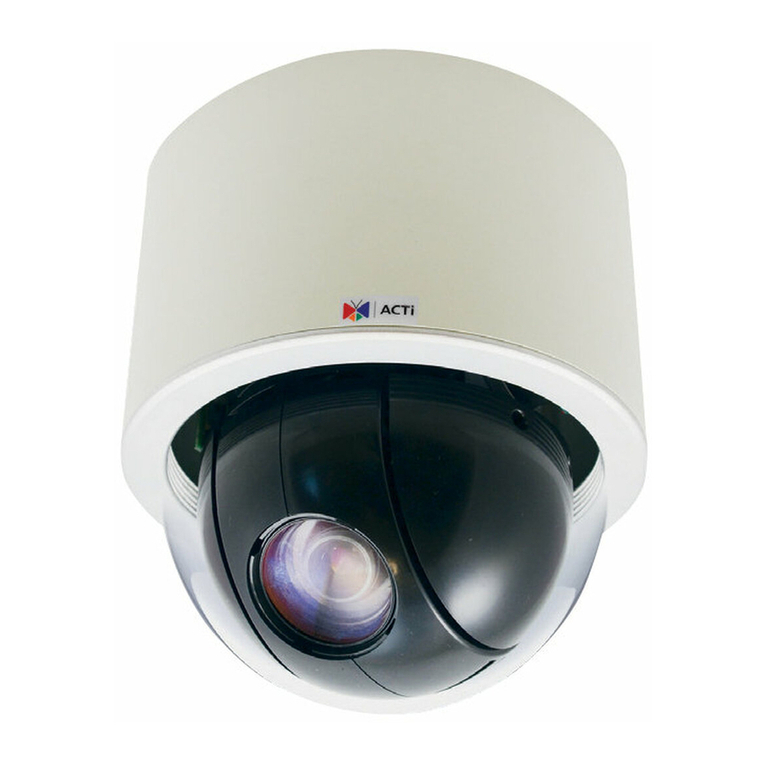
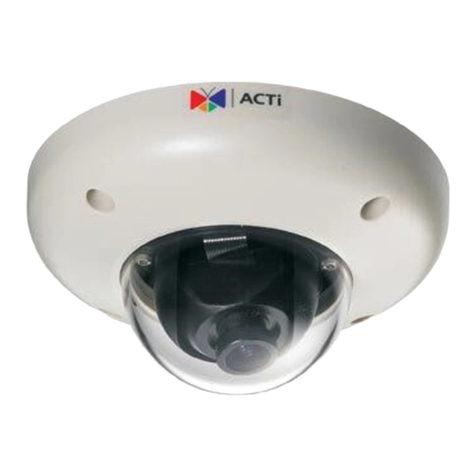
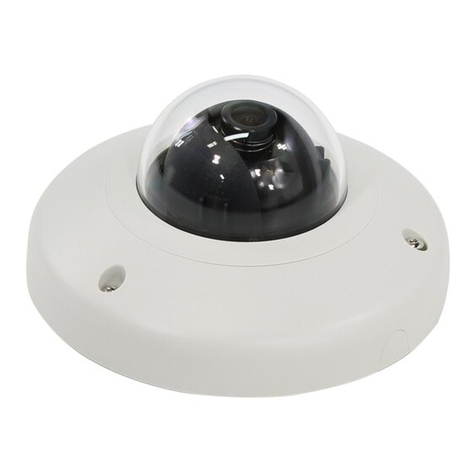
ACTi B61 User manual

Indoor Zoom Dome Series
Hardware Manual
B61, B64, B65, B67
2014/01/20

www.acti.com
Hardware Manual
2
Table of Contents
Precautions.............................................................4
Safety Instructions .................................................................................... 6
Introduction.............................................................7
The List of Models ..................................................................................... 7
Package Contents...................................................................................... 8
Physical Description ................................................................................. 9
Mounting Options.....................................................................................11
Other Mounting Accessories................................................................. 13
Before Installation.................................................14
Prepare the Power Adapter (Optional)................................................... 14
Prepare the DI/DO Connector (Optional) ............................................... 16
Preparing Audio In / Out Devices (Optional) ......................................... 19
Installing the Camera on a Surface.....................20
Step 1: Drill the Holes.............................................................................. 20
Step 2: Open the Dome Cover................................................................ 21
Step 3: Install the Camera to the Surface.............................................. 22
Step 4: Connect the Cable(s).................................................................. 23
Step 5: Access the Camera Live View.................................................... 23
Step 6: Adjust the Viewing Angle........................................................... 24
Step 7: Close the Dome Cover................................................................ 25

www.acti.com
Hardware Manual
3
Other Accessories ................................................27
Replacing the Dome Cover..................................................................... 27
Using a Memory Card.............................................................................. 29
How to Insert the Memory Card............................................................ 29
How to Remove the Memory Card........................................................ 29
Accessing the Camera .........................................30
Configure the IP Addresses.................................................................... 30
Access the Camera.................................................................................. 34

www.acti.com
Hardware Manual
4
Precautions
Read these instructions
You should read all the safety and operating instructions before using this product.
Heed all warnings
You must adhere to all the warnings on the product and in the instruction manual. Failure to follow
the safety instruction given may directly endanger people, cause damage to the system or to
other equipment.
Servicing
Do not attempt to service this video device yourself as opening or removing covers may expose
you to dangerous voltage or other hazards. Refer all servicing to qualified service personnel.
Trademarks
All names used in this manual are probably registered trademarks of respective companies.
Liability
Every reasonable care has been taken during the writing of this manual. Please inform your local
office if you find any inaccuracies or omissions. We cannot be held responsible for any
typographical or technical errors and reserve the right to make changes to the product and
manuals without prior notice.

www.acti.com
Hardware Manual
5
Federal Communications Commission Statement
This equipment has been tested and found to comply with the limits for a class B
digital device, pursuant to Part 15 of the FCC Rules. These limits are designed
to provide reasonable protection against harmful interference in a residential
installation. This equipment generates, uses, and can radiate radio frequency energy and, if not
installed and used in accordance with the instructions, may cause harmful interference to radio
communications. However, there is no guarantee that interference will not occur in a particular
installation. If this equipment does cause harmful interference to radio or television reception,
which can be determined by turning the equipment off and on, the user is encouraged to try to
correct the interference by one or more of the following measures:
Reorient or relocate the receiving antenna.
Increase the separation between the equipment and receiver.
Connect the equipment into an outlet on a circuit different from that to which the
receiver is connected.
Consult the dealer or an experienced radio/TV technician for help.
Warning: Changes or modifications to the equipment that are not expressly approved by the
responsible party for compliance could void the user’s authority to operate the equipment.
European Community Compliance Statement
This product has been tested and found to comply with the limits for Class B
Information Technology Equipment according to European Standard EN 55022
and EN 55024. In a domestic environment, this product may cause radio interference in which
cause the user may be required to take adequate measures.

www.acti.com
Hardware Manual
6
Safety Instructions
Cleaning
Disconnect this video product from the power supply before cleaning.
Attachments
Do not use attachments not recommended by the video product manufacturer as they may cause
hazards.
Do not use accessories not recommended by the manufacturer
Only install this device in a dry place protected from weather
Servicing
Do not attempt to service this video product yourself. Refer all servicing to qualified service
personnel.
Damage Requiring service
Disconnect this video product from the power supply immediately and refer servicing to qualified
service personnel under the following conditions.
1) When the power-supply cord or plug is damaged
2) If liquid has been spilled, or objects have fallen into the video product.
3) If the inner parts of video product have been directly exposed to rain or water.
4) If the video product does not operate normally by following the operating Instructions in this
manual. Adjust only those controls that are covered by the instruction manual, as an improper
adjustment of other controls may result in damage, and will often require extensive work by a
qualified technician to restore the video product to its normal operation.
Safety Check
Upon completion of any service or repairs to this video product, ask the service technician to
perform safety checks to determine if the video product is in proper operating condition.

www.acti.com
Hardware Manual
7
Introduction
The List of Models
This hardware manual contains the following models:
B61
5MP Indoor Zoom Dome with D/N,Adaptive IR, Basic WDR,
3x Zoom lens
B64
1.3MP Indoor Zoom Dome with D/N, Adaptive IR, Basic WDR, SLLS,
3x Zoom lens
B65
2MP Indoor Zoom Dome with D/N,Adaptive IR, Basic WDR, SLLS,
3x Zoom lens
B67
3MP Indoor Zoom Dome with D/N,Adaptive IR, Superior WDR,
3x Zoom lens
From the installation perspective these models are very similar; therefore you can use one manual
for all of them.

www.acti.com
Hardware Manual
8
Package Contents
Camera
Mounting Screw Kit
Hexagon Screwdriver
Drill Template
Quick Installation Guide
Warranty Card
Terminal Block
(for Power)
Terminal Block
(for DI/DO)
Terminal Block
(for Audio In/Out)
Drill Template

www.acti.com
Hardware Manual
9
Physical Description
1) Ethernet Port
Connects to a network using an Ethernet cable.
2) Memory Card Slot
Insert a memory card into this slot for local recording purposes. See Using a Memory Card
on page 29 for more information.
NOTE: Supports microSDHC and microSDXC cards.
3) Digital Input / Output (DI/DO)
This connector connects to digital input or output devices, such as an alarm trigger, panic
button, etc. Digital Input (DI) and Digital Output (DO) devices are used in applications like
motion detection, event triggering, alarm notifications, etc. See Prepare the DI/DO
Connector (Optional) on page 16 for information on how to connect DI/DO devices to your
camera.
4) Audio Input / Output
This connector connects to audio input and output devices, such as microphones and
speakers, using the bundled terminal block. See Preparing Audio In / Out Devices
(Optional) on page 19 for more information.

www.acti.com
Hardware Manual
10
5) DC 12V Power Input
In case the camera is connected to a non-PoE (Power over Ethernet) switch, use this
connector to connect the camera to an external power adapter (not included). See Prepare
the Power Adapter (Optional) on page 14 for more information.
6) Reset Button
The purpose of reset button is to restore the factory default settings of the camera, including
the administrator’s password.
The reset button can be used for following purposes:
1. The administrator’s password has been forgotten and therefore the camera cannot be
accessed.
2. In case of IP address, mask, or allow/deny filter related issues, resulting with inability to
modify these settings.
3. In case of connectivity issues or abnormal video quality.
How to do the reset properly?
Press and hold the reset button for 5 seconds.
This manual suits for next models
3
Table of contents
Other ACTi Security Camera manuals
ACTi
ACTi TCM-3511 Instructions for use
ACTi
ACTi A421 User manual
ACTi
ACTi VER. 061030 CAM-6500 Instructions for use

ACTi
ACTi B94A User manual
ACTi
ACTi ACM-1430 series User manual

ACTi
ACTi I71 User manual
ACTi
ACTi B81 User manual

ACTi
ACTi KCM-5111 User manual
ACTi
ACTi I91 User manual
ACTi
ACTi E54 Instructions for use