manuals.online logo
Brands
  1. Home
  2. •
  3. Brands
  4. •
  5. ACU-RITE
  6. •
  7. Weather Station
  8. •
  9. ACU-RITE 01193 User manual

ACU-RITE 01193 User manual

Other ACU-RITE Weather Station manuals

ACU-RITE 00639W User manual

ACU-RITE

ACU-RITE 00639W User manual

ACU-RITE 1050 User manual

ACU-RITE

ACU-RITE 1050 User manual

ACU-RITE 02064CAUDI User manual

ACU-RITE

ACU-RITE 02064CAUDI User manual

ACU-RITE 00593W User manual

ACU-RITE

ACU-RITE 00593W User manual

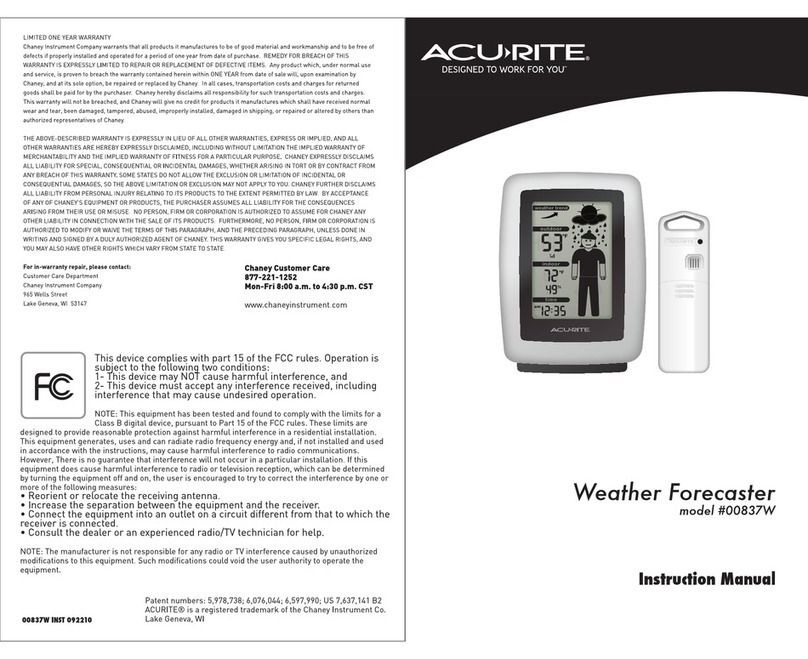
ACU-RITE 00837W User manual

ACU-RITE

ACU-RITE 00837W User manual

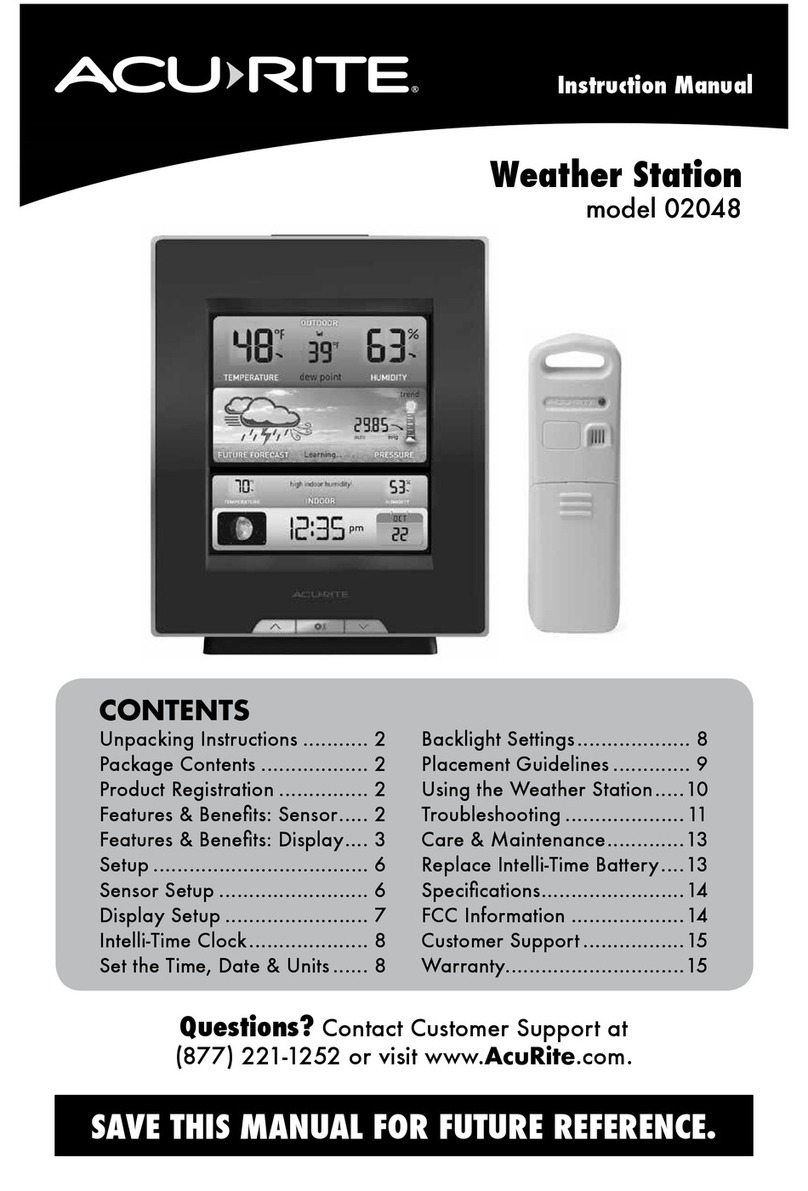
ACU-RITE 2048 User manual

ACU-RITE

ACU-RITE 2048 User manual

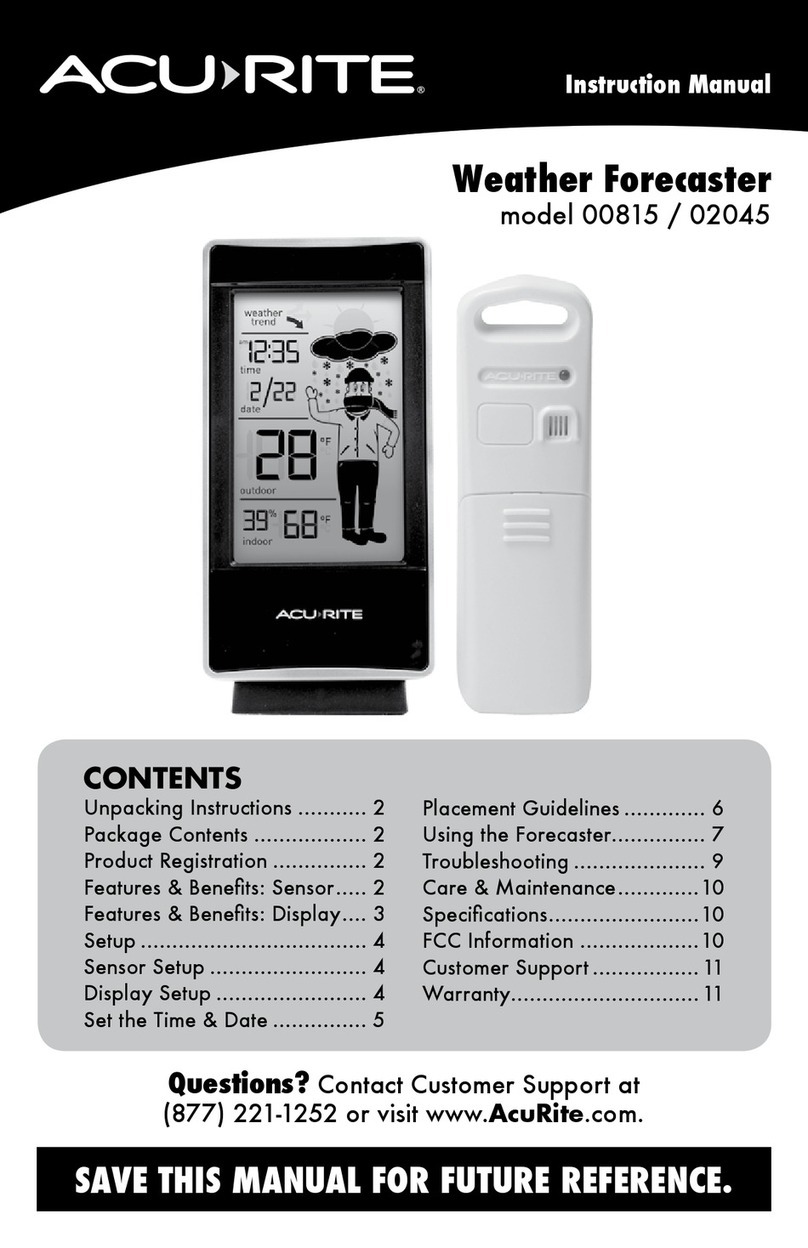
ACU-RITE 00815 User manual

ACU-RITE

ACU-RITE 00815 User manual

ACU-RITE 01607BPDI User manual

ACU-RITE

ACU-RITE 01607BPDI User manual

ACU-RITE 02081 User manual

ACU-RITE

ACU-RITE 02081 User manual

ACU-RITE 13044 User manual

ACU-RITE

ACU-RITE 13044 User manual

ACU-RITE 838 User manual

ACU-RITE

ACU-RITE 838 User manual

ACU-RITE 02032C User manual

ACU-RITE

ACU-RITE 02032C User manual

ACU-RITE 02001 User manual

ACU-RITE

ACU-RITE 02001 User manual

ACU-RITE 2001 User manual

ACU-RITE

ACU-RITE 2001 User manual

ACU-RITE Iris 06101M User manual

ACU-RITE

ACU-RITE Iris 06101M User manual

ACU-RITE 01139 User manual

ACU-RITE

ACU-RITE 01139 User manual

ACU-RITE 75077 User manual

ACU-RITE

ACU-RITE 75077 User manual

ACU-RITE 03001W User manual

ACU-RITE

ACU-RITE 03001W User manual

ACU-RITE 02005TBDI User manual

ACU-RITE

ACU-RITE 02005TBDI User manual

ACU-RITE 06018RM User manual

ACU-RITE

ACU-RITE 06018RM User manual

ACU-RITE 436 User manual

ACU-RITE

ACU-RITE 436 User manual

ACU-RITE 1055 User manual

ACU-RITE

ACU-RITE 1055 User manual

ACU-RITE Weather Forecaster 00821 User manual

ACU-RITE

ACU-RITE Weather Forecaster 00821 User manual

ACU-RITE 02027 User manual

ACU-RITE

ACU-RITE 02027 User manual

Popular Weather Station manuals by other brands

Auriol AHFL 433 A1 operating instructions

Auriol

Auriol AHFL 433 A1 operating instructions

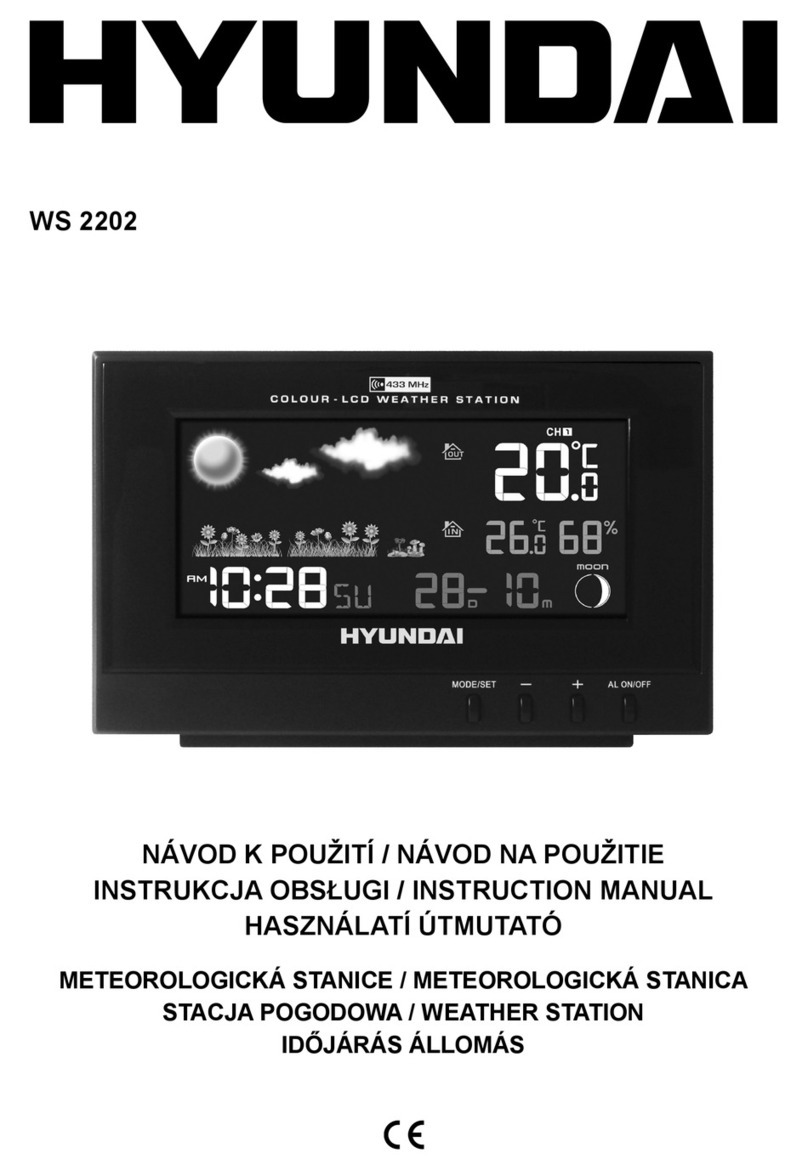
Hyundai WS 2202 instruction manual

Hyundai

Hyundai WS 2202 instruction manual

NexSens G2-HYDROMET quick start

NexSens

NexSens G2-HYDROMET quick start

IROX HBVR761 UV-X user manual

IROX

IROX HBVR761 UV-X user manual

La Crosse Technology C86371 instruction manual

La Crosse Technology

La Crosse Technology C86371 instruction manual

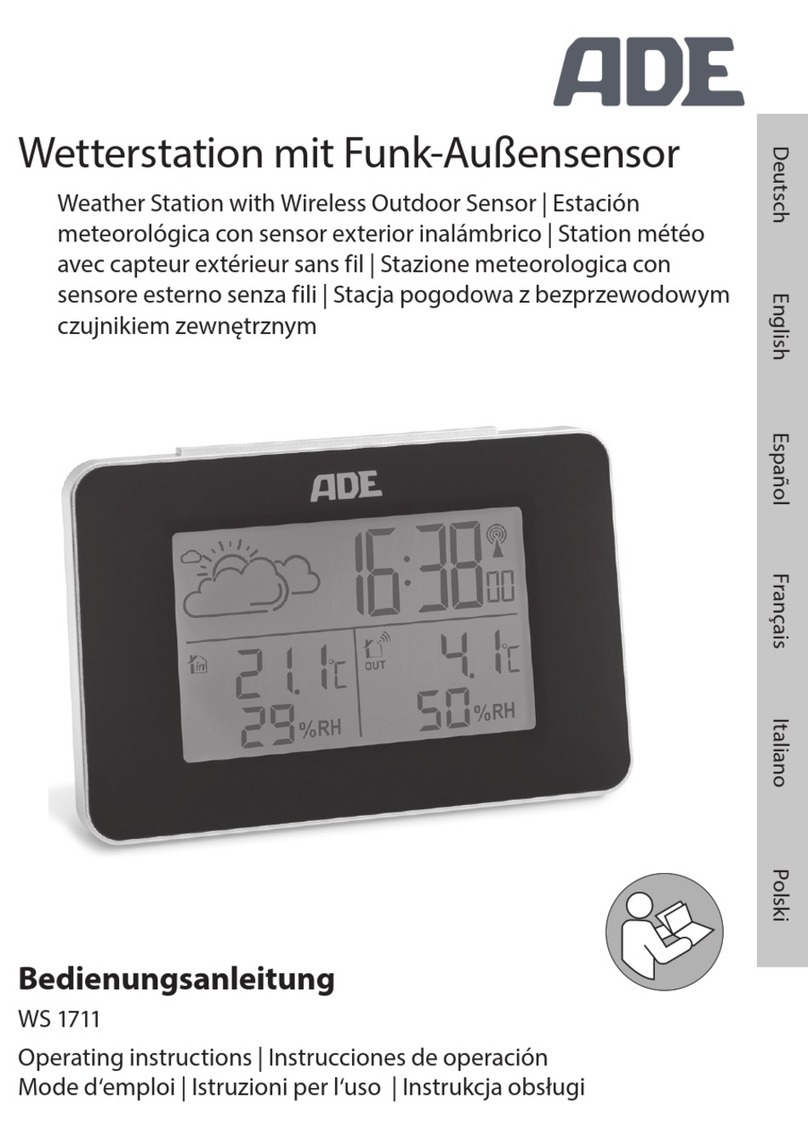
ADE WS 1711 operating instructions

ADE

ADE WS 1711 operating instructions

Auriol z29592 Operation and safety notes

Auriol

Auriol z29592 Operation and safety notes

Auriol 296289 Operation and safety notes

Auriol

Auriol 296289 Operation and safety notes

Hyundai WS 2266 instruction manual

Hyundai

Hyundai WS 2266 instruction manual

La Crosse Technology WS-2210 Operation manual

La Crosse Technology

La Crosse Technology WS-2210 Operation manual

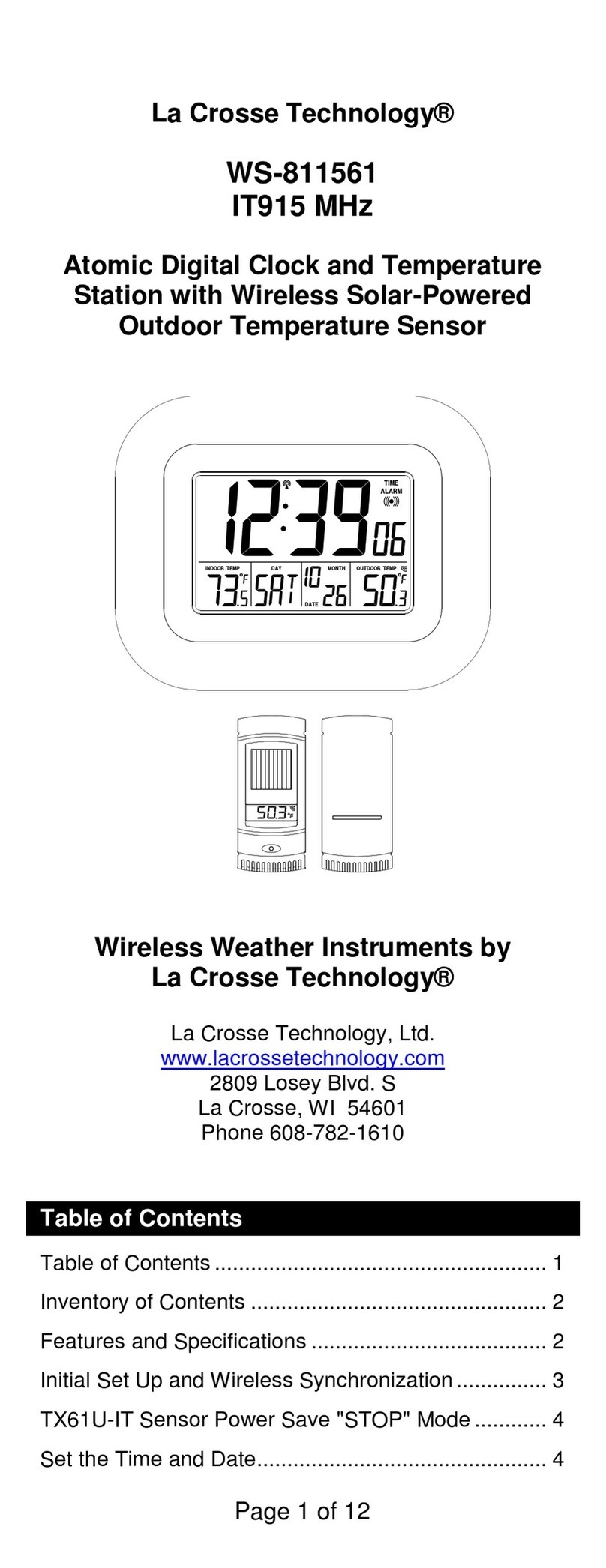
La Crosse Technology WS-811561 manual 

La Crosse Technology

La Crosse Technology WS-811561 manual 

Ventus W177 owner's manual

Ventus

Ventus W177 owner's manual

National Geographic VA Colour RC instruction manual

National Geographic

National Geographic VA Colour RC instruction manual

Levenhuk Discovery Report WA40 quick start guide

Levenhuk

Levenhuk Discovery Report WA40 quick start guide

Instant Transmission MA 10410 instruction manual

Instant Transmission

Instant Transmission MA 10410 instruction manual

Lutron Electronics PHB-318 Operation manual

Lutron Electronics

Lutron Electronics PHB-318 Operation manual

WAREMA EWFS Weather station eco Operating and installation instructions

WAREMA

WAREMA EWFS Weather station eco Operating and installation instructions

TFA 30.3013.IT instruction manual

TFA

TFA 30.3013.IT instruction manual

manuals.online logo
manuals.online logoBrands
  • About & Mission
  • Contact us
  • Privacy Policy
  • Terms and Conditions

Copyright 2025 Manuals.Online. All Rights Reserved.

WEATHER FORECAST LEARNING MODE
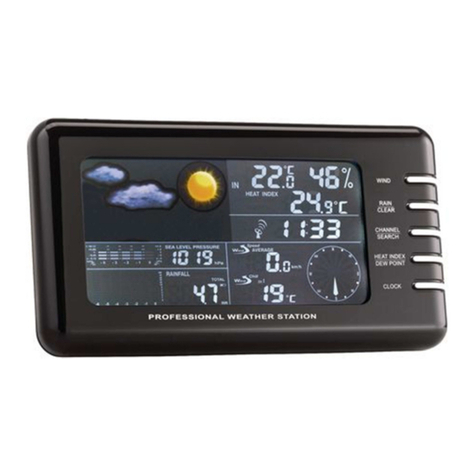
During Learning Mode, the outdoor sensor uses a unique algorithm to analyze changes
in pressure and determine the altitude at your sensor’s location. After 14 days, the self-
calibrating technology is tuned into your specic location and provides a hyperlocal,
personalized weather forecast 12 hours from your current conditions.
SET ALARM CLOCK
1. Press and hold the “ALARM” button until the alarm time ashes.
2. Adjust the alarm hour and minute using the up/down arrows, pressing “SET” to save
and continue.
TURN ALARM CLOCK ON OR OFF
Press the “ALARM” button once to turn the alarm on or off. When the alarm is turned on, the
screen will ash the currently set alarm time for 3 seconds.
ADJUST DISPLAY BRIGHTNESS
Press the / buttons to adjust the brightness of the screen or to set to
auto-dimming at night.
WIRELESSLY CHARGE PHONES AND EARBUDS
This weather display with charging pad is Qi-certied. Products marked as Qi-certied
have passed rigorous, independent laboratory tests for safety, interoperability, and energy
eciency. This wireless charging pad will deliver a safe and reliable wireless charging
experience.
Place your Qi-certied phone or earbud case on the wireless charging pad with the charging
location properly aligned. Conrm your device begins to charge by checking your device’s
display; a charging icon will also appear on the weather display.
*NOTE: Weather display must be powered with the included power adapter adapter to use
wireless charging feature.
Set up your Weather Forecaster with Wireless Qi-Charging Pad 01193
www.acurite.com
SETUP REQUIRES:
• Weather Display with Wireless Charging Pad
• Power Adapter (2 x AA backup batteries recommended; not included)
• Temperature and Humidity Sensor
• 2 x AA alkaline or lithium batteries; not included
INSTALL SENSOR BATTERIES.
PLUG IN DISPLAY WITH THE POWER ADAPTER, AND
INSTALL BACKUP BATTERIES (optional, recommended).
CONFIGURE DISPLAY SETTINGS BY USING THE ARROWS AND
PRESSING “SET” TO SAVE AND CONTINUE TO THE NEXT SETTING.
• Clock Hour/Minute
• Month/Day/Year
• Units Preference (˚F/˚C)
You can edit your settings at any time by pressing the “SET” button.
PLACE SENSOR OUTSIDE.
Hang the sensor in a suitable location, like a well-covered tree branch, by using
the integrated hanger or or a string (not included). Ensure the sensor is:
• At least 5 feet (1.5 meters) off the ground
• Out of direct sunlight
• Away from heat and humidity sources
• Within 165 feet (50 meters) of display
ONLINE PRODUCT REGISTRATION
Register your product online within 30 days from the date of purchase at
www.acurite.com/product-registration
1
2
3
4
TEMPERATURE
AND HUMIDITY
SENSOR
Qi CHARGING PAD
OUTDOOR CONDITIONS
INDOOR CONDITIONS
WEATHER FORECAST
TIME/DATE
MICRO USB PORT
SETTINGS
BUTTONS
SNOOZE
BUTTON
TV 3
(50 meters)
(165 feet maximum)
(.91 m)
AT
LEAST
APART
WE’RE HERE TO HELP!
When you have questions or need assistance,
visit us online at www.acurite.com/support
LIMITED 1-YEAR WARRANTY.
For more information on warranty and other policies,
visit us online at www.acurite.com/warranty.
Quick Setup Guide 01193
FCC RADIO FREQUENCY INTERFERENCE
This equipment has been tested and found to comply with the limits for a Class B digital device, pursuant to Part 15 of the FCC
Rules. These limits are designed to provide reasonable protection against harmful interference in a residential installation.
This equipment generates, uses and can radiate radio frequency energy and, if not installed and used in accordance with the
instructions, may cause harmful interference to radio communications. However, there is no guarantee that interference will not
occur in a particular installation. If this equipment does cause harmful interference to radio or television reception, which can be
determined by turning the equipment off and on, the user is encouraged to try to correct the interference by one or more of the
following measures:
• Reorient or relocate the receiver’s antenna.
• Increase the distance between the equipment and the receiver.
• Connect the equipment to an outlet on a circuit different from that to which the receiver is connected.
• Consult the dealer or an experienced radio/TV technician for help.
To assure continued appliance, any changes or modifications not expressly approved by the party responsible for compliance could
voice the user's authority to operate this equipment. (Example -use only shielded interface cables when connecting to computer or
peripheral devices).
FCC WARNING
Any Changes or modifications not expressly approved by the party responsible for compliance could void the user's authority to
operate the equipment.
Note: This equipment has been tested and found to comply with the limits for a Class B digital device, pursuant to part 15 of the
FCC Rules. These limits are designed to provide reasonable protection against harmful interference in a residential installation.
This equipment generates uses and can radiate radio frequency energy and, if not installed and used in accordance with the
instructions, may cause harmful interference to radio communications. However, there is no guarantee that interference will not
occur in a particular installation. If this equipment does cause harmful interference to radio or television reception, which can be
determined by turning the equipment off and on, the user is encouraged to try to correct the interference by one or more of the
following measures:
• Reorient or relocate the receiving antenna.
• Increase the separation between the equipment and receiver.
• Connect the equipment into an outlet on a circuit different from that to which the receiver is connected.
• Consult the dealer or an experienced radio/TV technician for help.
This equipment complies with FCC radiation exposure limits set forth for an uncontrolled environment. This equipment should be
installed and operated with minimum distance 20cm between the radiator and your body.
REGULATORY INFORMATION
03/28/22
Problem Possible Solution
No outdoor data on the
display
Verify the sensor is powered on and within range of the display. The
sensor must be within 165 feet (50 meters) of the display, but certain
housing construction materials or environmental factors may impact
the working range of the signal.
Time, date, or units of
measurement need to
be adjusted
On the display, press the “SET” button at any time and use the up/down
arrows to adjust the display settings. Use the “SET” button to save and
toggle to the next settings. If no buttons are pressed for 8 seconds, the
display will save the current setting and exit setting mode.
Phone/Earbuds not
charging
• Verify the charging pad is powered by the included power adapter.
Device will not charge while powered by backup batteries alone.
• Verify the charging area of your device is properly aligned with the
wireless charging pad on the base of the display.
• Verify your device is compatible with wireless charging. Some
phones, earbuds, and/or their cases do not allow wireless charging.
Refer to your device’s manufacturer for more information.
TROUBLESHOOTING