https://aeotec.freshdesk.com/support/solutions/articles/6000056881-siren-gen-5-user-guide- 3/5
If you’re using a Minimote.
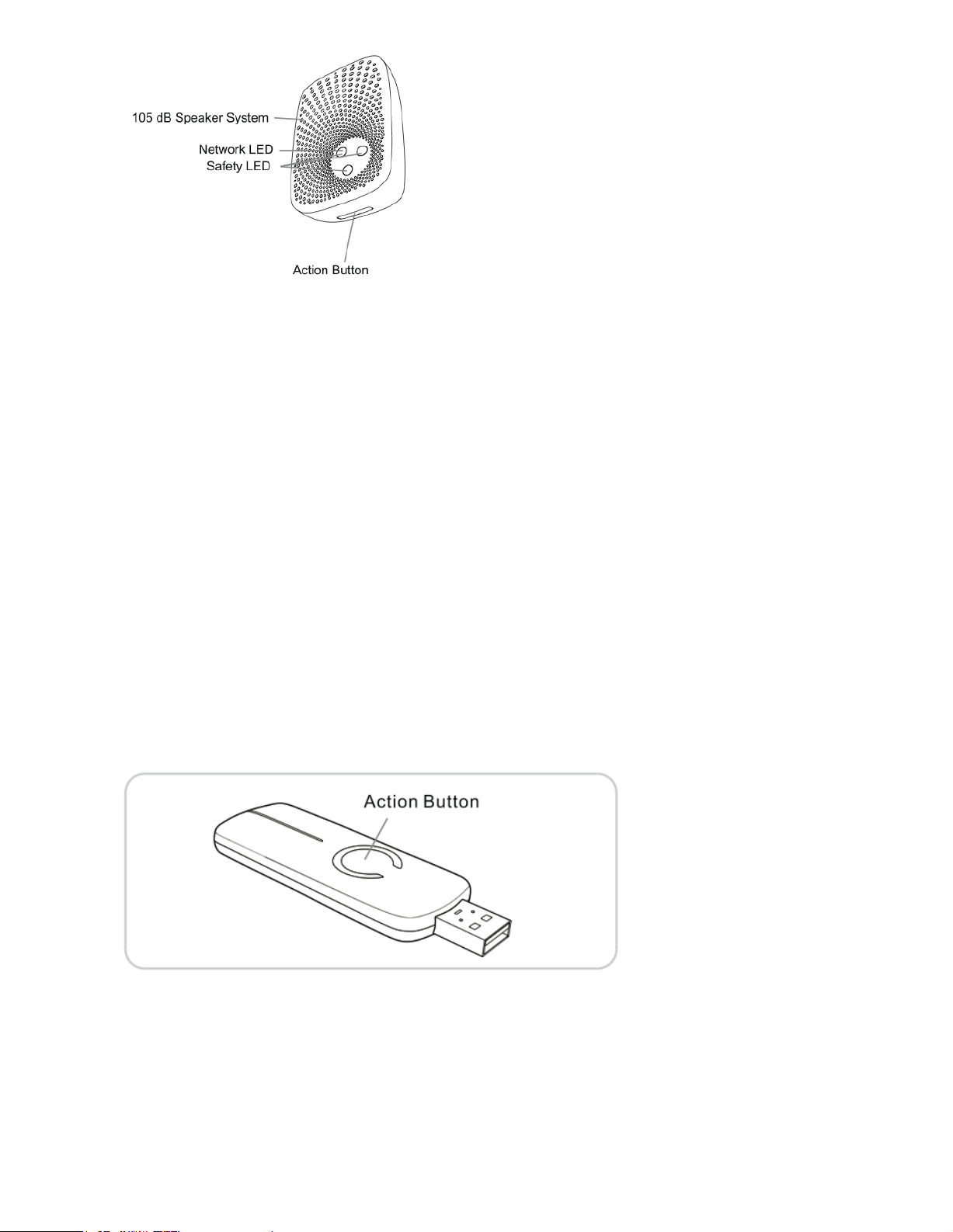
1. Decide on where you want your Siren to be placed and plug it in to a wall socket. Its Network LED will begin to blink.
2. Take your Minimote to your Siren.
3. Press the Include button on your Minimote.
4. If Siren has been successfully linked to your Z-Wave network, its Network LED will no longer blink when you short
press the Action button on Siren. If the linking was unsuccessful and the Network LED continues to blink repeat the
above steps.
5. Press any button on your Minimote to take it out of installation mode.
With your Siren now working as a part of your smart home, you’ll be able to configure it from your home control software.
Please refer to your software’s user guide for precise instructions on configuring Siren to your needs.
You’re able to test your Siren’s speaker system manually. Please note that the speaker system is 106dB and very loud – we
recommend only testing your Siren while wearing the necessary ear protection given you’ll need to be next to your Siren while
manually testing it. To manually test Siren, press and hold the Action Button for 5 seconds.
Advanced.
Removing your Siren from a Z-Wave network.
Your Siren can be removed from your Z-Wave network at any time. It is always advised that you use your gateway to
perform an unpair in order to avoid leaving phantom / failed nodes that become difficult to remove. To do so, follow the
steps below:
Unpairing your Siren Gen5 from your existing Z-Wave network.
1. Place your gateway or controller into Z-Wave unpair or exclusion mode. (Please refer to your controller/gateway
manual on how to do this)
2. Press the Action Button on your Siren.
3. If your Siren has been successfully unlinked to your network, its LED will begin to blink.
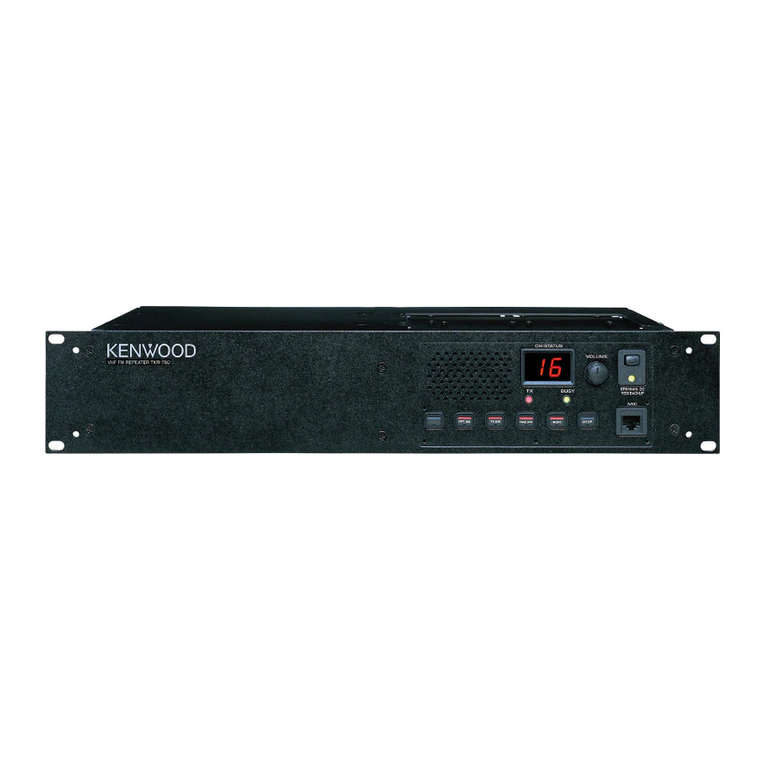
If you’re using a Z-Stick.