manuals.online logo
Brands
  1. Home
  2. •
  3. Brands
  4. •
  5. AGPtek
  6. •
  7. Tablet
  8. •
  9. AGPtek TP15H User manual

AGPtek TP15H User manual

This manual suits for next models

2

Other AGPtek Tablet manuals

AGPtek WB1 User manual

AGPtek

AGPtek WB1 User manual

AGPtek WB5 User manual

AGPtek

AGPtek WB5 User manual

AGPtek 7" series User manual

AGPtek

AGPtek 7" series User manual

Popular Tablet manuals by other brands

Laser MID-1060 Quick operation guide

Laser

Laser MID-1060 Quick operation guide

MUNBYN IRT09J Easy setup guide

MUNBYN

MUNBYN IRT09J Easy setup guide

Motorola MC3090R - Win CE 5.0 Professional 520 MHz quick start guide

Motorola

Motorola MC3090R - Win CE 5.0 Professional 520 MHz quick start guide

Dell Latitude ST Setup and features information

Dell

Dell Latitude ST Setup and features information

Venturer WT9L11 quick start guide

Venturer

Venturer WT9L11 quick start guide

EDUGEAR UnoBook user guide

EDUGEAR

EDUGEAR UnoBook user guide

Philips PI3210G/58 user manual

Philips

Philips PI3210G/58 user manual

TwinMOS TwinTAB-T102D1 user guide

TwinMOS

TwinMOS TwinTAB-T102D1 user guide

Archos 9.7 xenon manual 

Archos

Archos 9.7 xenon manual 

HANNspree HANNspad SN70T3 quick start guide

HANNspree

HANNspree HANNspad SN70T3 quick start guide

Philips PI3105W2/55 user manual

Philips

Philips PI3105W2/55 user manual

Zeki TBDB763B user guide

Zeki

Zeki TBDB763B user guide

Ricoh eQuill user guide

Ricoh

Ricoh eQuill user guide

DT Research DT365CT Basic operation guide

DT Research

DT Research DT365CT Basic operation guide

MaxWest Nitro Phablet 9 user manual

MaxWest

MaxWest Nitro Phablet 9 user manual

LG LG-V935 user guide

LG

LG LG-V935 user guide

Aaeon RTC-1000A1 manual

Aaeon

Aaeon RTC-1000A1 manual

Trevi TAB 9 C8 user manual

Trevi

Trevi TAB 9 C8 user manual

manuals.online logo
manuals.online logoBrands
  • About & Mission
  • Contact us
  • Privacy Policy
  • Terms and Conditions

Copyright 2025 Manuals.Online. All Rights Reserved.

TABLET USER MANUAL
Attention:
This handbook contains important security measures and the information for correct
usage of the product in order to avoid accidents. Please make sure to read the
manual carefully before using the device.
•Avoid exposure to moisture and dust
•Avoid exposure to high temperature do not keep the device on the
dashboard of the car specially when the windows are closed.
•Avoid fall or violent shaking of the device This could cause damage to TFT
display screen
•Please choose appropriate volume, if using headphones volume should not
be too high
•Please charge the device in the following conditions,
A. The battery power ICON indicates low or no power
B. The system automatically shuts off, as soon as device is started
C. Operation buttons do not respond
D. The icon at the top right corner turns red
•.When the device is being formatted or during uploading and downloading of
files, please do not suddenly disconnect as this can cause application error
•Do not use the device in places where use of electronic devices is prohibited
e.g. during flights
•Don’t disassemble the product, don’t use alcohol Thinner or
benzene to scrubbing
products
•Please do not use the Tablet PC when you in driving or walking
•USB must be used only for data transmission
•The company reserves right to improve product, products specification and
design and make any changes without prior notice.
•This tablet is not waterproof
[Remark.] : All images in this manual is only for your reference. products
specification and design may differ.The information is subject to changes without
prior notice.
1. Appearance and button:
1.1 Touch panel
Capacitive touch panel: In The Operation, for clicking ,dragging on the touch
panel
1.2 POWER
Startup: Long Press and hold the power button, the system will enter the main
interface
Shutdown: In the main menu interface, Press the power button for about 5
seconds to shutdown, The system will display "power off" option, Clik ”ok”. To
safely shut down.
Lock screen: Short press Power button to lock or unlock screen.
Remark 1.When power is empty, system will shut down automatically.
2.In case of improper turn off of the device, restart may take
longer time as it will scan and restore the disk
1.3 ESC
Short Press of ESC button will return to the last interface, long Press ESC button
will return to the main interface
1,4 Menu
Under normal operating conditions, short press of M button will bring you back to
the home screen
1.5 Volume +, Volumethe
Use buttons on top “ Volume +”, “Volume- “ to achieve changes in the volume.
1.6 Earphone jack
3.5 mm standard earphone jack
1.7 Video output interface
1.8 TF card
TF-CARD solt: external T-FLASH card
1.9 Mini USB
Mini USB jack: you can use it to connect the computer for data transmission,
charging and external connection USB flash drive
1.10 Reset
When the Tablet seems to have hung up or has stopped taking commands , use
a small object to short press RESET button, Tablet will be forced to shut down.
.[Remark.]: unless actually unable to shutdown do not use the reset, methods as
this can easily cause to damage the machine system.
2. First use
2.1 Battery management and charge
Before first use, please fully charge the device's battery
For charging you only need to connect the adaptor or USB interface to power
source, On the first two instances charge battery for about 6 hours, subsequently4
hour charging will suffice.
.[Remark].: This tablet uses its Built-in type polymer battery, Charging device
must be a standard adaptor (Input: AC110~240V 50/60Hz Max:180MA.. Output:
DC5.0~5.5V/1.5-2.0A), This device can be charged without DC supply , using USB
interface , for this , Choose USB interface to charger During the charging, the battery
icon will scroll,When finished charging, battery icon will become green and stop
scrolling. In order to prolong the service life of the machine, suggest use out battery
power before again charging it
.[Remark]: 1. If tablet is not in use for long time, ,in order to avoid power
consumption caused damage please charge/play the battery once a month,.
2 .When battery is low ,shut down device ,connect DC adaptor , wait for some time
until the battery is enough power to enter into main menu.
3. While charging please keep devise in standby mode for faster charging.

2.2 Connection with PC
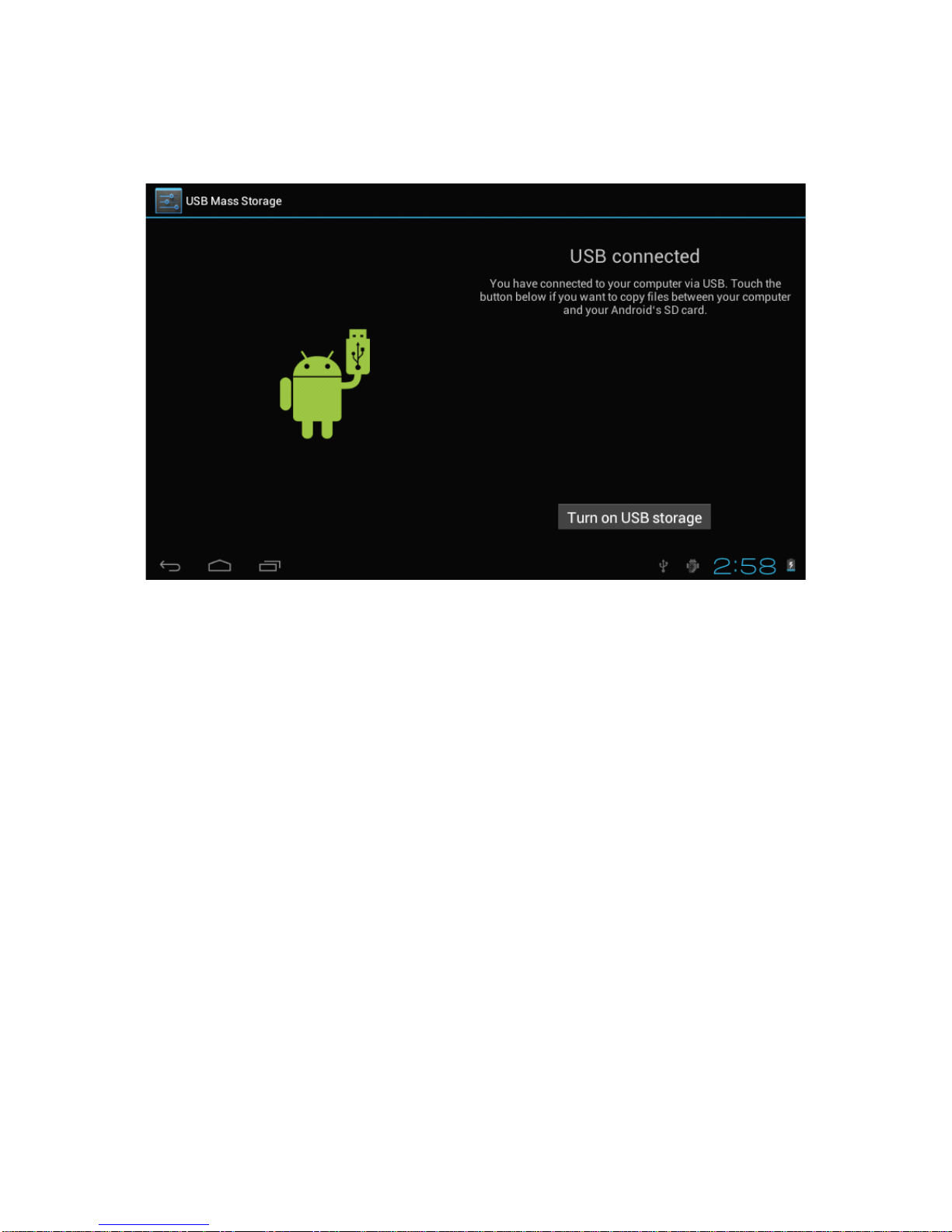
Use USB cable to connect device to PC, device will pop up the USB connection
window, click “Turn on USB storage” to connect to PC
Into the load mode, you can copy, delete the file on the device and the file on the
memory card
3. Equipment operation interface
3.1 Main interface description
After start up you will enter the main interface
In the main interface, you can :
To manage main interface software ICONS: long press the icon for 3 seconds, once
the icons will appear bigger, then you can drag them anywhere in the interface
.
To Delete icons: long press the icon for 3 seconds, drag the icons to the Recycle
Bin icon, once it becomes red ,loosen your hand and after that you can delete icon.
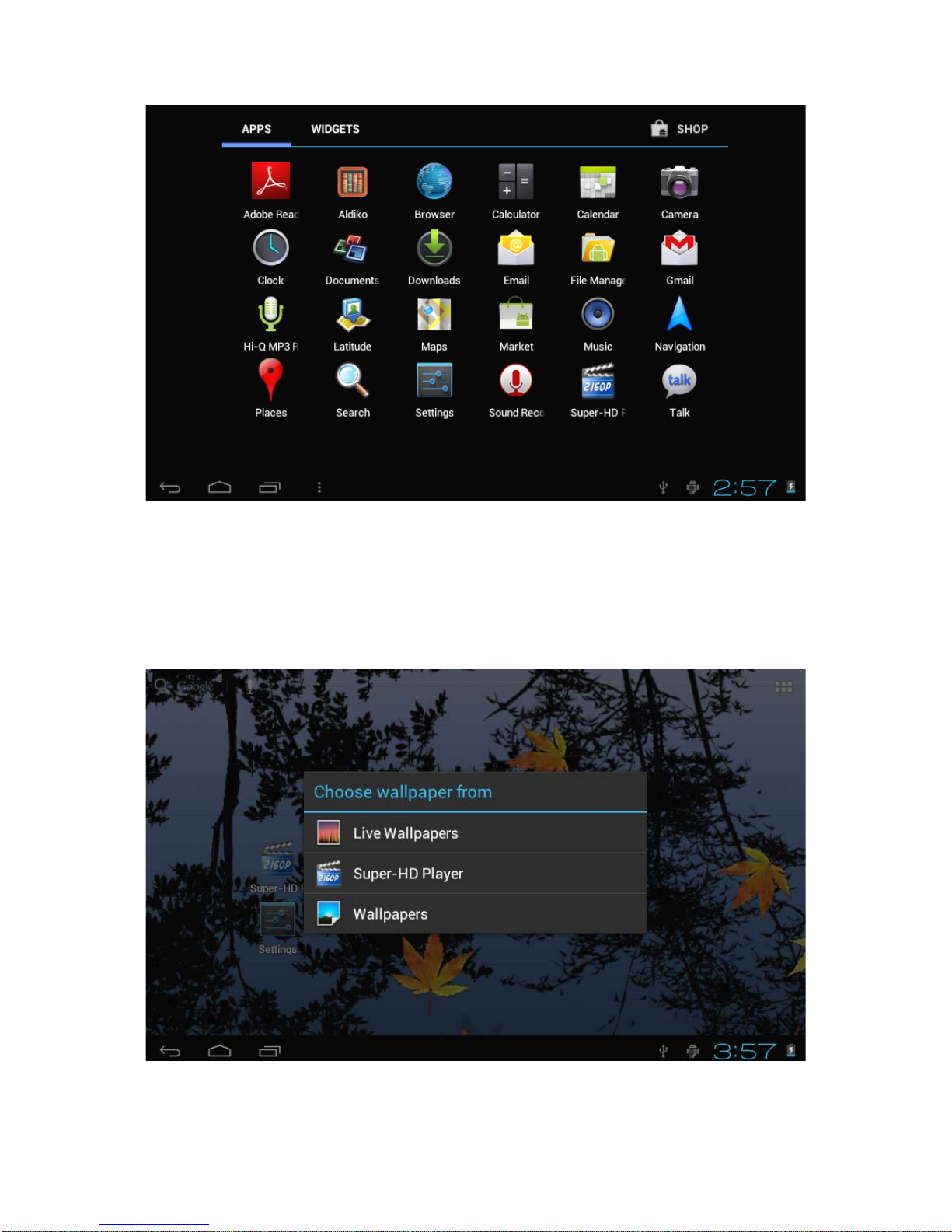
You touch the screen keep a time, appear the dialog box”Add yo Home
screen” as shown
below:
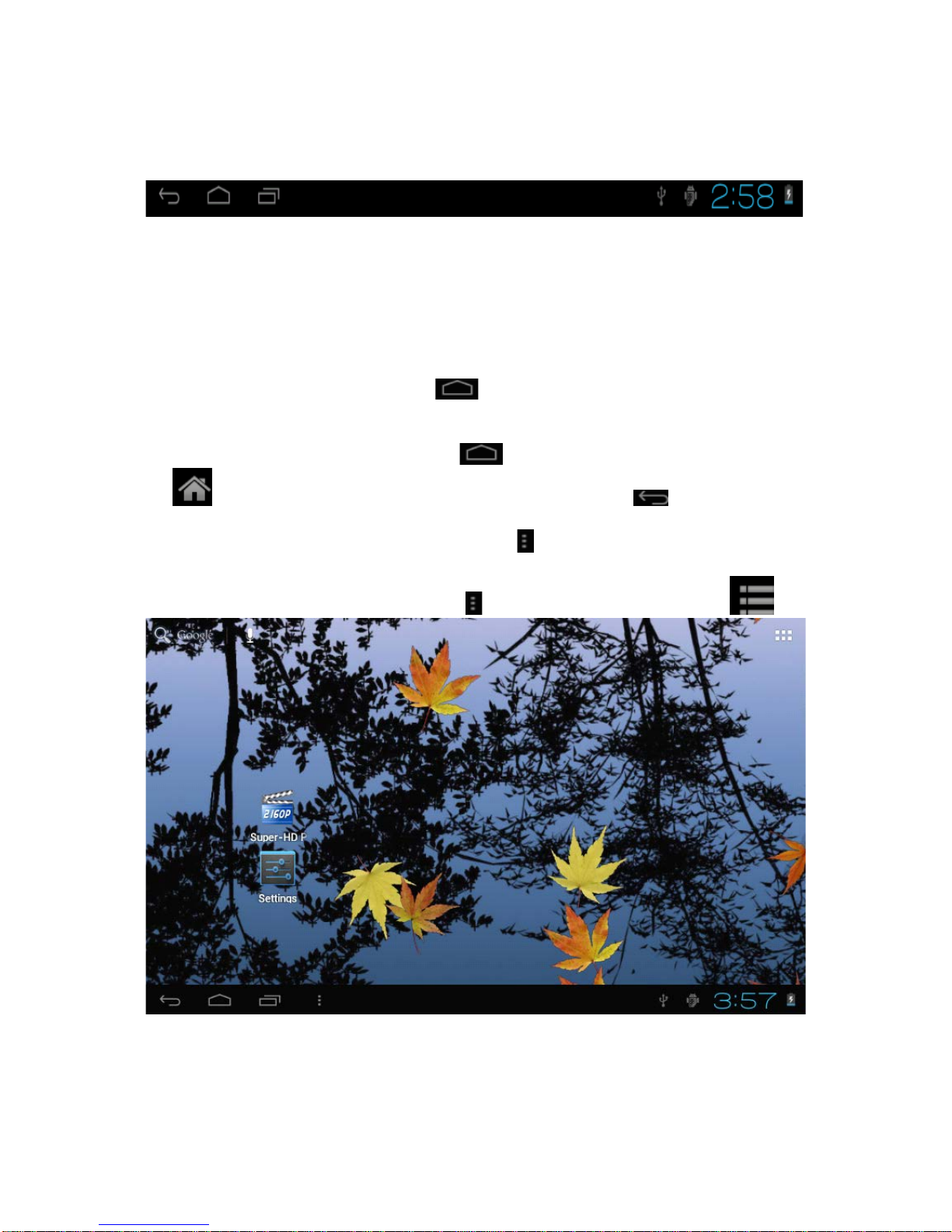
3.2 status bar description
The status bar appears above of the screen Top left part displays main interface
software, T-Flash card, USB connection status and so on . Top right part displays
Battery charge icon, Current time, Set time, Settings Menu, ESC button .
3.3 Use touch panel
Device equipped with a 7 “ touch screen. The tips for how to use the touch
screen Are given below.No matter which interface is on the screen, can go back to
main screen by pressing the soft key on the bottom right corner of the main
screen.
[Attention]The main screen soft key functions as the machine back
key In different applications, by tapping the back soft key on the bottom
right corner on the touch screen, you can return to its interface on the up floor. In
different applications, by tapping the menu key on the upper right corner of touch
screen, the screen will appear the operation setting interface as follows,
{Remark }: The main screen soft key functions as the machine menu
In the main interface, you can touch the icon to open the Applications . In different
browsers (file, music, video, pictures), You can shift or drag on the scroll bar ,to
move up or down the file list
4. Equipment’s Basic Setting
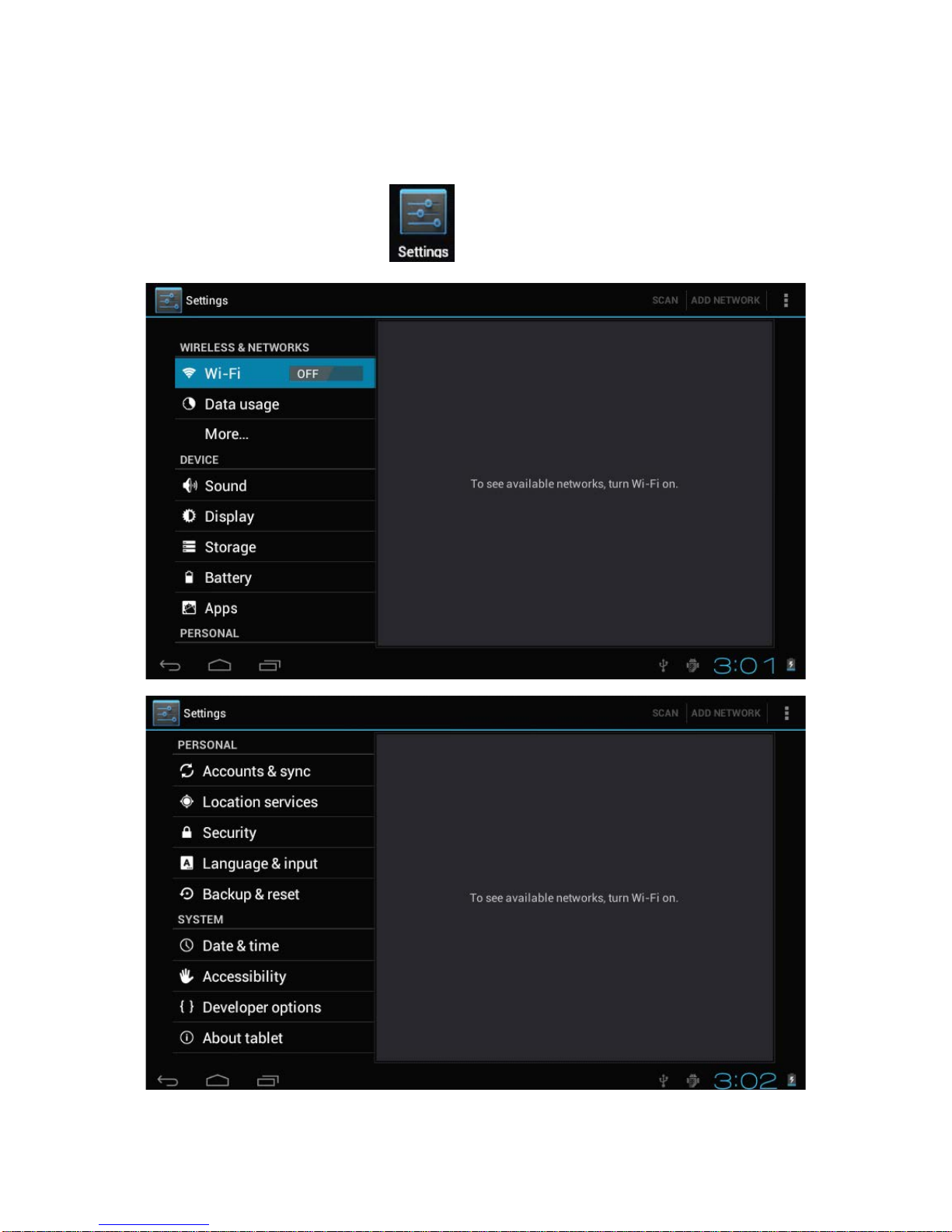
Setting: Click setting icons , enter setting interface
4.1 Silent mode ,Volume ,Notification ringtone ,Audible selection ,Screen lock
sounds
4.2 Application
Manage applications