Page 6 Alcorn McBride MP3 Audio Machine User’s Manual • Rev H • April 2, 2004
Throughout this manual you will find detailed discussions on all the features of
the product. But below are a few points to get you going with the MP3 Audio
Machine right out of the box!
Playing the Demo Material
Your MP3 Audio Machine comes complete with a Compact Flash Card already
loaded with demo material. File number one is an MP3 audio file. You can play it
by doing the following:
• Don’t plug anything in yet.
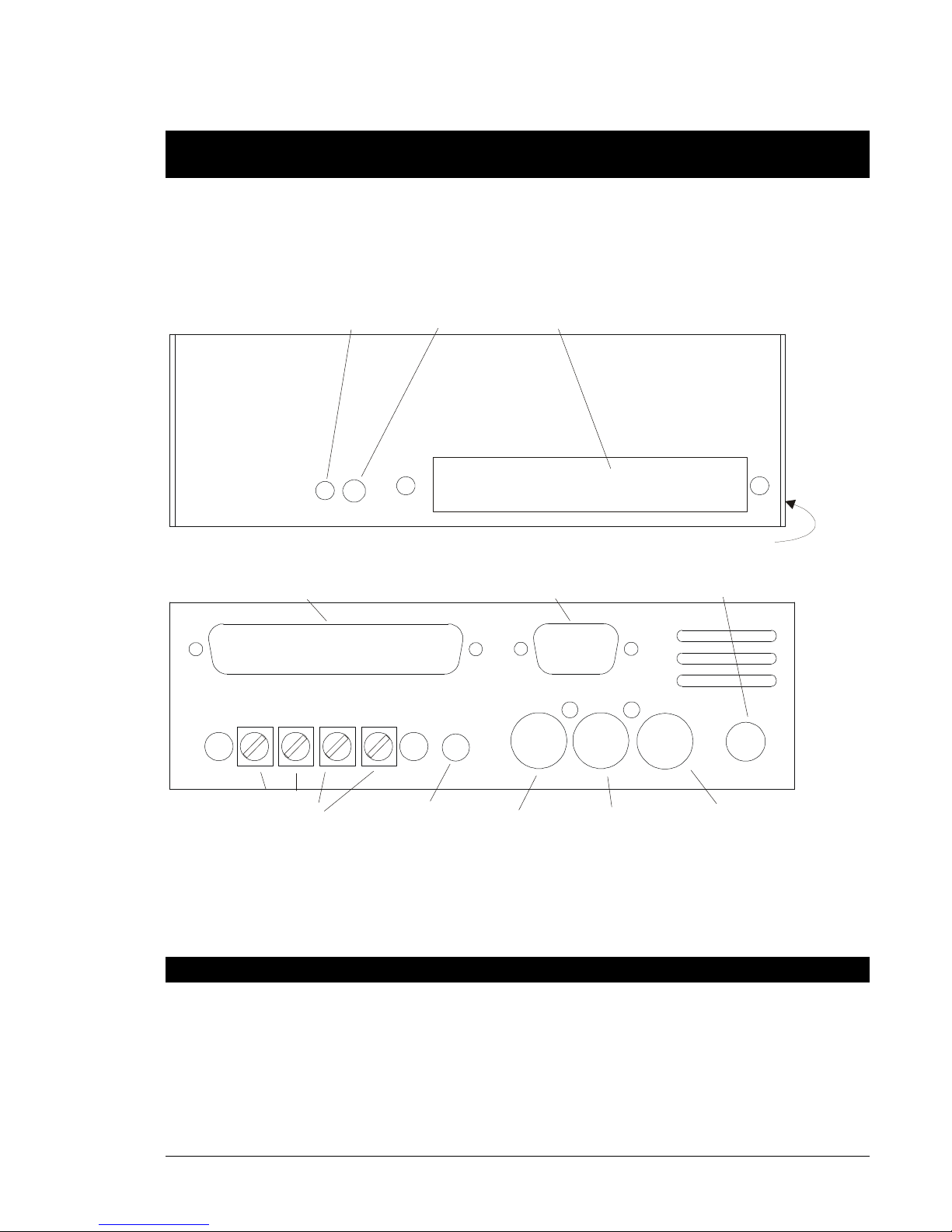
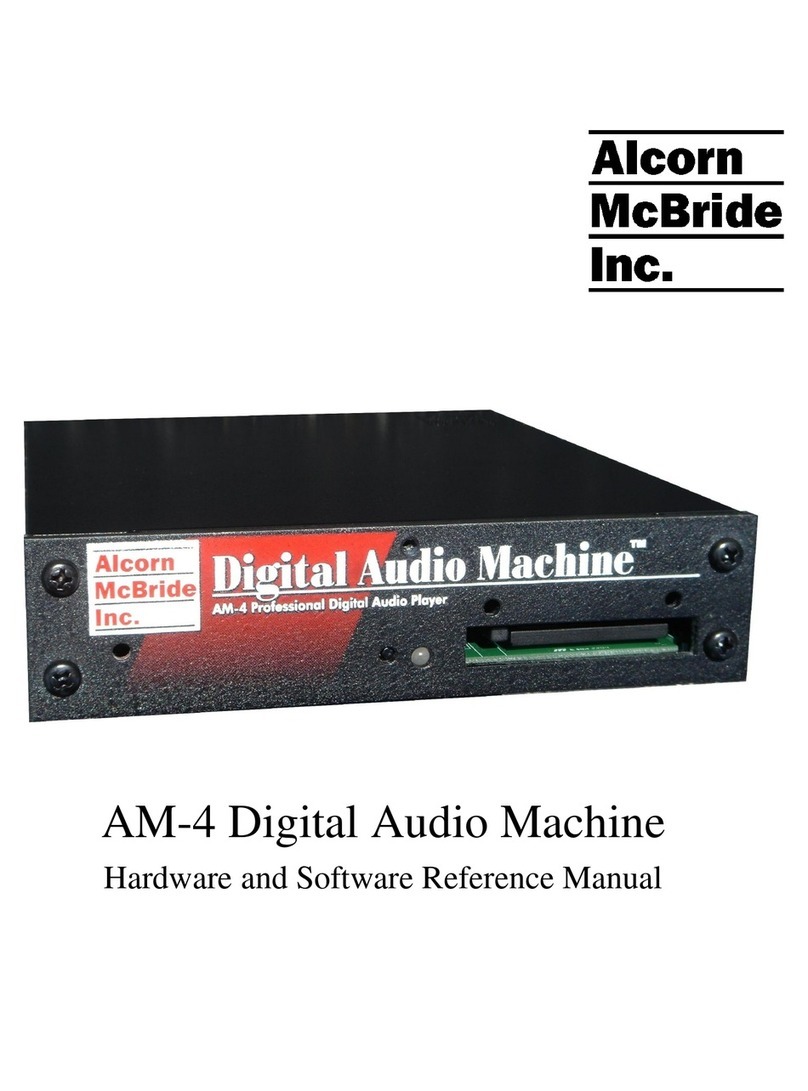
• Grab a screwdriver and remove the two screws holding the Compact Flash
Drive cover plate, to reveal the unit’s Compact Flash Socket.
Drive Cover Plate
• Remove your Compact Flash Card from its protective packaging, and place
it in the unit’s Compact Flash socket. Push it in until the ejector button
comes out. As a side note, to avoid damage to the unit, never ship these
units with the Compact Flash card inside the unit.
• Connect non-powered speakers to the screw terminals on the back of the
unit, or connect the RCA jacks to a device capable of playing line level in
signals, like many TV’s or stereos.
• Make sure the volume control on the rear of the unit is turned at a
reasonable level. (The plus sign should be almost vertical, rotated slightly to
the left.) You can use a screwdriver to adjust it.
Volume control is an orange dial switch on the back of the unit.
• Plug in the unit with the included power supply. There is a status LED next
to the Compact Flash socket. Watch it while you wait for the unit to finish
its initialization sequence:
o Fast green blinking LED (RAM testing, Component testing, ...)
o Solid Green LED (It found and is talking to the Compact Flash
card)
o LED Off (Idle)
• Press the round black test button located on the front of the unit beside the
LED.
• Verify you see the status LED turn Green. You should be hearing audio! If
not, turn up the volume a little. There is a diagram on the next page, and a
Trouble shooting guide in the back of this manual for your assistance.