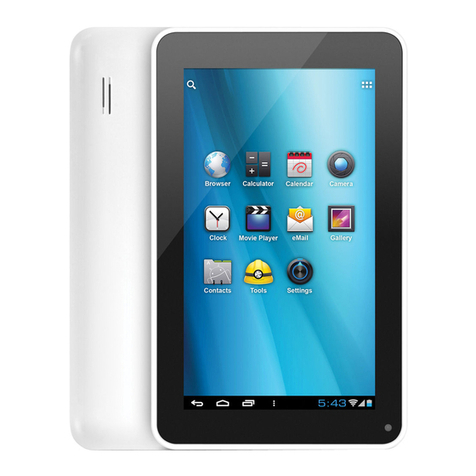
Aluratek CINEPAD AT107F User manual

CINEPAD
7” Multi-Touch Capacitive Tablet
with Android 4.0
Quick Start Guide
mnl M10242 Copyright © 2012 Aluratek, Inc. All Rights Reserved.
aluratek.com
AT107F

7” Capacitive
Color LCD
Screen
LED
Front Facing
VGA Camera
Home Menu
Screen Menu
Previous
Tablet Highlights - Front

Speaker
Mini USB 2.0 Port
Mini HDMI Port
Headphone Jack
Microphone
Power Adapter Port
Volume
Control
Power
Button
Micro SD
Card Slot
Tablet Highlights - Back and Bottom Side

4
Quick Settings
To view and control the most common settings for your tablet, as
well as accessing the complete Settings application, open the Quick
Settings.
Touch the Time in the System bar. Then touch again within the pop-
up menu.The Quick Settings pop-up displays.
The Quick Settings are:
• Wi-Fi: Touch to enable or disable Wi-Fi.
• Auto rotation: Touch to enable or disable automatic rotation. When
disabled, the screen does not rotate when you turn the tablet.
• Brightness: Touch and drag the slider to set the brightness.
• Notications: Touch to enable or disable system and application
notications.
• Settings: Touch to open the Settings application.

5
Wireless and Networks
WiFi Settings
Your device supports Wi-Fi b/g/n. To control your device’s wireless
connections, use Wi-Fi settings to manage your device’s Wi-Fi con-
nections.
Turning Wi-Fi On or Off
Turn your device’s Wi-Fi service on or off. When you turn Wi-Fi
service on, your device automatically searches for available, in range
Wireless Access Points (WAPs).
1. From a Home screen, touch Apps > Settings > Wireless and
networks.
2. Touch Wi-Fi to turn Wi-Fi On or Off. When on, a check appears in
the checkbox.
Add Wi-Fi Network
To open a dialog where you can add a Wi-Fi network by entering
its Network SSID (the name it broadcasts), security type, and other
properties:
1. From a Home screen, touch Apps > Settings > Wireless and
networks
2. Touch Wi-Fi settings, then touch Add Network
3. Use the keyboard to enter Network SSID
4. Touch the Security eld and then touch a security type
5. Use the keyboard to enter the Password
6. Touch Save
Scan
The tablet scans for available Wi-Fi networks and displays the
names of those it nds. Secured networks are indicated with a Lock
icon. If the tablet nds a network that you connected to previously, it
connects to it.

6
1
PLACE IN ANY ROOM IN YOUR HOME
Wireless and Networks
Advanced Settings
Network Notication:
Have your device alert you to new Wireless Access Points (WAPs).
1. From a Home screen, touch Apps > Settings > Wireless and
networks
2. Touch Menu, then touch Network notication to turn notications
On or Off. When on, a check appears in the checkbox
Wi-Fi Sleep Policy:
Specify when to disconnect from Wi-Fi.
1. From a Home screen, touch Apps > Settings > Wireless and
networks
2. Touch Menu, then touch Keep Wi-Fi on during sleep
3. Touch Always, Only when plugged in, or Never
MAC address: View your device’s MAC address, required when con-
necting to some secured networks (not congurable).
IP address: View your device’s IP address.
Adding a VPN
Before you add a VPN you must determine which VPN protocol to
use: PPTP (Point-to-Point Tunneling Protocol), L2TP (Layer 2 Tun-
neling Protocol), L2TP/IPSec PSK (Preshared key based L2TP/IP-
Sec), or L2TP/IPSec CRT (Certicate based L2TP/IPSec)
1. From a Home screen, touch Apps > Settings > Wireless and
networks > VPN settings
2. Touch Add VPN

7
Wireless and Networks
3. To establish a PPTP (Point-to-Point Tunneling Protocol):
• Touch Add PPTP VPN
• Touch VPN name, add a name for this connection using the key
pad, then touch OK
• Touch Set VPN server, add a name using the keypad, then touch OK
• Touch Enable Encryption to make a check mark (if desired)
• Touch DNS search domains, add a name for DNS search using
the keypad, then touch OK
4. To establish a L2TP (Layer 2 Tunneling Protocol):
• Touch Add L2TP VPN
• Touch VPN name, add a name for this connection using the
keypad, then touch OK
• Touch Set VPN server, add a name using the keypad, then touch OK
• Touch Enable L2TP secret to make a check mark (if desired)
• Touch Set L2TP secret and enter a password (if desired), then
touch OK
• Touch DNS search domains, add a name for DNS search using
the keypad, then touch OK
5. To establish a L2TP/IPSec PSK (Pre-shared key based L2TP/IPSec):
• Touch Add L2TP/IPSec PSK VPN
• Touch VPN name, add a name for this connection using the
keypad, then touch OK
• Touch Set VPN server, add a name using the keypad, then touch OK
• Touch Set IPsec pre-shared key, enter a key and touch OK
• Touch Enable L2TP secret to make a check mark (if desired)
• Touch Set L2TP secret and enter a password (if desired), then
touch OK
• Touch DNS search domains, add a name for DNS search using
the keypad, then touch OK
Wi
Wireless and Networks

8
Wireless and Networks
6. To establish a L2TP/IPSec CRT (Certicate based L2TP/IPSec):
• Touch Add L2TP/IPSec CRT VPN
• Touch VPN name, add a name for this connection using the key-
pad, then touch OK
• Touch Set VPN server, add a name using the keypad, then touch OK
• Touch Enable L2TP secret to make a check mark (if desired)
• Touch Set L2TP secret and enter a password (if desired), then
touch OK
• Touch Set user certicate, then touch OK
• Touch Set CA certicate, then touch OK
• Touch DNS search domains, add a name for DNS search using
the keypad, then touch OK

9
Device Settings
Sound
Set the volume level for all types of sounds. Note: You can only set
volume when Silent Mode is disabled.
1. From Home screen, touch Apps > Settings > Sound > Volume
2. Touch and drag the sliders to set the volume for
• Music, video, games, & other media: Sounds for media and so on
• Ringtone & notications: Sounds for noticaiotns, and so on
• Alarm: Notications for alarms set in the Alarm app
Tip: You can also set System volume from the Home screen by
pressing the Volume Key
3. Touch OK to save your setting
Notication Ringtone
Select a default ringtone for message, alarm, and other notications
1. From Home screen, touch Apps > Settings > Sound > Default
notication
2. Touch a ringtone to hear a sample and select it
3. Touch OK to save the setting
Audible Selection
When enabled, tones play when you touch screen items.
1. From Home screen, touch Apps > Settings > Sound
2. Touch Audible selection to enable or disable tones. When enabled,
a check mark appears in the check box
Screen Lock Sounds
When enabled, tones play when unlocking and locking the screen
1. From Home screen, touch Apps > Settings > Sound
2. Touch Screen lock sounds to enable or disable tones. When e
abled, a check mark appears in the check box.

10
Device Settings
Display Brightness
Set the default screen brightness.
1. From Home screen, touch Apps > Settings > Display > Brightness
2. Touch and drag the slider to set the brightness
3. Touch OK to save the setting
Display Font Style
Set the font for screen displays.
1. From Home screen, touch Apps > Settings > Display > Font size
2. Touch Font size to select Small, Normal, Large, Huge
3. Touch OK to save the setting
Set the Home screen and Lock Screen Wallpaper
1. From Home screen, touch Apps > Settings > Display > Wallpaper
Then Select wallpaper from pop-up displays. Live Wallpapers, or
Wallpapers.
Touch Wallpaper gallery to select a wallpaper or touch Gallery to
select one of your photos. Touch the album to display the photos.
Touch a photo to select it, then crop and resize the picture, if desired.
Touch Ok to save the picture as wallpaper. Touch X to cancel.
Auto-Rotate Screen
When this option is checked, the screen orientation changes when
you rotate the device. When this option is not checked, the screen
orientation locks in the current orientation (landscape or portrait) and
the orientation does not change when you rotate the device.
1. From Home screen, touch Apps > Settings > Display
2. Touch Auto-rotate screen to enable or disable the auto-rotate
feature.
Other manuals for CINEPAD AT107F
1
Table of contents
Other Aluratek Tablet manuals