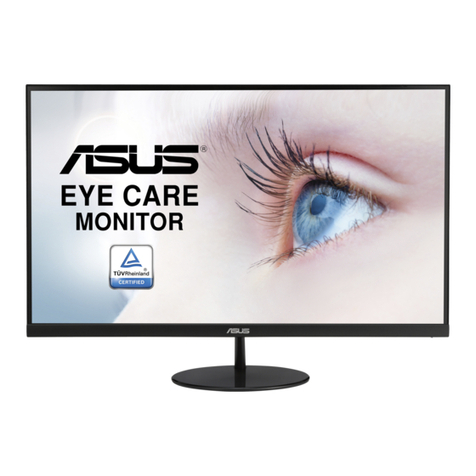
Asus VN248HA User manual

VN248HA/NA/QA
LCD Monitor
User Guide

ii
Copyright © 2014 ASUSTeK COMPUTER INC. All Rights Reserved.
No part of this manual, including the products and software described in it, may be reproduced,
transmitted, transcribed, stored in a retrieval system, or translated into any language in any form or by any
means, except documentation kept by the purchaser for backup purposes, without the express written
permission of ASUSTeK COMPUTER INC. (“ASUS”).
Product warranty or service will not be extended if: (1) the product is repaired, modied or altered, unless
such repair, modication of alteration is authorized in writing by ASUS; or (2) the serial number of the
product is defaced or missing.
ASUS PROVIDES THIS MANUAL “AS IS” WITHOUT WARRANTY OF ANY KIND, EITHER EXPRESS
OR IMPLIED, INCLUDING BUT NOT LIMITED TO THE IMPLIED WARRANTIES OR CONDITIONS OF
MERCHANTABILITY OR FITNESS FOR A PARTICULAR PURPOSE. IN NO EVENT SHALL ASUS, ITS
DIRECTORS, OFFICERS, EMPLOYEES OR AGENTS BE LIABLE FOR ANY INDIRECT, SPECIAL,
INCIDENTAL, OR CONSEQUENTIAL DAMAGES (INCLUDING DAMAGES FOR LOSS OF PROFITS,
LOSS OF BUSINESS, LOSS OF USE OR DATA, INTERRUPTION OF BUSINESS AND THE LIKE),
EVEN IF ASUS HAS BEEN ADVISED OF THE POSSIBILITY OF SUCH DAMAGES ARISING FROM ANY
DEFECT OR ERROR IN THIS MANUAL OR PRODUCT.
SPECIFICATIONS AND INFORMATION CONTAINED IN THIS MANUAL ARE FURNISHED FOR
INFORMATIONAL USE ONLY, AND ARE SUBJECT TO CHANGE AT ANY TIME WITHOUT NOTICE,
AND SHOULD NOT BE CONSTRUED AS A COMMITMENT BY ASUS. ASUS ASSUMES NO
RESPONSIBILITY OR LIABILITY FOR ANY ERRORS OR INACCURACIES THAT MAY APPEAR IN THIS
MANUAL, INCLUDING THE PRODUCTS AND SOFTWARE DESCRIBED IN IT.
Products and corporate names appearing in this manual may or may not be registered trademarks or
copyrights of their respective companies, and are used only for identication or explanation and to the
owners’ benet, without intent to infringe.
Table of contents
Notices......................................................................................................... iii
Safety information ...................................................................................... iv
Care & Cleaning........................................................................................... v
1.1 Welcome! ...................................................................................... 1-1
1.2 Package contents......................................................................... 1-1
1.3 Assembling the monitor base..................................................... 1-2
1.4 Connect cables............................................................................. 1-2
1.5 Monitor introduction .................................................................... 1-3
1.5.1 Front of the LCD monitor ................................................ 1-3
1.5.2 Rear of the LCD monitor ................................................. 1-5
1.5.3 QuickFit Function ............................................................ 1-6
2.1 Detaching the arm/stand (for VESA wall mount)....................... 2-1
2.2 Adjusting the monitor.................................................................. 2-2
3.1 OSD (On-Screen Display) menu ................................................. 3-1
3.1.1 Howtorecongure.......................................................... 3-1
3.1.2 OSD Function Introduction.............................................. 3-1
3.2 Specications............................................................................... 3-5
3.3 Troubleshooting (FAQ) ................................................................ 3-6
3.4 Supported Timing List ................................................................. 3-7

iii
Notices
Federal Communications Commission Statement
This device complies with Part 15 of the FCC Rules. Operation is subject
tothefollowingtwoconditions:
• This device may not cause harmful interference, and
• Thisdevicemustacceptanyinterferencereceivedincluding
interference that may cause undesired operation.
This equipment has been tested and found to comply with the limits for a
ClassBdigitaldevice,pursuanttoPart15oftheFCCRules.Theselimits
aredesignedtoprovidereasonableprotectionagainstharmfulinterference
inaresidentialinstallation.Thisequipmentgenerates,usesandcan
radiateradiofrequencyenergyand,ifnotinstalledandusedinaccordance
with manufacturer’s instructions, may cause harmful interference to radio
communications.However,thereisnoguaranteethatinterferencewill
not occur in a particular installation. If this equipment does cause harmful
interference to radio or television reception, which can be determined by
turningtheequipmentoffandon,theuserisencouragedtotrytocorrect
theinterferencebyoneormoreofthefollowingmeasures:
• Reorientorrelocatethereceivingantenna.
• Increase the separation between the equipment and receiver.
• Connect the equipment to an outlet on a circuit different from that to
which the receiver is connected.
• Consult the dealer or an experienced radio/TV technician for help.
AsanEnergyStar® Partner, our company has determined
thatthisproductmeetstheEnergyStar® guidelinesforenergy
efciency.
Canadian Department of Communications Statement
ThisdigitalapparatusdoesnotexceedtheClassBlimitsforradio
noiseemissionsfromdigitalapparatussetoutintheRadioInterference
RegulationsoftheCanadianDepartmentofCommunications.
ThisclassBdigitalapparatuscomplieswithCanadianICES-003.

iv
Safety information
• Beforesettingupthemonitor,carefullyreadallthedocumentationthat
camewiththepackage.
• To prevent fire or shock hazard, never expose the monitor to rain or
moisture.
• Nevertrytoopenthemonitorcabinet.Thedangeroushighvoltages
inside the monitor may result in serious physical injury.
• If the power supply is broken, do not try to fix it by yourself. Contact a
qualified service technician or your retailer.
• Beforeusingtheproduct,makesureallcablesarecorrectlyconnected
andthepowercablesarenotdamaged.Ifyoudetectanydamage,
contact your dealer immediately.
• Slotsandopeningsonthebackortopofthecabinetareprovidedfor
ventilation. Do not block these slots. Never place this product near or
over a radiator or heat source unless proper ventilation is provided.
• The monitor should be operated only from the type of power source
indicated on the label. If you are not sure of the type of power supply to
your home, consult your dealer or local power company.
• Usetheappropriatepowerplugwhichcomplieswithyourlocalpower
standard.
• Donotoverloadpowerstripsandextensioncords.Overloadingcan
result in fire or electric shock.
• Avoid dust, humidity, and temperature extremes. Do not place the
monitor in any area where it may become wet. Place the monitor on a
stable surface.
• Unplugtheunitduringalightningstormorifitwillnotbeusedfora
longperiodoftime.Thiswillprotectthemonitorfromdamagedueto
powersurges.
• Never push objects or spill liquid of any kind into the slots on the
monitor cabinet.
• To ensure satisfactory operation, use the monitor only with UL listed
computerswhichhaveappropriateconfiguredreceptaclesmarked
between100~240VAC.
• The socket-outlet shall be installed near the equipment and shall be
easily accessible
• If you encounter technical problems with the monitor, contact a
qualified service technician or your retailer.

v
Care & Cleaning
• Before you lift or reposition your monitor, it is better to disconnect the
cablesandpowercord.Followthecorrectliftingtechniqueswhen
positioningthemonitor.Whenliftingorcarryingthemonitor,graspthe
edgesofthemonitor.Donotliftthedisplaybythestandorthecord.
• Cleaning.Turnyourmonitoroffandunplugthepowercord.Cleanthe
monitor surface with a lint-free, non-abrasive cloth. Stubborn stains
may be removed with a cloth dampened with mild cleaner.
• Avoidusingacleanercontainingalcoholoracetone.Useacleaner
intended for use with the LCD. Never spray cleaner directly on the
screen, as it may drip inside the monitor and cause an electric shock.
The following symptoms are normal with the monitor:
• Thescreenmayflickerduringtheinitialuseduetothenatureofthe
fluorescentlight.TurnoffthePowerSwitchandturnitonagainto
make sure that the flicker disappears.
• Youmayfindslightlyunevenbrightnessonthescreendependingon
the desktop pattern you use.
• Whenthesameimageisdisplayedforhours,anafterimageofthe
previousscreenmayremainafterswitchingtheimage.Thescreenwill
recover slowly or you can turn off the Power Switch for hours.
• Whenthescreenbecomesblackorflashes,orcannotworkanymore,
contact your dealer or service center to fix it. Do not repair the screen
by yourself!
Conventions used in this guide
WARNING:Informationtopreventinjurytoyourselfwhentryingto
complete a task.
CAUTION:Informationtopreventdamagetothecomponents
whentryingtocompleteatask.
IMPORTANT:InformationthatyouMUSTfollowtocompletea
task.
NOTE:Tipsandadditionalinformationtoaidincompletingatask.

vi
Wheretondmoreinformation
Refertothefollowingsourcesforadditionalinformationandforproduct
and software updates.
1. ASUS websites
The ASUS websites worldwide provide updated information on ASUS
hardware and software products. Refer to http://www.asus.com
2. Optional documentation
Your product package may include optional documentation that may
have been added by your dealer. These documents are not part of
the standard package.

1-1
ASUS LCD Monitor VN248HA/NA/QA
1.1 Welcome!
ThankyouforpurchasingtheASUS®LCD monitor!
The latest widescreen LCD monitor from ASUS provides a crisper,
broader,andbrighterdisplay,plusahostoffeaturesthatenhanceyour
viewingexperience.
Withthesefeatures,youcanenjoytheconvenienceanddelightfulvisual
experiencethatthemonitorbringsyou!
1.2 Package contents
Checkyourpackageforthefollowingitems:
LCD Monitor
Monitor Base
QuickStartGuide
WarrantyCard
Power Cord
1xVGACable
1x Audio Cable (option)
1x HDMI Cable (option)
1x DVI Cable (option)
1x DP Cable (option)
• Ifanyoftheaboveitemsisdamagedormissing,contactyourretailer
immediately.

1-2 Chapter 1: Product Introduction
1.3 Assembling the monitor base
1. Attach the base to the arm.
2. Beware to align the latch to the notch on the base.
3. The end of the arm will slightly protrude from the base. No need to
push it in.
4. Screw the base to the arm tightly.
4
21
3
• Werecommendthatyoucoverthetablesurfacewithsoftclothtoprevent
damagetothemonitor.
1.4 Connect cables
Connectthecablesyouneedbasedonchapter1.5.2,page1-5.
• Flip upward the IO port cover to connect cables. After connected cables,
replacethecoverandcarefullypushitupwardtoitsoriginalpositionwithboth
thumbs at both sides of the cover.

1-3
ASUS LCD Monitor VN248HA/NA/QA
1.5 Monitor introduction
1.5.1 Front of the LCD monitor
VN248NA
7 8

5 6
3
12
7 8
5 6
4
12
VN248QA/VN248HA
1. QuickFit Button:
• This is a hotkey to activate the QuickFit function designed for alignment.
• The QuickFit function contains 7 pages of common grid patterns, paper
sizes, and photo sizes. See page 1-6 for details.
2. Button:
• Automatically adjust the image to its optimized position, clock, and phase
by long pressing this button for 2-4 seconds (for VGA mode only).
• Use this hotkey to switch from eight video preset modes (Scenery,
Standard, Theater, Game, Night View, sRGB, Reading, and Darkroom
Mode) with SplendidPlus Video Intelligence Technology.
• Exit the OSD menu or go back to the previous menu as the OSD menu is
active.

1-4 Chapter 1: Product Introduction
3. Button:
• Press this button to decrease the value of the function selected or move
to the next function.
• This is also a hotkey for Contrast adjustment.
4. Button:
• Press this button to decrease the value of the function selected or move
to the next function.
• This is also a hotkey for Volume adjustment.
5. MENU Button:
• Press this button to enter the OSD menu.
• Press this button to enter/select the icon (function) highlighted while the
OSD is activated.
• Press this button over five seconds to enable or disable the key lock
function.
6. Button:
• Press this button to increase the value of the function selected or move to
the previous functions.
• This is also a hotkey for Brightness adjustment.
7. Input Select Button:
• Use
this hotkey to switch from VGA, DVI (VN248NA), HDMI
(VN248HA/VN248QA), DisplayPort (VN248QA) input signals.
8. Power Button/Power Indicator:
• Press this button to turn the monitor on/off.
• The color definition of the power indicator is as the below table.
Status Description
White ON
Amber Standby mode
OFF OFF
This manual suits for next models
2
Table of contents
Other Asus Monitor manuals

Asus
Asus VW192 Series User manual

Asus
Asus MX239H User manual

Asus
Asus VA32AQ User manual

Asus
Asus PA278CV Series User manual

Asus
Asus C624C Series User manual

Asus
Asus VW199T User manual

Asus
Asus VN247H User manual

Asus
Asus PB279Q User manual

Asus
Asus PA329CV Series User manual

Asus
Asus VY279HGE Series User manual

Asus
Asus VA326N-W User manual

Asus
Asus VA247HE Series User manual

Asus
Asus PA329 SERIES User manual

Asus
Asus VG1A Series User manual

Asus
Asus W193T User manual

Asus
Asus VA325H Series User manual

Asus
Asus ROG STRIX XG16AHP User manual

Asus
Asus MM19T User manual

Asus
Asus VC279 Series User manual

Asus
Asus PG348 User manual