Bafo BF-810 User manual

USER’S MANUAL
USB TO Serial Adapter
BF-800 BF-810

USB to Serial Adapter User’s Manual 1
CONTENTCONTENT
1.1. IntroductionIntroduction--------------------------------------------------------------------------------------------------------------------------------------------------------------------22
2.2. Package ContentPackage Content----------------------------------------------------------------------------------------------------------------------------------------------------22
3.3. Product FeaturesProduct Features----------------------------------------------------------------------------------------------------------------------------------------------------22
4.4. System RequirementsSystem Requirements--------------------------------------------------------------------------------------------------------------------------------------22
5. Driver InstallationDriver Installation--------------------------------------------------------------------------------------------------------------------------------------------------33
5.1 Windows®98 Driver Installation---------------------------------------------------3
5.2 Windows®98 Driver Un-Installation----------------------------------------------6
5.3 Windows®ME Driver Installation--------------------------------------------------7
5.4 Windows®ME Driver Un-Installation---------------------------------------------9
5.5 Windows®2000 Driver Installation----------------------------------------------10
5.6 Windows®2000 Driver Un-Installation-----------------------------------------13
5.7 Windows®XP Driver Installation-------------------------------------------------14
5.8 Windows®XP Driver Un-Installation--------------------------------------------16
5.9 MAC OS 9 Driver Installation-----------------------------------------------------17
5.10 MAC OS 9 Driver Un-Installation------------------------------------------------18
5.11 MAC OS XDriver Installation-----------------------------------------------------18
6.6. SettSetting Up the RS232 Serial Deviceing Up the RS232 Serial Device ------------------------------------------------------------------------------------2020
7.7. Trouble shootingTrouble shooting--------------------------------------------------------------------------------------------------------------------------------------------------2121
8.8. DisclaimerDisclaimer----------------------------------------------------------------------------------------------------------------------------------------------------------------------2121
9.9. FCC StatementFCC Statement--------------------------------------------------------------------------------------------------------------------------------------------------------2222
10.10. Technical SupportTechnical Support----------------------------------------------------------------------------------------------------------------------------------------------2222

USB to Serial Adapter User’s Manual 2
1.1. IntroductionIntroduction
Congratulations on your purchase of the USB-Serial adapter. This device provides a
simple and easy way to connect Universal Serial Bus (USB) and Serial port interface.
With the advantage of USB port, users have the capability to utilize the peripheral with
serial port interface in an easy to use environment such as plug and play & hot swap
function. This adapter is designed for ideal connections to Cellular Phone, Digital
Camera, Modems or ISDN terminal adapter with over 120k bps data transfer rate.
The USB-Serial adapter and software drivers are capable of providing a no-firmware-
change feature that enable USB interface to be transparent to serial port peripherals
with minimum modifications.
2.2. Package ContentPackage Content
<Hardware: USB-Serial adapter, USB type A to type B cable
<Software: USB-Serial driver on CD-ROM
3.3. Product FeaturesProduct Features
<USB Specification Rev. 1.1 compliant
<Support the RS232 Serial interface
<Over 120k bps data transfer rate
<Support remote wake-up and power management
4.4. System RequirementsSystem Requirements
PC
<IBM PC 486DX4-100 MHz or higher or compatible system
<Available USB port
<CD-ROM drive
<Windows® 98,Windows®ME, Windows®2000 and Windows®XP
MAC
<Power G3, G4, or I-Mac
<Available USB port
<CD-ROM drive
<Mac OS 9.X or higher

USB to Serial Adapter User’s Manual 3
5.5. Driver InstallationDriver Installation
5.1 Windows®98 Driver Installation
Following the steps below to install Windows®98 driver
5.1.1 Power on your computer and make sure that the USB port is enabled
and working properly.
5.1.2 Plug in theUSB-Serial adapter into the USB port and run theAdd
New Hardware Wizard to assist you in setting up the new device.
Click “Next” to continue.
5.1.3 Select “Search for the best driver for your device
(Recommended)”, then click “Next” to continue.
USB to Serial Adapter User’s Manual 4
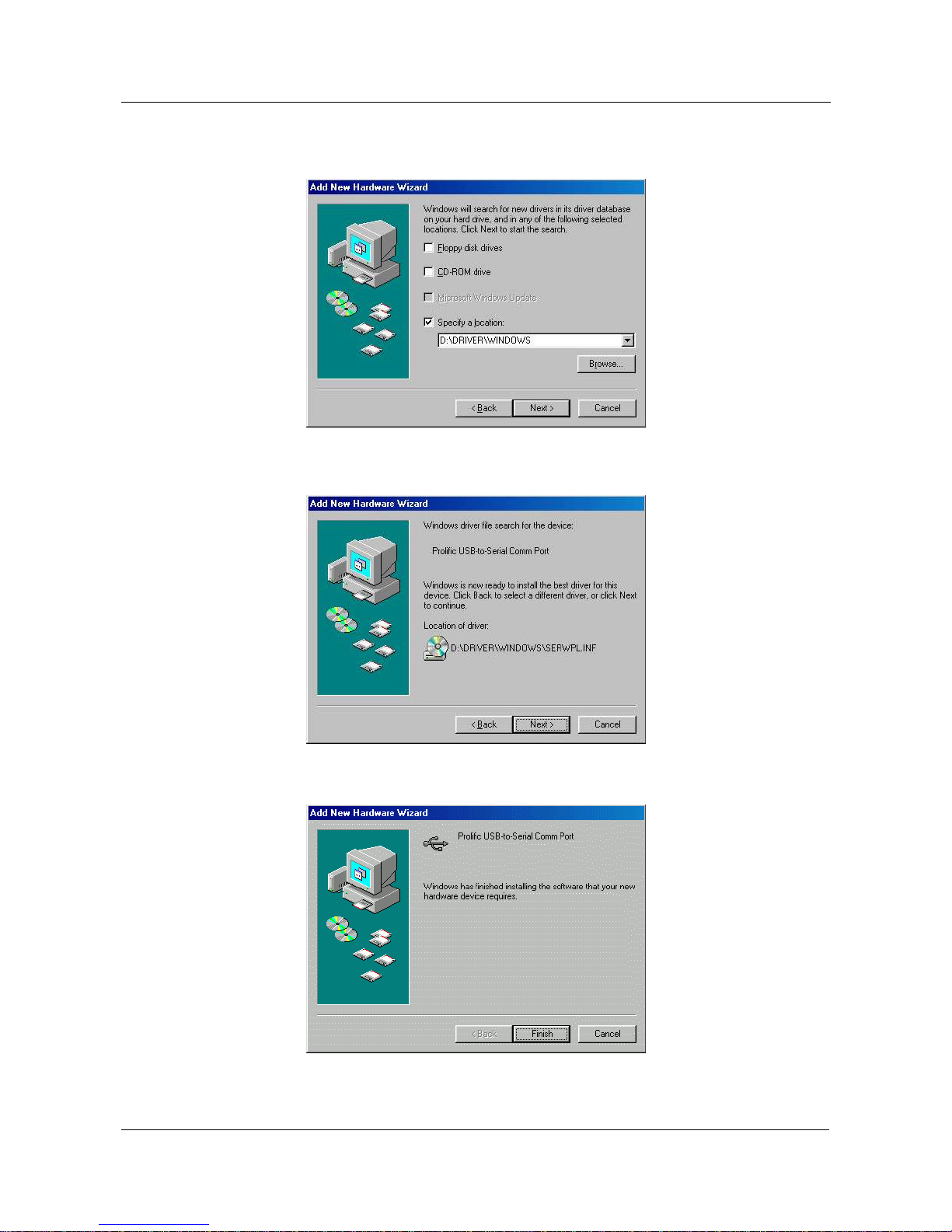
5.1.4 Insert the USB-Serial adapter software driver into the CD-ROM drive
and select Specify a location and type the “D:\Driver\Windows” in
the dialogue (D: represents CD-ROM)
5.1.5 Windows®will detect the driver (SERWPL.INF) and shows the
Prolific USB-to-Serial Comm Port. Click “Next” to continue
installation.
5.1.6 Click Next to continue and let Windows®copy the needed files to your
hard disk.

USB to Serial Adapter User’s Manual 5
5.1.7 When Windows®finished installing the software, click “Finish”.
5.1.8 After install the driver, you have to check the“Control Panel”-
“System”-“Device Manager” to make sure the driver has already
installed, you can see aUSB to Serial Port (COM3) under the Ports
(COM & LPT) and a Prolific USB-to-serial Com Port under the
Universal Serial Bus Controller.
USB to Serial Adapter User’s Manual 6
5.2 Windows®98 Driver Un-installation
If you want to remove theUSB-Serial adapter driver, you can uninstall it by
following the steps below:
5.2.1 Unplug the USB-Serial adapter from your PC.
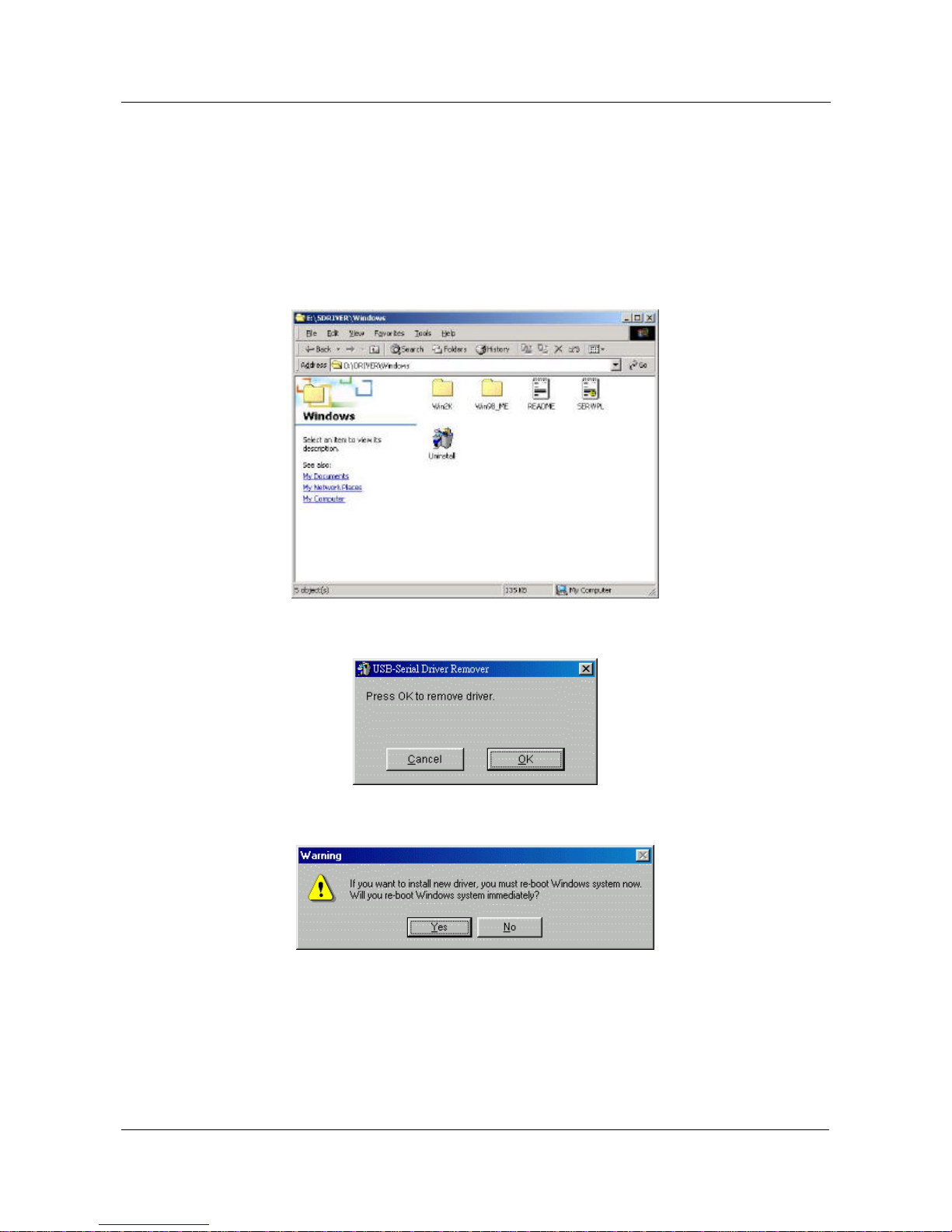
5.2.2 Run the D:\Driver\WINDOWS\Uninstall.exe from the software CD-
ROM.
5.2.3 Click “Ok” to continue.
5.2.4 After remove the driver, you have to reboot the PC

USB to Serial Adapter User’s Manual 7
5.3 Windows®ME Driver Installation
Follow the steps below to install Windows®ME driver
5.3.1 Power on your computer and make sure that the USB port is enabled
and working properly.
5.3.2 Insert the USB-Serial adapter software driver into the CD-ROM drive
and Plug in theUSB-Serial adapter into the USB port; select the
Automatic search for a better driver (recommended), and then
click “Next” to continue.
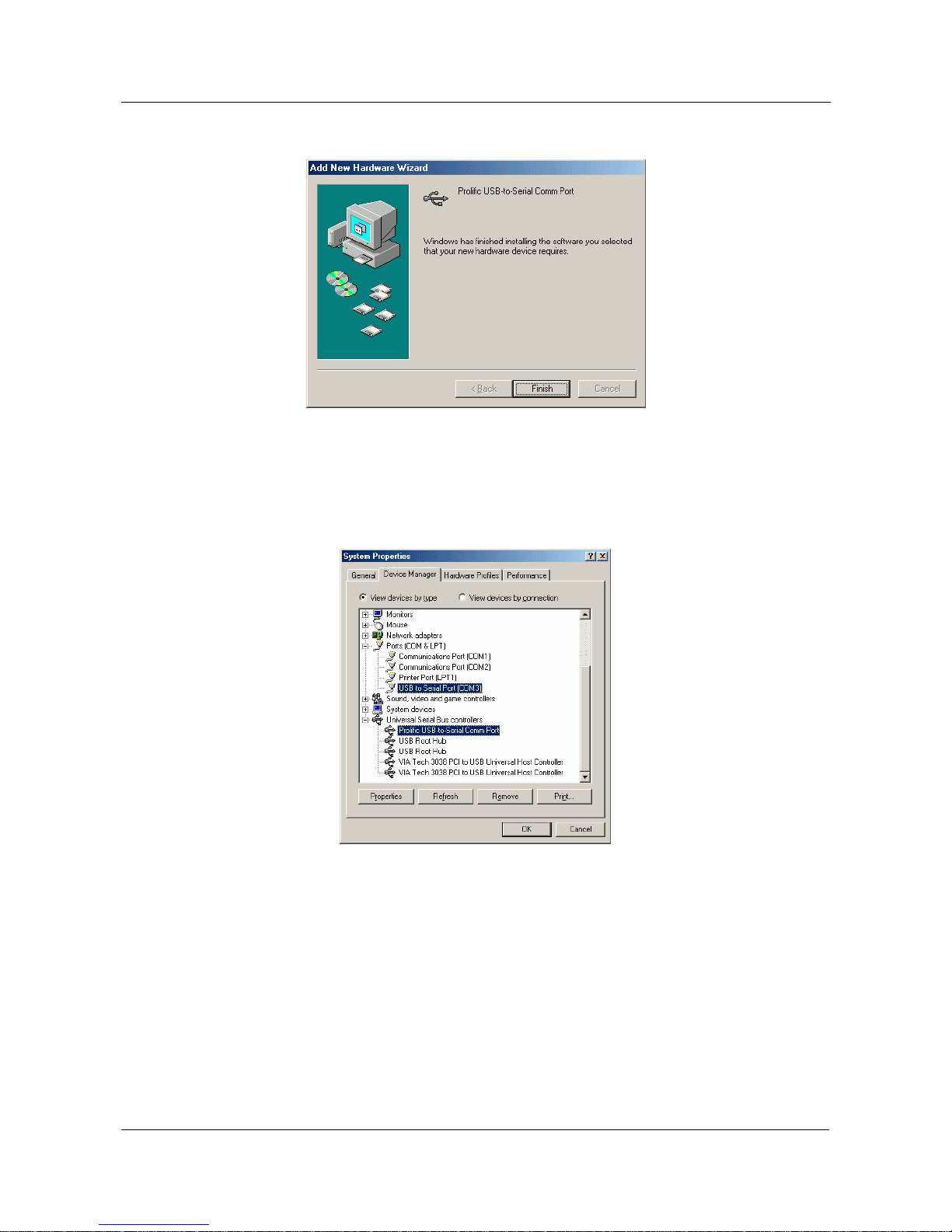
5.3.3 Windows®will detect the driver (SERWPL.INF) and show theProlific
USB-to-Serial Comm Port.
USB to Serial Adapter User’s Manual 8
5.3.4 When Windows®finished installing the software, click “Finish”.
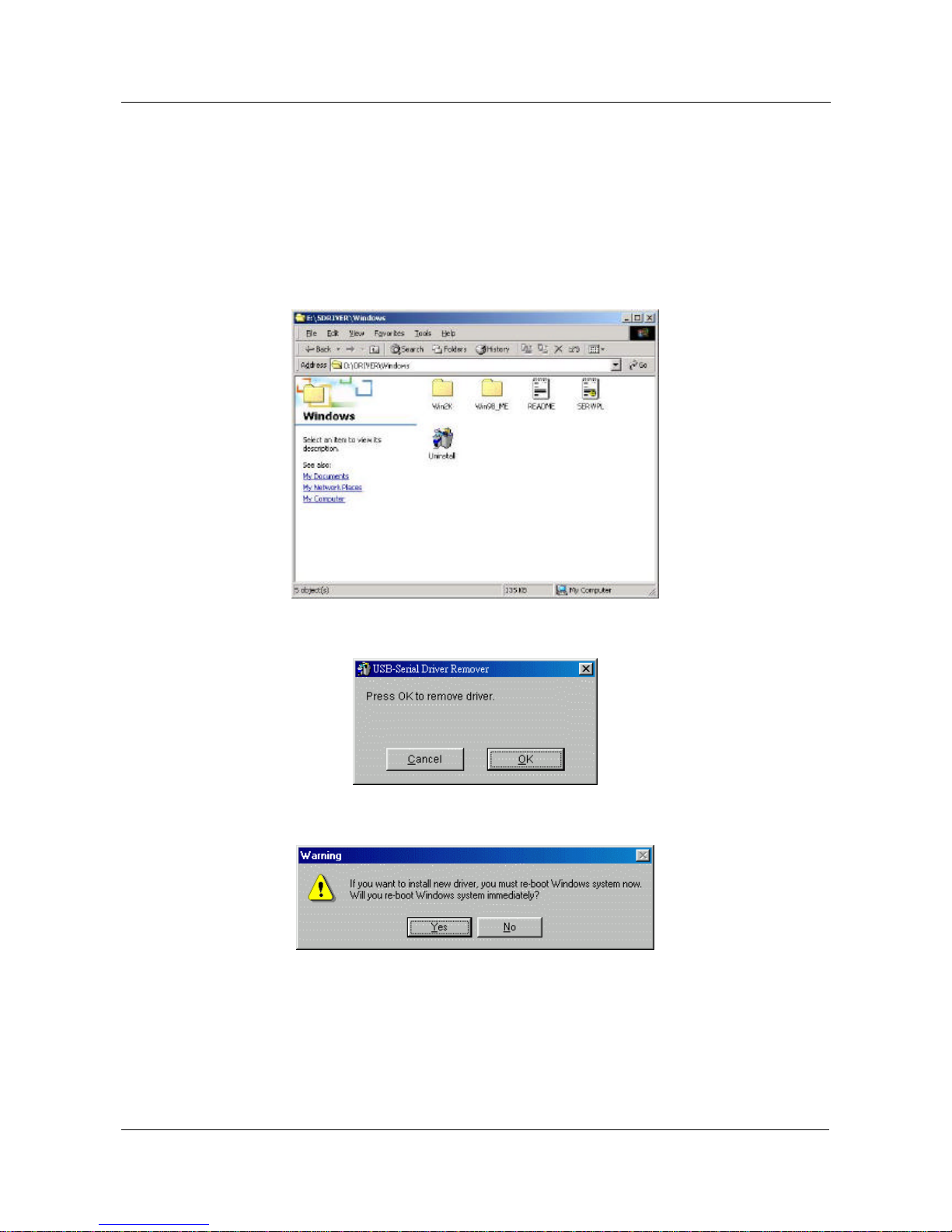
5.3.5 After install the driver, you have to check the“Control Panel”-
“System”-“Device Manager” to make sure the driver has already
installed, you can see aUSB to Serial Port (COM3) under the Ports
(COM & LPT) and a Prolific USB-to-serial Com Port under the
Universal Serial Bus Controller.
USB to Serial Adapter User’s Manual 9
5.4 Windows®ME Driver Un-Installation
If you want to remove theUSB-Serial adapter driver, you can uninstall it by
following the steps below:
5.4.1 Unplug the USB-Serial adapter from your PC.
5.4.2 Run the D:\Driver\WINDOWS\Uninstall.exe from the software CD-
ROM.
5.4.3 Click “Ok” to continue.
5.4.4 After remove the driver, you have to reboot the PC
This manual suits for next models
1
Table of contents
Other Bafo Adapter manuals