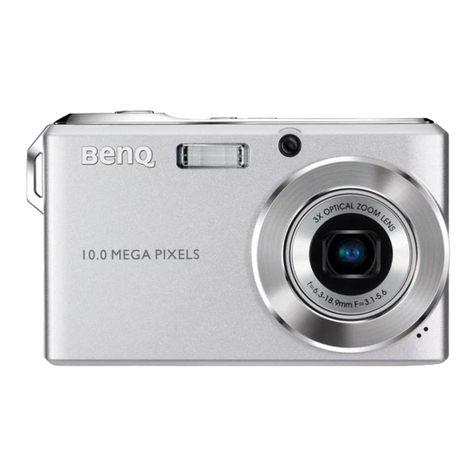
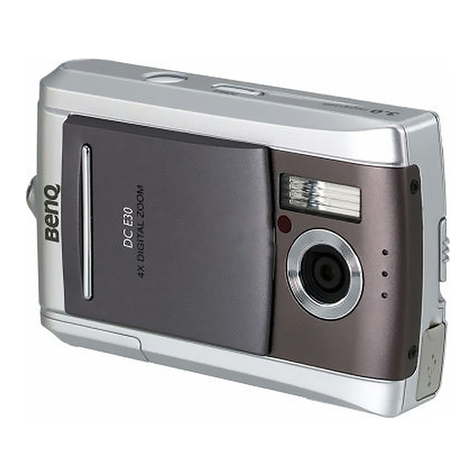
BenQ DC 3310 User manual

Digital Camera 3310
User’s Manual

Copyright
Copyright (c) 2001 by Benq Corporation. All rights reserved. No part of this publication
may be reproduced, transmitted, transcribed, stored in a retrieval system or translated
into any language or computer language, in any form or by any means, electronic,
mechanical, magnetic, optical, chemical, manual or otherwise, without prior written per-
mission from Benq Corporation.
Brands and product names are trademarks or registered trademarks of their respective
companies.
Disclaimer
Benq makes no warranty of any kind with regard to this material, including, but not lim-
ited to, the implied warranties of merchantability and fitness for a particular purpose.
Benq assumes no responsibility for any error that may appear in this document. Benq
makes no commitment to update nor to keep current the information contained in this
document.
Taking care of your camera
• Do not use your camera over the following environmental range: temperature: O C to
40 C, relative humidity: 45% ~ 85%.
• Do not use or store your camera in environments listed below:
Direct sunlight.
High humidity and dusty places.
Next to the air conditioner, electric heater or the other heat sources.
In a closed car that is directly under the sun.
Avoid shaky places.
• If your camera becomes wet, wipe it with dry cloth as soon as possible.
• Salt of seawater may cause severe camera damage.
• Do not use organic solvents, such as alcohol, etc., to clean your camera.
• If the lens or viewfinder is dirty, please use the lens brush or soft cloth to clean the
lens. Do not touch the lens with your fingers.
• To prevent electrical shock, do not attempt to disassemble or repair your camera by
yourself.
• Water may cause a fire or electric shock. Therefore, please store your camera in a dry
place.
• Do not use your camera outdoors when it is raining or snowing.
• Do not use your camera in the water.
• If the foreign substance or water gets in your camera, please tum the power off imme-
diately and disconnect the batteries and the transformer. Remove the foreign sub-
stance or water, and send it to the maintenance center.
• Transfer the data to the computer as soon as possible to avoid losing your image data.

Benq DC 3310 User’s Manual
1. Touring your DC 3310 ................................. 1
1.1. Checking package contents ................................................1
1.2. Parts of the DC 3310 and their names ............................1
1.2.1. Front View ............................................................................................1
1.2.2. Rear View ..............................................................................................2
1.2.3. Top View ...............................................................................................2
1.2.4. Bottom View ........................................................................................2
2. Preparing your DC 3310 for using ............. 3
2.1. Installing batteries and memory card ...............................3
2.2. Turning on the power .........................................................4
2.2.1. Turning on the power ........................................................................4
2.2.2. Turning on the power for taking photos (Camera Mode) ........4
2.2.3. Turning on the power for viewing photos (Play Mode) .............4
2.3. Turning off the power .........................................................5
2.3.1. Turning off the power ........................................................................5
2.3.2. Power Save Mode ................................................................................5
2.3.3. Auto Shut Down Mode ......................................................................5
3. Using the DC 3310 ........................................ 6
3.1. Use Camera Mode to take photos ...................................6
3.1.1. Still Mode ...............................................................................................6
3.1.2. Burst Mode ...........................................................................................6
3.1.3. Video Mode ..........................................................................................7
3.1.4. Self-timer Mode ...................................................................................8
3.2. The Camera Mode Setting Menu on LCD screen .......8
3.3. Taking Photos ........................................................................9
3.3.1. To take photos using the viewfinder ..............................................9
3.3.2. To take photos using the LCD monitor ........................................9
3.4. Hot Keys for taking photos ................................................11
3.4.1. Hot key for selecting flash mode .....................................................11
3.4.2. Hot key for adjusting exposure value .............................................11
3.4.3. Hot key for zooming in or out on the object ..............................12
3.4.4. Hot key for setting the macro mode ..............................................13
3.4.5. Hot key for LCD monotor icon display mode .............................13
3.5. The Camera Mode Setting menu ......................................14
3.5.1. Adjusting image compression ...........................................................15
3.5.2. Adjusting image resolution ................................................................15

Benq DC 3310 User’s Manual
3.5.3. Setting macro mode ............................................................................16
3.5.4. Setting white balance modes ............................................................17
3.5.5. Setting monochrome modes ............................................................18
3.5.6. Setting metering modes .....................................................................19
3.5.7. Setting exposure compensation value ............................................19
3.5.8. Adjusting Zoom Function ..................................................................21
3.5.9. Setting date-imprinting modes ..........................................................22
3.5.10. Setup Menu (Tool Box) ...................................................................22
3.6. Use Play Mode to View Photos and images on the LCD
screen .......................................................................................24
3.6.1. Still Mode ...............................................................................................24
3.6.2. Thumbnail Mode ..................................................................................25
3.6.3. Video Mode ..........................................................................................25
3.6.4. Slide show Mode .................................................................................26
3.7. The Play Mode Setting Menu on LCD screen ................26
3.8. Options for viewing images ................................................27
3.9. The Play Mode Setting menu .............................................28
3.9.1. Erasing images ......................................................................................29
3.9.2. Locking and unlocking images ...........................................................29
3.9.3. Zoom in on an image ..........................................................................30
3.9.4. Print Out Setting (DPOF Protocol) ................................................31
3.9.5. Setup Menu (Tool Box) .....................................................................32
4. PC dependent features ............................... 33
4.1. Preparations ...........................................................................33
4.1.1. Installing digital camera software .....................................................33
4.1.2. The Software of this Installation CD ..............................................34
4.1.3. DC 3310 Driver installation instruction ........................................35
4.2. Connecting the DC 3310 to your PC ..............................35
5. TV dependent features ................................ 37
Connecting the DC 3310 to TV ...............................................37
6. Lithium battery charger (adapter) usage .. 38
6.1. Connecting the charger as a power adapter ..................39
6.2. Use Charger To Charge Lithium Battery ........................40
7. Troubleshooting ........................................... 41
8. Service information ...................................... 42

Benq DC 3310 User’s Manual
1
1. TOURING YOUR DC 3310
1.1. Checking package contents
The package should include the following items:
1.2. Parts of the DC 3310 and their names
1.2.1. Front View
DC 3310 digital camera Battery charger/Adapter TV cable
USB cable
Lithium Battery x 1 16MB Compact Flash memory card DC 3310 software CD-ROM
Hand Strap User’s Manaul
Strobe
Lens
Viewfinder
Lens Cover
Microphone
Hand Stop
Speaker
Cover (USB, DC-jack,
Video-out)
Selftimer LED

Benq DC 3310 User’s Manual
2
1.2.2. Rear View
1.2.3. Top View
1.2.4. Bottom View
Color LCD monitor
Navigation button
(Up/Down/Right/Left)
Disp/OK button
Close-up correction
marks
Viewfinder Inside viewfinder
Strobe charging LED
(red)
Auto Focus LED
(green)
Viewfinder
Menu/ Cancel button
Auto-focus mark
Strap Hitch
Switch (Still/Birst/Video/ Selftimer)
AF/Capture Button
Switch (Camera/Play)
Flash Status Button (Auto/On/Off/Anti Red-eye)
Battery compartment & Memory
card slot cover
Tripod set

Benq DC 3310 User’s Manual
3
2. PREPARING YOUR DC 3310 FOR USING
2.1. Installing batteries and memory card
Follow the steps below to install battery and memory card.
Press the PUSH button on the battery
cover and then slide the cover in the
direction shown.
Open the cover. Then press down the
elastic bar beside the memory
card socket untill the bar is fixed.
! Caution: You can insert the memory card
only when the bar is fixed.
Place battery in the battery compartment
and then press down the memory card
into the socket until it is firmly fixed.
Close battery compartment cover and
slide the cover in the direction shown.
You will hear a click sound when the
cover
is firmly closed.

Benq DC 3310 User’s Manual
4
2.2. Turning on the power
2.2.1. Turning on the power
Note: If no memory card is presented in the memory card slot, the LCD
screen shows “Insert Card”.
2.2.2. Turning on the power for taking photos (Camera
Mode)
2.2.3. Turning on the power for viewing photos (Play Mode)
To turn on the power, you have to slide the lens
cover in the direction shown. You will see the LCD
screen show a frame of Benq logo. Then this camera
is ready to work.
The indicators on the Flash mode button will also
blink for a few seconds at the same time.
Slide the mode switch button to the position shown.
Then press the capture button to take your first pic-
ture. The picture taken in the memory card will be
reviewed on the LCD screen later on.
Slide the mode switch button to the position shown.
Then you can view all the images you have taken. The
last image taken in the memory card will appear on
the LCD screen later on.
BENQ logo frame

Benq DC 3310 User’s Manual
5
2.3. Turning off the power
2.3.1. Turning off the power
2.3.2. Power Save Mode
The DC 3310 supports power save function. If the DC 3310 doesn’t receive any
operation from the user for 3 minutes, it will enter power save mode automati-
cally.
However, you can press any key to wake up the DC3310 from power save mode.
2.3.3. Auto Shut Down Mode
The DC 3310 supports auto shut down function. If the DC 3310 doesn’t receive
any operation from the user for 5 minutes, it will enter auto shut down mode and
automatically shut down instantly. To wake up the DC3310 from auto shut down
mode, you have to close the lens cover and slide it open to turn on the power
again.
To turn off the power, you have to slide the lens
cover in the direction shown. You will see the LCD
screen turn blank. Then the power is turned off.

Benq DC 3310 User’s Manual
6
3. USING THE DC 3310
The functions of DC 3310 are mainly composed of two modes-Camera mode and Play
mode. In this chapter, we will introduce the functions of DC 3310 according to these two
modes.
3.1. Use Camera Mode to take photos
3.1.1. Still Mode
If the still mode is activated in camera mode, you can take photos by pressing the
capture button, the camera will take one photo a time automatically by auto-focusing.
To activate the still mode:
When the still Mode is activated, the LCD screen will show icons as follow:
3.1.2. Burst Mode
If the burst mode is activated in camera mode, you can take more than one photo a
time by pressing the capture button. The number of photos taken is decided by the
resolution you set. It is shown as follows:
1024 x 768: the camera will take 4 photos a time automatically.
640 x 480: the camera will take 8 photos a time automatically.
Adjust the switch to still mode on the top of the cam-
era. Then the still mode will be activated. When still
mode is activated, the icon will appear on the
LCD screen.
This manual suits for next models
1
Table of contents
Other BenQ Digital Camera manuals