14 07
Navigation setting
Navigation path has been set at the factory, please do not enter
the navigation setup interface to change the path freely, otherwise
the procedure many lead to abnormal navigation. Time setting
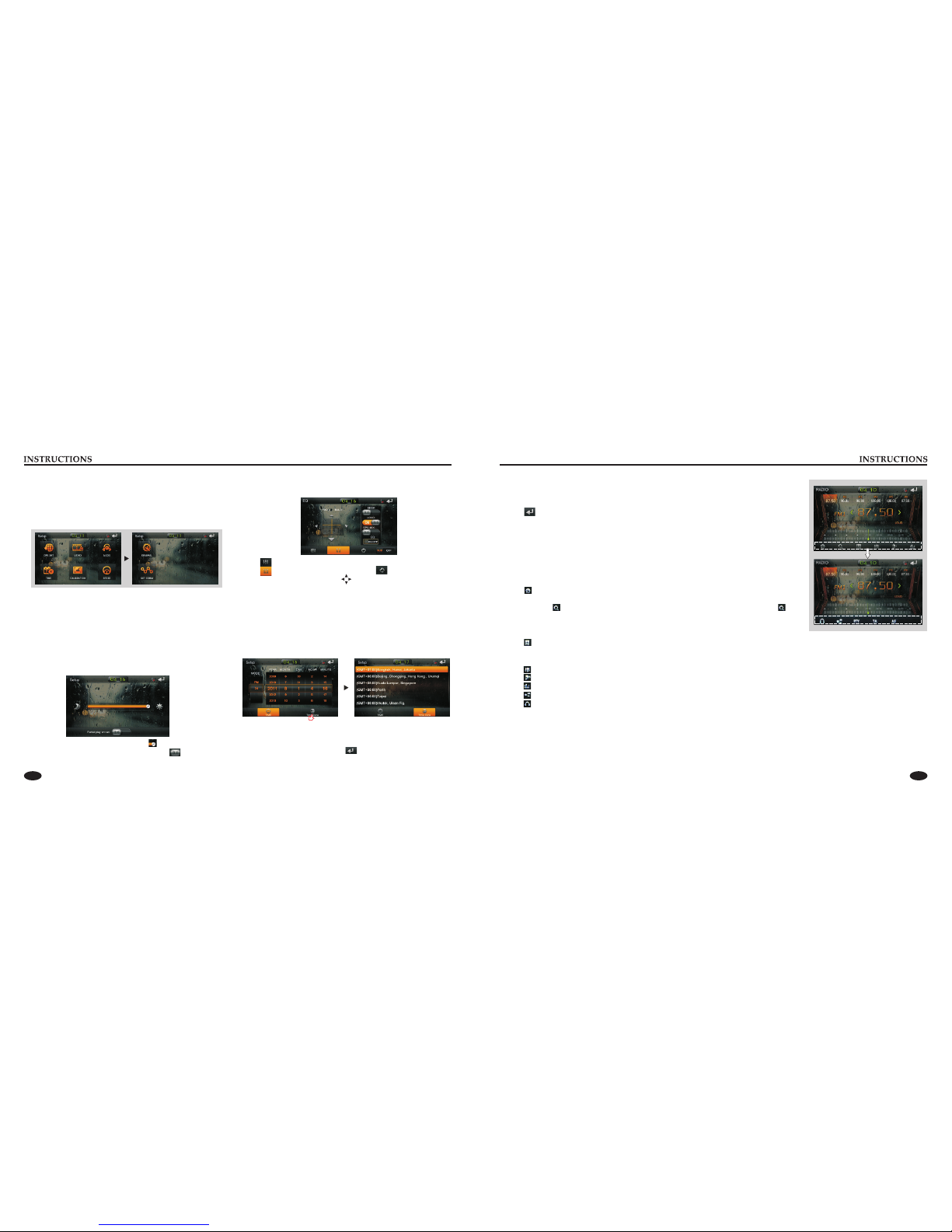
Click the Settings interface Time setting icon, enter the Time
settings screen, as shown below:12h/24h interchangeable,
In the year, month, day, hour, sub-office slide up and down to
the relevant settings.
Zone is set to enter the time zone settings interface when clicked.
Choose the time zone, click the icon to save your settings
and exit the time setting interface.
Audio setting
In the set interface click [AUDIO] icon, into the Audio set interface.
Click into sound effect default interface.
Press into loudspeaker interface, click to adjust the
channel of loudspeaker, touch to get back to initial setting.
BEEP: click that icon to switch on/off that.
LOUD: click that icon to switch on/off that.
GPS. MIX: click that icon to switch on/off that.
EQ: click that icon to switch different mode.
Basic operation setup menu
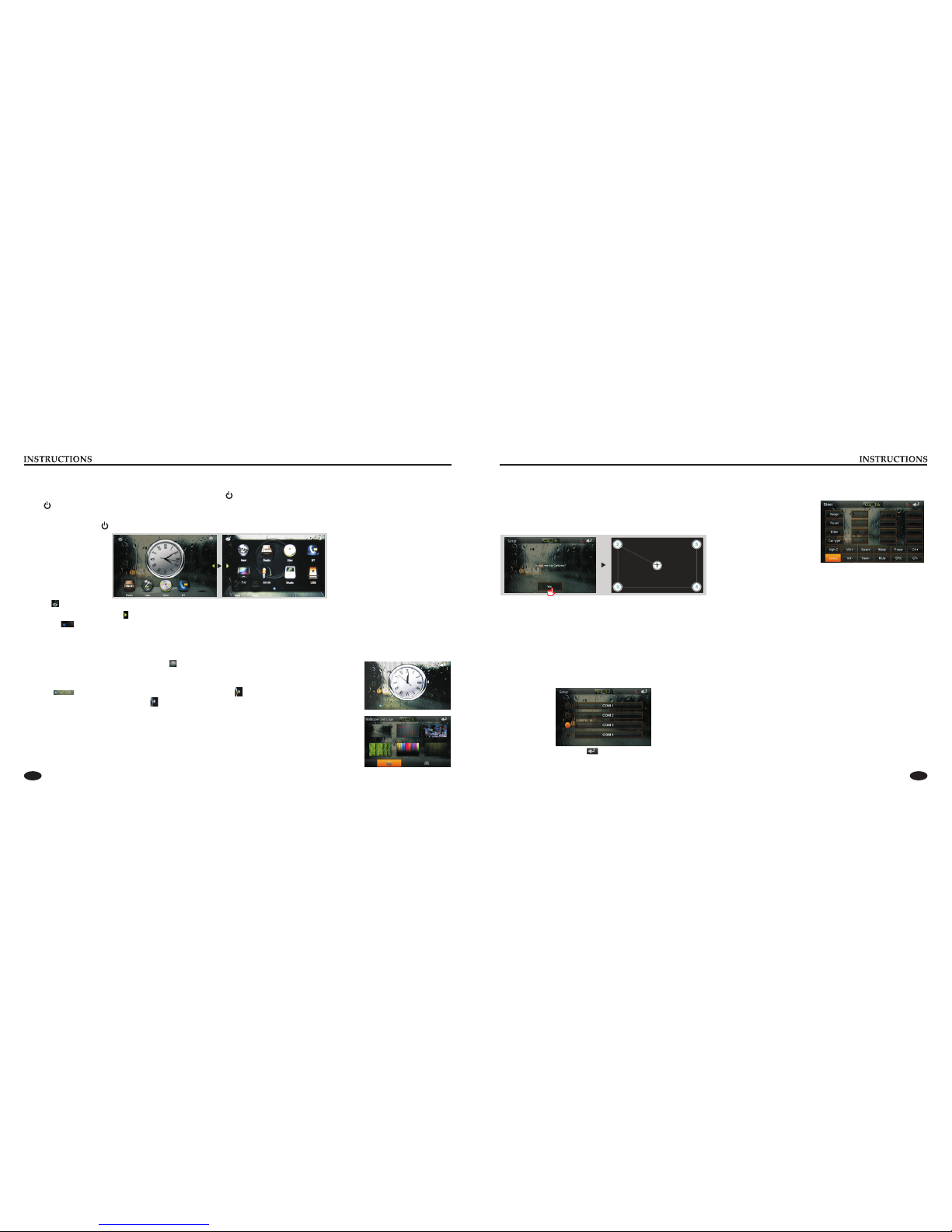
Click on the main screen [Setup] icon, enter the setting interface.
With a finger or touching pen to gently sliding screen can be set
about switching interface.
Access setup interface
Video setting
In the set interface click [VIDEO] icon, into the video set interface.
Brightness:
Forbid play on run: Driving ban and click on play icon can
open/close the function (Optional).
Drag icon can adjust video the screen brightness.
Radio Function Operation
1. Enter/exit
Touch [Radio] icon in the main interface to enter into the radio interface.
2. Operation stored radio
Each band can be stored six radio stations, radio stations can be stored directly click (P1-P6)
choice, and will be displayed on the screen.
3. How to save radio stations
Select a band, and then select a radio station. Press and hold button (P1-P6) to select the preset
number will appear in the corresponding number button on the screen.
Touch [
5. Search/Save radio stations
Short touch the [ ] button, browse 1-6 sets of bits stored on the radio, Long touch the [ ]
button to long-automatic station search, and the strongest radio signals P1-P6 are stored in the
display position on the table.
6. Play radio station selection
Touch [ ] icon pop-up selection sets the keyboard input radio frequency selectable radio frequency spectrum or you can drag
directly touch the icon to select a stored radio station.
Touch [ ] can enter icon spectrum interface. Double-click the spectrum can switch over the spectrum style.
Touch the corresponding icon had no effect
Touch [ ] icon to return to main interface, and then touch other function icons so as to exit
radio mode.
4. Band selection
] icon so as to switch among FM1, FM2, FM3, AM1, AM2 bands.
7. Other Functions
Touch [ ] icon to access sound setting interface.
Touch [ ] icon so as to turn on/off loudness function.
Touch [ ] icon so as to turn on/off Long/Short-Range function.
Touch [ ] icon to turn on/off stereo.
8. RDS Function
RDS function provides series information (such as traffice information, name of station) ,and can automatically switch to
the station with stronger signal and carries the same program.
AF: touch the button to turn on/off AF mode.
TA: touch the button to turn on/off TA mode.
PTY: touch the button the screen displays program types, users can search station according to program type.
NOTE: If the unit does not have RDS function, it has no AF/TA/PTY function, .
Sliding around