manuals.online logo
Brands
  1. Home
  2. •
  3. Brands
  4. •
  5. Browning
  6. •
  7. Scouting Camera
  8. •
  9. Browning SUB MICRO Series User manual

Browning SUB MICRO Series User manual

This manual suits for next models

1

Other Browning Scouting Camera manuals

Browning BTC-2 User manual

Browning

Browning BTC-2 User manual

Browning BTC-1 User manual

Browning

Browning BTC-1 User manual

Browning Strike Force BTC-5HD User manual

Browning

Browning Strike Force BTC-5HD User manual

Browning BTC-6HDE User manual

Browning

Browning BTC-6HDE User manual

Browning BTC-4 User manual

Browning

Browning BTC-4 User manual

Browning Strike Force Sub Micro 10MP User manual
Browning

Browning Strike Force Sub Micro 10MP User manual

Browning Range PS Series User manual

Browning

Browning Range PS Series User manual

Browning Sub Micro Series User manual

Browning

Browning Sub Micro Series User manual

Browning Specops Series BTC-8FHD User manual

Browning

Browning Specops Series BTC-8FHD User manual

Browning Command Ops Pro BTC-4P-16 User manual
Browning

Browning Command Ops Pro BTC-4P-16 User manual

Browning BTC-3 User manual

Browning

Browning BTC-3 User manual

Browning Dark Ops HD ProX BTC-6HDPX User manual

Browning

Browning Dark Ops HD ProX BTC-6HDPX User manual

Browning BTC-1XR User manual

Browning

Browning BTC-1XR User manual

Browning BTC-3 User manual

Browning

Browning BTC-3 User manual

Browning BTC-5HD-XV User manual

Browning

Browning BTC-5HD-XV User manual

Browning Defender Ridgeline Operator's manual
Browning

Browning Defender Ridgeline Operator's manual

Browning Strike Force HD Pro X BTC-5HDPX User manual

Browning

Browning Strike Force HD Pro X BTC-5HDPX User manual

Browning BTC-DWC-ATT User manual

Browning

Browning BTC-DWC-ATT User manual

Browning BTC-7FHD-P User manual

Browning

Browning BTC-7FHD-P User manual

Browning Strike Force BTC-5HD User manual
Browning

Browning Strike Force BTC-5HD User manual

Browning BTC-3 User manual

Browning

Browning BTC-3 User manual

Popular Scouting Camera manuals by other brands

Stealth Cam CORE STC-Z3IRTL instruction manual

Stealth Cam

Stealth Cam CORE STC-Z3IRTL instruction manual

Suntek HC-800M user manual

Suntek

Suntek HC-800M user manual

Spypoint G4 user manual

Spypoint

Spypoint G4 user manual

Nestbox C13 user guide

Nestbox

Nestbox C13 user guide

Duramaxx 10029765 user manual

Duramaxx

Duramaxx 10029765 user manual

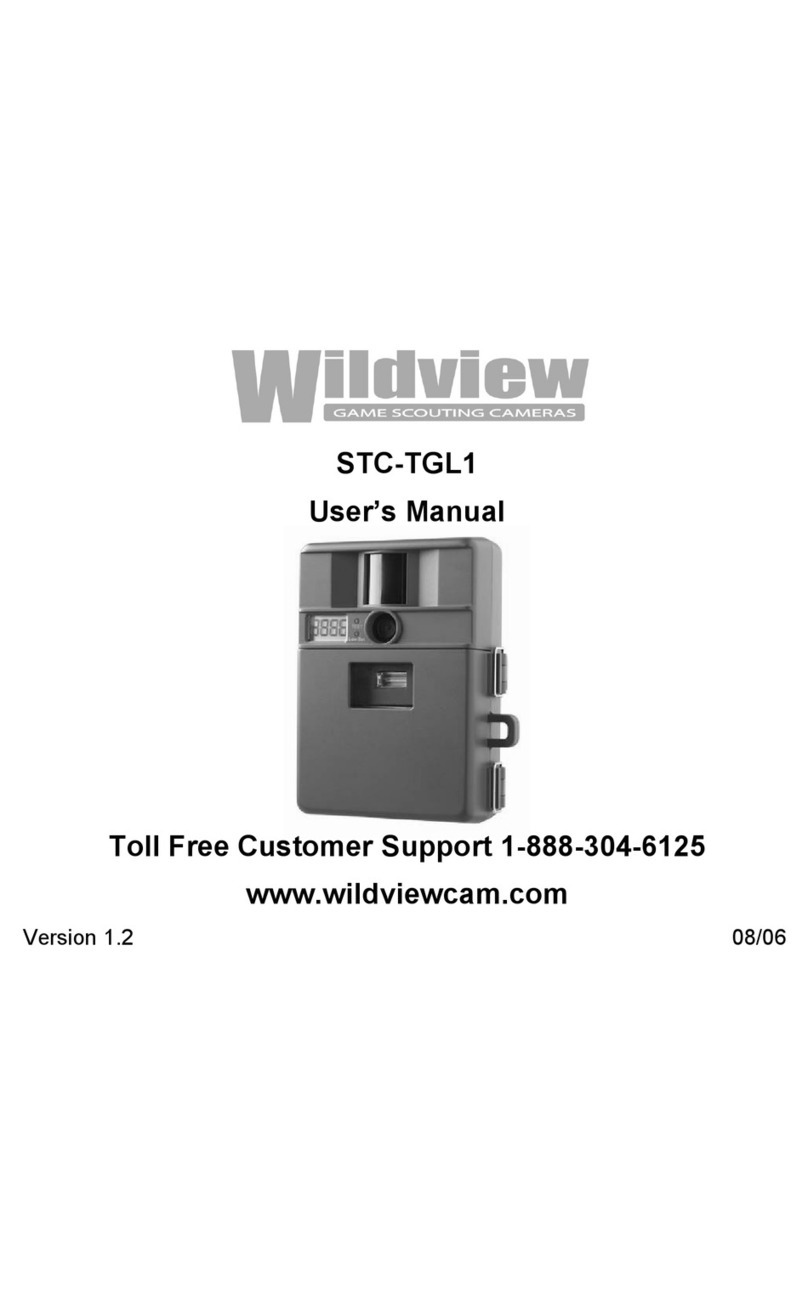
Wildview STC-TGL1 user manual

Wildview

Wildview STC-TGL1 user manual

Bestok 5210GM user manual

Bestok

Bestok 5210GM user manual

BlazeVideo A280W instruction manual

BlazeVideo

BlazeVideo A280W instruction manual

Primos Bullet Proof 2 instruction manual

Primos

Primos Bullet Proof 2 instruction manual

Brecom C2400 user manual

Brecom

Brecom C2400 user manual

Outdooree R6 user manual

Outdooree

Outdooree R6 user manual

Spypoint LINK-CT user manual

Spypoint

Spypoint LINK-CT user manual

Suntek HC-550A user manual

Suntek

Suntek HC-550A user manual

BolyGuard MG882K-8M user manual

BolyGuard

BolyGuard MG882K-8M user manual

ION Camocam Wi-Fi quick start guide

ION

ION Camocam Wi-Fi quick start guide

Minox DTC 400 SLIM instructions

Minox

Minox DTC 400 SLIM instructions

ElectrIQ Pro Outback MINI user manual

ElectrIQ

ElectrIQ Pro Outback MINI user manual

Boly BG710 Series user manual

Boly

Boly BG710 Series user manual

manuals.online logo
manuals.online logoBrands
  • About & Mission
  • Contact us
  • Privacy Policy
  • Terms and Conditions

Copyright 2025 Manuals.Online. All Rights Reserved.

PLEASE READ THIS MANUAL BEFORE USE
MODEL BTC-6FHD
Thank you for purchasing a Browning Trail Camera. Our
trail cameras are constructed of the finest workmanship
and materials available. As hunters ourselves, we have
designed our products to help you get the most of your
time in the field. We hope you enjoy scouting game
for years to come with your new Browning Trail Camera.
Our customer service team is here to help you with any
questions you may have operating or setting up your
new trail camera. Our representatives are available
Monday through Friday from 9am to 5pm CST.
Toll Free Customer Service: 1.888.618.4496
Customer Service email: [email protected]
STEP 1
Press the battery tray eject
button to release the battery
tray. The tray will eject about
1/2”. With a slight pull, the
tray will completely eject.
Insert 6 AA Alkaline Batteries
and an SD card into the camera.
STEP 2
Using the contral pad,
set the time and date.
STEP 3
Press the MODE button once.
Camera will countdown a 30
second delay and then be ready
to capture images.
QUICK START GUIDE
TABLE OF CONTENTS
1- Package Contents
1- Batteries and SD Cards
2- Camera Diagram
3- Battery Installation
4- Home Screen
5- Set Time and Date
6- Operation Mode
7- Photo and Video Quality
8- Video Length / Picture Delay
9- Mulitshot Settings
10- Temperature / Camera Name
11- Image Date / Motion Test
12- Motion Detection / Battery Type / Trigger Speed / Default Settings
13- Timelapse Settings
14- Smart IR / SD Card Management
15- Delete Images / IR Flash Power
16- Capture Timer / Firmware Upgrade
17- Image Retrieval
18- Timelapse Viewer Software
19- Field Installation
20- Warranty
21- Accessories
22- FCC
23- Camera Specifications / SD Card Size Chart
Getting Started
Package contents:
1- Trail Camera
1- 6’ Tree Strap
1- Instruction Manual
SD Card Selection
Install a good quality memory card. The best
brands of SD cards are Browning branded cards,
Sandisk or Kingston branded cards. Your camera
can operate on standard class 10 or higher SD
cards ranging from 8-32 GB. You can also use
higher capacity SDXC cards ranging from 64-512GB.
Please see page 23 for a graph showing how many
photos, videos and timelapse segments can be
stored on SDHC or SDXC cards from 8-32GB. Based
on your intended camera usage, this table will
help you determine what size SD card you need
to use in your camera. 1
Camera Diagram
Camera
Lens
2
IR LEDs
PIR Sensor
Microphone
Light
Sensor
Programming
Buttons
LCD
Screen
Power Switch
12 Volt Ext
Power Port
Battery Eject
Button
SD Card Slot
Aim LED
Battery Installation
Release the battery tray
by pressing the Battery
Eject button. The battery
tray will eject about 1/ 2”.
To completely remove the
battery tray, simply pull the
tray with a bit of force.
Slide the battery tray
into the closed position. 3
Install 6 AA Alkaline,
Lithium or Rechargeable
batteries in the battery
tray. Make sure you install
the batteries with the correct
polarity, following the
markings on the battery tray.
For optimal performance
we recommend using
Browning branded batteries,
Energizer™or Duracell™.
Battery
Eject
Button
4
Home Screen
Turn the camera’s power on
by sliding the power
switch to the ON position.
The home screen displays the camera operation mode,
pictures or videos taken, pictures or videos possible on
the SD card, camera delay countdown and battery life
icon. With home screen displayed, the camera is armed
and ready to start taking pictures.
The possible camera modes displayed are Trail, Video and
Timelapse Plus.
The delay countdown changes to RDY to indicate the camera
is ready to take a picture.
The battery life meter shows the state of charge left
in your batteries.
The battery indicator changes to EXT when an external
battery is plugged into the external power port.
SET DATE / TIME
01 / 05 / 22 12:21PM
Set Time and Date
To Set the time and date:
Press the ENTER button once after you have made your
selection for AM/PM. This will lock in your settings.
5
From the HOME screen, press the MODE button once. This
will take you to the SET TIME AND DATE screen.
Press the ENTER button once. The month selection will
begin flashing. Use the UP and DOWN buttons to set the
correct month.
When finished setting the month, press the RIGHT ARROW
key to advance to set the correct day. Continue through
all settings in this manner until the correct time
and date appear.
Once finished, press the DOWN ARROW key to continue
to the next camera setting option.
6
OPERATION MODE
TRAIL
Operation Mode
To set the camera’s CAPUTRE MODE, press the ENTER button
once. The selection TRAIL will begin to flash.
Using the UP or DOWN arrow keys, select the operation
mode for your camera. Press the ENTER key when finished.
CAPTURE MODE OPTIONS:
- TRAIL CAM This setting will take still pictures of game
during the day and night, when motion is detected. This is
the most popular setting for trail camera use. If you are
new to trail cameras, this is the best setting to use.
- TIMELAPSE PLUS Timelapse Plus mode takes pictures during
the day at pre set intervals, which is good for scouting a
large open field where you are not sure where game is
travelling. In addition, your camera will also
take motion activated pictures as well during the day and
night to make sure you do not miss any game activity.
To continue and set the camera’s PHOTO QUALITY, press the
down arrow once.
-VIDEO MODE This setting will take HD video clips of game
during the day and night.