manuals.online logo
Brands
  1. Home
  2. •
  3. Brands
  4. •
  5. Buffalo
  6. •
  7. DC Drive
  8. •
  9. Buffalo DriveStation HD-WSU2 User manual

Buffalo DriveStation HD-WSU2 User manual

Popular DC Drive manuals by other brands

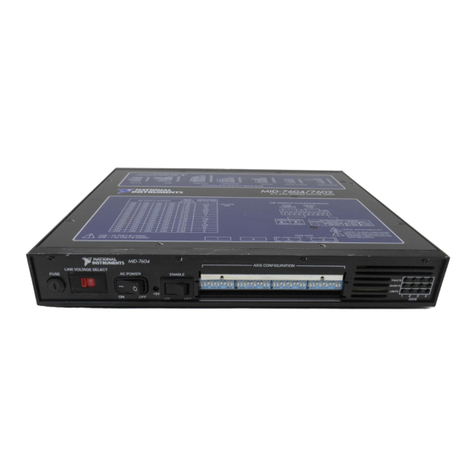
National Instruments NI MID-7604 user guide

National Instruments

National Instruments NI MID-7604 user guide

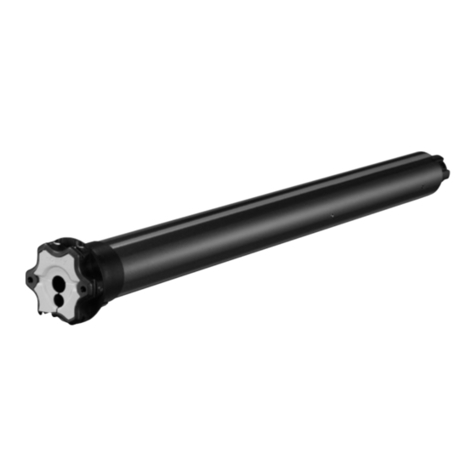
SOMFY Maestria WT Series instructions

SOMFY

SOMFY Maestria WT Series instructions

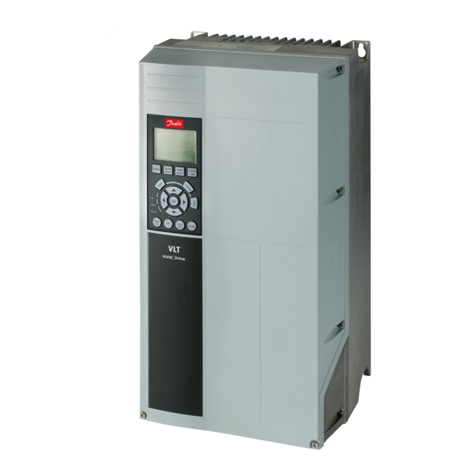
Danfoss VLT HVAC Design guide

Danfoss

Danfoss VLT HVAC Design guide

Trane TR150 Service manual

Trane

Trane TR150 Service manual

Chamberlain Garog D Series operating manual

Chamberlain Garog

Chamberlain Garog D Series operating manual

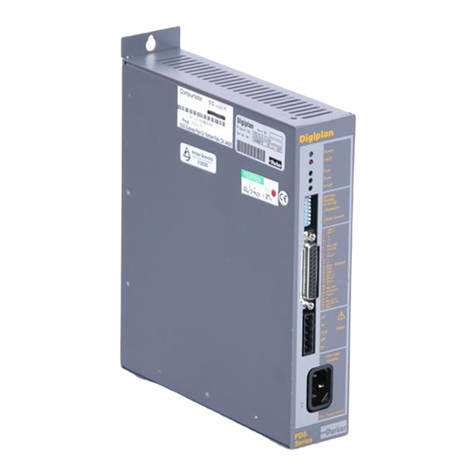
Parker PDS Series user guide

Parker

Parker PDS Series user guide

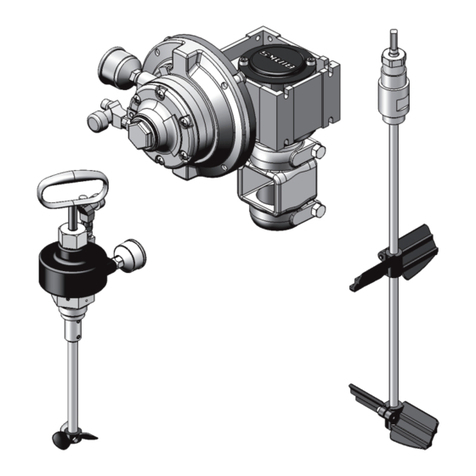
Binks QS-5012-1-CE Service manual

Binks

Binks QS-5012-1-CE Service manual

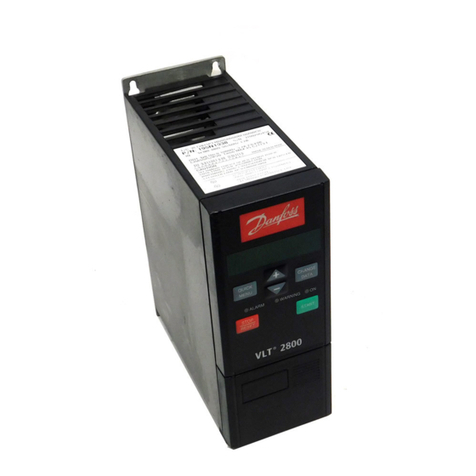
Danfoss VLT 2800 Series Quick setup

Danfoss

Danfoss VLT 2800 Series Quick setup

YASKAWA CANopen SI-S3 Technical manual

YASKAWA

YASKAWA CANopen SI-S3 Technical manual

GE D20A6 instructions

GE

GE D20A6 instructions

Danfoss VLT AQUA Drive FC 202 operating manual

Danfoss

Danfoss VLT AQUA Drive FC 202 operating manual

Lenze PositionServo 940 user manual

Lenze

Lenze PositionServo 940 user manual

Unex MC-D-250-1000-050W-TW operating manual

Unex

Unex MC-D-250-1000-050W-TW operating manual

Geckodrive G213V manual

Geckodrive

Geckodrive G213V manual

ABB RSYC-01 user manual

ABB

ABB RSYC-01 user manual

Rockwell Automation PowerFlex 700S Programming manual

Rockwell Automation

Rockwell Automation PowerFlex 700S Programming manual

WEG DeviceNet CFW500 user manual

WEG

WEG DeviceNet CFW500 user manual

Siemens SINAMICS G List manual

Siemens

Siemens SINAMICS G List manual

manuals.online logo
manuals.online logoBrands
  • About & Mission
  • Contact us
  • Privacy Policy
  • Terms and Conditions

Copyright 2025 Manuals.Online. All Rights Reserved.

QUICK SETUP GUIDE
www.bualo-technology.com
DriveStation HD-WSU2
DriveStation HD-WSU2 Series
Package contents include:
• DriveStation
• USB 2.0 Cable
• Quick Setup Guide
• Setup CD-ROM
• Warranty Statement
Thank you for purchasing a Buffalo DriveStation.
The Buffalo TurboUSB utility can greatly improve the data transfer rates to
and from your Buffalo USB hard drive. The utility cannot be used with other
USB devices.
Package Contents
Introduction
1
Installation
Insert your DriveNavigator CD in your computer’s CD drive.
To set up your DriveStation, click on the DriveStation Setup Wizard and
follow the instructions. (Fig: 1)
To install TurboUSB on your computer, Click on TurboUSB Utility button.
Follow the wizard to complete the installation.
Fig: 1
EN
1
Using TurboUSB 2
Fig: 2
Fig: 3
To use TurboUSB, you must first enable it. From the Start menu, choose
Programs > BUFFALO > TurboUSB > TurboUSB for HD-WSU2. (Fig: 2)
Click Enable and follow the instructions. (Fig: 3)
Once the wizard has completed, disconnect the DriveStation by clicking
on the ‘Safely Remove Hardware’icon in the systray. Then, remove and
reattach the USB cable from the DriveStation to finish activating TurboUSB.
2
EN
Using TurboUSB 2
Fig: 4
Fig: 5
You may also turn TurboUSB off from the same window by clicking Disable
and following the steps (Fig: 3). You must then unplug and reconnect the
USB hard drive to finalise the process. Use the ‘Safely Remove Hardware’
wizard to release the drive before unplugging it.
EN
3
Is TurboUSB enabled?
To check whether TurboUSB is enabled, right-click on My Computer and
choose Properties > Hardware > Device Manager > Universal Serial Bus
controllers. If TurboUSB is enabled, your USB storage device will have
“(TurboUSB)”added to its name. (Fig: 6)
Fig: 6
Fig: 7
Uninstalling
To remove the Buffalo TurboUSB utility from your computer, click Start >
Programs > BUFFALO > TurboUSB > Uninstaller. This will launch an uninstall
screen. Click on Start to run the uninstallation. (Fig: 7)
4
EN
TurboUSB For Mac
The Buffalo TurboUSB utility can greatly improve the data transfer rates
to and from your Buffalo USB hard drive. Other USB devices are not
affected by TurboUSB software.
1. Insert the Buffalo Technology CD in your computer CD drive
2. Double-click on TurboUSB.dmg.
3. Navigate to the“TurboUSB” directory on the Desktop and
double-click on TurboUSBHDDInstall.
4. After the Buffalo TurboUSB software is installed, click Restart.*
* You must restart your Mac.
If TurboUSB is enabled, the icon of your USB storage device will look as
indicated.
Is TurboUSB enabled?
Installation and Using TurboUSB
Technical Specifications
USB Standards: USB Specification Rev. 2.0
Seek Time: Max. 11 milliseconds
Transmission Speed: Max. 480 Mbps
Power Consumption: Max. 47W, Average 25W
Power Supply: AC100-240V 50/60Hz
Dimensions: 3.90” (W) x 6.42”(H) x 8.70” (D)
/ 99.0(W) x 163.0(H) x 221.0(D) mm
Weight: 6.8 lb. / 3.1 kg
Operating Environment: 41 - 95 degree F / 5 - 35 degree C
20-80% humidity (non-condensing)
Weight:
6.8 lb. / 3.1 kg
Power Supply:
AC100-240V 50/60Hz
Transmission Speed:
Max. 480 Mbps
USB Standards:
USB Specification Rev. 2.0
EN
5
Environmental Information
•The equipment that you have purchased has required the extraction and
use of natural resources for its production.
•The equipment may contain hazardous substances that could impact health
and the environment.
•In order to avoid the dissemination of those substances in our environment
and to diminish the pressure on the natural resources, we encourage you to
use the appropriate take-back systems.
•The take-back systems will reuse or recycle most of the materials of your end
life equipment in a sound way.
•The crossed-out wheeled bin symbol invites you to use those systems.
•If you need more information on the collection, reuse and recycling systems,
please contact your local or regional waste administration.
Technical Support
USA/Canada:
Helpdesk Hours 24 hours a day, 7 days a week
Phone 866-752-6210 toll-free
Email info@bualotech.com
Europe:
Helpdesk Hours Monday-Thursday 9:00 AM - 6:00 PM
Friday 9:00 AM - 4:30 PM
Phone +353 61 70 80 50
Phone (UK only) 08712 50 12 60
Email helpdesk@bualo-technology.ie
CE Mark Warning
This is a Class B product. In a domestic environment, this product may cause
radio interference, in which case the user may be required to take adequate
measures.
FCC Warning
This device complies with part 15 of the FCC Rules. Operation is subject
to the following two conditions: (1) This device may not cause harmful
interference, and (2) this device must accept any interference received,
including interference that may cause undesired operation.
6
EN