PlayStation 4 TM Wireless Controller Pairing - Simply put your PlayStation 4 controller into pairing
mode and press the Bluetooth Sync button on your ZEN device.
Step by Step Instructions below.
1. Ensure your wireless PlayStation 4 controller is off.
2. Place your PlayStation 4 controller into Bluetooth pairing mode by holding the
SHARE and HOME buttons for 5 seconds or until the light bar flashes WHITE.
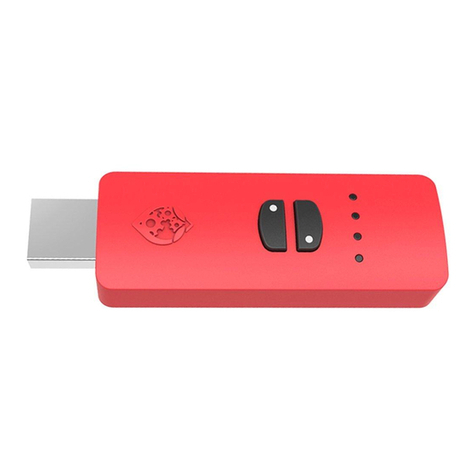
3. Now press the Bluetooth pairing button on the ZENTM device. The LED will flash
BLUE to show Bluetooth pairing has begun.
4. Within a few seconds the LED will be WHITE indicating that pairing is complete.
5. The light bar on the PlayStation 4 controller should be BLUE and you are now connected to the
ZEN device and ready to use your PlayStation 4 controller wirelessly.
PlayStation 3 TM Wireless Controller Pairing - Connect the PlayStation 3 TM controller via a wired
connection first. Then remove the wired connection and your PlayStation 3 TM
controller will automatically pair to ZEN device.
Step by Step Instructions below.
1. Plug your PlayStation 3 TM controller into your ZENTM device. The Player LED
indicator on your PlayStation 3 TM controller will light up.
2. Now remove the wired connection, and your PlayStation 3 TM controller
Player LED indicators will begin to flash.
3. After a few seconds only one Player LED indicator will light up.
4. You are now connected to the ZENTM device and ready to use your PlayStation 3 TM controller
wirelessly.
5. Note that currently if you reconnect and disconnect the cable a second time, the PlayStation 3
TM controller will no longer function wirelessly. To resolve this, simply unplug the ZENTM device
from the Switch TM Dock, and restart from Step 1
Xbox One TM Wireless Bluetooth Controller Pairing - Simply put your Xbox TM controller into sync
mode and press the Bluetooth Sync button on your ZENTM device.
Step by Step Instructions below.
1. Turn on your Xbox One TM Wireless Bluetooth Controller.
2. Press the SYNC button on your controller.
3. Now press the Bluetooth pairing button on the ZENTM device. The LED will flash BLUE to show
Bluetooth pairing has begun.
4. Within 30 seconds the LED will be WHITE on the ZENTM device and the Xbox One TM Wireless
Bluetooth Controller will vibrate indicating that pairing is complete.
5. You are now connected to the ZENTM device and ready to use your Xbox One TM Bluetooth
Controller wirelessly.