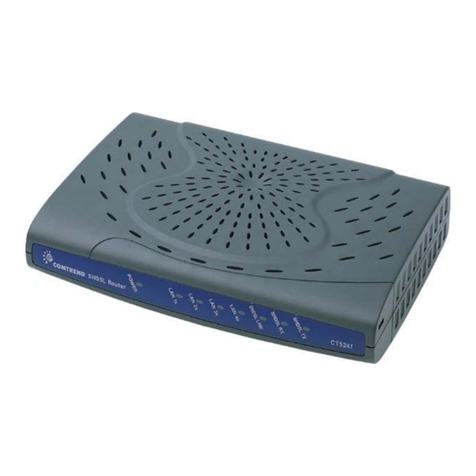
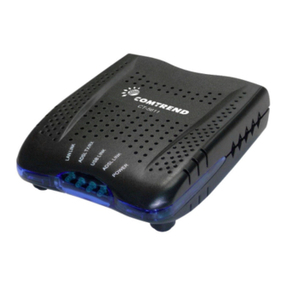
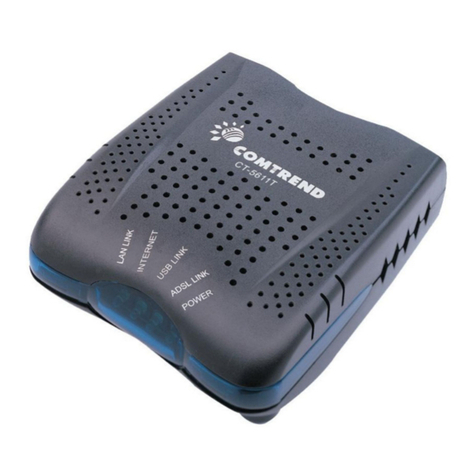
Comtrend Router Installation
1
Installing Access Point’s DS Service with a Comtrend Router
Thank you for selecting Access Point, Inc. to be your Internet service provider. This guide will walk you
through connecting your DSL router and getting your DSL service up and running.
This guide is for new DSL activations only. If you currently have DSL and are switching to Access Point
you will need to schedule your activation by calling 00-957-646 . This guide was created to assist with
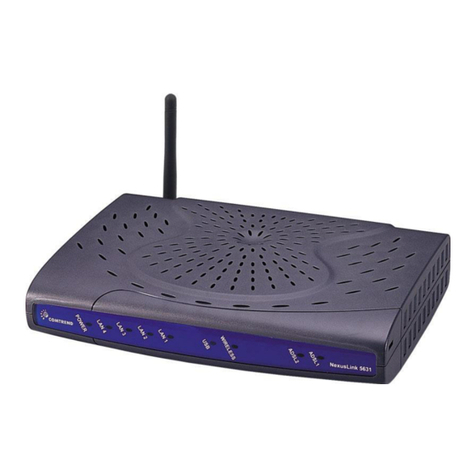
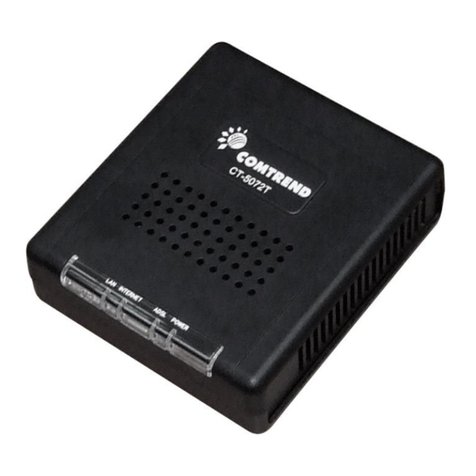
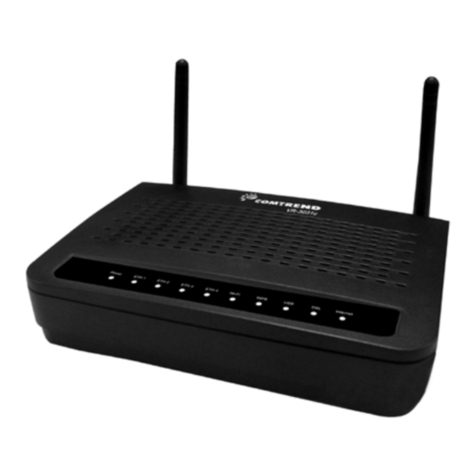
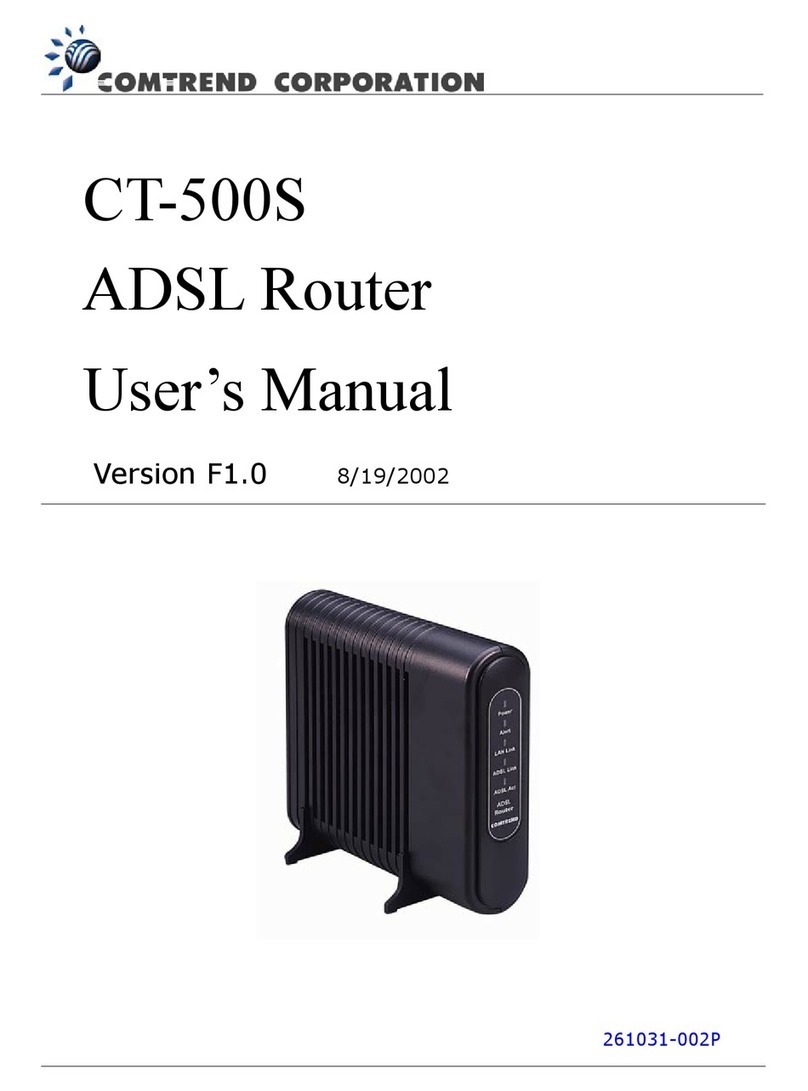
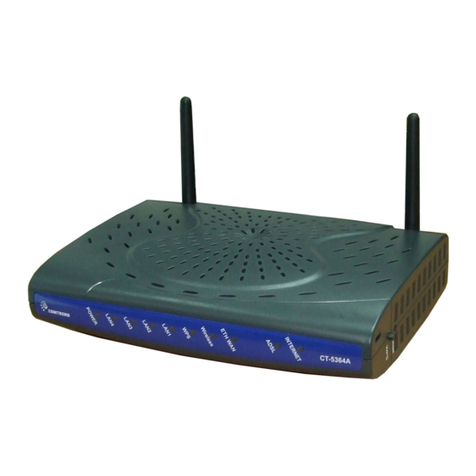
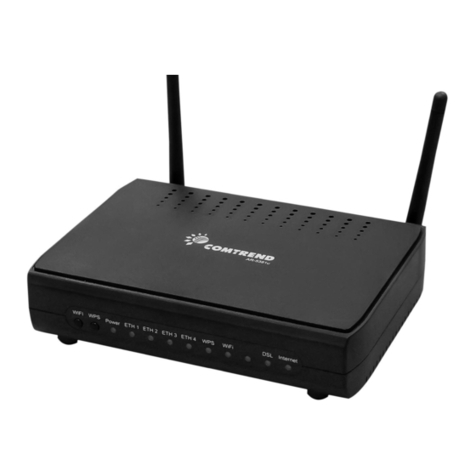
installing Comtrend 5072T routers. If you were provided a different type of equipment, you may need to
contact Access Point’s Customer Service Department at 00-957-646 .
You should have received a DSL confirmation e-mail that contains all of your installation specific
information. You will need the information from that e-mail to complete the installation of your DSL
service. Please be sure that you have your confirmation e-mail when you are completing your self-install.
If you do not have your DSL confirmation e-mail, please contact our Customer Service Department and
they will be able to fax or e-mail you the information.
Now that you have all your package contents and network cables, it's time to set up your hardware.
Please follow these instructions.
1. Connect the power adapter to the power connector on the back of your DSL router and plug
your power adapter into a power outlet. Using a power strip with surge protection or a UPS is
highly recommended.
2. Check that your router is successfully powered up by confirming that the power LED on the
router lights up. Be sure that the router is turned on, by using the switch on the back of the
router.
3. Connect your computer to the back of the router using an RJ-45 Ethernet cable. You should
use the yellow Ethernet port on the back of the router.
4. Connect the DSL filter to your wall jack. One side of the filter will connect to your DSL router;
the other side can be connected to your fax machine or a standalone phone. Plug your DSL
telephone line into the grey RJ-11 port on the back of your router.
After the router has powered up, you can turn on your computer and finish the installation by connecting
directly to the Comtrend router. If your computer is set to use a dynamic IP address (DHCP), it should
obtain the correct IP address from the router. If your computer is set to use a static IP address, you will
need to re-configure your IP settings. If you need to set the static IP address of your computer, you can
use an address in the 192.16 .1.x range. Do not use 192.16 .1.1 that is the default address of the
router.
If you have any trouble or issues setting up your DSL equipment, please contact our customer service
department at 1- 00-957-646 .