manuals.online logo
Brands
  1. Home
  2. •
  3. Brands
  4. •
  5. Corsair
  6. •
  7. PCI Card
  8. •
  9. Corsair Elgato Game Capture 4K60 Pro MK.2 User manual

Corsair Elgato Game Capture 4K60 Pro MK.2 User manual

This manual suits for next models

1

Popular PCI Card manuals by other brands

Avermedia ER330 Quick installation guide

Avermedia

Avermedia ER330 Quick installation guide

ERMA SSI 1417 instruction manual

ERMA

ERMA SSI 1417 instruction manual

SIIG CyberSerial Dual PCI Software installation

SIIG

SIIG CyberSerial Dual PCI Software installation

Airlink101 AWLH3028 user manual

Airlink101

Airlink101 AWLH3028 user manual

Dolphin MXH932 user guide

Dolphin

Dolphin MXH932 user guide

I-Bus IBC2602 user guide

I-Bus

I-Bus IBC2602 user guide

ICP DAS USA PCI-1002H user manual

ICP DAS USA

ICP DAS USA PCI-1002H user manual

Exsys EX-60102 manual

Exsys

Exsys EX-60102 manual

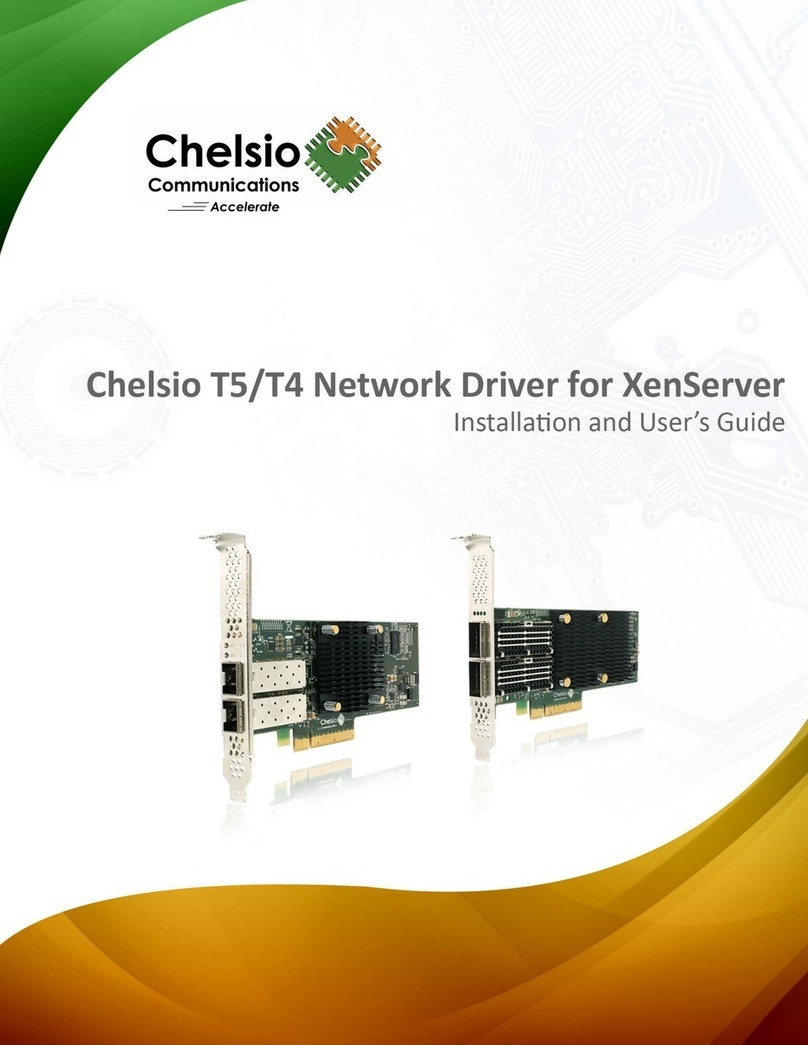
Chelsio Communications T5 Series Installation and user guide

Chelsio Communications

Chelsio Communications T5 Series Installation and user guide

Conrad Electronic 97 46 71 operating instructions

Conrad Electronic

Conrad Electronic 97 46 71 operating instructions

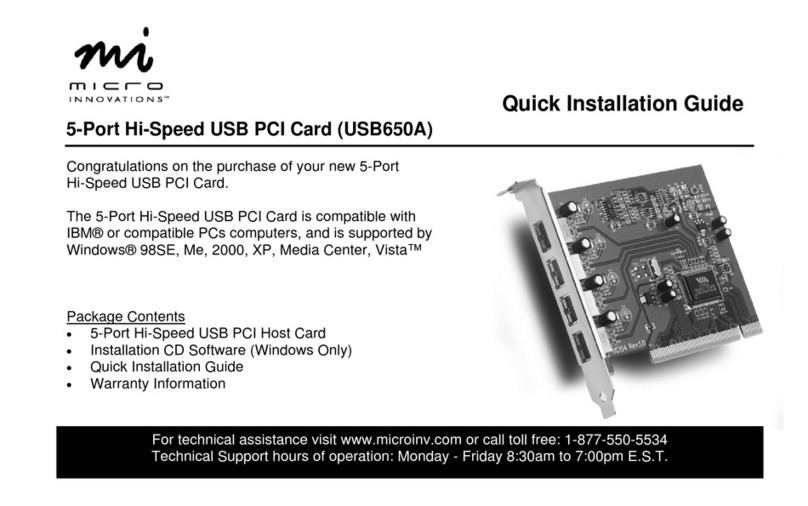
Micro Innovations USB650A Quick installation guide

Micro Innovations

Micro Innovations USB650A Quick installation guide

KTI Networks KF-310 user guide

KTI Networks

KTI Networks KF-310 user guide

Intellinet 500517 user manual

Intellinet

Intellinet 500517 user manual

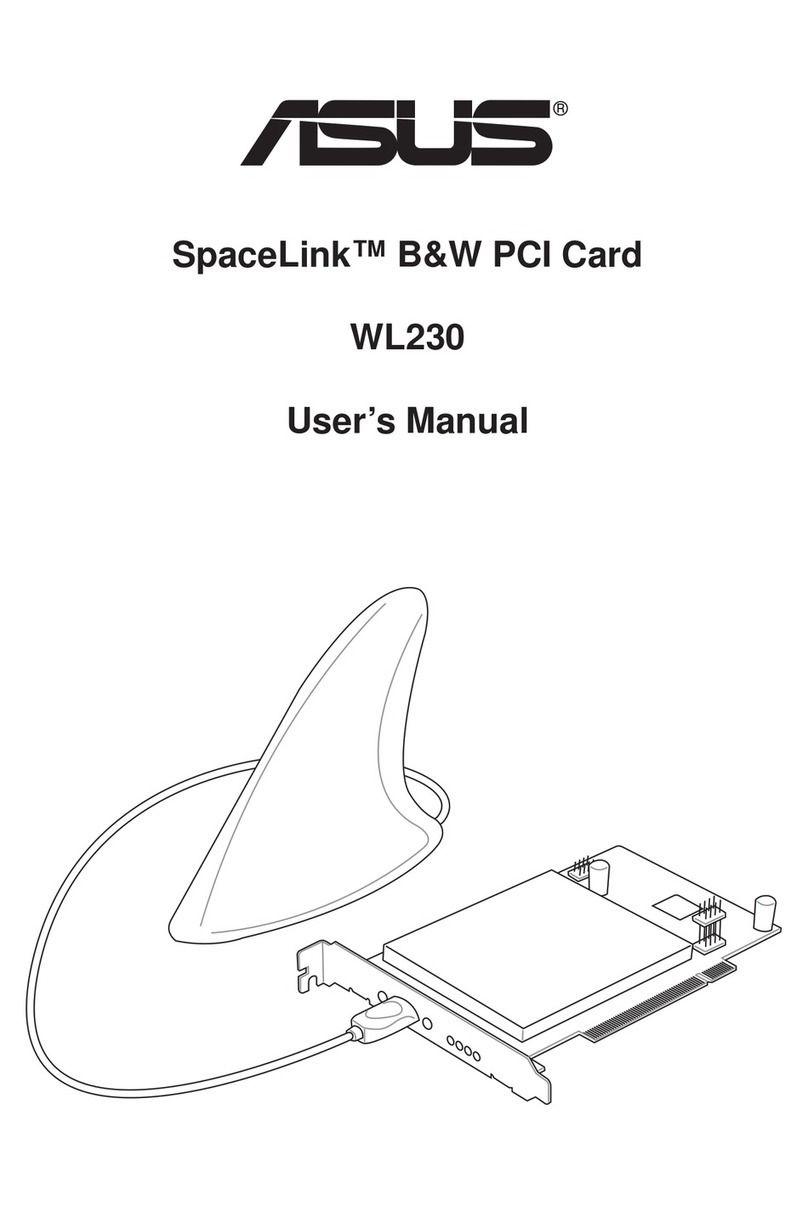
Asus SpaceLink WL230 user manual

Asus

Asus SpaceLink WL230 user manual

SIIG SC2475 Quick installation guide

SIIG

SIIG SC2475 Quick installation guide

TRENDnet TEW-703PI Quick installation guide

TRENDnet

TRENDnet TEW-703PI Quick installation guide

Pericom PI7C7100 manual

Pericom

Pericom PI7C7100 manual

ADLINK Technology cPCI-3548 user manual

ADLINK Technology

ADLINK Technology cPCI-3548 user manual

manuals.online logo
manuals.online logoBrands
  • About & Mission
  • Contact us
  • Privacy Policy
  • Terms and Conditions

Copyright 2025 Manuals.Online. All Rights Reserved.

Elgato Game Capture 4K60 Pro —
Installation Issues
In some rare cases it may be possible that your Elgato Game Capture 4K60 Pro may not be
recognized by your PC.
Please follow the steps below, in order to possibly resolve this issue:
1) Please try Elgato Game Capture 4K60 Pro in another PCIe slot on your Motherboard.
Please note: Some Motherboards have specific limitations on which lanes can be used in
combination. Check with your Motherboards manual or manufacturer for information regarding
PCIe Lane Limitations.
2) Make sure your Motherboard BIOS is up to date (please contact your Motherboard
Manufacturer for help and on how to update the BIOS).
3) Try it with a Cold Boot:
Shut down the PC and disconnect the power cord from the power supply for 30 seconds
Press the Power button for a brief second to unload any leftover energy that may have
resided
Reconnect the power cord and then restart the PC
Recheck, if the Elgato Game Capture 4K60 Pro is recognized correctly now
4) Check your Motherboard Manual and make sure that any existing feature within the BIOS,
called "Fast Boot" is disabled.
5) There is also a Windows 10 feature in the Power Options, concerning the behavior of the
Power Button, that could cause problems. Please disable this feature (see screenshot below):
If you still encounter problems, then please don't hesitate to contact our Support Team
immediately.
PC Game Recording with Elgato Game
Capture 4K60 Pro - Setup
There are a few things that need be mentioned up front when it comes to PC Game Recording with
Elgato Gaming products.
Please note that Elgato Gaming products are designed to capture from Gaming Consoles and not every
PC setup will work.
If you play and record from the same PC, it is likely you will run into some performance related issues.
Your computer does not only have to deal with the game that you currently play, but also take care of
the recording and processing of that video at the same time. The result might be that your processor will
run into a high work load, which might cause issues with the recordings.
These issues could be screen tearing, audio distortion, or other graphical errors that might end up in the
recording.
That is why the System Requirements only apply to capturing from a console, unless you have a second
PC, which fulfills the System Requirements and can be used to record the Gaming PC.
Recording and Playing on the Same PC
If you plan on playing and recording on the same PC, please make sure to use the correct setup.
For the purposes of this article, we will use a Windows 10 PC as an example.
For the setup, you will need a graphics card that is seated within your gaming PC, this will be most likely
an AMD, or Nvidia graphics card. The HDMI out on your graphics card will be used to connect to the
HDMI input of Elgato Game Capture 4K60 Pro with the provided HDMI cable.
1) Install the Elgato 4K Capture Utility:
https://gc-updates.elgato.com/windows/spotlight-update/1.0.0/final/download-x64.php
2) Make sure to clone your Display via the Windows Display settings, or via the Nvidia Control Panel /
AMD Catalyst Control Center (below is a screenshot from the Nvidia Control Panel).

3) Open up the Elgato 4K Capture Utility, and make changes to your settings that best fit your setup
(see screenshot below):
You can change the EDID accordingly, depending on which resolution you use. In this case it was a 1080p
Display.
If you see pictures that duplicate themselves inside the Elgato 4K Capture Utility, then the setup is
correct.
How to Record Sound via Elgato Sound Capture
Elgato Sound Capture is the easiest way and most likely preferred way to capture audio. In this setup,
you simply open Elgato Sound Capture and chose the "PC Gaming" feature, which lets you chose not
only how the audio gets submitted, but also where you want to hear your audio.
In this case, you could send the audio via HDMI to your Elgato Gaming device and simultaneously hear
the sound on your headset on the Gaming computer.
Here is a screenshot of how the settings could look for you, this might be different depending on what
Audio devices you are using.
Once everything is set up correctly you should be able to see the Game Audio widget within Elgato 4K
Capture Utility moving, once a game is played, or any sound that is played coming over the HDMI Out of
your graphics card.
Elgato Sound Capture is part of the Elgato Game Capture HD software, so you will have to install the
whole software, in order to be able to use it. You can download it here:
Elgato Game Capture HD Software (Windows)
This should complete the setup. Please keep in mind that with this setup your Elgato 4K Capture
Utility will be running in the background and you have to use ALT + Tab to switch around between the
actual game and Elgato 4K Capture Utility. This means starting and stopping a recording will require ALT
+ Tab so you can switch between the two.
Recording from One PC to Another PC
Recording your Gaming PC using another separate computer that fulfills the System Requirements is the
best choice. In this case, we’re capturing a Gaming Laptop using a Desktop PC with a Elgato Game
Capture 4K60 Pro.
In any case, you connect the HDMI Out of your graphics card to the HDMI In of your Elgato Game
Capture 4K60 Pro. You can clone/duplicate the monitor as described earlier to make sure everything
works as expected.
You can find the screenshot for the setup we've used below:
Elgato Sound Capture is the easiest way and most likely preferred way to capture the audio. In this
setup, which includes Elgato Sound Capture (install Elgato Game Capture HD software also on your
Gaming computer), you simply open Elgato Sound Capture and chose the "PC Gaming" feature, which
lets you chose not only how the audio gets submitted, as well as where you want to hear your audio.
In this case, you could send the audio via HDMI to your Elgato Gaming device and simultaneously hear
the sound on your speakers or headset on the Gaming computer. Please see the screenshot below for
more info:
Please Note: On the Streaming/Recording PC you typically would turn Elgato Sound Capture to the
"OFF" position and use the default Windows Audio Playback device assigned to that computer (in most