
Creative ZiiO User manual

Contents
Contents
Introduction
Getting Started
●Your Device at a Glance
●Charging
●Assembling the Power Adapter
●Turning On/Off , Unlocking
●Setting to Sleep and Waking Up
●Inserting and Removing a microSD Card
●Connecting to a Computer
Navigating your Device
●Screen Gestures
●About the Home Screen
●About the Launcher Screen
●Navigation Buttons
●Icons on the Status Bar
●Notification Panel
●Entering Text
●Context Menus
Customizing the Home Screen
●Changing the Wallpaper
●Adding an Item to the Customizable Area
●Moving an Item on the Home Screen
●Removing an Item from the Home screen
Pure Android Audio
E-Books
●Using ZiiAcademy
●Importing E-Books From Your Computer
●Deleting an E-Book
file:///D|/Madcap%20Flare/Ruby%20HTML%20Help/Outp...eda/MyWebHelp/Content/Resources/HTMs/Contents.htm (1 of 21)10/20/2010 12:35:53 PM

Contents
Browsing the Internet
●Connecting to a Wi-Fi Network
●Using the Browser
Videos, Music, and Photos
●Transferring Files from Your Computer
●Viewing Videos, Photos, and Listening to Music
●Deleting Media Files
Exploring ZiiO’s Contents
Installing More Applications
Settings
●Accessing the Settings Screen
●Changing the Screen and Keyboard Language
●Setting the Screen Brightness, Timeout, and Orientation
●Customizing the Sounds
●Setting the Date and Time
●Turning On/Off Bluetooth
●More About Your Device
Safety and Regulatory Information
Licence and Copyright
Introduction
ZiiO is a portable entertainment center, an Internet access, a game station, an e-book
reader, and much more. This versatile touchscreen device runs the Android™ operating
system, enabling you to easily install more applications from thousands of cool choices
on the Web.
Getting Started
file:///D|/Madcap%20Flare/Ruby%20HTML%20Help/Outp...eda/MyWebHelp/Content/Resources/HTMs/Contents.htm (2 of 21)10/20/2010 12:35:53 PM

Contents
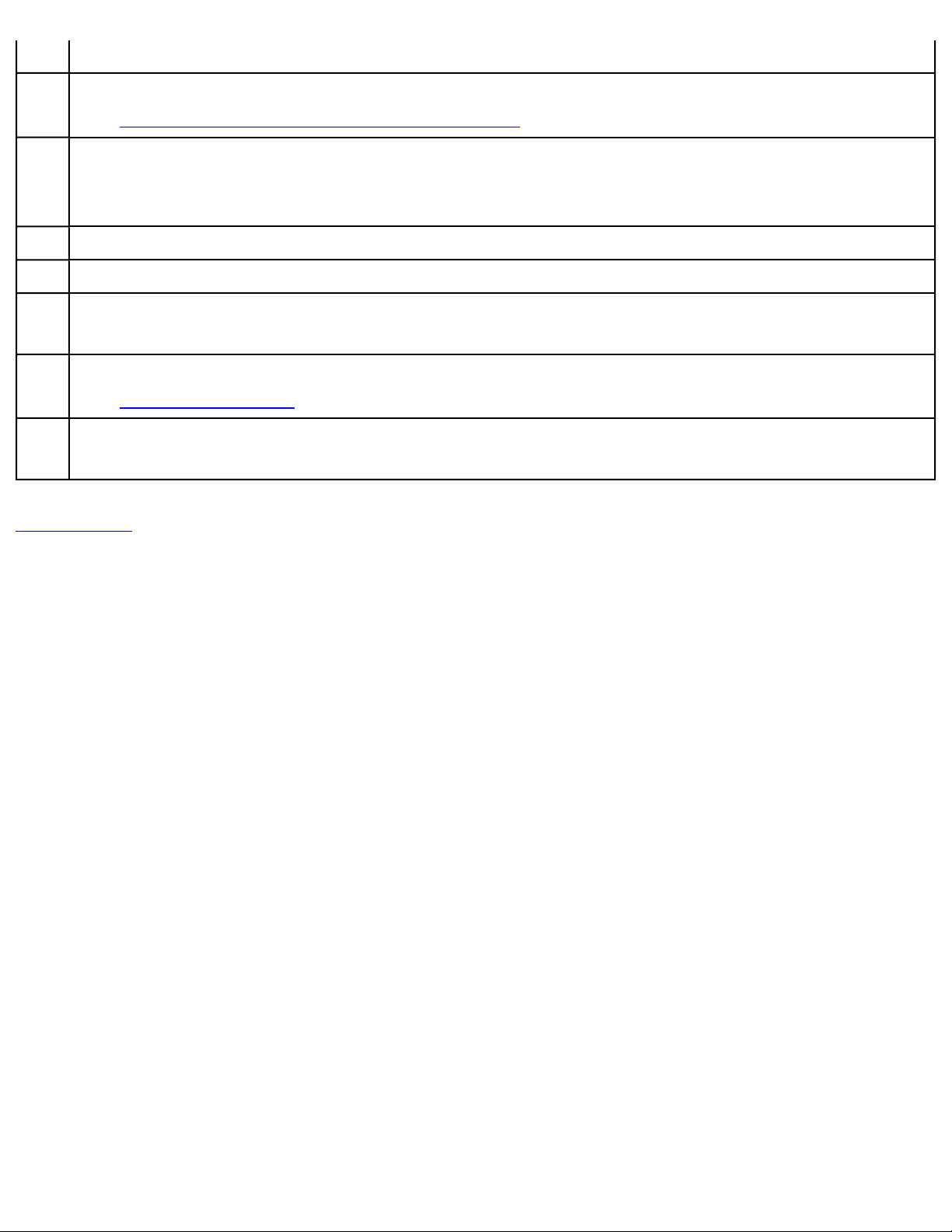
Your Device at a Glance
1
Power On/Off
Sleep / Wake Up
Press and hold to turn on/off.
Press wake up /sleep.
2Earphone Jack
3Microphone
When recording audio, keep this close to the source.
4HDMI Port
5Micro-USB Port
Connects your device to a computer.
file:///D|/Madcap%20Flare/Ruby%20HTML%20Help/Outp...eda/MyWebHelp/Content/Resources/HTMs/Contents.htm (3 of 21)10/20/2010 12:35:53 PM
Contents
6Mini-USB Port
7MicroSD Card Slot
See Inserting and Removing a microSD card.
8LED
Turns on when charging.
Turns off when fully charged.
9Stereo Speakers
10 Camera
11 Volume
Press +or – to adjust the volume.
12 Function Buttons
See Function Buttons.
13 Power Adapter Jack
Connects to a power outlet for charging.
Back to top
Charging
Before you turn on your device for the first time, charge it from a wall socket with the use
of the included power adapter. Initial charging may take up to 6 hours. The LED is
turned on while your device is charging. When the battery is full, the LED turns off.
Assembling the Power Adapter
If there are several plug heads available, select one that matches your wall socket.
Mount the plug head onto the power adapter base until it locks in place. Note that the
plug head must be inserted approximately at the same angle as shown in the figure
below. After locking, make sure that it is firmly secured.
file:///D|/Madcap%20Flare/Ruby%20HTML%20Help/Outp...eda/MyWebHelp/Content/Resources/HTMs/Contents.htm (4 of 21)10/20/2010 12:35:53 PM

Contents
If you need to remove the plug head from the power adapter base, pull the latch to
release the plug head, and gently remove it from the base.
Back to top
Turning On/Off, Unlocking
To turn on, press and hold the Power button until the screen lights up. Notice that the
screen is locked every time your player turns on (as denoted by the Lock icon ).
To unlock, touch and drag the Lock icon upwards.
file:///D|/Madcap%20Flare/Ruby%20HTML%20Help/Outp...eda/MyWebHelp/Content/Resources/HTMs/Contents.htm (5 of 21)10/20/2010 12:35:53 PM

Contents
To turn off your device, press , and touch Shutdown> Power off > OK. Alternatively,
you can press and hold the Power button, and tapPower off > OK.
Back to top
Setting to Sleep and Waking Up
To let ZiiO sleep, press the Power button. The screen goes black as your device goes
into Sleep mode.
Note:
To conserve battery power, your device automatically goes into Sleep mode after a
certain preset period of inactivity. To set the time duration before your device
automatically sleeps, seeSetting the Screen Brightness, Timeout, and Orientation.
To wake your device up, press the Power button. Note that the screen is locked every
time your player wakes up. To unlock the screen, touch and drag the Lock icon
upwards.
Back to top
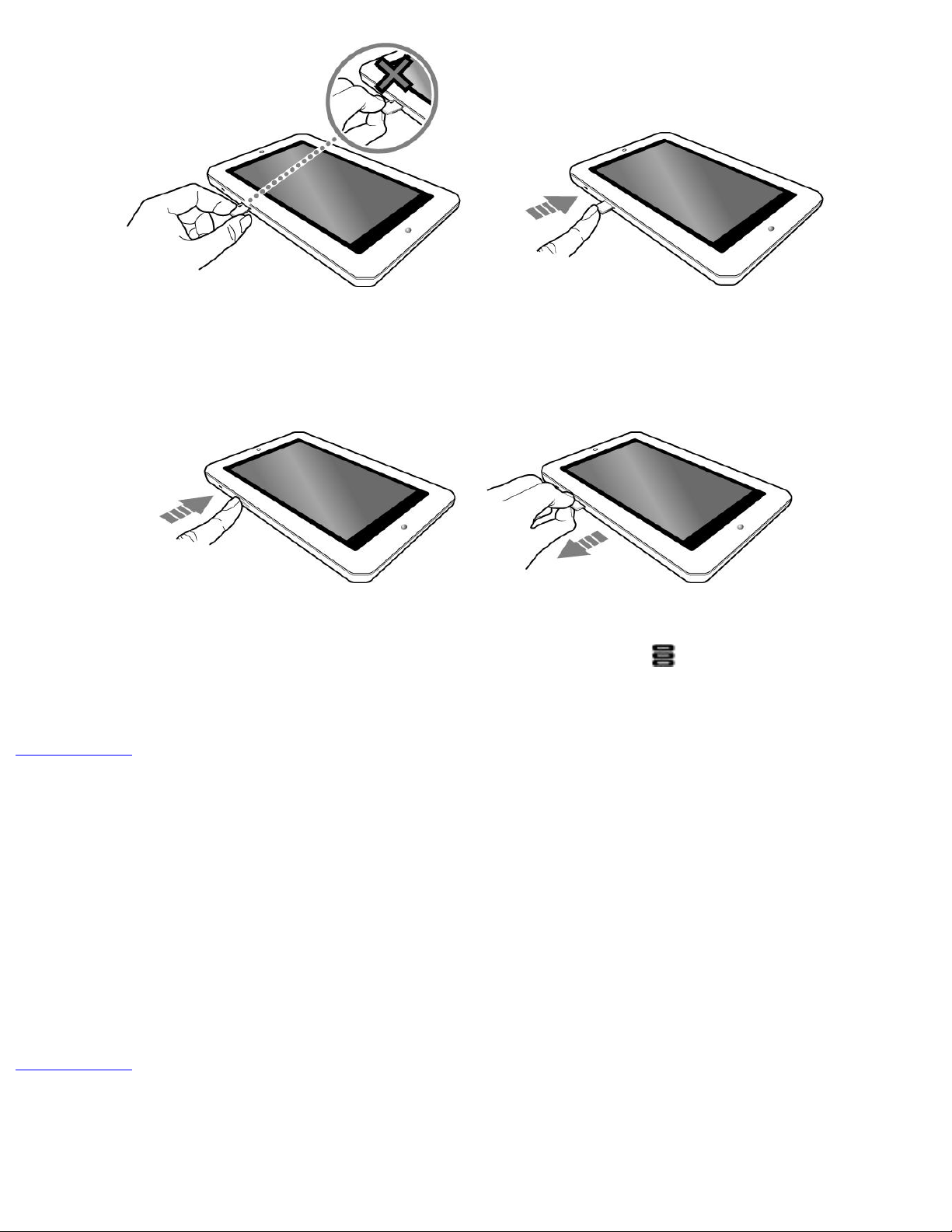
Inserting and Removing a microSD Card
Inserting a Memory Card
file:///D|/Madcap%20Flare/Ruby%20HTML%20Help/Outp...eda/MyWebHelp/Content/Resources/HTMs/Contents.htm (6 of 21)10/20/2010 12:35:53 PM
Contents
Ejecting a Memory Card
Note:
If your device is on, before you eject the microSD card, press , touch Settings > SD
card & local storage > Unmount external SD card.
Back to top
Connecting to a Computer
1. Connect to your computer with the use of the included USB cable.
2. On the device, touch Mount on the popup box that appears.
Your device will appear as a removable disk drive on your computer. If a microSD card
is inserted on the device, this will appear as another disk drive.
Back to top
file:///D|/Madcap%20Flare/Ruby%20HTML%20Help/Outp...eda/MyWebHelp/Content/Resources/HTMs/Contents.htm (7 of 21)10/20/2010 12:35:53 PM

Contents
Navigating your Device
Screen Gestures
Gesture What it does
Touch ●Select an item
●Launch an application
●Enter characters using the onscreen keyboard.
Touch and hold ●"Lift" an item from the Home Screen so that you can drag it somewhere
else.
●Shows the Context Menu (if on an empty space on the Home Screen)
Drag
●Slowly pan through a photo that is larger than the screen.
●Slowly scroll through a list.
●Pull down the Status bar to see the Notification panel. See Notification
Panel.
Swipe ●Pan through a photo or webpage.
●Move from one Home Screen panel to the next.
●Scroll through a list.
Double-tap ●Zoom into or out of a photo or Webpage.
Back to top
About the Home Screen
The Home Screen extends further than what you currently see on the display. It consists
of 2 layers with 3 panels each.
To move across the panels, swipe your finger towards the left or right.
To bring up the second layer, swipe upwards.
To return to the first layer, swipe downwards.
file:///D|/Madcap%20Flare/Ruby%20HTML%20Help/Outp...eda/MyWebHelp/Content/Resources/HTMs/Contents.htm (8 of 21)10/20/2010 12:35:53 PM

Contents
The panels of the Home Screen are “customizable,” where you can add your choice of
application icons, widgets, and other items.
See also Customizing the Home Screen.
Back to top
About the Launcher Screen
The Launcher screen contains all the applications installed on your ZiiO. To show or
hide the Launcher, tap or .
file:///D|/Madcap%20Flare/Ruby%20HTML%20Help/Outp...eda/MyWebHelp/Content/Resources/HTMs/Contents.htm (9 of 21)10/20/2010 12:35:53 PM

Contents
To start an application from the Launcher, tap the application's icon.
Function Buttons
Home
Press to return to the Home Screen at any time.
Press and hold to display recently opened applications.
Menu
Press to display the available menu for the current screen.
Press and hold to show the on-screen keyboard.
file:///D|/Madcap%20Flare/Ruby%20HTML%20Help/Outp...eda/MyWebHelp/Content/Resources/HTMs/Contents.htm (10 of 21)10/20/2010 12:35:53 PM
Table of contents
Other Creative Tablet manuals
Popular Tablet manuals by other brands

Laser
Laser MID-1060 Quick operation guide

MUNBYN
MUNBYN IRT09J Easy setup guide

Motorola
Motorola MC3090R - Win CE 5.0 Professional 520 MHz quick start guide

Dell
Dell Latitude ST Setup and features information

Lenovo
Lenovo IdeaTab S6000L Hardware Maintenance Manual

Venturer
Venturer WT9L11 quick start guide











