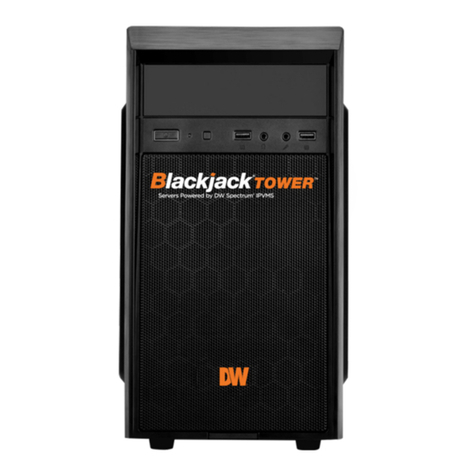
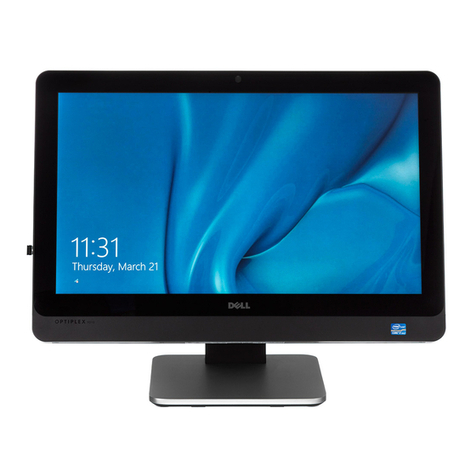
SETTING UP THE WORKSTATION
Quick Start Guide
3
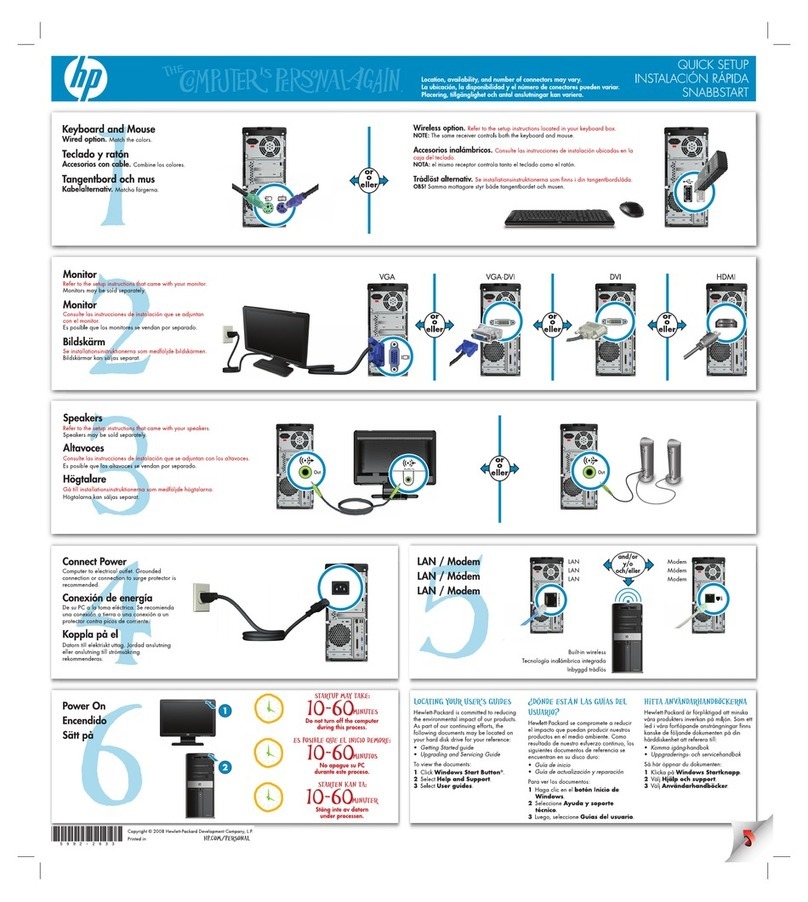
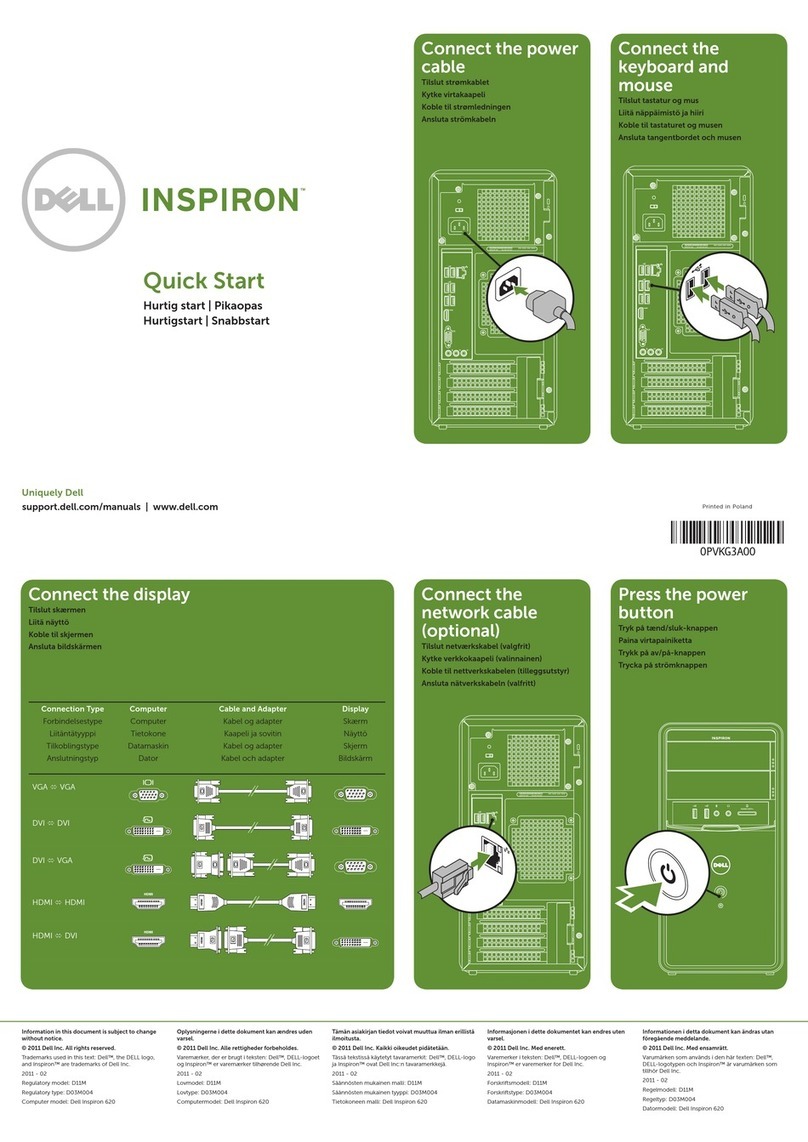
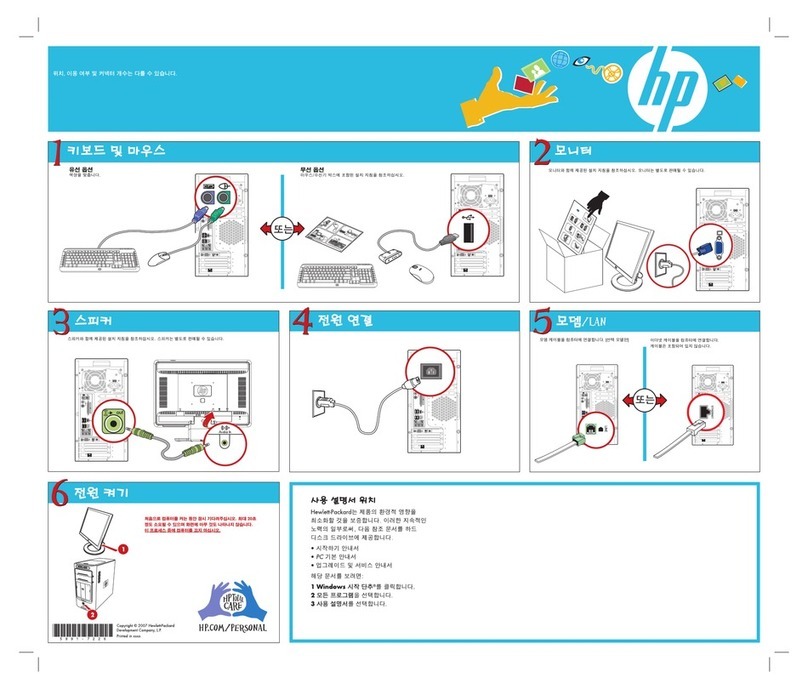
STEP 1: Connect external devices, power and network.
1. Connect a monitor, USB keyboard, USB mouse
and network cable.
2. Connect the workstation to an appropriate
power source. It is recommended to use a UPS
system.
* 750VA or higher is recommended.
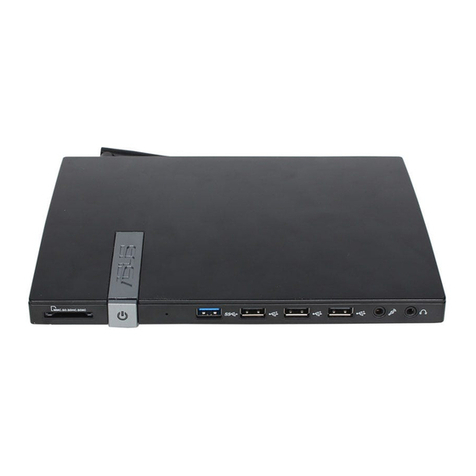
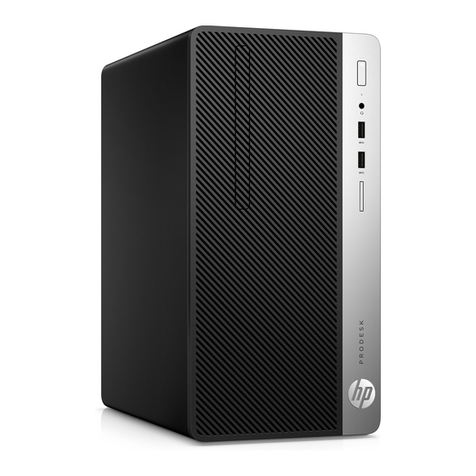
3. Power up the workstation by pressing the
power button on the front of the workstation. (F1
on the diagram on page 2) if it did not turn on
automatically.
* Connecting the power cable to the
live power source may turn on the workstation
automatically.
STEP 2: Configure date and time
1. Double-click on the date and time icon on the desktop.
2. Change time zone if it is not correct (default is UTC-08:00 Pacific Time).
STEP 2: Configure Date and Time
Windows
1. Double click Date and Time icon on the Desktop.
2. Change Time zone if not correct (default is UTC-08:00 Pacific Time)
Press OK after selecting the correct Time zone.
Click Change date and time… to update the date and time if they are not correct.
* Verify the Time zone before updating the date and time. Time may show 2 or 3 hours off due to incorrect Time zone.
Press OK after adjusting to the correct date and/or time.
4. Press OK to close Date and Time when done.
Linux
Press OK after selecting the correct time zone.
Click “Change date and time…” to update the date and time if they are not correct.
* Verify the time zone before updating the date and time. Time may show 2 or 3 hours o due to incorrect
time zone.
SETTING UP THE E-RACK
STEP 1: Connect Peripherals, power and network
1. Connect a monitor, USB keyboard, USB mouse and network cable to one of the ethernet ports (B8 on the diagram) Configure the camera network first
then will configure local network later.
2. Connect the server to an appropriate power source. Recommend to use UPS system
*recommend to use 3000VA or higher.
3. Turn on the server if the server does not turn on automatically.
(Press the Power Button on the front of the P-RACK. F2 on the diagram).
* Connecting the power cable to the live power source may turn on the serverautomatically
STEP 2: Configure Date and Time
Windows
1. Double click Date and Time icon on the Desktop.
2. Change Time zone if not correct (default is UTC-08:00 Pacific Time)
Press OK after selecting the correct Time zone.
Click Change date and time… to update the date and time if they are not correct.
* Verify the Time zone before updating the date and time. Time may show 2 or 3 hours off due to incorrect Time zone.
SETTING UP THE E-RACK
STEP 1: Connect Peripherals, power and network
1. Connect a monitor, USB keyboard, USB mouse and network cable to one of the ethernet ports (B8 on the diagram) Configure the camera network first
then will configure local network later.
2. Connect the server to an appropriate power source. Recommend to use UPS system
*recommend to use 3000VA or higher.
3. Turn on the server if the server does not turn on automatically.
(Press the Power Button on the front of the P-RACK. F2 on the diagram).
* Connecting the power cable to the live power source may turn on the serverautomatically
STEP 2: Configure Date and Time
Windows
1. Double click Date and Time icon on the Desktop.
2. Change Time zone if not correct (default is UTC-08:00 Pacific Time)
Press OK after selecting the correct Time zone.
Click Change date and time… to update the date and time if they are not correct.
* Verify the Time zone before updating the date and time. Time may show 2 or 3 hours off due to incorrect Time zone.
NOTE: This products is covered by one or more
claims of the HEVC Patents listed at
patentlist.accessadvance.com.