manuals.online logo
Brands
  1. Home
  2. •
  3. Brands
  4. •
  5. Eaton
  6. •
  7. Network Card
  8. •
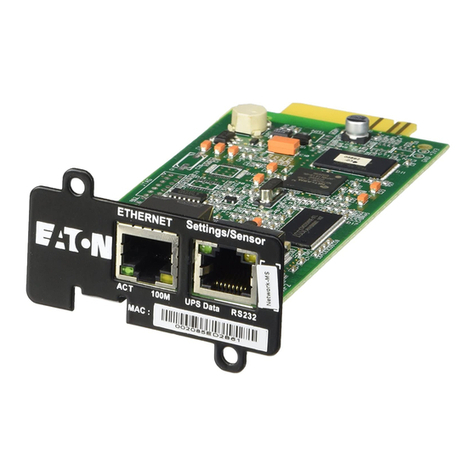
  9. Eaton Power Xpert Meter 2000 User manual

Eaton Power Xpert Meter 2000 User manual

Other manuals for Power Xpert Meter 2000

3

This manual suits for next models

3

Other Eaton Network Card manuals

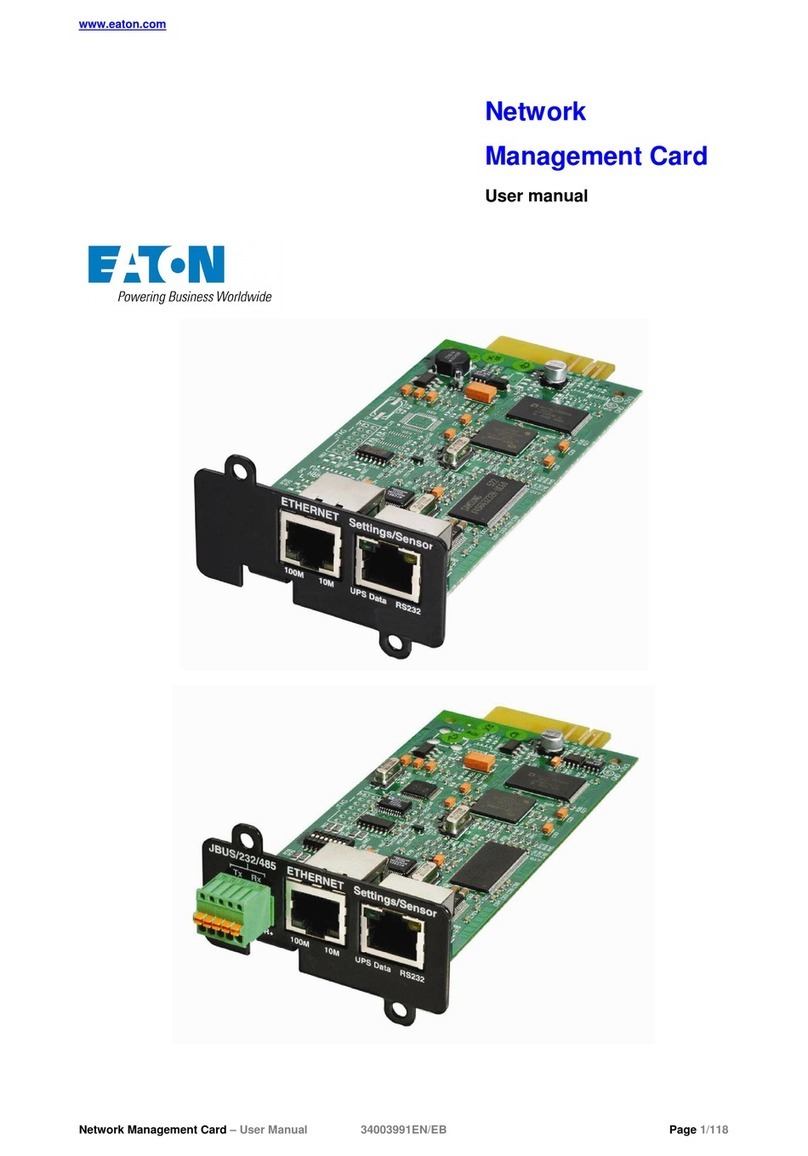
Eaton 34003991EN/EB User manual

Eaton

Eaton 34003991EN/EB User manual

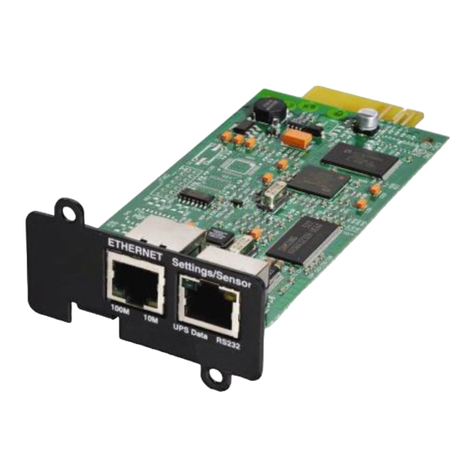
Eaton Network Management Card User manual

Eaton

Eaton Network Management Card User manual

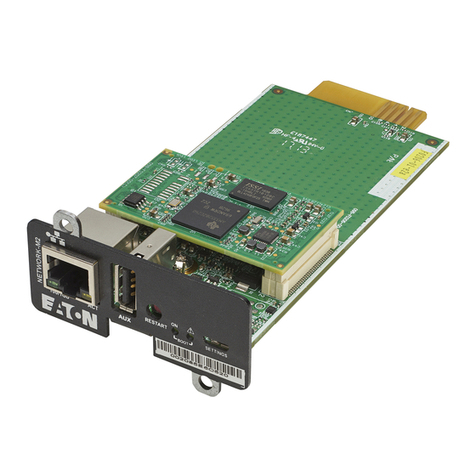
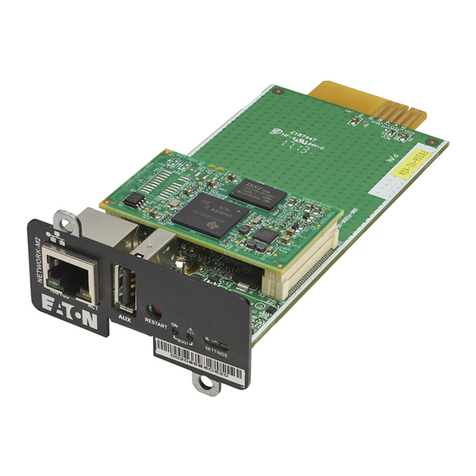
Eaton Network-M2 User manual

Eaton

Eaton Network-M2 User manual

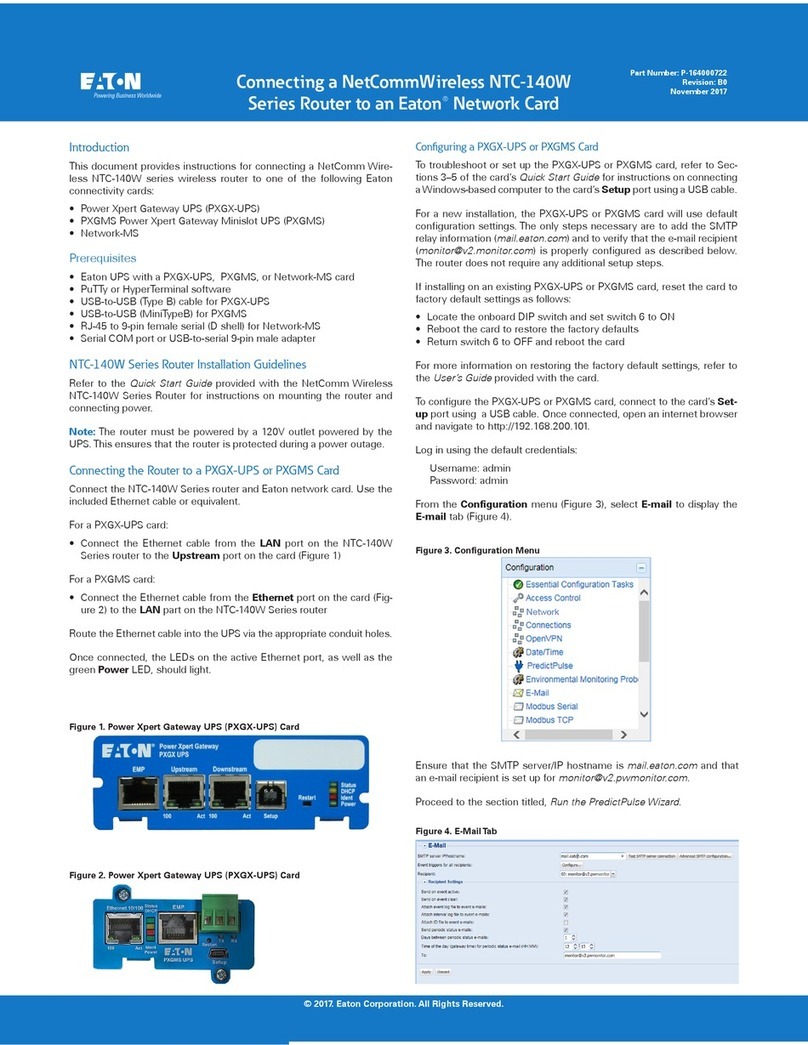
Eaton PXGMS Power Xpert Gateway Minislot UPS User manual

Eaton

Eaton PXGMS Power Xpert Gateway Minislot UPS User manual

Eaton Network-M2 User manual

Eaton

Eaton Network-M2 User manual

Eaton DeviceNet Starter Network Adapter D77B-DSNAP User manual

Eaton

Eaton DeviceNet Starter Network Adapter D77B-DSNAP User manual

Eaton Network-M3 User manual

Eaton

Eaton Network-M3 User manual

Eaton -66103 User manual

Eaton

Eaton -66103 User manual

Eaton Modbus MS Card User manual

Eaton

Eaton Modbus MS Card User manual

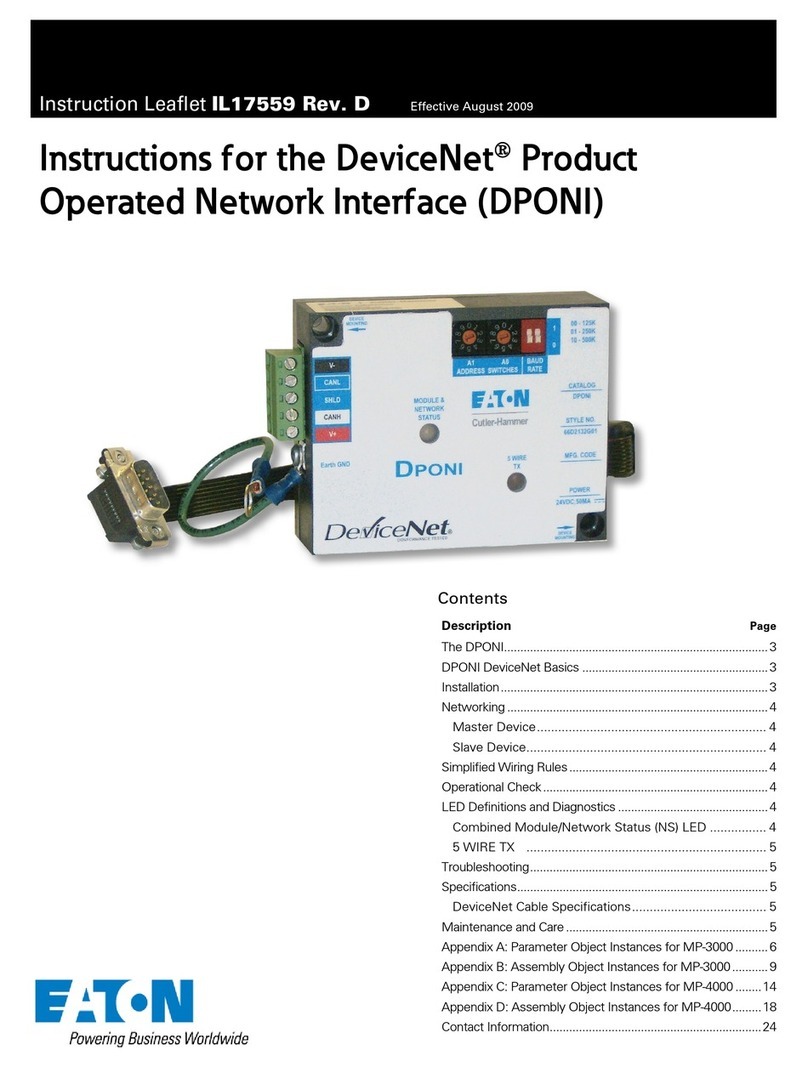
Eaton DeviceNet Product Operated Network Interface Manual

Eaton

Eaton DeviceNet Product Operated Network Interface Manual

Eaton Network Card-MS User manual

Eaton

Eaton Network Card-MS User manual

Eaton Powerware Series Programming manual

Eaton

Eaton Powerware Series Programming manual

Eaton POW-R-COMMAND 1000 User manual

Eaton

Eaton POW-R-COMMAND 1000 User manual

Eaton Network Card-MS User manual

Eaton

Eaton Network Card-MS User manual

Eaton QSNAP User manual

Eaton

Eaton QSNAP User manual

Eaton Network-MS User manual

Eaton

Eaton Network-MS User manual

Popular Network Card manuals by other brands

Belkin F6D301 user manual

Belkin

Belkin F6D301 user manual

FirstComm OBiWiFi5G Setup guide

FirstComm

FirstComm OBiWiFi5G Setup guide

TRENDnet TU2-ETG user guide

TRENDnet

TRENDnet TU2-ETG user guide

YASKAWA SI-EN3 Technical manual

YASKAWA

YASKAWA SI-EN3 Technical manual

Paradyne BitStorm 2600 IP DSLAM installation guide

Paradyne

Paradyne BitStorm 2600 IP DSLAM installation guide

Belkin F5D7050 user manual

Belkin

Belkin F5D7050 user manual

3Com EtherLink 3C509B quick guide

3Com

3Com EtherLink 3C509B quick guide

TRENDnet TEG-PCITX user guide

TRENDnet

TRENDnet TEG-PCITX user guide

Cisco MC16E installation guide

Cisco

Cisco MC16E installation guide

Delta Electronics Braking Modules VFDB Series instruction sheet

Delta Electronics

Delta Electronics Braking Modules VFDB Series instruction sheet

TwinMOS Booming user manual

TwinMOS

TwinMOS Booming user manual

Dialogic Media Board DM/V1200BTEPEQ installation guide

Dialogic

Dialogic Media Board DM/V1200BTEPEQ installation guide

Buffalo AirStation WLI-PCM-L11GP user manual

Buffalo

Buffalo AirStation WLI-PCM-L11GP user manual

TRENDnet TEG-PCITXR user guide

TRENDnet

TRENDnet TEG-PCITXR user guide

Sun Microsystems Interface Adapter user guide

Sun Microsystems

Sun Microsystems Interface Adapter user guide

D-Link DHP?P309AV Setup guide

D-Link

D-Link DHP?P309AV Setup guide

Extollo LANPlug 2000 Product guide

Extollo

Extollo LANPlug 2000 Product guide

LG-Ericsson PCI-1020 user manual

LG-Ericsson

LG-Ericsson PCI-1020 user manual

manuals.online logo
manuals.online logoBrands
  • About & Mission
  • Contact us
  • Privacy Policy
  • Terms and Conditions

Copyright 2025 Manuals.Online. All Rights Reserved.

Connecting a NetComm Wireless NTC-140W Router to an Eaton® Network Card P-164000722 Rev 04 1
CCoonnnneeccttiinngg aa NNeettCCoommmm WWiirreelleessss NNTTCC--114400WW SSeerriieess RRoouutteerr ttoo aann EEaattoonn®NNeettwwoorrkk CCaarrdd
IInnttrroodduuccttiioonn
This document provides instructions for connecting a NetComm Wireless NTC-140W Series wireless router to
one of the following Eaton connectivity cards:
Power Xpert Gateway UPS (PXGX-UPS)
Power Xpert Gateway Minislot UPS (PXGMS)
Gigabit Network (Network-M2)
PPrreerreeqquuiissiitteess
Eaton UPS with a PXGX-UPS, PXGMS, or Network-M2 card
PuTTy or HyperTerminal software
USB-to-USB (Type B) cable for PXGX-UPS
USB-to-USB (MiniTypeB) for PXGMS
USB-to-USB (MicroUSB B) for Network-M2
Serial COM port or USB-to-serial 9-pin male adapter
An existing PredictPulse account (refer to the PredictPulse Quick Start Guide)
NNTTCC--114400WW SSeerriieess RRoouutteerr IInnssttaallllaattiioonn GGuuiiddeelliinneess
Refer to the Quick Start Guide provided with the NetComm Wireless NTC-140W series router for instructions
on mounting the router and connecting power.
NOTE The router must be powered by a 120V outlet powered by the UPS. This ensures that
the router is protected during a power outage.
CCoonnnneeccttiinngg tt ee RRoouutteerr ttoo aa PPXXGGXX--UUPPSS oorr PPXXGGMMSS CCaarrdd
Connect the NTC-140W Series router and Eaton network card. Use the included Ethernet cable or equivalent.
For a PXGX-UPS card, connect the Ethernet cable from the LAN port on the NTC-140W Series router to
the Upstream port on the card (see Figure 1):
For a PXGMS card, connect the Ethernet cable from the LAN part on the NTC-140W Series router to the
Ethernet 10/100 port on the card (see Figure 2)
Route the Ethernet cable into the UPS via the appropriate conduit holes. Once connected, the LEDs on the
active Ethernet port, as well as the green Power LED and Status LEDs should light.
Figure 1. Power Xpert Gateway UPS (PXGX-UPS Card

2 Connecting a NetComm Wireless NTC-140W Router to an Eaton® Network Card P-164000722 Rev 04
Figure 2. Power Xpert Gateway Minislot UPS (PXGMS Card
CCoonnnneeccttiinngg tt ee RRoouutteerr ttoo aa NNeettwwoorrkk--MM22 CCaarrdd
To connect the NTC-140W Series router to a Network-M2 card:
Connect the Ethernet cable from the LAN port on the NTC-140W Series router to the Ethernet port on the
Network-M2 card (see Figure 3).
If the Network-M2 card is located inside the UPS chassis, route the cable out of the chassis via a conduit
hole that is protected by a rubber grommet
Once connected, the LEDs on the Network-M2 card’s Ethernet port should light and the green LED at the top
left of the SETTINGS port should blink.
Figure 3. Network-M2 Card

CCoonnnneeccttiinngg aa PPoowweerr XXppeerrtt EEtt eerrnneett SSwwiittcc
Some installations have multiple UPSs with network cards that must be connected. In these cases, install a
four- or six-port Power Xpert Ethernet Switch (see Figure 4). Install an Eaton Power Xpert Ethernet Switch to
the DIN rail and apply power. Connect a straight-through Ethernet CAT5 cable between the WAN port on the
wireless router and port 1 on the Power Xpert Ethernet Switch. Connect another straight-through Ethernet
cable from the Upstream port on the PXGX-UPS or Ethernet port on the PXGMS or Network-M2 to any open
port other than 1 on the Power Xpert Ethernet Switch.
Connecting a NetComm Wireless NTC-140W Series Router to an Eaton®Network Card
Connecting a NetComm Wireless NTC-140W Router to an Eaton® Network Card P-164000722 Rev 04 3
Figure 4. Power Xpert Ethernet Switches
CCoonnffiigguurriinngg aa PPXXGGXX--UUPPSS oorr PPXXGGMMSS CCaarrdd
To troubleshoot or set up the PXGX-UPS or PXGMS card, refer to Sections 3 – 5 of the
PXGX-UPS Quick Start Instructions or PXGMS Quick Start Instructions for instructions on connecting a
Windows-based computer to the card’s Setup port using a USB cable.
To configure the PXGX-UPS or PXGMS card, connect to the card’s Setup port using a USB cable. Once
connected, open an internet browser and navigate to 169.254.0.101. Log in using the default credentials:
Username: admin
Password: admin
NOTE The PXGX-UPS password may be the MAC address of the card. The PXGMS password
may be the card serial number.
If installing on an existing PXGX-UPS or PXGMS card, reset the card to factory default settings as follows:
Locate the onboard DIP switch and set switch 6 to ON
Reboot the card to restore the factory defaults
Return switch 6 to OFF and reboot the card
For more information on restoring the factory default settings, refer to the PXGX-UPS ard User’s Guide or
PXGMS ard User’s Guide.
For a new installation, the PXGX-UPS or PXGMS card will use the factory default settings.
From the Configuration menu (see Figure 5), select E-mail to display the E-mail tab (see Figure 6).
Connecting a NetComm Wireless NTC-140W Series Router to an Eaton®Network Card
4 Connecting a NetComm Wireless NTC-140W Router to an Eaton® Network Card P-164000722 Rev 04
Figure 5. Configuration Menu
Ensure that the SMTP server/IP hostname is mail.eaton.com and the recipient checkboxes are setup as shown
in Figure 6, with [email protected] as the only e-mail recipient.
Figure 6. E-mail Tab
On the E-mail tab, click Configure to display the E-mail Event Trigger Configuration page (see Figure 7).
Verify that all or some alarms are checked. Scroll to the bottom of the page and click Apply after making any
changes.
Connecting a NetComm Wireless NTC-140W Series Router to an Eaton®Network Card
Connecting a NetComm Wireless NTC-140W Router to an Eaton® Network Card P-164000722 Rev 04 5
Figure 7. E-Mail Event Trigger Configuration Page
From the Configuration menu (see Figure 5), select Date/Time to display the Date/Time tab (see Figure 8).
Select the Synchronize with NTP server(s radio button and enter 192.168.1.1 for the NTP server IP address.
Ensure that the correct time zone is selected for the Time zone for logs, email, and connected device. Click
Apply after making any changes.
Figure 8. Date/Time Tab
Login to the modem graphical user interface (GUI) by connecting to the modem Wi-Fi, Net omm XXXX, using
the network key printed on the back of the modem. Once connected, open an internet browser and navigate to
192.168.1.1. Log in using the default credentials (see Figure 9):
Username: admin
Password: admin
Connecting a NetComm Wireless NTC-140W Series Router to an Eaton®Network Card
6 Connecting a NetComm Wireless NTC-140W Router to an Eaton® Network Card P-164000722 Rev 04
Figure 9. NetComm Wireless Log-In Page
Navigate to the Services tab and select Network Time (NTP . Ensure the correct time zone is selected and
the remaining settings are as shown in Figure 10, with 151.110.127.39 listed for NTP service. Click Save if any
changes were made.
Figure 10. NetComm Wireless Services Tab
Proceed to the Run the PredictPulse Wizard section.
Connecting a NetComm Wireless NTC-140W Series Router to an Eaton®Network Card
Connecting a NetComm Wireless NTC-140W Router to an Eaton® Network Card P-164000722 Rev 04 7
CCoonnffiigguurriinngg aa NNeettwwoorrkk--MM22 CCaarrdd
To troubleshoot or set up the Network-M2 card, refer to the Network-M2 User’s Guide.
The Network-M2 default configuration includes a DHCP network configuration. To configure the Network-M2
card, connect to the card’s SETTINGS port with USB-to-USB (MicroUSB B) cable. Once connected, open an
internet browser and navigate to 169.254.0.1 to display the GUI (see Figure 11).
Figure 11. Network-M2 Card GUI
Log in using the default credentials:
Username: admin
Password: admin
A pop-up message displays, directing the user to change the password. Enter a new password of at least eight
characters, including one lowercase letter, one uppercase letter, one numeric character, and one special
character. Record the new password.
The Network-M2 card will reboot and ask for the new password. Enter the web GUI and click Settings in the
upper right. Click the Network tab (see Figure 12). Verify the IPv4 Mode is set to DHCP and record the IP
address to be used later when configuring the PredictPulse Wizard.
Figure 12. Network-M2 Card Network Tab
Connecting a NetComm Wireless NTC-140W Series Router to an Eaton®Network Card
8 Connecting a NetComm Wireless NTC-140W Router to an Eaton® Network Card P-164000722 Rev 04
Click the Email tab (see Figure 13) and enter mail.eaton.com in the Server IP/Hostname field. Click Save in
the bottom right.
Figure 13. Network-M2 Card Email Tab
Click the Date & Time tab (see Figure 14). Select the appropriate time zone and select the Dynamic (NTP
radio button. Enter 192.168.1.1 in the NTP server field. Click Save in the bottom right. For instructions on
configuring NTP in the modem, see the onfiguring a PXGX-UPS or PXGMS ard section.
Figure 14. Network-M2 Date & Time Tab
When complete, click the General tab (see Figure 15) and enter the Location,Contact, and System Name.
Click Save.
Figure 15. Network-M2 General Tab
Proceed to the Run the PredictPulse Wizard section.
Connecting a NetComm Wireless NTC-140W Series Router to an Eaton®Network Card
Connecting a NetComm Wireless NTC-140W Router to an Eaton® Network Card P-164000722 Rev 04 9
RRuunn tt ee PPrreeddiiccttPPuullssee WWiizzaarrdd
To run the PredictPulse Wizard (ActivatePredictPulse.exe), connect a laptop or personal computer as follows.
For a PXGX-UPS card, using an RJ-45 Ethernet cable, connect the laptop or personal computer to the card’s
Downstream port
For a PXGMS or Network-M2 card, using an RJ-45 Ethernet cable, connect the laptop or personal computer to
the LAN/WAN port on the NTC-140W Series router
Run the PredictPulse Wizard (ActivatePredictPulse.exe). The Eaton PredictPulse window displays (see
Figure 16).
Figure 16. PredictPulse Wizard Initial Display
Enter the Organization Code and customer E-Mail Address and click Begin Registration. The PredictPulse
Device Activation window displays (see Figure 17).
Figure 17. PredictPulse Device Activation Window
Enter the IP address or a range of IP addresses to continue. The wizard attempts to connect to a UPS at that
address.
Connecting a NetComm Wireless NTC-140W Series Router to an Eaton®Network Card
10 Connecting a NetComm Wireless NTC-140W Router to an Eaton® Network Card P-164000722 Rev 04
NOTE For a PXGX-UPS or PXGMS card, the IP address assigned by the modem can be found
on the Configuration menu. Select Network, verify that DHCP Enabled is checked
(see Figure 18), and the IP address is listed. If DHCP was not enabled initially, you may
need to reboot the card to have the modem assign an IP address.
Figure 18. DHCP Enabled
The IP address can also be found from the modem GUI. Navigate to the Networking tab, select LAN on the
sidebar and DHCP under the drop-down menu (see Figure 19). Scroll down to the Dynamic DHCP client list
(see Figure 20) to find the connected devices. The web card IP will have an asterisk as the Computer name.
Figure 19. NetComm Wireless DHCP Tab
Figure 20. Dynamic DHCP Client List
Connecting a NetComm Wireless NTC-140W Series Router to an Eaton®Network Card