manuals.online logo
Brands
  1. Home
  2. •
  3. Brands
  4. •
  5. Edirol
  6. •
  7. Media Converter
  8. •
  9. Edirol UA-25 User manual

Edirol UA-25 User manual

Other Edirol Media Converter manuals

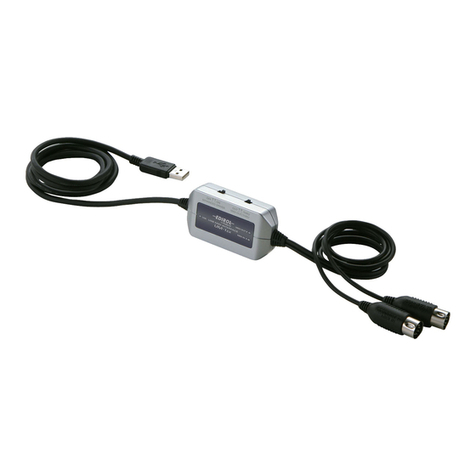
Edirol UM-1SX User manual

Edirol

Edirol UM-1SX User manual

Edirol UM-2 User manual

Edirol

Edirol UM-2 User manual

Edirol UM-1EX User manual

Edirol

Edirol UM-1EX User manual

Edirol UM-2EX User manual

Edirol

Edirol UM-2EX User manual

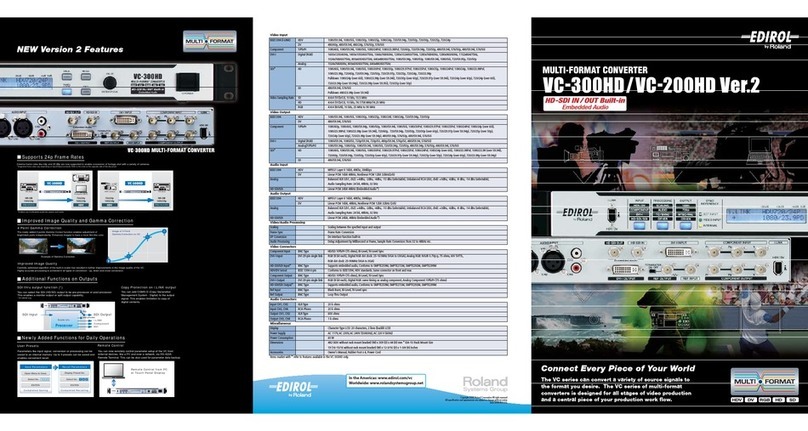
Edirol VC-300HD User manual

Edirol

Edirol VC-300HD User manual

Edirol VMC-1 User manual

Edirol

Edirol VMC-1 User manual

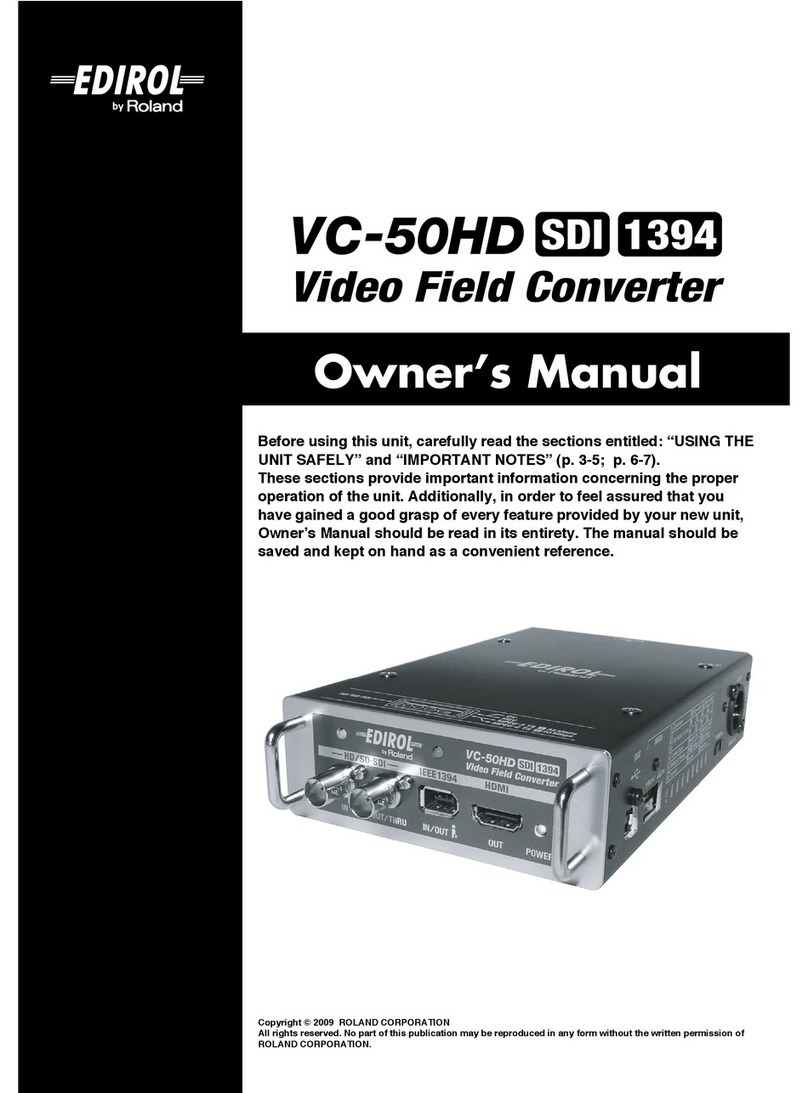
Edirol VC-50HD SDI 1394 User manual

Edirol

Edirol VC-50HD SDI 1394 User manual

Edirol VMC-1 User manual

Edirol

Edirol VMC-1 User manual

Edirol VMC-1 User manual

Edirol

Edirol VMC-1 User manual

Edirol VC-300HD User manual

Edirol

Edirol VC-300HD User manual

Edirol UM-1EX User manual

Edirol

Edirol UM-1EX User manual

Edirol VC-50HD SDI 1394 User manual

Edirol

Edirol VC-50HD SDI 1394 User manual

Popular Media Converter manuals by other brands

TR-Electronic CMS582M-4096/4096 IOL DMS 14H7 KRF Assembly instructions

TR-Electronic

TR-Electronic CMS582M-4096/4096 IOL DMS 14H7 KRF Assembly instructions

Korenix JetCon 2301S user manual

Korenix

Korenix JetCon 2301S user manual

StarTech.com ET91000LCOAM manual

StarTech.com

StarTech.com ET91000LCOAM manual

Alesis AI-3 Reference manual

Alesis

Alesis AI-3 Reference manual

Caton Vpro 5100 user guide

Caton

Caton Vpro 5100 user guide

Cypress CSC-5500 Operation manual

Cypress

Cypress CSC-5500 Operation manual

H&B TX-100 Installation and instruction manual

H&B

H&B TX-100 Installation and instruction manual

Bolin Technology D Series user manual

Bolin Technology

Bolin Technology D Series user manual

IFM Electronic Efector 400 RN30 Series Device manual

IFM Electronic

IFM Electronic Efector 400 RN30 Series Device manual

GRASS VALLEY KUDOSPRO ULC2000 user manual

GRASS VALLEY

GRASS VALLEY KUDOSPRO ULC2000 user manual

Linear Technology DC1523A Demo Manual

Linear Technology

Linear Technology DC1523A Demo Manual

Lika ROTAPULS I28 Series quick start guide

Lika

Lika ROTAPULS I28 Series quick start guide

Weidmuller IE-MC-VL Series Hardware installation guide

Weidmuller

Weidmuller IE-MC-VL Series Hardware installation guide

Optical Systems Design OSD2139 Series Operator's manual

Optical Systems Design

Optical Systems Design OSD2139 Series Operator's manual

Tema Telecomunicazioni AD615/S product manual

Tema Telecomunicazioni

Tema Telecomunicazioni AD615/S product manual

KTI Networks KGC-352 Series installation guide

KTI Networks

KTI Networks KGC-352 Series installation guide

Gira 0588 Series operating instructions

Gira

Gira 0588 Series operating instructions

Lika SFA-5000-FD user guide

Lika

Lika SFA-5000-FD user guide

manuals.online logo
manuals.online logoBrands
  • About & Mission
  • Contact us
  • Privacy Policy
  • Terms and Conditions

Copyright 2025 Manuals.Online. All Rights Reserved.

e
UA-25
Audio/MIDI
Interface
TurboStart
TBS 244 ©2006 Roland Corporation U.S.
www.RolandUS.com
Page 1
Welcome
Congratulations on your purchase of the Edirol
UA-25. This TurboStart contains step-by-step
instructions to help you get your UA-25 ready to use.
Before You Connect
Before you make any connections, there are a few
settings to make on the UA-25 itself.
1. Set the ADVANCED switch located on the back
of the UA-25 to ON.
2. Set the SAMPLE RATE Switch to 44.1.
Note: Don’t connect the UA-25 before installing the
UA-25 driver software on your PC or Mac, as
described below.
Note: The UA-25 supports sample rates other than
44.1 kHz. We’re using 44.1 kHz here for simplicitiy’s
sake.
Installing the UA-25 Driver on a
Windows XP Computer
1. Turn on your computer.
2. Insert the CD-ROM that came with your UA-25.
3. When the UA-25 window opens, click “Open
folder to view files,” and then click OK.
Note: If your computer isn’t set to automatically read
a CD-ROM when it’s inserted, you can go to the Start
menu, select My Computer, and then double-click the
UA-25 CD-ROM.
4. Double-click on the Driver folder.
5. Double-click on the XP2k folder.
6. Double-click on the SETUPINF file.
7. Connect the UA-25 to an open USB slot on your
computer using the provided USB cable.
Note: After a moment or two, the Found New
Hardware Wizard opens. On some computers you
may get a message, “Can Windows connect to
Windows update to search for software?” If you see
this message, click “No, not this time,” and then click
“Next.”
8. Select “Install from a list or specific location,” and
then click “Next.”
9. Click “Don’t search—I will choose the driver to
install,” and then click Next.
10. Confirm that “UA-25” shows in the models field,
and then click NEXT.
11. When you see, “Has not passed the Windows
Logo testing,” click “Continue Anyway.”
12. At the Insert Disk dialog box, click OK.
13. In the Files Needed Window’s “Copy files from”
area, you can type in the location of the UA-25
driver, or copy and paste its file path—usually
D:\Driver\XP2k—from Step 6 in the open
SetupINF window.
Note: If the SetupINF window isn’t visible behind the
Files Needed Window, move the Files Needed
Window out of the way so you can get to it.
14. After the Windows Logo test repeats—click
“Continue Anyway” again.
15. Once the install has completed, click “Finish.”
16. When the computer prompts you to restart,
reboot your computer.
Enabling the UA-25 for MIDI
in SONAR LE
1. Open SONAR LE.
2. When you get the message, “No MIDI Outputs
Selected,” click “Choose MIDI Outputs Now…”
3. Click “Options” in the tool bar.
4. Enable the Edirol drivers under "Inputs” by
clicking on them so they highlight in gray.
5. Enable the Edirol drivers for Outputs by clicking
on them so that they turn gray.
6. Click OK to close the MIDI devices window.
Note: You can also get to the MIDI Devices window
from the Options tab within SONAR LE.
Enabling the UA-25 for Audio
in SONAR LE
1. Open SONAR LE.
2. Click “Options” in the tool bar.
3. Select “Audio...” from the drop-down menu.
4. Click the Advanced tab—under “Driver Mode,”
select WDM/KS.
5. Click on the Drivers tab.
6. Enable the Edirol drivers under “Input Drivers” by
clicking on them so that they highlight in gray.
7. Enable the Edirol drivers for Output Drivers by
clicking on them so that they turn gray.
8. Click OK to close the Audio Options window.
9. You’ll get a message stating that the changes
will not be in effect until you restart the program.
Click OK, and then restart SONAR.

e
UA-25
Audio/MIDI
Interface
TurboStart
TBS 244 ©2006 Roland Corporation U.S.
www.RolandUS.com
Page 2
Installing the UA-25 Driver on a
Mac OS/X Computer
1. Disconnect all USB cables.
2. Download the latest Mac OS X UA-25 driver
from www.Rolandus.com.
3. When the file’s downloaded, double-click
UA25USBDriver.tar to expand it.
4. Open the folder called “UA25USBDriver.”
5. Double-click UA25USBDriver.pkg.
6. At the “Welcome to the EDIROL UA-25 USB
Driver Installer” screen, click Continue.
7. When you see “Select a Destination,” click the
drive on which your operating system is installed,
and then click Continue.
8. At Easy Install, click Install.
9. When the Authenticate dialog box appears, type
in your password, and then click OK.
10. Click Continue Installation.
11. Click Restart.
Using the UA-25 to Play Audio
from iTunes
1. Use the provided USB cable to connect the
UA-25 to your computer.
2. Select System Preferences… from your Apple
menu, and then click Sound.
3. In the Output tab, set “Choose a device for
sound output” to EDIROL UA-25 44.1 kHz.
Note: The UA-25 supports sample rates other than
44.1 kHz. We’re using 44.1 kHz here for simplicitiy’s
sake.