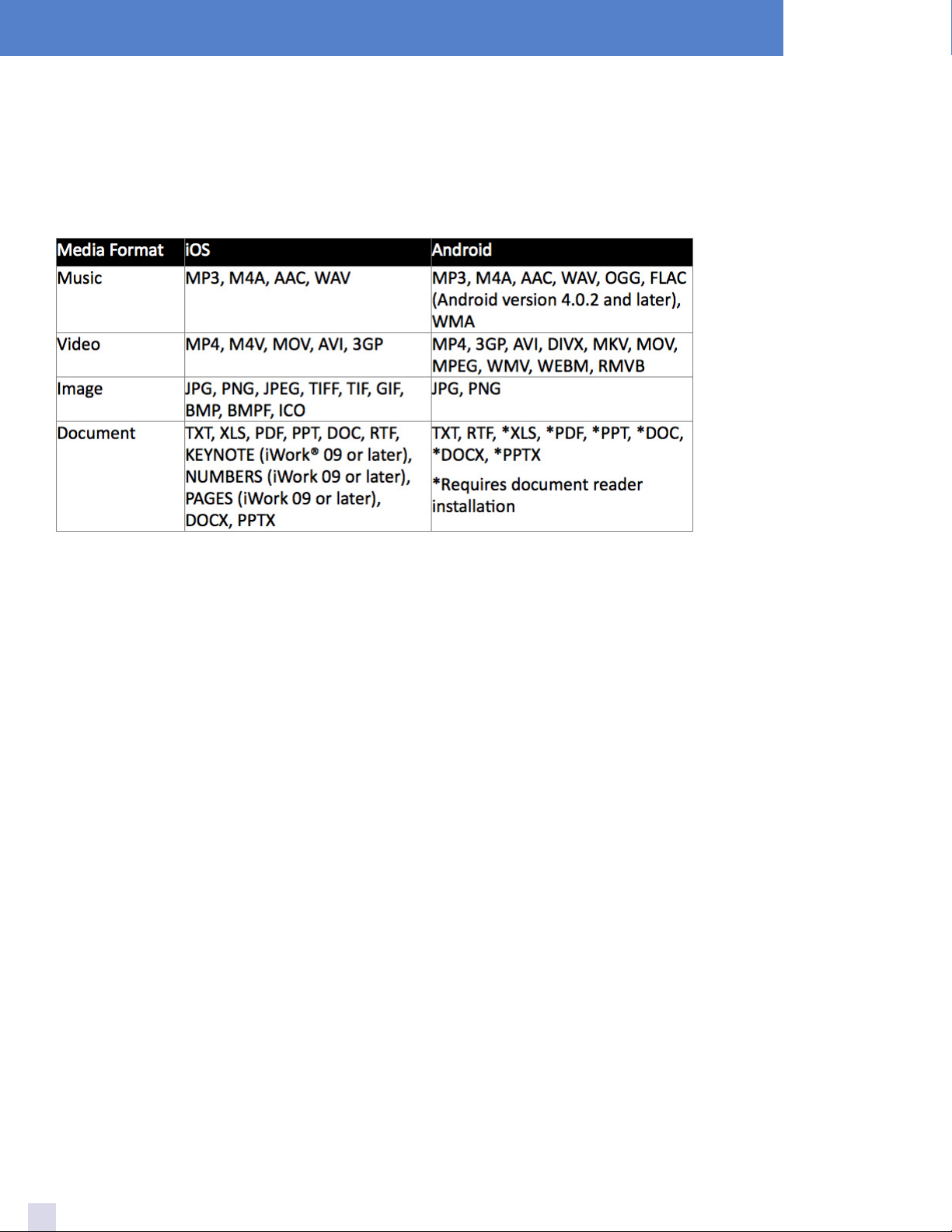
Controls & Operation
6
Getting To Know MediaFlair
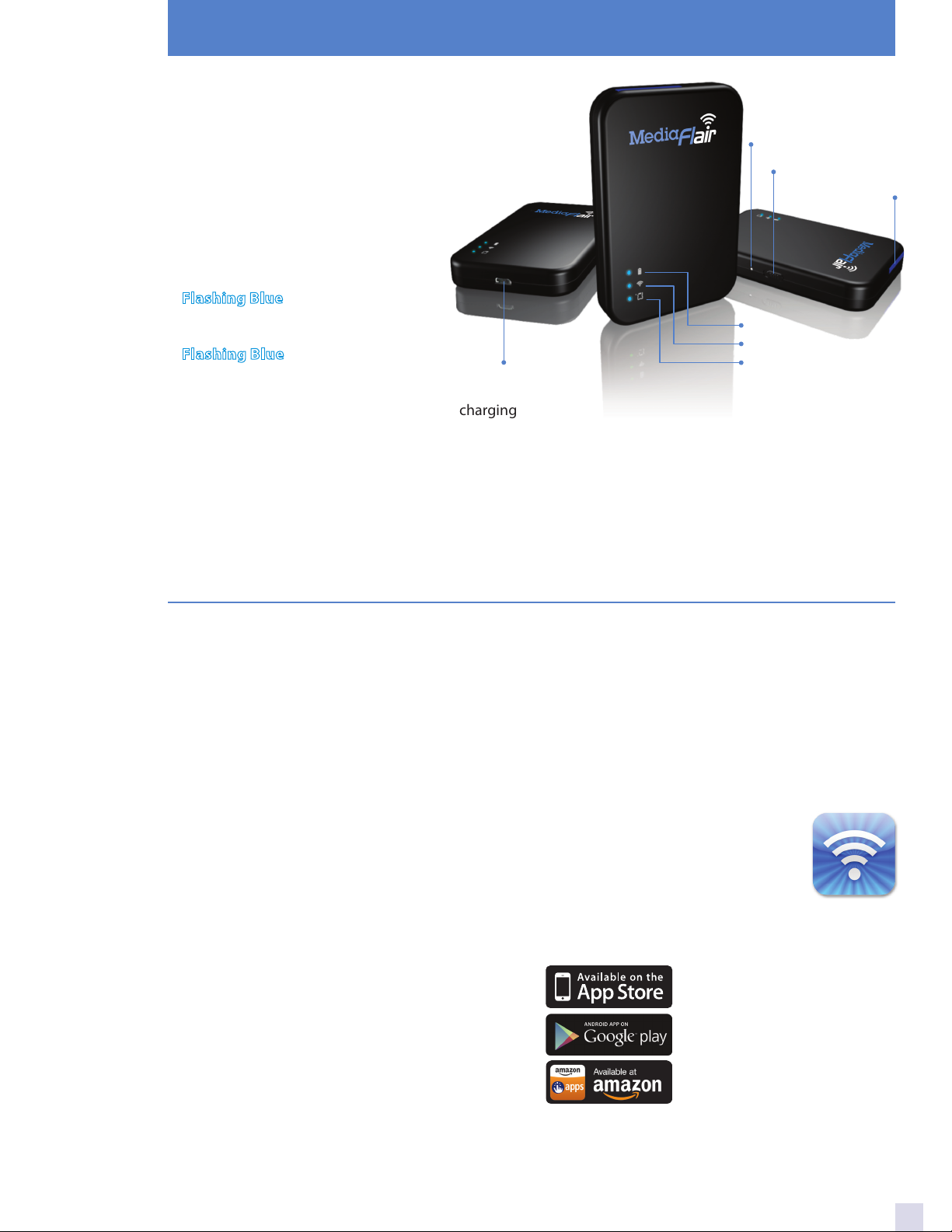
Power Switch
• ON for wireless connectivity
• OFF for USB data transfer
Power LED
• Blue: Power ON
• Red: Charging/low battery
WiFi LED
• : Broadcasting WiFi
SD Card LED
• : Reading SD card
Micro USB port
• Connect to computer for data transfer and charging
Reset Button
• Press and hold 3 seconds to restart
• Press and hold 7 seconds to restore factory settings
SD Card Port
• Supports SDHC or SDXC memory cards, Class 6 and
above (Class 10 is recommended when multiple
users are viewing videos)
Charging the Battery
Please charge MediaFlair fully before using it for the
first time. You can charge it by connecting it to your
computer via the provided USB cable.
Connecting to a Computer
When connected to a computer, MediaFlair acts as an
external storage device, which means it can store any
file, but will only stream files supported by MediaFlair.
MediaFlair can operate in two different modes when
connected to a computer, depending on the power
switch position:
Power OFF (USB Data Transfer):
In this mode, MediaFlair will act as a USB flash drive,
allowing you to transfer data via USB cable. You can
also charge the device’s internal battery in this mode.
Please note, MediaFlair’s wireless functions are not
available in this mode.
Power ON (Wireless Data Transfer):
In this mode, you can use MediaFlair’s wireless
functions while charging it via USB cable. Data
transfer from your computer is not available in
this mode. While streaming and charging can be
performed simultaneously, to fully charge the device’s
battery, you should switch MediaFlair into Power OFF
mode.
Power ON/OFF
Power
WiFi
SD Card
SD Card Slot
Reset
Micro USB Port
Disconnecting from a Computer
Windows Users:
Click on the USB icon located in the taskbar at the
lower right hand corner and select “Safely Remove
Hardware.” You may now safely disconnect MediaFlair.
Mac Users:
Drag and drop the drive icon into the trash. You may
now safely disconnect MediaFlair.
MediaFlair App
Developed specifically for iOS/Android
devices, the MediaFlair app is a free
media application that organizes data
into file types for easy viewing and
playback. Download the free MediaFlair app from the
Apple App Store, Google Play or Amazon.
Search “MediaFlair.”