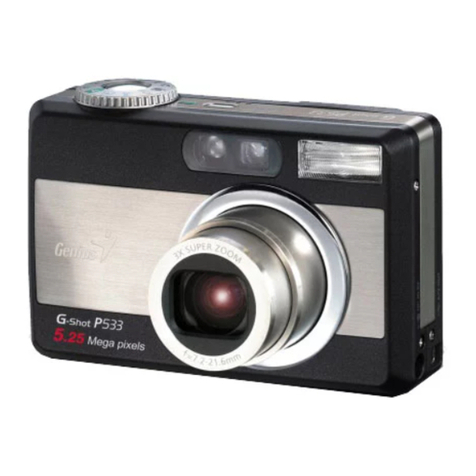
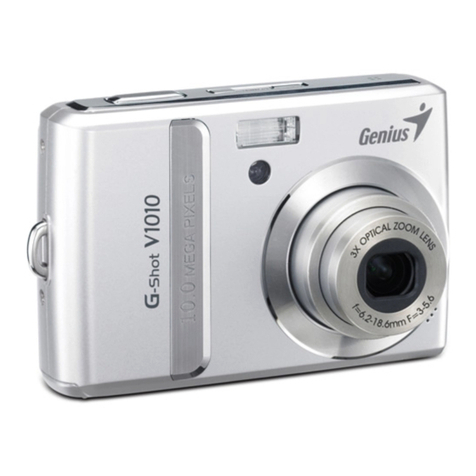
Genius P513 User manual

English
-1-
FCC STATEMENT
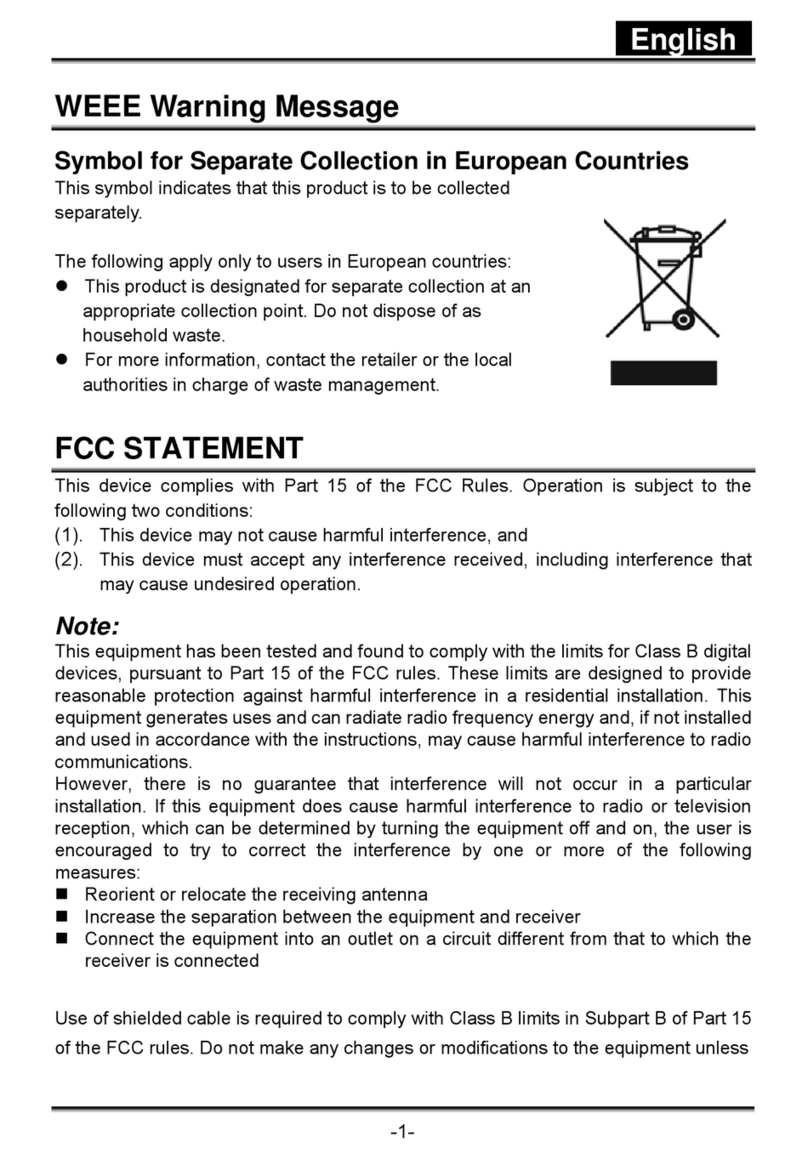
This device complies with Part 15 of the FCC Rules. Operation is subject to
the following two conditions:
(1) This device may not cause harmful interference, and
(2) This device must accept any interference received, including interference
that may cause undesired operation.
Note:
This equipment has been tested and found to comply with the limits for Class
B digital devices, pursuant to Part 15 of the FCC rules. These limits are
designed to provide reasonable protection against harmful interference in a
residential installation. This equipment generates uses and can radiate radio
frequency energy and, if not installed and used in accordance with the
instructions, may cause harmful interference to radio communications.
However, there is no guarantee that interference will not occur in a particular
installation. If this equipment does cause harmful interference to radio or
television reception, which can be determined by turning the equipment off
and on, the user is encouraged to try to correct the interference by one or
more of the following measures:
Reorient or relocate the receiving antenna.
Increase the separation between the equipment and receiver.
Connect the equipment into an outlet on a circuit different from that to
which the receiver is connected.
Use of shielded cable is required to comply with Class B limits in Subpart B of
Part 15 of the FCC rules.
Do not make any changes or modifications to the equipment unless otherwise
specified in the manual. If such changes or modifications should be made, you
could be required to stop operation of the equipment.

English
-2-
READ THIS FIRST
Notice:
1. Product design and specifications are subject to change without notice.
This includes primary product specifications, software, software drivers,
and user's manual. This User Manual is a general reference guide for the
product.
2. The product and accessories that come with your camera may be different from
those described in this manual. This is due to the fact that different retailers often
specify slightly different product inclusions and accessories to suit their market
requirements, customer demographics, and geographical preferences. Products
very often vary between retailers especially with accessories such as batteries,
memory cards, cables, pouches, and language support. Occasionally a retailer
will specify a unique product color, appearance, and internal memory capacity.
Contact your dealer for precise product definition and included accessories.
3. The illustrations in this manual are for the purpose of explanation and may
differ from the actual design of your camera.
4. The manufacturer assumes no liability for any errors or discrepancies in this
user's manual.
5. For driver updates and revisions to this manual, please refer to our website
www.geniusnet.com
SAFETY INSTRUCTIONS
Read and understand all Warnings and Cautions before using this product.
WARNING
If foreign objects or water have entered the camera, turn
the power OFF and remove the batteries.
Continued use in this state might cause fire or electric shock.
Consult the store of purchase.

English
-3-
If the camera has fallen or its case has been damaged,
turn the power OFF and remove the battery.
Continued use in this state might cause fire or electric shock.
Consult the store of purchase.
Do not disassemble, change or repair the camera.
This might cause fire or electric shock. For repair or internal
inspection, ask retailer where you purchased it.
Use the specified batteries.
Use with any other type of batteries might cause explosion or
influence the camera’s performance.
Do not use the camera in areas near water.
This might cause fire or electric shock. Take special care
during rain, snow, on the beach, or near the shore.
Do not place the camera on inclined or unstable surfaces.
This might cause the camera to fall or tilt over, causing injury.
Keep the batteries out of the reach of children.
Swallowing batteries might cause poisoning. If the battery is
accidentally swallowed, immediately consult a physician.
Do not use the camera while you are walking, driving or
riding a motorcycle.
This might cause you to fall over or result in a traffic accident.
CAUTION
If foreign objects or water have entered the camera, turn
the power OFF and remove the batteries.
Continued use in this state might cause fire or electric shock.
Consult the store of purchase.
Do not fire the flash close to anyone’s eyes.
This might cause damage to the person’s eyesight.
Do not subject the LCD monitor to impact.
This might damage the glass on the screen or cause the
internal fluid to leak. If the internal fluid enters your eyes or

English
-4-
comes into contact with your body or clothes, rinse with fresh
water.
If the internal fluid has entered your eyes, consult a physician
to receive treatment.
A camera is a precision instrument. Do not drop it, strike
it or use excessive force when handling the camera.
This might cause damage to the camera.
Do not use the camera in humid, steamy, smoky, or dusty
places.
This might cause fire or electric shock.
Do not remove the battery immediately after long period
of continuous use.
The battery becomes hot during use. Touching a hot battery
might cause burns.
Do not wrap the camera or place it in cloth or blankets.
This might cause heat to build up and deform the case,
resulting in fire. Use the camera in a well-ventilated place.
Do not leave the camera in places where the temperature
may rise significantly, such as inside a car.
This might adversely affect the case or the parts inside,
resulting in fire.
Before you move the camera, disconnect cords and
cables.
Failure to do this might damage cords and cables, resulting in
fire and electric shock.
Notes on Battery Usage
When you use the battery, carefully read and strictly observe the Safety
Instructions and the notes described below:
Use only the specified battery.
Avoid using the battery in extremely cold environments as low
temperatures can shorten the battery life and reduce camera performance.
Avoid using the batteries in extremely cold environments as low

English
-5-
temperatures can shorten the batteries life and reduce camera
performance. This low temperature will also influence alkaline batteries
performance, therefore Ni- MH rechargeable batteries are highly
recommended.
When you are using the new rechargeable batteries or a rechargeable
battery that has not been used for an extended period of time (the batteries
that passed the expiry date are exception) might affect the number of
images that can be captured. Therefore, to maximize their performance
and lifetime, we recommend that you fully charge the batteries and
discharge them for at least one complete cycle before use.
The battery may feel warm after long period of continuous use of the
camera or the flash. This is normal and not a malfunction.
The camera may feel warm after long period of continuous use. This is
normal and not a malfunction.
If the battery is not to be used for a long period of time, remove it from the
camera to prevent leakage or corrosion.
If the batteries are not to be used for a long period of time, store it after no
battery power left. If the battery is stored for a long time in a fully charged
state, its performance may be impaired.
Risk of explosion if battery is replaced by an incorrect type.
Dispose of used batteries according to the instructions.
Never use batteries of different types (together) or mix old and new
batteries.
Never use manganese batteries.

English
-6-
CONTENTS
INTRODUCTION 8-9
Overview
Package contents
GETTING TO KNOW YOUR
CAMERA 10-15
Front View
Rear View
LED Indicator & Beep
LCD Monitor Icons
GETTING STARTED 16-22
Attaching the Camera Strap
Loading the Batteries
Inserting and Removing the
SD Memory Card (optional
accessory)
Turning the Power On/Off
Choosing the Language
Formatting the SD Memory
Card or Internal Memory
Setting Image Resolution
and Quality
CAPTURE MODE 22-27
Normal Mode
Macro Mode
Digital Zoom
Flash
Shooting Mode
VIDEO MODE 27-28
Recording video clips
PLAYBACK MODE 28-32
Playing Back Still Images
Playing Back Video Clips
Slideshow Display
Protecting Images
Thumbnail Display
Rotating the Image
DELETING IMAGES 32-33
Deleting single image / deleting all
images
MENU OPTIONS 33-38
Capture Menu
Video Menu
Playback Menu
Setup Menu
TRANSFERRING RECORDED
IMAGES AND VIDEOS TO YOUR
COMPUTER 38-41
Step 1: Installing the USB
driver
Step 2: Connecting the
camera to your computer
Step 3: Downloading
images and video files

English
-7-
USING THE DIGITAL STILL
CAMERA AS
A PC CAMERA 41-43
Step 1: Installing the PC Camera
Driver
Step 2: Connecting the digital still
camera to your computer
Step 3: Running your application
software (i.e. Windows NetMeeting)
EDITING SOFTWARE
INSTALLATION 43-45
Installing Photo Explorer
Installing Photo Express
CAMERA
SPECIFICATIONS 46-47
CAMERA
TROUBLESHOOTING 47-51

English
-8-
INTRODUCTION
Overview
Congratulations on your purchase of the new digital camera.
The main features provided by the camera include the following:
LCD monitor – 1.5" color TFT LCD (228 x 220 pixels) monitor
makes it easy to frame your subject when
capturing images. It also displays the images you
have captured.
Recording media – 16 MB internal memory available for image
storage. External memory supports SD memory
card up to 1 GB capacity.
Digital zoom – 4X digital zoom permits zoom photography.
Flexible flash
settings – Change the flash setting according to your lighting
environment and photography mode setting.
Focus mode – Images can be captured with the distance to the
subject set by normal and macro.
Shooting mode – Capture different still images including single, self
timer, continuous 1.3MP and continuous VGA.
Video mode – Record video clips without voice.
Thumbnail display – Displays a set of 6 images on the LCD monitor for
easier and quicker selection of images.

English
-9-
Package contents
Carefully unpack your camera and ensure that you have the following items:
Digital camera Software CD-ROM
USB cable Camera strap
Quick guide Camera pouch
2 x AAA alkaline batteries
NOTE
Accessories and components vary by retailer.

English
-10-
GETTING TO KNOW YOUR CAMERA
Front View
# Name Description
1. Strap eyelet Camera strap attachment.
2. Lens cover Protects the lens
3. Lens Designed to collect and focus rays of light to
form a sharp image on the sensor.
4. Self-timer LED Blinks during Self-timer mode until image is
captured.
5. Flash Provides flash illumination.
6. POWER Power button Turns the camera power on and off.
7. Shutter button Captures an image or records a video clip
when the button is pressed.
Table of contents
Other Genius Digital Camera manuals
Genius
Genius P7545 User manual
Genius
Genius D500 User manual
Genius
Genius P633 User manual
Genius
Genius G-SHOT P713 MP3 User manual
Genius
Genius G-Shot P436 User manual
Genius
Genius G-Shot G511 User manual
Genius
Genius P536 User manual
Genius
Genius DSC 13M User manual

Genius
Genius P510 User manual
Genius
Genius G-Shot G511 User manual
Genius
Genius V1200 User manual
Genius
Genius P6533 User manual

Genius
Genius G-shot P534 User manual
Genius
Genius V1000 User manual
Genius
Genius DSC-1.3M Smart User manual
Genius
Genius P831 User manual
Genius
Genius V3 User manual
Genius
Genius Digital Camera User manual
Genius
Genius G-Shot P210 User manual
Genius
Genius DSC-1.3M Smart User manual