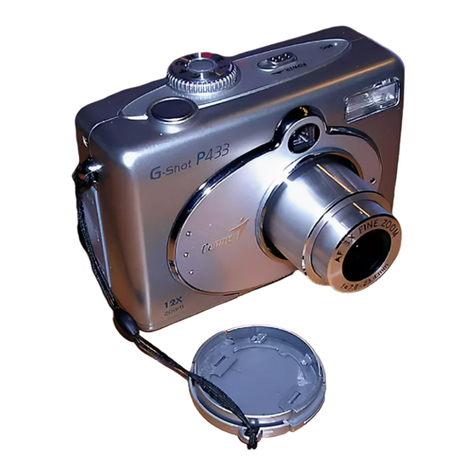
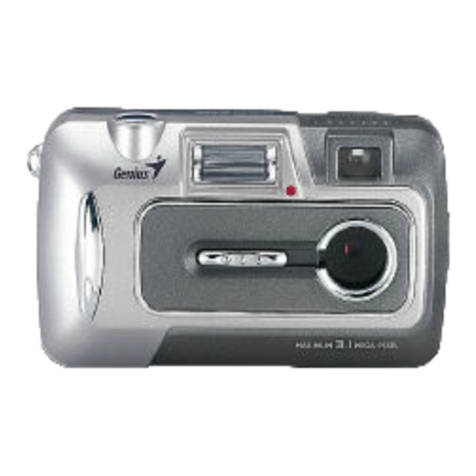
Genius P433 User manual

English
-1-
FCC STATEMENT
This device complies with Part 15 of the FCC Rules. Operation is subject to the following two
conditions:
1. This device may not cause harmful interference, and
2. This device must accept any interference received, including interference that may cause
undesired operation
Note:
This equipment has been tested and found to comply with the limits for Class B digital devices,
pursuant to Part 15 of the FCC rules. These limits are designed to provide reasonable protection
against harmful interference in a residential installation. This equipment generates uses and can
radiate radio frequency energy and, if not installed and used in accordance with the instructions,
may cause harmful interference to radio communications. However, there is no guarantee that
interference will not occur in a particular installation. If this equipment does cause harmful
interference to radio or television reception, which can be determined by turning the equipment
off and on, the user is encouraged to try to correct the interference by one or more of the
following measures:
xReorient or relocate the receiving antenna.
xIncrease the separation between the equipment and receiver.
xConnect the equipment into an outlet on a circuit different from that to which the receiver is
connected.
xConsult the dealer or an experienced radio/TV technician for help.
Use of shielded cable is required to comply with Class B limits in Subpart B of Part 15 of the FCC
rules.

English
-2-
Do not make any changes or modifications to the equipment unless otherwise specified in the
manual. If such changes or modifications should be made, you could be required to stop
operation of the equipment.
READ THIS FIRST
1. The bundled driver, software, design, specifications and user’s manual that were packaged
with the camera are subject to change without notice.
2. The accessories that come with the camera may vary between regions.
3. For driver updates, you can check the “Download” section of our website,
www.geniusnet.com.tw.
4. We are not liable whatsoever for any compensation arising from errors in descriptions in this
user’s manual.
WARNING
Do not use the camera if it is emitting smoke, becomes unusually hot to be touched,
emitting any unusual odor or noise, or if it is in any other abnormal state. Operating the
camera in any of these situations may cause a fire or an electrical shock. Stop using the
camera immediately, turn the camera off, and then disconnect the power source (batteries
or AC power adapter). If you are using the AC power adapter, unplug the adapter from the
AC power outlet after you have disconnected the camera. After checking that smoke is no
longer being emitted, contact your dealer or a local authorized service facility and request
repairs. Never attempt to repair the camera yourself, as this will terminate the warranty.
Do not use the camera if any foreign objects have entered the camera. Turn the camera off,
and disconnect the power source (batteries or AC power adapter). If you are using the AC
power adapter, unplug the adapter from the AC power outlet after you have disconnected
the camera. Then contact your dealer or a local authorized service facility. Do not continue

English
-3-
to use the camera as this may cause a fire or an electrical shock.
If the camera has been dropped or if the camera case has been damaged, turn the camera
off, and then disconnect the power source (batteries or AC power adapter).
If you are using the AC power adapter, unplug the adapter from the AC power outlet after
you have disconnected the camera. Then contact your dealer or a local authorized service
facility. Do not continue to use the camera as this may cause a fire or an electrical shock.
Do not place the camera in any unstable locations such as on a wobbly table or sloping
surface where the camera may fall or tip over and cause injury.
Do not expose the camera to moisture and make sure that there is no water getting into the
camera. Take particular care when using the camera under extreme weather conditions
such as rain or snow, or when operating the camera at the beach on near water. Water in
the camera may cause a fire or an electrical shock.
Do not attempt to modify the camera. This may cause a fire or an electrical shock.
Do not remove the camera casing. This may cause an electrical shock. Your dealer should
only carry out internal inspection, maintenance and repairs or a local authorized service
facility.
Do not touch the power plug during a thunderstorm if you are using the AC power adapter.
This may cause an electrical shock.
CAUTION
Do not place the camera in damp or dusty locations. This may cause a fire or an electrical
shock.
Do not place the camera in a location affected by oil fumes or steam, such as near a
cooking stove or humidifier. This may cause a fire or an electrical shock.
Do not cover or wrap the camera or the AC power adapter with a cloth or quilt. This may
cause heat to build up and distort the case and cause a fire. Always use the camera and its

English
-4-
accessories in well-ventilated locations.
Handle the camera carefully and do not bump the camera into any hard object. Handling
the camera roughly may cause a malfunction.
Do not move the camera while it is switched on. (If you are using the AC power adapter,
unplug the adapter from the AC power outlet after you have switched off the camera.)
Ensure that any connector cords or cables to other devices are disconnected before moving
the camera. Failure to do so may damage the cords or cables and cause a fire or an
electrical shock.
When leaving the camera unused for long periods, such as during a vacation, always
remove the batteries from the camera or unplug it from the power source (AC power
adapter) for safety. If you are using the AC power adapter, unplug the adapter from the AC
power outlet after you have disconnected the camera. Failure to do so could result in a fire.
Do not use batteries other than those specified for use with the camera. The use of
unsuitable batteries may result in the batteries splitting or leaking and causing a fire, injury,
or soiling of the battery compartment.
When placing the batteries into the camera, check the polarity markings on the battery (-
and +) to ensure that you insert the battery correctly. Incorrect battery polarity may result in
the batteries splitting or leaking and causing a fire, injury, or soiling of the battery
compartment.
Remove the batteries if the camera will not be used for an extended period of time. The
batteries may leak and cause a fire, injury or soiling of the battery compartment. If the
batteries leak, clean and wipe the battery compartment carefully and install new batteries.
Wash your hands carefully if you touch the battery fluid.

English
-5-
CONTENTS
INTRODUCTION 7-8
Overview
Package contents
GETTING TO KNOW YOUR
CAMERA 9-18
Front view
Rear view
Mode dial
LED indicators
LCD monitor information
GETTING STARTED 18-24
Installing the batteries
Using the AC power adapter
(optional accessory)
Loading an SD memory card
(optional accessory)
Attaching the strap
Choosing the language
Setting the date and time
Setting the image resolution and
quality
TAKING
PHOTOGRAPHS 24-37
Basic Setting
Using the Viewfinder
Using the LCD Monitor
Using the Zoom Functions
Using the Self-Timer
Using the Flash
Photography in a Variety of Modes
Selecting the Manual Mode
Selecting the Auto Mode
Selecting the Macro Mode
Selecting the Portrait Mode
Selecting the Landscape Mode
Selecting the Night Scene Mode
Selecting the Sports Mode
PLAYBACK MODE 38-46
Viewing Images
Zoom Playback
Displaying Thumbnail Images
Slide Show Display
Setting DPOF
Deleting Images/Video Clips
To Delete One Image/Video Clip
To Delete All Images/Video Clips

English
-6-
Formatting an SD card or Internal
Memory
MOVIE MODE 46-48
Recording video clips
Viewing video clips
TRANSFERRING RECORDED
IMAGES/VIDEO CLIPS TO YOUR
COMPUTER 48-51
Step 1: Installing the USB
driver on Windows computers
Installing the USB driver on
Macintosh computers
Step 2: Connecting the camera
to your computer
Step 3: Downloading images /
video clips
For computers running
Windows
For computers running Mac OS
INSTALLING
PHOTOSUITE 52
INSTALLING
PHOTOVISTA 53
MENU OPTIONS 54-63
The Capture Menu
The Playback Menu
The Setup Menu
CONNECTING THE
CAMERA TO OTHER
DEVICES 64
CAMERA
SPECIFICATIONS 65-66

English
-7-
INTRODUCTION
Overview
Your new digital camera delivers high quality, 2304 x 1728 resolution images using a 4.0 Mega
pixel CCD sensor. Using either the optical viewfinder or the 1.6" TFT color image LCD monitor,
you can compose images and then examine them in detail. An auto-flash sensor automatically
detects the shooting (lighting) conditions and determines whether the flash should be used. This
feature helps ensure that your images turn out right.
The SD Memory Card is storage medium for saving images that you have photographed. Even if
the camera's power is turned OFF, the images saved on the SD Memory Card are not erased.
The SD Memory Card can be repeatedly read and written.
In addition to still images, you can record short videos using the movie function. Images you
have taken can be downloaded to your computer using the USB cable (USB driver required for
Win 98 and Mac OS 8.6) You can enhance and retouch your images on your computer by using
the provided editing software, or image editing software you may already own. You may share
your images with your friends via e-mail, in a report, or on a website.
DPOF functionality allows you to print your images on a DPOF compatible printer by simply

English
-8-
inserting the memory card.
Package contents
Carefully unpack your package and make sure that you have the following items. In the event
that any item is missing or if you find any mismatch or damage, promptly contact your dealer.
Digital camera USB cable
Video cable Software CD-ROM
User’s manual Camera strap
Quick guide Camera pouch
2 x AA alkaline batteries
Common (Optional) Accessories:
SD memory card (up to 256MB capacity)
AC power adapter

English
GETTING TO KNOW YOUR CAMERA
Front view
1. Mode dial
2. Shutter button
3. Camera strap
4. A/V OUT (Audio/Video Out)
terminal
5. Digital terminal
6. DC-in connector
7. Power switch
8. Flash
9. Viewfinder window
10. Lens
11. Self-timer LED
-9-

English
-10-
Rear view
1. Arrow button (up)
Flash button
2. Arrow button (right)
3. Arrow button (down)
Self-timer button
4. Arrow button (left)
5. OK button
Other manuals for P433
1
Table of contents
Other Genius Digital Camera manuals
Genius
Genius G-Shot P210 User manual
Genius
Genius G-Shot G511 User manual
Genius
Genius P831 User manual
Genius
Genius G-Shot G512 User manual
Genius
Genius G-Shot P533 User manual
Genius
Genius D1212 User manual
Genius
Genius D610 User manual
Genius
Genius G-Shot G511 User manual
Genius
Genius G-shot P534 User manual
Genius
Genius P433 User manual
Genius
Genius G-Shot P436 User manual

Genius
Genius DSC13M SMART User manual
Genius
Genius P635 User manual
Genius
Genius P850 User manual
Genius
Genius D612 User manual
Genius
Genius P633 User manual
Genius
Genius P5143 User manual

Genius
Genius P732 User manual
Genius
Genius G-Shot P436 User manual
Genius
Genius G312 User manual