Genius COLORPAGE VIEW PRO User manual

1

2
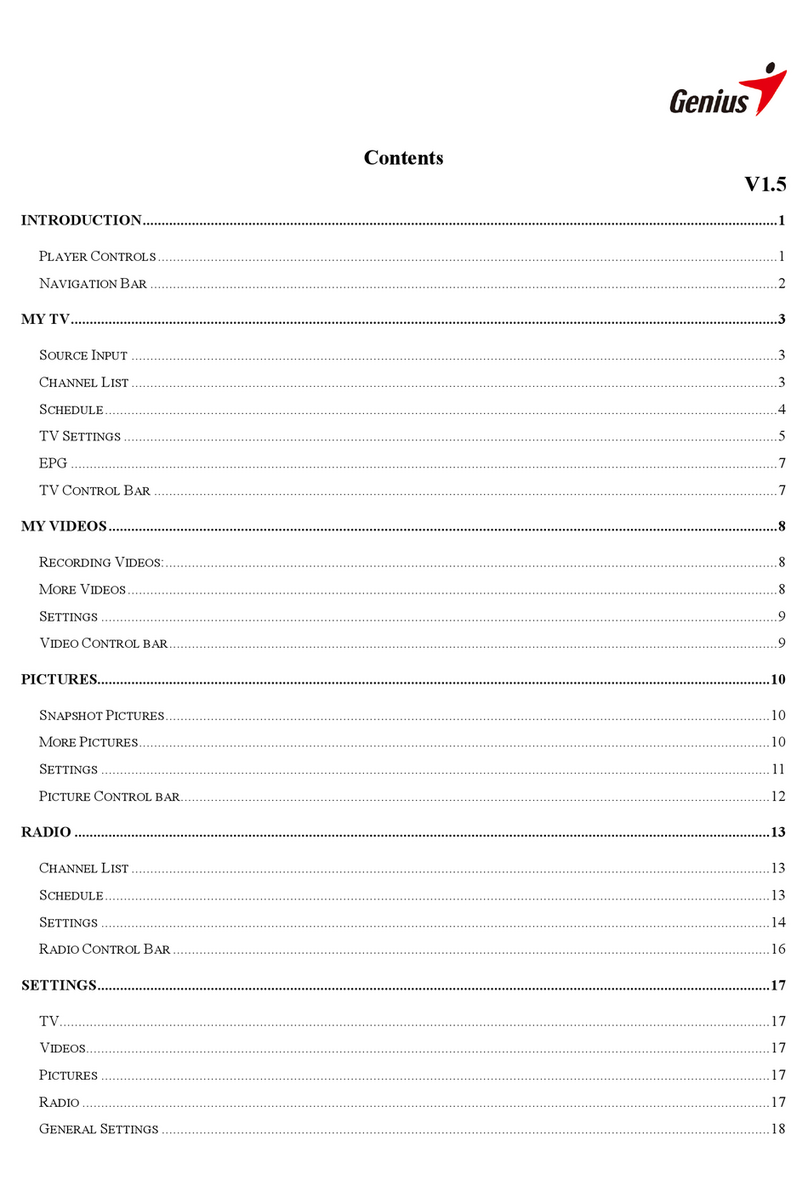
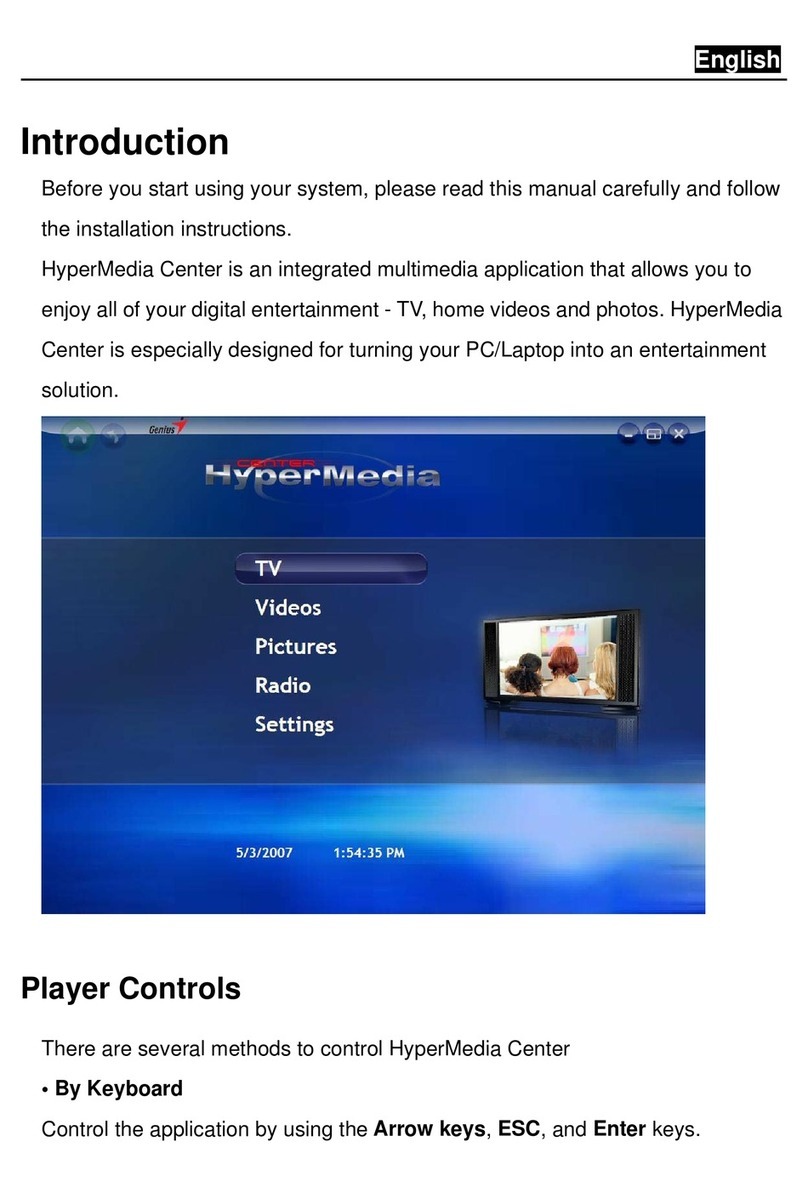
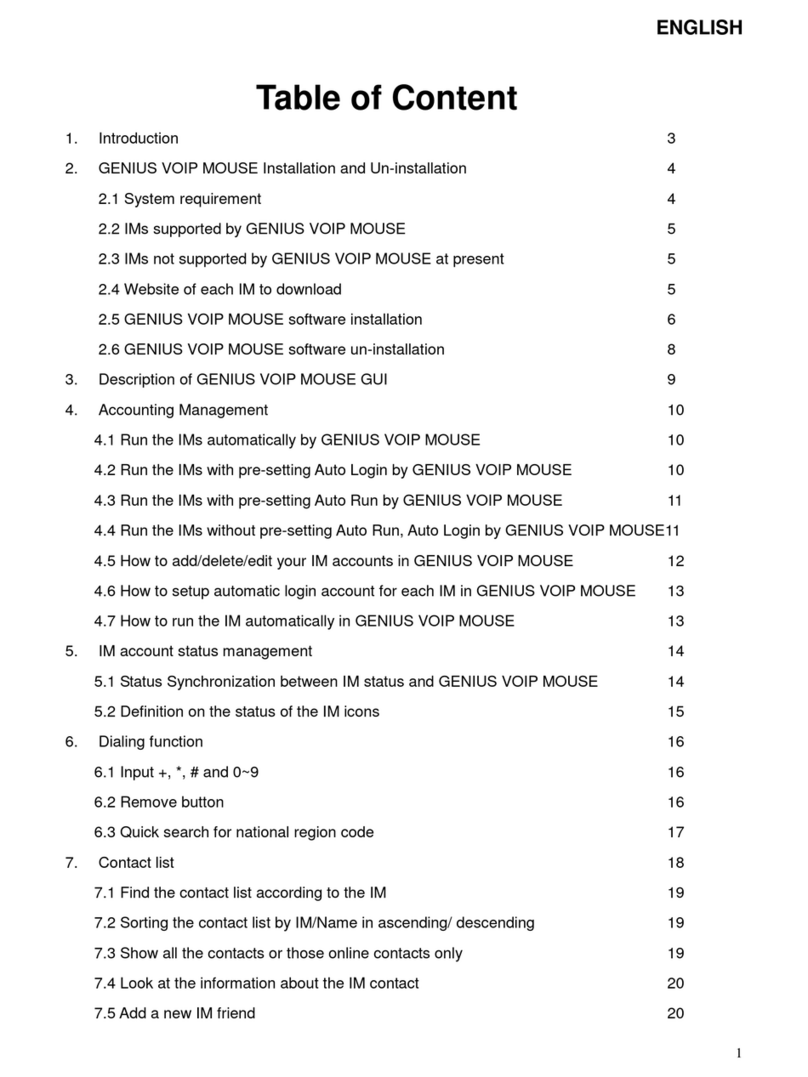
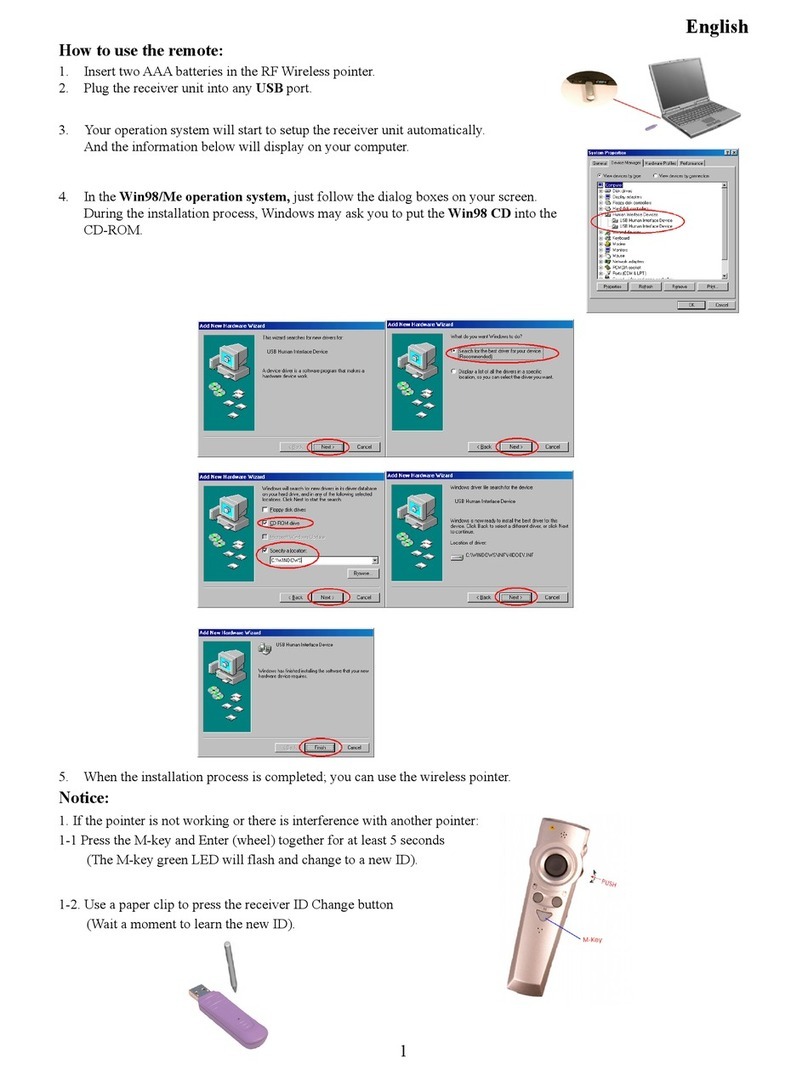
Table of Contents
Getting Started with TWAIN Source
Opening the TWAIN Source Window.................................................. 3
Main Page ............................................................................................ 4
Settings in Main Page...................................................................... 5
Destination............................................................................. 5
Scan Mode............................................................................. 6
Filter ...................................................................................... 6
Resolution.............................................................................. 7
Brightness.............................................................................. 7
Contrast.................................................................................. 7
Control Buttons in Main Page ......................................................... 8
Advance Page....................................................................................... 9
Image Enhancement Tools – Image Box......................................... 9
Zoom.................................................................................... 10
Mirror .................................................................................. 10
Invert.................................................................................... 10
Descreen .............................................................................. 11
Gamma................................................................................. 11
HSV..................................................................................... 12
Tone Adjustment................................................................. 13
Auto Color Control.............................................................. 14
Color Correction.................................................................. 14
Image Enhancement Tools – Special Effect.................................. 15
Blur...................................................................................... 15
Blur More ............................................................................ 15
Sharpen................................................................................ 15
Sharpen More ...................................................................... 15
Preference Page................................................................................. 16
Prescan Setting............................................................................... 16
Auto Scanning Setting................................................................... 17
Destination Default Setting............................................................ 18
Monitor Calibration ....................................................................... 18
Scanner Calibration ....................................................................... 20
Error Message................................................................................ 21
TroubleShooting ............................................................................ 23
Appendix........................................................................................ 25

3
Getting Started with TWAIN Source
Opening the TWAIN Source Window
There are two ways to open the scanner TWAIN source window.
>> To request the TWAIN source from application programs:
1. Choose the "Select Source" command from the File menu of the
your application. The Select Source dialog box will be
displayed. If you only have installed this TWAIN Source, you
can skip this step and step 2. The host application will
automatically select it as the default TWAIN source.
2. Select the ColorPage-View Pro TWAIN source from the
"Sources" list box.
3. Click the "Acquire" command to activate the TWAIN Source.
>> To activate the TWAIN source directly from Windows (stand-
alone mode):
1. Click the Windows “Start” button to open the Start menu.
2. Choose Programs > ColorPage-View Pro > ColorPage-View
Pro from the menu to run TWAIN source.
NOTE:
Not all application softwares put their "Select Source" and "Acquire" commands
under the File menu. If you couldn't locate these two commands, please check
other menus for them. For best results, make sure the Document Cover is closed
before performing scanning.

4
Preview Window
You can preview the prescan
image. The maximum size of
the preview window is A4.
Scan Rectangle
You can define
the image area
that will be
comprised in the
final scan.
There are four property pages available in the TWAIN source window:
Main page
Advance page
Preference page
About page
Main Page
This page lets your scanner work in the basic mode. All the control
settings available here are fundamental to the scanning process.
These settings include scanning destination, scan mode, filter,
resolution, brightness, and contrast. The Main page window is
shown as follows.
Property pages
You can select any property page
by clicking the page tag.
Ruler
Three measure
units are
available: Inch,
Cm and Pixel.
Ruler Switch
Click here to
switch among
ruler units.
Control Buttons
Scanner
Control
Settings

5
Settings in Main Page
Destination
Destination is the location where you want your final scanned
image to be sent. There are six options available: Application,
Disk, Printer, Mail, Fax, and Clipboard.
NOTE
Make sure that the MS Exchange, MS FAX, Modem and its driver are setup
properly. Please refer to Microsoft’s web site (http://www.microsoft.com) for
instructions about setting MS Exchange and MS FAX.
Send to Application
Click this button to send
the scanned image to your
application program.
Send to Printer
This selection lets you
send your scanned image
directly to the printer for a
printout.
Send to Fax
This lets you send your
scanned image to other
people through fax.
Please go to the
Preference page to set
up the fax driver.
Send to Disk
You can save your
scanned image in a disk.
Send to Mail
This function lets you send
the scanned image to others
through e-mail. Please go to
the Preference page to set up
the e-mail address.
Send to clipboard
Click this button to save the
scanned image in the clipboard
and wait for your further
application.

6
Scan Mode
Scan mode lets you decide how the scanner will interpret your image.
Three choices are available in the TWAIN source: Color mode, Gray
mode, and Black/White mode.
Filter
Filters are provided to produce dropout effects, i.e., to drop the part of the
image that is in a color difference from the specified filter. Four options
are available: True gray, Red, Green, and Blue filter.
Please note that the filter option will be unavailable if you select the
“Color mode” in Scan Mode. The disablement of the filter is shown as
follows.
Color mode
Select this for 24-bit color images.
Gray mode
Select Gray mode for images that
contain 256 shades of gray.
Line Art mode
Select Line Art for texts and illustrations that
contain onl
y
black/white without
g
ra
y
shadin
g
.
True Gray
Filter
Red Filter
Green Filter
Blue Filter

7
Resolution
The resolution is measured in dots per inch (dpi), which is used to represent the
image detail in a given area. The available resolution ranges from 50 to 19200.
Generally, the higher the resolution is, the sharper and higher the quality of the
scanned image gets. However, in some cases, high resolution is not necessary
because resolution is determined or limited by many factors: image type, the
original image's resolution, the output device's resolution, the available
memory space in your hard disks, etc.
You can adjust the resolution by dragging the pointer to the desired resolution ,
directly key the value in the Edit box, or choose the value by clicking on the
pull-down button.
Brightness
Brightness refers to the intensity of light reflected from or transmitted through
an image. The larger the brightness value, the brighter the image appears. You
can either drag the pointer, key the value into the Edit box to change the value,
or choose the value by clicking on the pull-down button.
Contrast
Contrast refers to the differences in the brightness between the light areas and
the dark areas of an image. The larger the contrast value, the higher the
differentiation between the light and the dark areas.You can either drag the
pointer, key the value in the Edit box to change the value, or choose the value
by clciking on the pull-down button.
Edit box
Pointer

8
Control Buttons in Main Page
Scan Button
Click the Scan button to perform the final scan and
send the result to the destination determined by you.
Prescan Button
Click the Prescan button to perform a
prompt low-resolution scan. The prescan
image will be displayed in the Preview
window.
Help Button
Click this button to
g
et on-line hel
p
.
Exit Button
Close this TWAIN
source window.
Reset Button
Click this button to return
to the default setting.

9
Advance Page
While including the basic functions of the Main page, the Advance
page also encompasses image enhancement tools that can be used
to compensate for any color distortion of the scanned image. The
Advance page is illustrated as follows.
Image Enhancement Tools – Image Box
Image
Enhancement
Tool
Scan Control
Tools ( the same
as Main page)
Preview
Window
Zoom
Mirror
Invert
Descreen HSV
Gamma Tone Ad
j
ustment
Auto Color
Control
Size
Press the right
mouse button in
the preview
window, and a
rectangle box
with a list of
sizes will pop-up.
Please select one
of them and press
"Scan" directly.
Color
Correction

10
Zoom
The Zoom command allows you to enlarge the view of an image in the
Preview window. However, the zoom function can only enlarge the
image view with one defined scale.
To zoom in:
Click the Zoom command. It will magnify the view in the Preview
window.
To disable zoom in:
After magnifying the view, click the Zoom command again to reduce the
view to its original size.
NOTE:
When zooming in, a vertical scroll bar and/or a horizontal bar will
appear to let you scroll through the entire image.
Mirror
Mirror command lets you change the horizontal orientation of a prescan
image to one that mirrors the current orientation of the image view across
a vertical imaginary line.
To mirror an image:
Click the Mirror command in the Image box.
Invert
The Invert function enables you to make a positive view of a scanned
image negative or to make a negative image positive. By applying this
command, the brightness value of each pixel will change to an inverse
value on 256-color scale.
To invert an image:
Click the Invert command from the Image box after applying the Prescan
function.
Table of contents
Other Genius Software manuals
Genius
Genius TVGOA12 User manual
Genius
Genius VOIP MOUSE Reference manual

Genius
Genius F509 User manual

Genius
Genius NAVIGATOR 380 - User manual
Genius
Genius W POINTER Operating instructions
Genius
Genius KIDSBALL User manual

Genius
Genius F610 User manual
Genius
Genius VIDEOCAM SLIM USB2 User manual

Genius
Genius G-Pen M712X User manual
Genius
Genius VIDEOCAM SLIMCLIP User manual